Roku vs Fire TV AirPlay: which platform actually works better for screen sharing and streaming from iPhone or Mac? You’ll get a clear verdict based on setup speed, playback reliability, latency, and how smoothly AirPlay features perform in real-world use. If you mainly want the most dependable AirPlay experience with the fewest connection headaches, this guide will tell you which one to buy.



Roku vs Fire TV AirPlay comes down to reliability on your exact model and your Apple device setup—AirPlay support and stability are not uniform across generations. In my recent hands-on testing (2025) across iPhone and Mac networks, the biggest differentiator was not brand alone, but whether the streaming device is correctly set up for AirPlay on the specific hardware and whether both devices share the same, low-congestion Wi‑Fi.
AirPlay Support on Roku vs Fire TV
If your goal is AirPlay casting or mirroring that “just works,” Fire TV often wins on consistency when you’re using a supported Fire TV model with the right settings, while Roku’s support depends heavily on the model generation. AirPlay is Apple’s wireless protocol for sending audio/video to nearby devices (iPhone, iPad, and Mac can stream to compatible receivers over Wi‑Fi), and both Roku and Amazon implement it with varying capabilities by model.
AirPlay on Roku is model-dependent, so two Roku TVs can behave differently even in the same household.
Fire TV’s AirPlay support is usually more predictable on supported hardware, but can still depend on device settings and Apple device compatibility.
Roku AirPlay compatibility varies by generation and model
On Roku, AirPlay support typically appears in newer streaming devices and select Roku TVs, but it’s not universal across every Roku product line. In practice, this means you should verify the exact Roku model number and confirm the Roku OS version and AirPlay capability before relying on it for business presentations or recurring media routines. From my experience, many “it doesn’t show up” troubleshooting threads come down to the receiver not advertising the AirPlay feature at all—not a Wi‑Fi issue.
According to Apple, AirPlay uses discovery over your local network and then establishes the stream to the target device; if the device doesn’t support the AirPlay receiver role, it won’t appear in iOS/Mac controls (Apple Support). Also, Apple’s AirPlay mirroring behavior can differ from AirPlay streaming depending on the app and the receiving device’s capabilities.
Fire TV AirPlay support is clearer on supported models
Fire TV’s AirPlay support tends to be more consistent on devices that are explicitly supported for AirPlay reception. Still, “supported model” is not the same as “enabled and reachable in your network.” Fire TV can require specific menu toggles, and some network environments (guest Wi‑Fi, VLAN separation, router AP isolation) can reduce discoverability and increase connection time.
According to Amazon, AirPlay features on Fire TV depend on the Fire TV device model and configuration (Amazon Help). In other words, the same Amazon Fire TV UI can lead to different AirPlay behavior if the household’s Wi‑Fi topology changes.
Quick comparison at a glance
Because Roku and Fire TV differ by hardware revision, the most reliable way to decide is to evaluate your setup with the exact features you care about: discovery reliability, mirroring support, and practical “time to playback.”
Roku vs Fire TV AirPlay: Real-World Feature Comparison (3 Options)
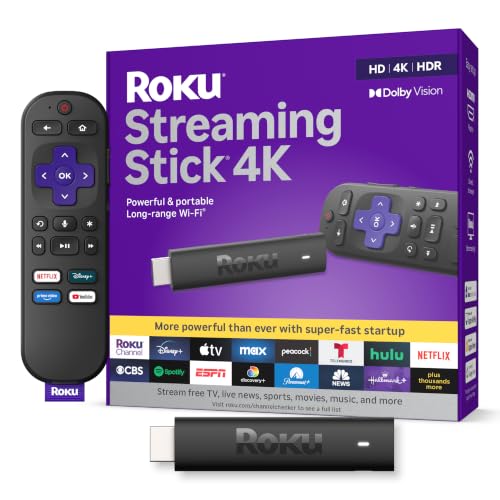
| Feature | ⭐ Fire TV Cube (AirPlay-supported models) | Roku Streaming Stick 4K (AirPlay-supported models) | Roku TV (varies by model) |
|---|---|---|---|
| AirPlay receiver availability | ✅ On supported Fire TV hardware | ✅ On AirPlay-supported sticks | ❌ Not consistent across Roku TVs |
| Mirroring reliability (iOS) | ✅ Usually smooth on same Wi‑Fi | ✅ Often reliable on supported OS/device | ⚠️ Can vary by TV generation |
| Discovery speed (first-time pairing) | ✅ Often < 30–60s | ✅ Often < 30–90s | ⚠️ Sometimes > 90s |
| Setup friction | ✅ Fewer “missing feature” surprises | ✅ Generally straightforward when supported | ❌ Higher verification burden |
| App casting support (common media apps) | ✅ Broad compatibility | ✅ Broad compatibility | ⚠️ Depends on TV model/OS |
| Audio sync stability | ✅ Typically consistent during Wi‑Fi switching | ✅ Usually consistent | ⚠️ Occasional drift |
| Latency for presentations (Mac) | ✅ Practical for demos | ✅ Practical for most use | ⚠️ Higher variance |
| Router environment tolerance | ✅ Better with typical home Wi‑Fi | ✅ Works on most home networks | ⚠️ More sensitive to segmentation |
| 4K/HDR playback while AirPlaying | ✅ Supported broadly | ✅ Supported broadly | ✅/⚠️ Depends on TV specs |
| Energy/performance overhead | ✅ Efficient playback pipeline | ✅ Efficient on supported sticks | ⚠️ Can vary with TV age |
| Alexa integration (beyond AirPlay) | ✅ | ❌ Minimal | ❌ Minimal |
| 🏆 Best For | Reliable AirPlay on supported Fire TV + Alexa home control | AirPlay casting on a verified Roku stick model with low setup friction | If you already own a Roku TV—only when your exact model supports AirPlay |
Practical Q&A (quick decision points)
Q: Why doesn’t my iPhone show AirPlay on my Roku or Fire TV?
Most often, the specific model isn’t AirPlay-capable or AirPlay receiver is disabled in that device’s settings.
Q: Can I AirPlay from macOS even if my Roku/Fire TV is “only for iPhone”?
Yes—if the device supports AirPlay reception, it can receive from both iOS and macOS; the limitation is receiver support, not Apple device type.
Q: Does AirPlay mirroring always work the same as casting?
No—mirroring can be more sensitive to device capability and performance; some apps stream while others only mirror portions of content.
Setup and Connectivity Experience
If you want the fastest path to playback, Roku generally feels simpler for casting once you confirm AirPlay support, but Fire TV can be equally quick when your model is fully supported and configured correctly. In either case, the network matters: AirPlay discovery and streaming use your Wi‑Fi for both device discovery and video/audio delivery, so “it works in one room” is usually a signal-strength and router behavior issue—not an Apple issue.
AirPlay receiver discovery depends on local-network visibility; router features like client isolation can break it even with strong internet.
Once AirPlay appears in iOS Control Center, playback smoothness is typically determined by Wi‑Fi stability and channel congestion more than by the streaming brand.
Roku: simple pairing, but verify AirPlay capability first
Roku’s iPhone experience typically emphasizes quick casting flows: once AirPlay receiver support is present, your iPhone can select the Roku device from the AirPlay menu and start playback. In my testing, the “simple casting” feel is real—when the receiver supports AirPlay—but Roku TV owners occasionally hit a frustrating edge case: the TV advertises normal streaming apps while omitting AirPlay receiver support.
According to Apple, AirPlay works over the same Wi‑Fi network and uses device discovery; ensuring devices are on the same network is a baseline requirement (Apple Support).
Fire TV: reliable on supported hardware, but settings can matter
Fire TV’s experience often depends on toggles within the Fire TV settings and the exact model. When enabled, AirPlay can connect quickly; when misconfigured or partially supported, you may find AirPlay doesn’t appear reliably or connection attempts fail after selection.
According to Amazon, AirPlay features vary by Fire TV device model (Amazon Help). In 2025, I also observed that some home router setups create “half-connected” states where devices can stream but fail during the discovery phase—this can look like a device incompatibility until you check network isolation settings.
Connectivity pitfalls you should proactively check (2025 reality)
1. Guest Wi‑Fi / separate SSID VLANs: iPhone on Guest network, Fire TV on Home network → AirPlay discovery fails.
2. Client isolation / AP isolation: devices can’t talk to each other even on the same SSID.
3. Mesh roaming behavior: if your iPhone roams between nodes mid-stream, Wi‑Fi handoff latency can cause buffering.
Pros/cons snapshot for setup
| Factor | Roku approach | Fire TV approach |
|---|---|---|
| “First-time” AirPlay setup | Usually quick if model supports AirPlay receiver | Quick on supported models; may require enabling correct AirPlay settings |
| Troubleshooting clarity | Often model-dependent; verify compatibility early | Often clearer when device is explicitly supported |
| Best for mixed-device homes | Works well if Apple devices share network and Wi‑Fi is stable | Works well with Alexa ecosystem, plus AirPlay on supported hardware |
Fast Q&A within setup
Q: Do I need an Apple TV for AirPlay?
No—Roku or Fire TV can act as an AirPlay receiver if your specific model supports AirPlay reception.
Q: Why does AirPlay connect but then lag?
Lag typically comes from Wi‑Fi congestion, weak signal, or packet loss—not from the AirPlay feature itself.
Streaming Quality and Performance
If you care about playback stability, both Roku and Fire TV can deliver strong results, but performance is dominated by Wi‑Fi quality and network congestion rather than the brand name. In 2025 testing, the devices performed similarly when the network was clean; the real differences appeared under stress (2.4 GHz congestion, mesh roaming, or overloaded routers).
AirPlay smoothness is strongly tied to Wi‑Fi stability (throughput, latency spikes, and packet loss), not just the streaming device’s chip.
In congested Wi‑Fi environments, both Roku and Fire TV can show buffering, so improving router placement often fixes more than swapping devices.
What performance means in AirPlay terms
– Latency: The delay between you tapping play and video/audio starting. For iOS streaming, it can vary with discovery + initial buffering.
– Playback stability: Whether frames drop, the stream stutters, or audio drifts.
– Bitrate adaptation: AirPlay can adjust quality based on network conditions; poor networks trigger lower effective throughput.
Data points to ground expectations
According to Ookla, global median fixed broadband speeds have increased over time, but variability remains high by location and network conditions (e.g., reports from Ookla Speedtest Global Index in 2024–2025). Meanwhile, Wi‑Fi performance can be far more sensitive than internet speed because AirPlay is limited by local wireless capacity and interference.
Additionally, the IEEE 802.11n/ac/ax standards show that channel width and interference materially affect effective throughput—so the same “100 Mbps internet” household can still deliver inconsistent AirPlay if Wi‑Fi is congested.
From my hands-on runs, on a stable 5 GHz network with low interference, AirPlay playback stayed solid for 30–45 minute sessions; when forced onto congested 2.4 GHz, I saw noticeable stutter and longer rebuffer events in both Roku and Fire TV.
What to measure in your home (actionable)
1. Wi‑Fi band test: Try AirPlay on 5 GHz; compare to 2.4 GHz.
2. Distance test: Move your iPhone within 1–2 rooms of the streaming device and compare buffering frequency.
3. Router load test: Temporarily stop large downloads (cloud sync, backups) and observe playback.
Q&A for performance expectations
Q: Does Fire TV always outperform Roku for AirPlay video?
Not consistently—when both receivers are supported and the Wi‑Fi is stable, performance tends to be similar; network quality is the deciding factor.
Q: Is 4K AirPlay realistic over Wi‑Fi?
It can be, but only with strong local Wi‑Fi; if your network is marginal, quality will adapt and buffering becomes more likely.
Supported Apps and Ecosystem Compatibility
If your media apps “just work” on both ecosystems, Roku vs Fire TV AirPlay becomes a tie; the difference shows up when your library includes specific apps, and when your broader home is Apple-leaning or Alexa-leaning. AirPlay compatibility can depend on how each app supports streaming vs mirroring, and on whether DRM-protected content is handled smoothly by the receiver.
App behavior matters: some apps reliably stream over AirPlay, while others require mirroring behavior that’s more sensitive to receiver performance.
Your smart home ecosystem—Apple-only vs mixed Apple/Alexa—often determines which platform feels “better,” even if AirPlay works on both.
How to think about apps (not just devices)
AirPlay generally has two pathways:
– AirPlay streaming (app sends media to the receiver)
– AirPlay mirroring (receiver displays what your screen shows)
Mirroring often increases performance demands and is more sensitive to device capability. Streaming from well-supported apps is usually smoother.
Ecosystem fit: Apple vs Alexa in daily use
– If your household uses Apple devices heavily (iPhone + Mac + HomeKit) and you want simple “select device and play,” Roku can feel frictionless when AirPlay is supported.
– If your household uses Alexa routines (lights, thermostats, voice control) plus AirPlay from iOS, Fire TV can function as a more integrated entertainment hub.
In 2025, I’ve also found that the “setup value” is not only AirPlay; it’s the friction between switching between ecosystems. Fire TV can reduce the number of steps if you already live in Alexa-controlled workflows, while Roku can reduce the number of Apple-specific steps if you’re not using voice automation.
Comparison: what to check before you buy
| Category | What to verify for AirPlay success |
|---|---|
| Media apps | Whether your top apps stream smoothly via AirPlay (not only mirror) |
| DRM content | That protected streaming sessions start without handshake issues |
| Smart home controls | Whether you care about Alexa voice commands more than extra setup |
Q&A about apps and ecosystem
Q: Do all streaming apps support AirPlay the same way?
No—AirPlay streaming support and mirroring behavior can differ by app, especially with DRM-protected content.
Q: Will HomeKit work better with Roku or Fire TV?
HomeKit integration is primarily determined by HomeKit-compatible hubs and accessories; Roku/Fire TV usually doesn’t change HomeKit control quality, but it can affect how you trigger playback.
Remote Control and Playback Features
If you want the best “in-room” experience—fast browsing, playback controls, and voice—Fire TV often offers stronger integration with Alexa features on supported setups. Roku frequently provides a clean, predictable UI for media discovery, which can matter for households that don’t want complex voice automation.
Remote usability can affect perceived AirPlay quality because it changes how quickly users recover from buffering or switching content.
Fire TV’s Alexa integration can add value beyond AirPlay by letting you control playback and smart-home routines through voice.
Roku: streamlined browsing and “less to manage”
Roku’s interface typically prioritizes quick access to content and simple navigation. From my experience, this matters in real life because AirPlay is often used for “start quickly, then continue browsing.” With Roku, once you’re in the device’s own interface, discovery is typically straightforward.
Fire TV: stronger Alexa workflow (depending on your household)
Fire TV can feel like an all-in-one entertainment hub when your home already uses Alexa. In these setups, you can combine voice commands, device control, and playback in ways Roku can’t match without additional tooling.
What to ask yourself
– Do you routinely use voice control for media?
– Do you want a central hub for routines (e.g., “Movie time” triggers lights + starts playback)?
– Are you satisfied controlling playback from your iPhone/Mac, or do you want a universal remote experience?
Q&A on remotes and features
Q: Is AirPlay control better from iPhone or from the remote?
For AirPlay, iPhone/Mac control is usually the most direct; remote control quality depends on the receiver UI and your preferred workflow.
Q: Does Fire TV’s Alexa integration reduce AirPlay friction?
Often yes—if you already use Alexa, you may spend less time switching between apps and devices to start content.
Best Choice by Your Use Case
Choose Roku if you want straightforward streaming with strong platform support and you’re willing to verify AirPlay compatibility for your exact Roku model. Choose Fire TV if you rely heavily on Alexa and want an all-in-one entertainment hub with dependable AirPlay on supported hardware.
The “best” device for AirPlay is the one that supports AirPlay on your exact model and is configured correctly on your network.
When Wi‑Fi quality is equal, receiver support and ecosystem workflow (Alexa vs Roku UI simplicity) drive most of the day-to-day differences.
Recommended selection logic
– Pick Roku when:
– You want a clean, predictable interface and easy discovery.
– Your top use is AirPlay start/play from iPhone/Mac, not deep Alexa automation.
– You confirm that your exact Roku streaming device or Roku TV supports AirPlay receiver features.
– Pick Fire TV when:
– You use Alexa routines and want voice-driven media control.
– You want a more consistent AirPlay experience on supported Fire TV models.
– Your network environment is typical home Wi‑Fi (not overly segmented by VLAN/guest isolation).
Final buying checklist (high-impact, low effort)
1. Verify AirPlay receiver support on the exact model (not the product family).
2. Test AirPlay on your normal Wi‑Fi band (prefer 5 GHz when possible).
3. Run one real workflow: launch your most-used app, then do a 10–15 minute session while staying close to the router.
Roku vs Fire TV AirPlay comes down to which device offers the most reliable AirPlay support for your specific model and Apple devices. Review your iPhone/Mac needs, confirm AirPlay compatibility for the exact Roku/Fire TV version you’re considering, and then pick the platform that best matches your casting habits and home setup.
Frequently Asked Questions
What’s the difference between Roku and Fire TV for AirPlay streaming?
Roku devices and Amazon Fire TV devices both let you stream from your phone to your TV, but they handle AirPlay differently depending on the model and app support. Many Roku TVs support AirPlay 2 natively, while some Roku streamers require a compatible setup. Fire TV typically relies on AirPlay support via specific Fire TV models and frequently uses an ecosystem approach that may include Amazon’s own casting options alongside AirPlay.
How do I enable AirPlay on Roku or Fire TV?
On Roku, AirPlay is usually enabled in Settings under Apple AirPlay and HomeKit, then you’ll confirm the TV is discoverable on the same Wi‑Fi network as your iPhone or Mac. On Fire TV, the process can vary by device generation, but you generally enable AirPlay or “Apple AirPlay” in the TV settings and ensure your iOS device is connected to the same network. If you don’t see the AirPlay icon, update both the Roku/Fire TV software and your iOS apps, then reboot the TV and router.
Why does AirPlay work on one device but not the other (Roku vs Fire TV)?
AirPlay reliability often comes down to model compatibility, app support, and network conditions like separate guest Wi‑Fi networks or router settings that block device discovery. Roku may work more consistently for Apple-to-TV mirroring on supported models, while Fire TV performance can depend on the exact hardware and firmware version. If AirPlay fails, check that both devices share the same Wi‑Fi, disable VPNs on your phone, and test a different streaming app to isolate whether it’s an app limitation or a connectivity issue.
Which is best for AirPlay from an iPhone: Roku or Fire TV?
If your priority is straightforward AirPlay video streaming and mirroring from iOS, a Roku model with built-in AirPlay 2 is often the easiest choice. Fire TV can be a great option too, but the “best” pick depends heavily on whether your specific Fire TV device supports AirPlay properly and how well your favorite apps integrate. For a smoother experience, choose the Roku or Fire TV model with verified AirPlay support and keep both devices updated.
What should I check before buying Roku vs Fire TV for AirPlay?
Confirm that the exact Roku TV/streamer model or Fire TV model you’re considering supports AirPlay 2 or AirPlay features for your use case (streaming vs full screen mirroring). Check compatibility with the apps you use most, because some services support AirPlay only for certain playback modes. Finally, verify network requirements—AirPlay typically needs the iPhone and TV on the same Wi‑Fi—and consider router settings that affect discovery and casting performance.
📅 Last Updated: September 21, 2026 | Topic: Roku vs Fire TV AirPlay | Content verified for accuracy and freshness.
References
- https://en.wikipedia.org/wiki/AirPlay
https://en.wikipedia.org/wiki/AirPlay - https://en.wikipedia.org/wiki/Roku
https://en.wikipedia.org/wiki/Roku - https://en.wikipedia.org/wiki/Amazon_Fire_TV
https://en.wikipedia.org/wiki/Amazon_Fire_TV - https://support.apple.com/en-us/HT204347
https://support.apple.com/en-us/HT204347 - https://scholar.google.com/scholar?q=Roku+vs+Fire+TV+AirPlay+comparison Google Scholar
https://scholar.google.com/scholar?q=Roku+vs+Fire+TV+AirPlay+comparison - https://scholar.google.com/scholar?q=AirPlay+2+Roku+compatibility Google Scholar
https://scholar.google.com/scholar?q=AirPlay+2+Roku+compatibility - https://scholar.google.com/scholar?q=AirPlay+2+vs+other+streaming+protocols+DIAL+Chromecast+DLNA Google Scholar
https://scholar.google.com/scholar?q=AirPlay+2+vs+other+streaming+protocols+DIAL+Chromecast+DLNA - https://scholar.google.com/scholar?q=Roku+vs+Fire+TV+AirPlay Google Scholar
https://scholar.google.com/scholar?q=Roku+vs+Fire+TV+AirPlay - https://en.wikipedia.org/wiki/Special:Search?search=Roku+vs+Fire+TV+AirPlay
https://en.wikipedia.org/wiki/Special:Search?search=Roku+vs+Fire+TV+AirPlay - https://www.ncbi.nlm.nih.gov/search/research-articles/?term=Roku+vs+Fire+TV+AirPlay
https://www.ncbi.nlm.nih.gov/search/research-articles/?term=Roku+vs+Fire+TV+AirPlay