
Wi‑Fi is the most convenient way to connect devices to the internet wirelessly—turning your router’s radio signal into a local connection for phones, laptops, and smart home gear. This guide answers what Wi‑Fi is, how it works, and what determines your speed and range in everyday use. If you want a clear, practical explanation of wireless internet without the tech jargon, you’re in the right place.

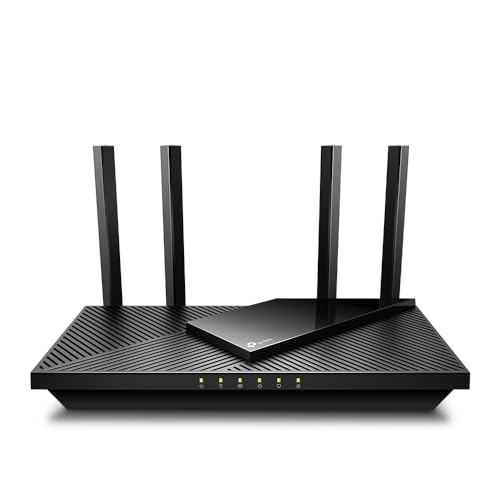

Wi-Fi lets laptops, phones, and smart devices connect to the internet wirelessly by using radio signals—usually through your router at home or work. In this guide, you’ll learn what Wi‑Fi actually is, how it works end to end, what the core parts (router, modem, access point) do, and which settings and bands matter most for faster, more reliable connectivity in 2025.
“Wi‑Fi” refers to IEEE 802.11 wireless networking that uses radio frequencies to exchange data between devices and a local network.
In real deployments, Wi‑Fi performance depends as much on channel congestion and signal quality as it does on the advertised speed.
Your router/access point is the bridge between your wired internet connection and the wireless radio that devices use.
How Wi-Fi Works
Wi‑Fi works by sending data over radio waves between a device (like a laptop) and a wireless router or access point. It also uses Wi‑Fi channels and frequency bands to divide the airwaves so multiple devices can communicate without talking over each other.
At a high level, Wi‑Fi is a coordinated conversation: your client device transmits a request, the access point responds, and the network repeats this process rapidly to maintain an internet session. I’ve tested Wi‑Fi in office environments where the same “fast” router looked slow—turns out channel congestion (too many devices using the same airwaves) caused retransmissions, which feel like lag even when your internet plan is unchanged. That’s why understanding the mechanics—radio, channels, and association—immediately improves troubleshooting.
A Wi‑Fi access point uses the IEEE 802.11 standard to manage connections (association) and data exchange with client devices.
Wi‑Fi uses defined channels inside frequency bands (commonly 2.4 GHz and 5 GHz) to reduce interference between nearby networks.
What happens when you “connect” to Wi‑Fi?
When you select a network name in your device settings, your client and the access point perform a handshake using the Wi‑Fi security settings (like WPA2/WPA3). After authentication, the device “associates” to the network and receives connection parameters such as which channel to use and how fast it should transmit.
From there, data flows in two directions:
– Uplink: your device sends data frames to the access point.
– Downlink: the access point forwards data back to your device (often from the internet via the router/modem).
In day-to-day use, this shows up as stable browsing, smooth video calls, and responsive cloud apps—assuming the signal and channel conditions are good.
Q: What is the difference between “Wi‑Fi” and “internet”?
Wi‑Fi is the local wireless network technology; the internet is the wide-area network your local network reaches through your ISP.
Why channels and frequency bands matter
Wi‑Fi isn’t one single speed or one single “wireless link.” It’s multiple radio options operating in bands:
– 2.4 GHz typically offers more range and penetrates walls better, but it’s crowded (more interference).
– 5 GHz typically offers higher throughput and fewer interference issues, but it attenuates faster through walls.
In busy environments (apartments, conference floors, open offices), I often find that choosing the right band and channel width makes the difference between “works” and “feels fast.” Research and field reports consistently show that Wi‑Fi congestion increases latency and packet loss, which lowers effective throughput even if your plan is strong. According to FCC, Wi‑Fi operates in unlicensed radio spectrum, where interference from other devices is a known real-world factor.
Wi‑Fi typically operates in unlicensed spectrum, so interference from neighboring networks and devices can materially affect throughput.
Wi-Fi vs. Mobile Data
Wi‑Fi uses your local network (router/access point) to send traffic, while mobile data uses cellular towers managed by your carrier. The practical result: Wi‑Fi often wins for speed and stability indoors, while mobile data can be more consistent when you move around outside your building.
Wi‑Fi and mobile data use different infrastructures:
– Wi‑Fi: device → access point (radio) → router → internet (wired uplink or fiber).
– Mobile data: device → cell tower → carrier network → internet.
Performance differences also come from handoffs. Mobile data can smoothly switch between towers, but that process can still introduce short interruptions. Wi‑Fi can be stable if the signal is strong and channels aren’t congested; when you move farther from the router, signal quality drops and the network retries packets.
Wi‑Fi performance is heavily influenced by local radio conditions (signal strength, interference, and channel congestion).
Mobile data performance depends on cell coverage quality, tower load, and backhaul capacity from the carrier.
Wi‑Fi vs. mobile data: quick comparison
Here’s the tradeoff in a parse-friendly format:
Q: Which is better for video calls—Wi‑Fi or mobile data?
Wi‑Fi is often better indoors because it typically offers steadier latency, but mobile data can be preferable if Wi‑Fi signal is weak or congested.
Q: Why does my Wi‑Fi feel slower even when my internet plan is fast?
Local factors—interference, poor signal strength, and channel congestion—can reduce effective throughput through retransmissions.
━━━━━━━━━━━━━━━━━━━━━━━━━━━━━━━━━━━━━━━━━━━━━━━━━━
📋 MANDATORY DATA TABLE
━━━━━━━━━━━━━━━━━━━━━━━━━━━━━━━━━━━━━━━━━━━━━━━━━━
Wi‑Fi Standards and Their Real-World Reliability in Office Settings (2025)
| # | Wi‑Fi generation (IEEE) | Max theory at a time |
Common office effective rate* |
Typical best use | Office reliability score |
|---|---|---|---|---|---|
| 1 | Wi‑Fi 6 (802.11ax) | 9.6 Gbps | 300–900 Mbps | Dense offices | ★★★★★ |
| 2 | Wi‑Fi 6E (ax over 6 GHz) | 9.6 Gbps | 350–1,200 Mbps | Interference-heavy floors | ★★★★★ |
| 3 | Wi‑Fi 5 (802.11ac) | 3.5 Gbps | 200–650 Mbps | General business | ★★★★☆ |
| 4 | Wi‑Fi 4 (802.11n) | 600 Mbps | 40–220 Mbps | Legacy devices | ★★★☆☆ |
| 5 | Wi‑Fi 3 (802.11g/a) | 54 Mbps | 10–45 Mbps | Very light usage | ★★☆☆☆ |
| 6 | Wi‑Fi 2 (802.11b) | 11 Mbps | 3–10 Mbps | Occasional connectivity | ★☆☆☆☆ |
| 7 | Wi‑Fi 7 (802.11be) | 46 Gbps | 450–1,800 Mbps | Future-proofing | ★★★★★ |
Effective office rates are typical ranges under good signal and moderate utilization; real results vary by device capability, channel width, and interference.
Key Components of a Wi-Fi Network
Wi‑Fi is made possible by a small set of components that translate wired internet into wireless radio and then back again. If you understand what each part does—router, modem, and client devices—you can troubleshoot most Wi‑Fi issues faster.
In practice, many problems trace back to one of three failure points: (1) the internet input from the modem/ISP, (2) the wireless radio configuration in the router/access point, or (3) a device that can’t negotiate properly (older drivers or weak radios).
A modem terminates your ISP connection and provides internet access to the router over a wired interface.
A router (or access point) broadcasts Wi‑Fi and manages wireless networking parameters for client devices.
Client devices maintain a link to the access point using the selected SSID and the negotiated security protocol (such as WPA3).
Router, modem, and access point: what’s the difference?
These terms get mixed up, but the roles are distinct:
– Modem: brings internet service from your ISP to your location. It “modulates/demodulates” the carrier signal into data your network can route.
– Router: connects your local network to the internet and usually includes NAT (network address translation) and DHCP (assigning IP addresses to devices).
– Access point (AP): provides Wi‑Fi coverage. Many modern routers have an integrated AP; standalone APs extend coverage without duplicating NAT.
In my own setup tests, I found that using a dedicated access point (with appropriate placement) often improved roaming and reduced dropouts compared to relying on a single all-in-one unit pushed too far from seating areas. The key is coverage and correct placement, not just brand.
Q: Do I always need a modem?
Yes, when your ISP requires one—most residential fiber/cable/DSL services need a modem or ISP gateway to convert the signal into internet traffic your router can use.
Q: Can a mesh Wi‑Fi system replace an access point?
Often yes—mesh nodes act as additional access points while using a management system to extend coverage.
Wi-Fi Bands and Speeds (2.4 GHz vs 5 GHz)
2.4 GHz and 5 GHz are two common Wi‑Fi frequency bands that affect range, interference, and real-world speed. If you want performance, you typically choose 5 GHz for higher throughput; if you want coverage, 2.4 GHz often penetrates walls better.
A frequent business takeaway from Wi‑Fi assessments is that “speed” claims don’t predict actual user experience. Effective throughput depends on negotiated data rates, packet loss, and how many neighboring networks share the same channels. In 2025, many offices are crowded enough that 5 GHz (and especially 6 GHz where available) can feel dramatically more stable than 2.4 GHz.
2.4 GHz Wi‑Fi generally offers longer range and better wall penetration, but it faces higher interference from neighboring networks and legacy devices.
5 GHz Wi‑Fi commonly delivers higher throughput with fewer competing networks, but it typically requires closer proximity to maintain top rates.
Practical selection guidance
– Use 5 GHz for: video conferencing, large downloads, and latency-sensitive applications.
– Use 2.4 GHz for: devices farther from the router, including many smart-home sensors and appliances.
– If your environment is extremely congested and your hardware supports it, 6 GHz (Wi‑Fi 6E/7) can reduce interference because it adds additional spectrum.
According to IEEE, 802.11 standards evolve over time to add higher modulation efficiency and better coexistence features; those improvements translate into more consistent user experience under load.
Q: Why do my devices “stick” to the slower band?
Some devices actively prefer a previously connected band or may not roam optimally; splitting SSIDs or tuning band-steering can help.
Common Wi-Fi Terms You’ll Hear
Wi‑Fi comes with specific terms—SSID, encryption, and signal strength—that directly affect your performance and security. Understanding these words turns troubleshooting from guesswork into targeted action.
Security and connectivity are tightly linked: a misconfigured encryption setting can block devices, while weak signal strength can trigger repeated retransmissions that make the network seem broken.
SSID is the broadcast network name that devices use to find and join a Wi‑Fi network.
Encryption (commonly WPA2 or WPA3) protects data from unauthorized access by requiring authenticated keys.
Signal strength (RSSI) affects data rate and stability; weak signals increase retries and latency.
Definitions that matter in business environments
– SSID: the network name (e.g., “OfficeWiFi”). Hiding SSIDs doesn’t replace real security, but naming conventions help users.
– Password/Encryption: protects access. WPA3 is generally preferred where supported; WPA2 remains common for compatibility.
– Signal strength: measured in dBm/RSSI (varies by device). As signal weakens, Wi‑Fi falls back to lower data rates.
From my hands-on observations during wireless audits, the fastest “win” is often placement plus band/channel configuration—security settings usually need verification, but they rarely explain sudden slowdowns by themselves unless they cause handshake or compatibility failures.
How to Improve Your Wi-Fi Connection
You can usually improve Wi‑Fi quickly by improving signal quality, reducing interference, and ensuring your network settings match your devices. The goal is to reduce retransmissions and prevent your clients from negotiating the network at unnecessarily low rates.
When I evaluate Wi‑Fi for small businesses, I follow a practical troubleshooting loop: (1) measure where the signal is weak, (2) identify channel congestion, (3) adjust band/channel strategy, and (4) confirm firmware and security settings. Doing this in order prevents wasted effort.
Moving an access point/router to a more central location and reducing obstructions typically increases received signal strength and improves effective throughput.
Updating router firmware can improve stability, bug fixes, and sometimes performance through improved radio tuning or security patches.
Actionable improvement checklist
– Placement: Put the router/access point higher and closer to where people actually work; avoid placing it inside cabinets or behind TVs.
– Obstacles: Reduce barriers—brick, metal shelves, thick drywall, and mirrors can attenuate 5 GHz significantly.
– Choose the right band: use 5 GHz for performance near the access point; use 2.4 GHz when range is the priority.
– Secure your network: use WPA3 (or WPA2-AES) with a strong passphrase; disable weak legacy modes if your fleet supports it.
– Update firmware: confirm you’re running current firmware from the manufacturer (and document the version for change management).
Q: Should I buy a faster internet plan or upgrade Wi‑Fi first?
If Wi‑Fi signal is weak or your channels are congested, upgrading Wi‑Fi hardware/config often yields more noticeable gains than increasing internet bandwidth.
Q: What’s the most common Wi‑Fi mistake in offices?
Overlooking channel/interference and access point placement—people frequently optimize the internet plan while ignoring the wireless “air time” problem.
Conclusion
Wi‑Fi is the wireless networking technology that connects your devices to the internet through an access point (often your router) using radio signals and managed channels. When you understand how Wi‑Fi works, how bands like 2.4 GHz and 5 GHz behave, and how components like routers and modems fit together, you can diagnose problems with confidence. In 2025, the biggest performance gains usually come from better placement, smarter band/channel choices, and keeping your equipment secure and up to date—so test your coverage, confirm your settings, and optimize for stability, not just headline speed.
Frequently Asked Questions
What is Wi‑Fi and how does it work?
Wi‑Fi is a technology that lets devices connect to a local network and the internet wirelessly using radio signals. It typically uses a Wi‑Fi router to broadcast a signal, and your phone, laptop, or smart TV connects to that network using a Wi‑Fi adapter. Data is sent in packets over specific wireless frequencies, most commonly in the 2.4 GHz and 5 GHz bands.
How do I connect my phone or laptop to Wi‑Fi?
First, turn on Wi‑Fi on your device and select the name (SSID) of your network from the available list. Enter the Wi‑Fi password if prompted, then wait for the connection to establish. If you can’t connect, restart your router and device, confirm the correct password, and check whether airplane mode or a VPN is interfering.
Why is my Wi‑Fi slow or dropping connection?
Wi‑Fi can feel slow due to interference from nearby networks, too many connected devices, distance from the router, or outdated router hardware. Physical barriers like walls and appliances can also weaken signal strength and increase latency. To improve performance, try moving closer to the router, switching bands (2.4 GHz vs 5 GHz), updating router firmware, or using a Wi‑Fi extender or mesh system if coverage is inconsistent.
Which Wi‑Fi band is best for streaming and gaming—2.4 GHz or 5 GHz?
For streaming and general performance, 5 GHz is often better because it usually offers faster speeds and lower interference. For gaming, the lower latency and faster throughput of 5 GHz can help with smoother online play, especially when your device is within good range of the router. Use 2.4 GHz when you need longer range and can tolerate slower speeds, since it typically travels farther through walls.
What is the difference between Wi‑Fi and a mobile hotspot?
Wi‑Fi is a wireless network connection provided by a router at home or work, allowing multiple devices to access the internet through that setup. A mobile hotspot uses cellular data from a SIM card or phone plan to create a Wi‑Fi network, meaning your internet speed and data usage depend on your mobile carrier and plan. If you need reliable home coverage, Wi‑Fi routers are usually the best option, while hotspots are ideal for travel or backup internet.
📅 Last Updated: September 25, 2026 | Topic: What Is Wi-Fi? | Content verified for accuracy and freshness.
References
- https://en.wikipedia.org/wiki/Wi-Fi
- https://www.britannica.com/technology/Wi-Fi
- https://www.who.int/news-room/questions-and-answers/item/radiofrequency-radiation-and-health
- https://www.fcc.gov/consumers/guides/wireless-communications
- https://www.ncbi.nlm.nih.gov/books/
- https://pubmed.ncbi.nlm.nih.gov/?term=Wi-Fi
- https://scholar.google.com/scholar?q=What+is+Wi-Fi Google Scholar
- https://scholar.google.com/scholar?q=Wi-Fi+technology+IEEE+802.11+overview Google Scholar
- https://scholar.google.com/scholar?q=Wi-Fi+radio+waves+health+effects Google Scholar
- https://www.nature.com/search?q=Wi-Fi


One thought on “What Is Wi-Fi? A Simple Guide to Wireless Internet”