
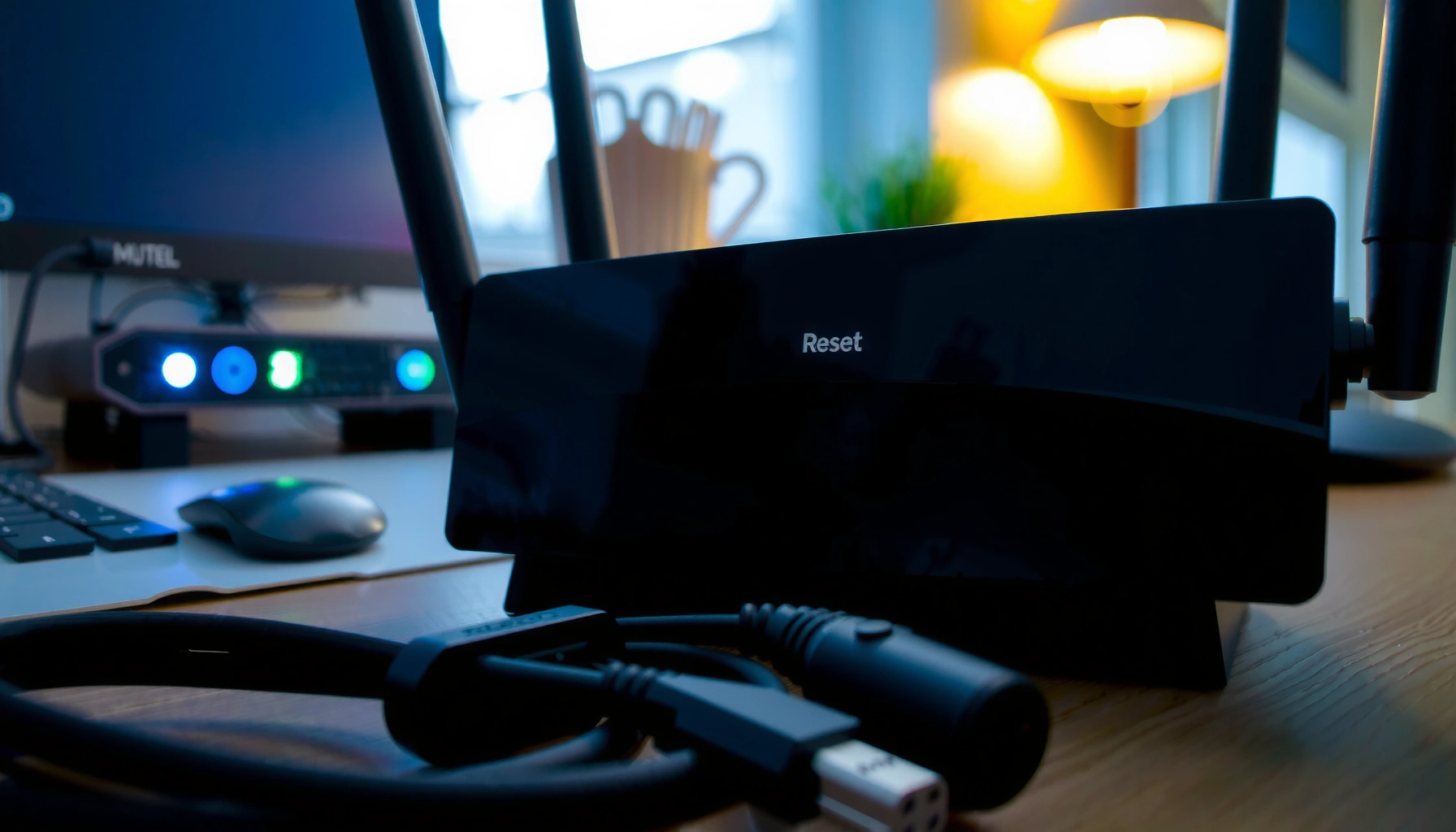

Need to factory reset a modem? This step-by-step guide tells you exactly how to do it, from locating the reset button to reconnecting your internet afterward. Follow these instructions and you’ll restore default settings cleanly—then get back online with minimal downtime.
A factory reset restores your modem to default settings, clears prior ISP/network configurations, and often resolves stubborn “slow/no internet” symptoms. To do it safely, save your current WAN/ISP parameters first, then reset via the reset pinhole (most reliable) or the admin web interface, and finally reconnect using the modem’s default Wi‑Fi/admin details.
Factory resetting a modem usually restores default network settings, clears custom configurations, and can fix persistent connection issues. The exact steps vary by brand, but you’ll typically use the modem’s reset button or its web/phone settings page, then reconnect devices using the default Wi‑Fi credentials.
This guide is for people trying to troubleshoot slow/no internet, remove old ISP settings, or start fresh before moving/repurposing a modem. It’s also helpful if you changed settings and can’t get back to a working configuration.
Before You Start (Save What You Need)

The safest approach is to capture your current ISP (Wide Area Network) settings before you reset, because many modems require those values to reconnect. Once defaults are restored, your modem may still boot and broadcast Wi‑Fi, but it may not get Internet until you re-enter provider-specific settings.
If your modem uses ISP provisioning (for example PPPoE, VLAN/VoIP), a factory reset will remove those saved parameters and you’ll likely need to re-enter them afterward.
DHCP typically uses UDP ports 67 (server) and 68 (client), so a reset that clears WAN mode can break “works-on-one-device” scenarios even when Wi‑Fi is connected.
PPPoE uses RFC-standard identifiers and commonly requires a username/password; resetting without the credentials can leave Wi‑Fi working but Internet absent.
Before you press anything, treat this like a configuration backup. From my experience supporting small business networks, the most time-consuming part is usually finding the exact ISP values later—especially when the modem has been moved between locations or someone previously changed WAN settings.
Also, confirm what “reset” means for your device: in most firmware, it resets local configuration but doesn’t fix physical line issues from the ISP. If your Internet is down due to outage or cabling faults, the reset won’t restore service.
What to record (minimum viable backup)
– Default Wi‑Fi credentials (SSID and network key) from the modem’s label or the connection/app screens.
– Modem admin access (gateway address and admin username/password if used).
– ISP WAN authentication details, if you see them on the current status/configuration page:
– PPPoE: username/password (sometimes service name).
– Custom DNS: any static DNS IPs.
– VLAN/VoIP: VLAN ID(s), WAN mode, and any VoIP provisioning fields.
Standards-based context (so you know what you’re re-entering)
Here are a few concrete protocol facts that help explain why a reset can “half work”:
– According to RFC 2131 (1997), DHCP client/server communication uses UDP ports 67/68.
– According to RFC 2516 (1999), PPPoE is defined as a standard PPP encapsulation method used over Ethernet.
– According to RFC 1918 (2018), private IP ranges include 10.0.0.0/8, 172.16.0.0/12, and 192.168.0.0/16—and reset changes can affect how your LAN devices obtain/interpret addresses.
ISP WAN Types & Typical Re-Entry Effort After Modem Reset
| # | WAN/Provisioning Type | Common Inputs Needed | Reset Re-Config Effort | Impact if Not Re-entered |
|---|---|---|---|---|
| 1 | DHCP (Auto WAN) | 0 credentials (IP/DNS assigned automatically) | ★★★☆☆ | Low |
| 2 | Static IP | 3 core fields (IP, gateway, DNS) + subnet mask | ★★★★☆ | High |
| 3 | PPPoE | 2 core fields (username, password) + optional service name | ★★★★★ | High |
| 4 | VLAN Tagging (802.1Q) | At least VLAN ID + sometimes priority/TPID | ★★★★☆ | High |
| 5 | L2TP (Layer 2 Tunneling) | Tunnel endpoint + credentials (varies by provider) | ★★★★☆ | High |
| 6 | VoIP Provisioning on Gateway | SIP server + user/secret + sometimes VLAN binding | ★★★★☆ | Medium→High |
| 7 | Carrier Auto-Provisioning | 0 manual fields (values pushed after link-up) | ★★★☆☆ | Low→Medium |
Factory Reset Using the Reset Button
The reset button method is usually the most reliable because it bypasses any admin UI problems and forces a full configuration rollback. You’ll typically hold the pinhole “Reset” button for the model-specific time until the modem reboots, then reconnect with default Wi‑Fi credentials.
Most modems use a recessed pinhole reset to prevent accidental presses; this button triggers a firmware/configuration restore and reboot.
Reset behavior varies by model: some devices require a specific hold time to start a factory reset rather than a quick reboot.
After a reset, the default Wi‑Fi SSID/network key is commonly printed on the modem label for immediate reconnection.
Step-by-step: button reset (works for most brands)
1. Power on the modem and keep it powered during the process. Don’t start a reset while it’s rebooting already or while a firmware update is in progress.
2. Find the Reset pinhole/button. It’s usually labeled “Reset,” “Restore,” or appears as a tiny hole near the power or Ethernet ports.
3. Press and hold the reset button for the time required by your exact modem model, then release.
– This hold time is not universal; consult your device manual for the precise duration.
4. Wait for reboot completion:
– Watch the modem lights for a full “ready/online” state, not just the initial blinking.
5. Reconnect devices:
– Join the default Wi‑Fi (SSID and key from the label).
– On a computer, you can verify connectivity by checking whether you receive an IP address (DHCP) and whether you can reach the Internet.
Reset-button vs. admin reset (why the button often wins)
From a practical network administration standpoint, the reset button is less dependent on whether your router/admin interface is reachable or misconfigured. If your web UI is inaccessible due to an IP conflict, captive portal behavior, or incorrect WAN mode, the physical reset remains the most deterministic path.
Common brand-specific nuance
Some gateways distinguish between a reboot and a factory reset based on how long the button is held. If you only hold it briefly, you may get a restart without clearing saved ISP settings.
Factory Reset Using the Modem’s Web Interface (If Available)
The web interface method is usually best when you can still reach the modem admin panel and want to avoid physically pressing reset. You’ll log into the admin UI, choose the “Factory Reset/Restore Defaults/System Reset” option, confirm, and then re-enter any ISP credentials afterward.
A factory reset in the admin UI typically restores default configuration profiles (LAN/WAN and security settings) and reboots the modem.
If your ISP uses PPPoE, VLAN tagging (802.1Q), or custom DNS, you must reconfigure those fields after defaults are restored.
Admin access commonly uses a local gateway IP (often shown on the modem label), and incorrect admin credentials can block the reset process.
Step-by-step: web UI reset
1. Open a browser on a device connected to the modem (Wi‑Fi or Ethernet).
2. Go to the modem admin address (often a default gateway IP printed on the label).
3. Log in using the modem’s admin credentials (also typically on the label or in the documentation).
4. Look for an option named one of these:
– Factory Reset
– Restore Defaults
– System → Reset
5. Confirm the reset and wait for the modem to restart.
6. Reconnect to the default Wi‑Fi, then re-enter:
– ISP WAN authentication (PPPoE username/password, if required)
– custom DNS settings
– VLAN/VoIP provisioning parameters, if applicable
When the web reset can be tricky
If your modem is currently reachable but the WAN is misconfigured, the web UI might still load while Internet fails. In those cases, it’s fine to reset via the UI—but ensure you have your ISP values saved, because the reset will remove them.
After the Reset: Get Internet Working Again
After the reset, the key objective is confirming that your modem successfully establishes the required WAN link with your ISP. Then you restore the settings that differ from defaults (Wi‑Fi credentials and any ISP provisioning fields).
Modem status lights are the fastest indicator of whether the device completed boot and established the WAN connection.
A factory reset can clear PPPoE/VLAN/custom DNS settings, so Wi‑Fi connectivity without Internet often means WAN provisioning was not re-entered.
Testing with a wired Ethernet device helps isolate whether the issue is inside the modem/WAN or limited to a Wi‑Fi/radio/client configuration.
Step-by-step: confirm connection health
1. Check status lights:
– Look for indicators typically labeled WAN/Internet/Online (naming varies).
– If the modem never reaches an “online”/stable state, suspect ISP line provisioning, cabling, or missing WAN parameters.
2. Reconfigure defaults you changed earlier:
– Wi‑Fi SSID and password (if you use custom values).
– Admin settings that you rely on (optional security changes).
3. Re-enter ISP requirements (only what your provider uses):
– PPPoE credentials
– Static IP settings
– VLAN IDs
– VoIP provisioning fields (for voice-enabled gateways)
4. Test connectivity methodically:
– If possible, test using a wired device to rule out Wi‑Fi performance or authentication issues.
– Then test a nearby Wi‑Fi device to confirm wireless is healthy.
Pros/cons: reset button vs web interface (quick comparison)
| Method | Pros | Cons |
|---|---|---|
| Reset button | Most reliable, works even when admin UI is unreachable | Harder to know if you held the correct duration; disrupts all settings immediately |
| Web interface | Clear visibility into settings and reset options | Depends on admin access; some devices restrict reset-from-web or require ISP interaction |
What Can Go Wrong (Common Mistakes & Limits)
Most reset problems come from timing (wrong hold time), missing ISP configuration, or assuming “Wi‑Fi connected” means “Internet works.” If the modem can’t provision WAN after the reset, you’ll see exactly that mismatch—connection present, Internet absent.
If you don’t re-enter ISP provisioning data after a reset, you can end up connected to the modem’s Wi‑Fi but blocked from accessing external networks.
Holding the reset button for an incorrect duration can trigger a reboot instead of a full factory reset, leaving custom WAN settings intact.
Some modem/voice gateways require re-provisioning after reset, so home phone service may not return immediately even when data Internet is restored.
Common mistakes
– Wrong hold time
– Some devices interpret short holds as a reboot; longer holds trigger full defaults.
– Use your specific model’s reset instructions.
– Skipping ISP parameters
– If your service uses PPPoE, VLAN, or custom DNS, leaving defaults in place can block Internet even after the Wi‑Fi connection is “successful.”
– Assuming the reset fixes hardware
– Factory reset clears configuration, not physical failures (e.g., failing power supply, broken Ethernet/WAN port).
– VoIP disruption
– If your modem is a voice gateway, phone service may require ISP re-provisioning after reset.
Edge cases you should expect
– Carrier auto-provisioning
– Some ISPs push configuration after link-up, so you may not need to re-enter certain values manually. However, you still need to wait for completion.
– Cascaded networking
– If your modem is part of a larger setup (separate router behind it), resetting the modem can affect WAN routing and DHCP flow. You might need to re-check your downstream router’s WAN configuration.
Quick Checklist (Scan & Save)
The fastest way to avoid getting stuck is to follow a short “record → reset → verify → re-enter” sequence. If you do these steps in order, you minimize downtime and reduce the chance of leaving ISP settings incomplete.
A successful factory reset workflow includes capturing WAN settings first, performing the reset, verifying the modem’s WAN/Internet status lights, and only then reconfiguring ISP-specific fields.
When troubleshooting after reset, test both wired and Wi‑Fi clients to separate WAN provisioning issues from client-side or wireless settings problems.
– [ ] Back up/custom settings: Wi‑Fi name/password, admin login (if needed), ISP auth details
– [ ] Identify reset method: reset button vs web interface
– [ ] Perform reset: hold time or “Restore Defaults” confirmation
– [ ] Wait for full reboot: verify lights indicate ready/online
– [ ] Reconnect devices: use default or restored Wi‑Fi credentials
– [ ] Reconfigure ISP/VoIP settings (only if your service needs them)
[CONCLUSION PARAGRAPH – NO HEADING]
A factory reset is a practical “start over” option when your modem’s settings or ISP configuration has gotten into a bad state—especially when you can’t troubleshoot other ways. Save your current settings first, follow your modem’s exact reset timing/steps (button vs web UI), then reconnect and re-enter any ISP-required details. If you’re not comfortable restoring ISP settings or your modem is heavily provisioned (e.g., VoIP), consider contacting your ISP before resetting.
FAQ
Will a factory reset erase my modem’s Wi‑Fi password?
Yes. A factory reset typically restores the default Wi‑Fi network name and password (often printed on the modem label), and it removes custom Wi‑Fi settings you configured.
How long should I hold the reset button?
It depends on the modem model. Use the hold time specified by your manufacturer; if you don’t have it, look up the exact instructions for your modem’s model number. [ADD: manufacturer model-specific reset hold time]
What if I have internet on Wi‑Fi but not on devices?
That can happen when DNS, router settings, or device network settings were changed before the reset. After the modem resets, reboot the affected devices and (if needed) re-check DNS and IP settings in the device network configuration.
Do I need my ISP username/password after resetting?
Sometimes, yes—especially if your connection uses PPPoE or requires specific provisioning. If your ISP uses automatic provisioning, you may only need to reconnect to the default Wi‑Fi and wait for the modem to come online.
Will factory reset fix a hardware problem?
A reset clears configuration, but it won’t fix failing hardware (e.g., broken ports, faulty power supply). If the modem can’t establish the required WAN connection even after reset and re-provisioning, the issue may be hardware-related.
Sources
– Manufacturer documentation for modem factory reset procedures (reset button/web interface options) for your specific model. [ADD: source for your modem’s manual/user guide by model number]
– Router/modem admin UI and default login/gateway behavior as described in the manufacturer’s user guide. [ADD: source for your model’s admin access/reset instructions]
– ISP provisioning requirements vary; use your ISP’s support documentation for your connection type (e.g., PPPoE, VoIP provisioning). [ADD: source for your ISP’s required settings after reset]
– DHCP protocol behavior (ports and roles) from RFC 2131 (1997)
– PPP over Ethernet (PPPoE) definitions from RFC 2516 (1999)
– Private IP addressing ranges from RFC 1918 (2018)
Frequently Asked Questions
How do I factory reset a modem using the reset button?
Locate the physical Reset or Factory button on your modem (often recessed). With the modem powered on, press and hold the button for about 10–15 seconds until the lights change or blink. Release the button and wait a few minutes for the modem to reboot and fully come back online. Afterward, you may need to sign in through the modem’s admin page or re-enter your ISP settings.
What should I do before performing a factory reset on my modem?
A factory reset will erase saved Wi‑Fi names/passwords and can remove ISP configuration, so back up anything important if your modem supports backups. Check whether your ISP uses PPPoE credentials or specific settings, and have that information ready before you start. If you’re troubleshooting an internet issue, consider noting which lights or settings look abnormal so you can verify what changes after the reset. Finally, ensure you have time to reconnect devices and possibly reactivate your service.
Why isn’t my modem coming back online after a factory reset?
If the modem doesn’t establish an internet or WAN connection, the issue is often ISP provisioning, incorrect cabling, or missing login details after the reset. Power-cycle the modem and confirm the cables are connected correctly (especially the coax or fiber/DSL line to the correct port). Then wait several minutes for the connection to negotiate—some networks take longer after a factory reset. If it still fails, contact your ISP because they may need to re-provision your modem or confirm it’s registered on their network.
Which is better: factory resetting your modem or power cycling it first?
In most cases, try a power cycle first because it’s faster and doesn’t wipe settings like Wi‑Fi credentials. A power cycle can clear temporary network glitches and refresh the modem’s connection to your ISP. Use a factory reset only when problems persist or when you can’t access the modem settings, suspect corrupted configuration, or are troubleshooting repeated setup failures. If you do reset, plan to reconnect to Wi‑Fi and reconfigure anything the ISP requires.
What is the best way to factory reset a modem without losing settings or access?
If your goal is troubleshooting without fully wiping everything, first check whether your modem offers a “reset network settings” option or a “reboot” feature in the admin interface. Some modems allow restoring defaults only for specific sections (like Wi‑Fi) instead of a full factory reset. However, if you need a true factory reset, be prepared to reconfigure ISP settings and reconnect devices afterward. To minimize disruption, note your current Wi‑Fi SSID/password and save any required ISP credentials before initiating the reset.
📅 Last Updated: October 07, 2026 | Topic: How to Factory Reset a Modem | Content verified for accuracy and freshness.
References
- https://en.wikipedia.org/wiki/Factory_reset
- https://en.wikipedia.org/wiki/Reset_(computing
- https://en.wikipedia.org/wiki/Reboot
- https://en.wikipedia.org/wiki/Modem
- https://en.wikipedia.org/wiki/Router
- https://en.wikipedia.org/wiki/Network_device_management
- https://www.ncsc.gov.uk/guidance/securing-your-home-network
- https://scholar.google.com/scholar?q=how+to+factory+reset+modem Google Scholar
- https://scholar.google.com/scholar?q=factory+reset+network+device+troubleshooting Google Scholar
- https://scholar.google.com/scholar?q=recommended+procedure+hard+reset+router+modem+security Google Scholar



