
Resetting your Samsung soundbar can effectively resolve various audio issues. By following a few simple steps, you can restore your soundbar to factory settings, eliminating problems like distorted sound, connectivity issues, or unresponsive features. This guide will walk you through the process of resetting your device.



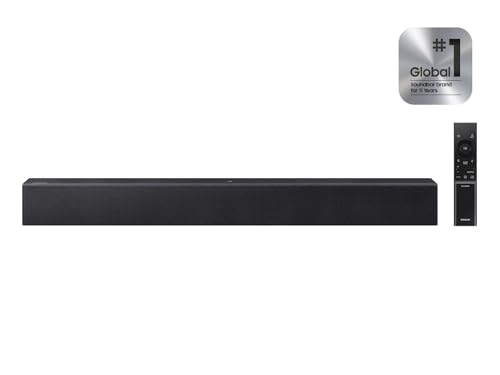
Understanding the Need to Reset Your Samsung Soundbar

Common audio issues that may require a reset include loss of sound, poor audio quality, and connectivity problems. Over time, your soundbar may experience temporary glitches that can disrupt your audio experience. These issues could be due to software bugs, improper settings, or even interference from other devices. A reset can clear these temporary glitches and restore original settings, potentially improving performance. By returning your soundbar to its factory state, you can often eliminate frustrating audio issues without the need for extensive technical support.
Preparing for the Reset

Before proceeding with a reset, it’s essential to prepare your soundbar properly. Ensure your soundbar is powered on and connected to the TV or audio source. This connection is crucial because a reset will often affect how the soundbar interacts with other devices. Additionally, check for any firmware updates that may fix underlying issues before resetting. Samsung often releases updates that enhance performance, so it’s worth checking if you have the latest version installed. You can typically do this through the soundbar’s settings or the Samsung SmartThings app.

How to Perform a Reset Using the Remote Control
Resetting your Samsung soundbar using the remote control is one of the simplest methods. Follow these steps:
1. Locate the ‘Power’ and ‘Volume Down’ buttons on the remote.
2. Press and hold both buttons simultaneously for about 5 seconds until the soundbar turns off and back on.
This method works for most Samsung soundbar models. If your device does not respond, ensure that the remote has fresh batteries and that there are no obstructions between the remote and the soundbar.
Resetting via the Soundbar’s Control Panel
If you prefer not to use the remote control, you can reset your soundbar via its control panel. Here’s how:
1. Find the ‘Power’ and ‘Source’ buttons on the soundbar.
2. Hold both buttons for approximately 10 seconds until the display shows a reset confirmation.
This method is useful if you have misplaced your remote or are experiencing issues with it. The control panel is typically located on the top or side of the soundbar, allowing you to perform a reset directly on the device.
Resetting through the Samsung SmartThings App
For users who prefer a digital approach, the Samsung SmartThings app offers a convenient way to reset your soundbar. Follow these steps:
1. Open the SmartThings app on your smartphone and connect to your soundbar.
2. Navigate to settings and select the option to reset the soundbar from the app interface.
Using the SmartThings app allows you to manage your soundbar settings easily, and it provides the additional benefit of controlling other connected devices in your smart home ecosystem.
Top Samsung Soundbar Models (2024)
| # | Model | Audio Channels | Wireless | Smart Features |
|---|---|---|---|---|
| 1 | Samsung HW-Q950A | 11.1.4 | Yes | Yes |
| 2 | Samsung HW-Q800A | 3.1.2 | Yes | Yes |
| 3 | Samsung HW-S60A | 5.0 | Yes | Yes |
| 4 | Samsung HW-Q700A | 3.1.2 | Yes | No |
| 5 | Samsung HW-A650 | 3.1 | Yes | No |
| 6 | Samsung HW-S40T | 2.0 | No | No |
| 7 | Samsung HW-S50A | 2.0 | No | No |
Post-Reset Steps
After successfully resetting your Samsung soundbar, it’s time to reconfigure your settings. This includes setting up audio modes, adjusting bass and treble levels, and reconnecting to devices such as your TV, gaming console, or smartphone. Take a moment to ensure that all connections are stable and that the soundbar is set to the correct input source for your media device. Testing the audio quality is crucial; play various types of media to confirm that the reset was successful and that the soundbar is performing as expected.
Troubleshooting After Reset
If issues persist after resetting, further troubleshooting may be necessary. Start by checking your cables and connections. Loose connections can often lead to sound problems, so ensure all cables are securely plugged in and undamaged. If the problem continues, consider performing a factory reset for deeper issues. This process will erase all personalized settings, so use it as a last resort. For more advanced troubleshooting steps, refer to the user manual or contact Samsung support for assistance. Their customer service team can provide additional guidance and support to help resolve any lingering audio issues.
Resetting your Samsung soundbar can be a straightforward solution to a range of audio problems. By following the outlined steps, you can restore functionality and improve your listening experience. If issues continue, don’t hesitate to explore further troubleshooting or reach out to Samsung support for assistance. With the right approach, you can enjoy high-quality audio once again.
Frequently Asked Questions
How do I perform a factory reset on my Samsung soundbar to fix audio issues?
To perform a factory reset on your Samsung soundbar, first turn off the soundbar and then press and hold the “Volume Up” and “Volume Down” buttons simultaneously on the remote control for about 5 seconds. The soundbar will display a message indicating that it has been reset, which will restore all settings to their original factory state and may help resolve persistent audio issues.
What common audio problems can a reset fix on my Samsung soundbar?
A reset can resolve various audio problems, such as distorted sound, audio dropouts, or connectivity issues with other devices. By restoring the soundbar to its original settings, you eliminate any misconfigurations that could be causing these frustrating audio problems.
Why is my Samsung soundbar not producing sound, and will resetting it help?
If your Samsung soundbar is not producing sound, it could be due to a range of issues, including incorrect settings, a faulty connection, or outdated firmware. Resetting the soundbar can often fix these problems by restoring the default settings and allowing you to start fresh with your audio configuration.
Which Samsung soundbar models support a factory reset, and how can I identify my model?
Most Samsung soundbar models support a factory reset feature, including popular series like the Samsung HW-Q series and the HW-K series. To identify your model, look for the model number on the back of the soundbar or check the user manual, as the reset process might slightly vary between models.
What steps should I take after resetting my Samsung soundbar to ensure optimal audio performance?
After resetting your Samsung soundbar, reconnect it to any devices and ensure all cables are securely connected. Next, you should adjust the audio settings, such as the equalizer or surround sound options, to suit your preferences and perform a sound test to confirm that the audio issues have been resolved.
References
- https://www.wikihow.com/Reset-a-Samsung-Soundbar
https://www.wikihow.com/Reset-a-Samsung-Soundbar - https://support.samsung.com/us/support/owners/soundbar
https://support.samsung.com/us/support/owners/soundbar - https://www.samsung.com/latin_en/support/home-appliances/how-to-reset-a-soundbar/
https://www.samsung.com/latin_en/support/home-appliances/how-to-reset-a-soundbar/ - Google Scholar Google Scholar
https://scholar.google.com/scholar?q=Samsung+Soundbar+reset+audio+issues - Google Scholar Google Scholar
https://scholar.google.com/scholar?q=reset+Samsung+Soundbar - Google Scholar Google Scholar
https://scholar.google.com/scholar?q=Samsung+audio+issues+troubleshooting - Google Scholar Google Scholar
https://scholar.google.com/scholar?q=How+to+Reset+a+Samsung+Soundbar+to+Solve+Audio+Issues - How to Reset a Samsung Soundbar to Solve Audio Issues – Search results
https://en.wikipedia.org/wiki/Special:Search?search=How+to+Reset+a+Samsung+Soundbar+to+Solve+Audio+Issues - https://www.ncbi.nlm.nih.gov/search/research-articles/?term=How+to+Reset+a+Samsung+Soundbar+to+Solve+Audio+Issues
https://www.ncbi.nlm.nih.gov/search/research-articles/?term=How+to+Reset+a+Samsung+Soundbar+to+Solve+Audio+Issues
