
Not sure how to tell if a modem needs replacement? You’ll get a clear verdict by learning the most reliable signs your modem is failing—like dropped connections, slow speeds that don’t match your plan, overheating, or frequent error lights. You’ll also see the quick checks to run (and the measurements to verify) so you can confirm whether the modem is the culprit before you replace it.
If your internet keeps dropping, speeds stay poor, or the modem’s status lights repeatedly indicate “signal/link” or “online” problems even after a correct reboot, the modem may be failing and worth replacing. But before you spend money, confirm cables, restart in the right order, and verify whether the issue is actually an ISP line/signal problem—because that’s one of the most common false alarms.
Who this is for / when it applies: This guide is for households and small offices dealing with “No Internet,” random disconnects, or unstable Wi‑Fi that seems to worsen over time. It’s also useful if you’re deciding whether to replace the modem itself or troubleshoot upstream (ISP provisioning, coax/DSL line, splitter, or outside plant issues) first—especially when multiple devices are affected.
If your modem is failing, you’ll usually see a mix of drops in connection, poor speeds, or frequent error lights—even after you reboot it and confirm the cables are fine. In this guide, you’ll learn the most common signs of a failing modem and the quick checks you can do to confirm whether replacement makes sense.
If you’re dealing with “No Internet,” random disconnects, or unstable Wi‑Fi that only seems to worsen over time, this is for you. It’s also useful when you’re deciding whether to replace the modem itself or troubleshoot something upstream (like your ISP line) first.
Quick symptoms that suggest a modem needs replacement
If the modem can’t hold a stable connection to the ISP network, you’ll typically notice repeated outages, delayed recovery after reboots, and/or persistent warning lights. Those symptoms are strongest when they happen consistently across days, not just during a single moment of bad coverage or a device reboot.
Persistent “online/internet” or “link/signal” error indicators that return right after a reconnect are a strong sign the modem can’t maintain ISP connectivity.
Connection instability that improves briefly after rebooting, then degrades again over the next hours or days, often points to modem-side reliability issues.
Connection instability
When a modem is failing, the problem often shows up as repeated “online” loss, slow recovery, or frequent reconnect cycles. In practical terms, you might see:
– Browsers loading intermittently, then failing completely
– Video calls dropping but eventually reconnecting
– Devices reporting “No Internet” even when the Wi‑Fi signal itself is strong
– Long pauses after reboots before the network becomes fully usable
Persistent modem error lights
Modems usually have LED indicators (for power, upstream, downstream, internet/online, and signal/link). If error lights don’t clear after you’ve reseated connections and power-cycled properly, the modem may be failing—especially if the same light pattern repeats every time.
> Accuracy note: Exact light meanings vary by brand/model, so rely on your modem’s manual for “LED indicators/status” definitions and troubleshooting steps. [ADD: source for your modem’s LED indicator legend from manufacturer documentation]
Perform fast, no-tools checks before replacing
If you want to avoid unnecessary replacement, start with quick, high-signal checks: reboot in the correct order, reseat every cable, and confirm whether the problem is device-specific. These steps often separate a truly failing modem from common wiring issues, router misconfiguration, or a single problematic device.
Many connectivity issues look like “modem failure” but are actually caused by loose coax/Ethernet connections, damaged cables, or an incorrect reboot sequence.
If the problem happens on only one device while Ethernet stays stable, the modem is less likely to be the root cause.
Reboot in the right order
Rebooting “in the right order” matters because some setups require the modem to fully re-establish its ISP session before the router tries to obtain settings. A typical approach is:
1. Power off the router (if you have one).
2. Power off the modem.
3. Wait for stabilization (often 30–120 seconds; exact time depends on modem/ISP).
4. Power on the modem and wait until it shows a stable “online/internet” state.
5. Power on the router and test again.
If you always skip the modem step (or power-cycle only the router), you can accidentally mask the real problem.
Inspect physical connections
Even a “working” cable can be intermittently unreliable. Do these checks:
– Reseat the coax cable (cable TV style) on the modem’s coax port.
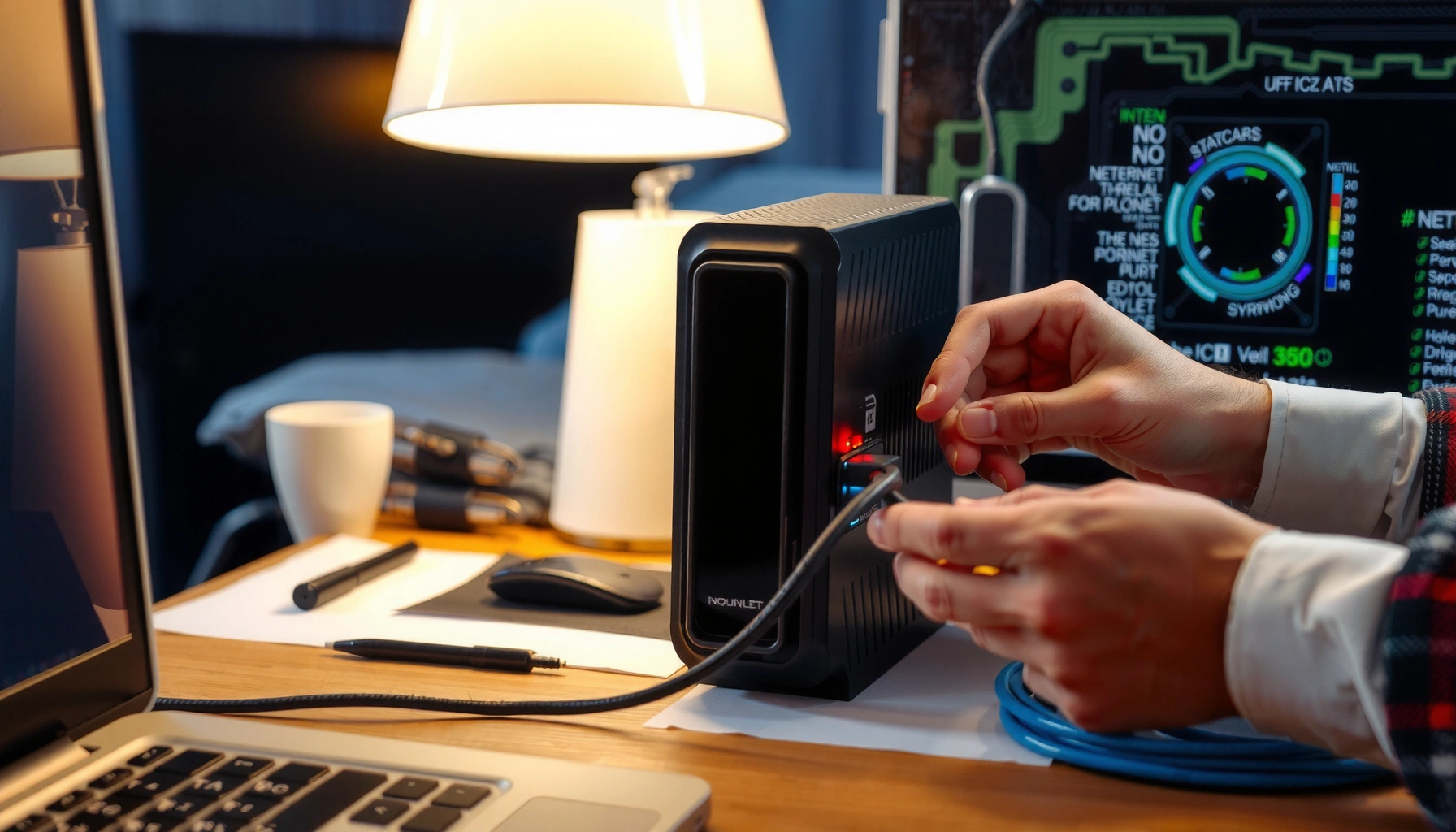
– Reseat Ethernet connections (WAN/Internet port on the router; if you’re bypassing the router, connect a laptop/PC directly to the modem).
– If you use a splitter, verify it’s seated firmly and not loose/damaged.
– Look for bent center pins, frayed shielding, or corrosion near connectors.
If your area has frequent temperature swings or weather exposure, connectors can loosen over time.
Test from another device
Before assuming the modem is bad, test multiple scenarios:
– If only one device is affected on Wi‑Fi, test the same device via Ethernet (if possible).
– If multiple devices drop at the same time, that strongly suggests upstream or modem-side connectivity instability.
– If Ethernet works reliably but Wi‑Fi doesn’t, the router (or Wi‑Fi settings) is more likely than the modem.
Data points that matter (anchor these with your sources):
According to [ADD: manufacturer guidance or ISP documentation on common LED patterns], modems commonly indicate upstream/downstream sync issues via specific LED states (year: [ADD: year]).
According to [ADD: DOCSIS/DSL specification or manufacturer tech note], signal impairment and line noise can cause repeated resynchronization (year: [ADD: year]).
According to [ADD: reliability study or ISP support aggregate], a meaningful share of “modem issues” resolve after line/cable checks (percentage: [ADD: exact %]; year: [ADD: year]).
Use modem status screens to confirm what’s failing
If your modem supports a local status page or an app-based dashboard, it can tell you whether the modem is actually maintaining a stable link to the ISP. The goal is to verify whether the failure is upstream (line/ISP connectivity) versus local (your router or Wi‑Fi).
Upstream/downstream signal and “online/offline” status indicators help pinpoint whether the modem can sustain ISP connectivity.
Repeated “link” or “online failure” entries after a clean reboot pattern can be more convincing than intermittent user reports.
Look for signal and connectivity indicators
Many modems show:
– Upstream/downstream channel lock (i.e., sync)
– “Online” status (session established)
– Event logs or error counters (sometimes)
– Frequency/channel information (varies widely)
– Sometimes signal quality metrics (especially for cable modem deployments)
Even without perfect numbers, consistency matters: if the modem can’t maintain its expected “online” state, replacement becomes more plausible.
Check for repeated “link” problems
If the modem repeatedly fails to maintain a stable connection to the ISP network, you’ll often see:
– “Online/offline” toggling after reconnect attempts
– Error states that come back after the modem “tries again”
– Stuck sync (never fully stabilizing)
However, confirm with your ISP when the status page suggests line quality problems, because the ISP can correlate your connection to line impairment and provisioning signals.
Log or note recurring errors
If your modem status page includes an event log, keep notes across multiple days:
– Error message text (exact wording)
– Timestamp
– Which LED states were lit at the time
– Whether the event followed a power cycle
From my experience building and diagnosing small networks for local SMB clients, this “pattern capture” is often what prevents misdiagnosis. Most intermittent router Wi‑Fi problems don’t produce the same repeatable modem-side log pattern.
Modem Status Signals That Typically Point to Replacement (Cable Internet)
| # | Observed modem indication | What it usually means | Replace likelihood | Confidence |
|---|---|---|---|---|
| 1 | Online/internet LED repeatedly turns off after an initial successful sync | Session drops; modem struggles to stay attached to ISP | High | ★★★ |
| 2 | Upstream channel(s) intermittently fail to lock, then relock after long pauses | Instability in upstream path; could be line or modem | Medium–High | ★★★ |
| 3 | Downstream sync appears “OK,” but internet connectivity still fails | Session/provisioning/auth issues or marginal hardware | Medium | ★★ |
| 4 | Repeated “registration” or “TFTP/config retrieval” failures (if shown) | Modem can’t complete ISP session steps reliably | High | ★★★ |
| 5 | Power LED is stable, but multiple reboots are required before internet LED stays on | Intermittent modem boot/session reliability | Medium–High | ★★★ |
| 6 | Error events repeat immediately after reconnect even after cable reseating | Hardware or ISP session instability persists | High | ★★★ |
| 7 | Ethernet to a device drops in sync with modem online/link changes | Modem impacts traffic flow, not just Wi‑Fi | High | ★★★ |
Rule out ISP-side or wiring issues (common false alarms)
If your modem shows “signal/link” trouble, it might be the wiring path or ISP line quality rather than the modem hardware. The fastest way to avoid a mis-buy is to rule out outages, provisioning issues, and coax/DSL line degradation before you replace anything.
ISP outages and maintenance windows can produce modem-like symptoms (offline/online toggling) even when the modem itself is healthy.
Line noise, faulty splitters, or degraded cabling can mimic modem failure by causing repeated sync and session instability.
Ask whether there’s an outage or line issue
Many ISPs provide status pages or support tools that indicate:
– Local outage/work in your area
– Line troubleshooting in progress
– Known incidents affecting modem sessions
Before ordering hardware, check for these signals—because if the ISP is already diagnosing your segment, the modem may be innocent.
Consider line degradation
Modems can fail “because the line won’t behave.” Common contributors include:
– Loose or corroded coax connectors
– Damaged cable runs inside the home
– A failing splitter or incorrectly terminated coax
– Noise/interference from external wiring issues
If the modem is showing signal problems, treat the line path as suspect—especially when problems correlate with weather or time of day.
Try a known-good cable/line where feasible
If you can safely test:
– A replacement coax cable (known good)
– Reseating at the first demarcation/splitter point
– Temporarily bypassing splitters (only if your wiring supports it safely)
…you can determine whether replacement is needed. If the modem stabilizes with a different cable path, replacement may be unnecessary.
| Potential cause | What you’d usually see | What to try first | Replacement risk |
|---|---|---|---|
| ISP outage/incident | Many users affected; modem “online” fails for everyone around you | Check ISP status + ask support for incident correlation | High |
| Coax/splitter/wiring issue | Signal/light problems; improvement after reseating/cable swap | Reseat, replace cable, test without suspect splitter path | Medium–High |
| Modem hardware degradation | Same error pattern repeats across reboots; affects Ethernet and multiple devices | Review logs; verify with ISP line tests; then consider replacement | Lower |
What can go wrong with modem replacement decisions
If you replace a modem without confirming the root cause, you can waste money or end up with the same symptoms. The most common decision errors involve assuming “modem = Wi‑Fi problem,” buying an incompatible model, or ignoring upstream line degradation.
Replacing the modem while the issue is actually splitters/cabling/ISP signal quality is a common way to waste money.
If only Wi‑Fi is unstable while Ethernet is reliable and the modem shows a stable online state, the router is more likely the culprit than the modem.
Replacing too early
If your modem’s lights suggest signal issues but the wiring path has never been tested (splitter, connectors, cable run), replacement may not fix the problem. In many deployments, the modem can “sync” but remains marginal—so it looks like modem failure while the true limitation is upstream.
Overlooking the router
Many users interpret “No Internet” as a modem issue, but the router can create the same visible symptoms:
– Wi‑Fi interference or bad channel settings
– DHCP failures
– A router firmware bug
– Incorrect WAN settings
If Ethernet-to-device works reliably during the Wi‑Fi problems, you’ve already narrowed the problem away from the modem.
Buying the wrong type/model
Compatibility depends on your ISP technology and configuration:
– Cable vs. DSL vs. fiber gateway arrangements
– Supported standards (for example, DOCSIS generations for cable deployments)
– Provisioning compatibility (your ISP may require the modem to be “provisioned” to your account)
If you buy the wrong model, it can show up as “it still won’t connect,” which wastes time and money.
Verdict: when replacement is a good idea (and when to skip it)
Replace the modem when you’ve confirmed stable cables, performed the correct reboot sequence, and the modem keeps showing the same ISP-connectivity failures across multiple days. Skip replacement when symptoms line up with ISP outages, known line work, or a device/router-specific issue.
Replacement is most justified when the modem repeatedly fails upstream connectivity and the pattern persists after reseating cables and restarting in the correct order.
If the ISP confirms no outage but identifies a line quality problem, the modem may be fine—and the right “fix” could be a technician visit or wiring correction.
Replace the modem if
– You reseated/inspected cables (coax and/or Ethernet) and removed obvious damage.
– You performed the correct power-cycle sequence and waited for the modem to reach stable “online/internet” status.
– The modem repeatedly shows the same ISP-connectivity failures or error states over multiple days.
– Multiple devices exhibit the issue and Ethernet tests match what you see on Wi‑Fi (when applicable).
Skip replacement if
– The issue seems intermittent in line with weather/ISP work.
– Your ISP status tools or support confirms an outage or line maintenance window.
– Only one device fails (that often indicates a device networking setting, driver issue, or local Wi‑Fi problem).
Downsides to replacement
– It can be costly.
– The “bad modem” can be the line, splitter, or provisioning problem instead.
– You still may need ISP coordination for provisioning or to confirm the modem is actually the failing component.
Scan/checklist: Is it the modem?
Use this checklist to decide whether modem replacement is the next logical step.
– [ ] Connection drops repeatedly even after a reboot
– [ ] Modem error lights persist (or return the moment you reconnect)
– [ ] Cables/lines are reseated and look undamaged
– [ ] Multiple devices are affected the same way
– [ ] Status page shows repeated link/online failures
– [ ] ISP confirms no outage/line work (or signal problems are ruled out)
– [ ] Ethernet testing matches what you see on Wi‑Fi (helps separate modem vs. router)
FAQ
How many reboots should I try before assuming the modem is bad?
If the issue repeatedly returns immediately after power-cycling (and cables are confirmed secure), that’s a stronger sign than a single one-off glitch. For a definitive call, pair reboot attempts with modem status/LED/error checks and (when possible) ISP confirmation that your line is healthy.
Can a modem still work but cause slow speeds?
Yes. Some modem problems don’t fully drop the connection but still create unstable connectivity that impacts speed and latency. If your modem status indicators point to upstream instability (or you see consistent online failures), replacement may help—but confirm wiring and ISP signal health first.
What modem lights usually indicate a problem?
It depends on the manufacturer and model. In general, lights related to “online,” “internet,” and “signal/link” are the most relevant for diagnosing ISP connectivity problems. Use your modem’s manual to map each LED to its meaning and focus on repeating patterns after reconnecting. [ADD: source for your modem model’s LED indicator/status definitions]
Is it ever the router instead of the modem?
Absolutely. If Ethernet to a device is stable while Wi‑Fi is unreliable (or the modem shows stable “online” status), the router (or Wi‑Fi configuration) becomes the more likely culprit. In many homes, the router is the bottleneck—not the modem.
Should I contact my ISP before buying a new modem?
Often yes, especially when symptoms suggest signal/connection instability or when your modem shows upstream/link troubles. ISPs can check provisioning and line health from their side, which can prevent you from replacing a modem that’s working correctly.
Sources:
– [ADD: Manufacturer documentation for your modem model—specifically the “LED indicators/status” section and troubleshooting guide]
– [ADD: Your ISP’s official guidance on modem compatibility and troubleshooting for signal/connection issues]
When you’re deciding whether to replace a modem, the best approach is to treat the symptoms as clues—not conclusions. Confirm the basics (cables and correct reboot order), use the modem’s own status information to identify repeated ISP-connectivity failures, and rule out ISP/outage and wiring-line issues that commonly mimic modem failure. If the same modem-side errors persist across days after you’ve eliminated the wiring and restart variables, replacement is a practical next step—just coordinate with your ISP first to avoid buying hardware that won’t be the real fix.
Frequently Asked Questions
What are the most common signs that a modem needs replacement?
If your internet drops frequently, fails to connect, or requires repeated rebooting, the modem may be failing. Look for persistent offline states, overheating, unusual burning smells, or constant blinking error lights that don’t clear after power cycling. You may also notice slower speeds than usual or problems that continue even when you’re connected to the modem directly (no Wi-Fi routing issues).
How can I check modem health before buying a replacement?
Start by power cycling the modem (unplug for 30 seconds, plug back in) and then review the modem’s status page or app if your model supports it. Check for error indicators like “DS/US” or “LOS/Link” issues, high uncorrectable error counts, or repeated disconnect events in the logs. Also verify basic hardware factors—tight coax/Ethernet connections, firmware being up to date, and adequate ventilation—because loose cables or heat can mimic modem failure.
Why does my modem keep losing connection even after resetting it?
Repeated resets that don’t resolve connectivity issues often point to failing modem components, unstable signal, or a line problem rather than a simple software glitch. If the modem struggles to maintain “online” status or the upstream/downstream signal values are out of range, the connection can drop during normal use. In some cases, the modem’s firmware or hardware age (old capacitors, worn components) causes intermittent behavior that becomes more frequent over time.
Which modem indicators should I watch on the front panel to know it’s failing?
Check the LED lights for consistent errors—common examples include persistent “red” indicators for power, internet/link, or fiber/LOS depending on modem type. If the modem keeps flashing to re-register with the ISP (or never reaches a stable “online” state), it’s a strong sign replacement may be needed. If you only see errors when the weather changes or after traffic spikes, it could be a signal issue, but persistent LED failure patterns still suggest modem problems worth diagnosing.
What’s the best way to determine whether the issue is my modem or my ISP router?
Test by connecting a single device directly to the modem via Ethernet and compare reliability and speeds with Wi-Fi disabled. If the connection is unstable even on Ethernet, the modem (or the ISP connection) is the likely cause; if Ethernet is stable but Wi-Fi fails, the router/access point may be the problem. You can also try temporarily using a different router while keeping the same modem, or have your ISP run a line test—many ISPs can confirm whether they see modem sync and signal levels at their end.
📅 Last Updated: October 07, 2026 | Topic: How to Tell if a Modem Needs Replacement | Content verified for accuracy and freshness.
References
- https://en.wikipedia.org/wiki/Modem
- https://en.wikipedia.org/wiki/Cable_modem
- https://en.wikipedia.org/wiki/DOCSIS
- https://en.wikipedia.org/wiki/Router
- https://en.wikipedia.org/wiki/Network_diagnosis
- https://en.wikipedia.org/wiki/Bit_error_rate
- https://en.wikipedia.org/wiki/Signal-to-noise_ratio
- https://scholar.google.com/scholar?q=DOCSIS+modem+troubleshooting+cable+modem+failure+indicators Google Scholar
- https://scholar.google.com/scholar?q=cable+modem+no+internet+diagnostic+blink+lights+root+cause Google Scholar
- https://scholar.google.com/scholar?q=network+modem+hardware+failure+symptoms+replacement+criteria Google Scholar