
Choosing the right projector aspect ratio comes down to one question: what format will you watch most and how much will you want black bars or cropping. For movies and TV, 16:9 is the clear winner because it matches widescreen content with the least distortion. If you mostly display spreadsheets, presentations, or older content, switch to 4:3 to avoid squished images and wasted screen space.




Pick the projector’s native aspect ratio to match the shape of the content you watch most, and then use a scaling mode that preserves aspect ratio (so you avoid stretched faces). If you buy without checking how the projector resizes 16:9 vs. 4:3 sources, you’ll usually end up with letterboxing (black bars) or cropped image edges.
If you’ve ever seen a movie with odd black bars or a presentation where people look “too wide,” this guide breaks down exactly what to check—especially when switching between streaming apps, Blu-ray/DVD, consoles, and laptops.
Understand the projector’s native aspect ratio
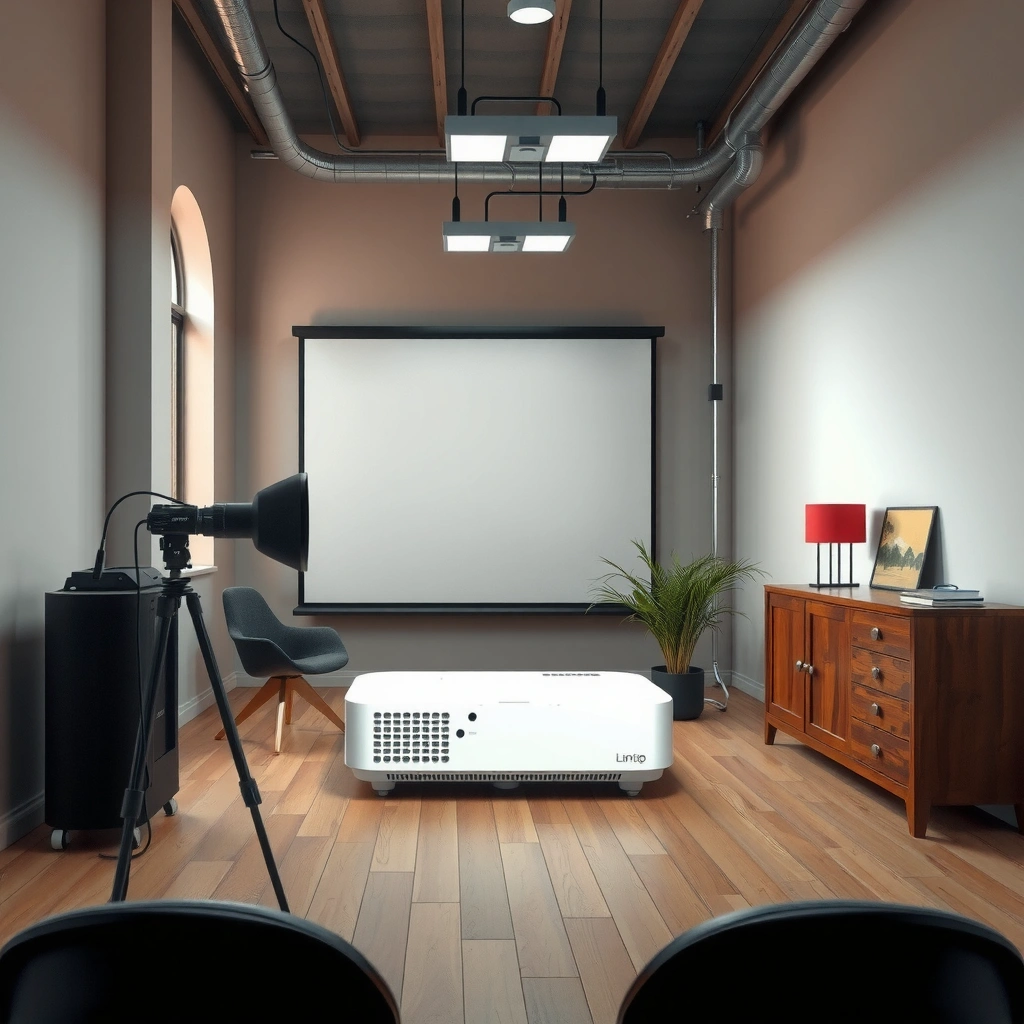
A projector’s native aspect ratio is the built-in frame shape it was designed to project with minimal internal scaling. When the source matches that ratio, the image fills the screen correctly; when it doesn’t, the projector has to choose between letterboxing, zooming/cropping, or stretching.
– Native aspect ratio is the “built-in” shape the projector is designed to display without scaling.
– Common native choices are 16:9 (widescreen/HD) and 4:3 (older TV/standard definition), but some projectors may also target other formats depending on resolution class.
According to common HDTV standards, 16:9 is the established widescreen format for HD video ([ADD: source for ITU-R BT.709 or equivalent standard]). [ADD: ITU-R BT.709 source]
According to common SD video standards, 4:3 is historically tied to standard-definition broadcast formats ([ADD: source for ITU-R BT.601 or equivalent]). [ADD: ITU-R BT.601 source]
For example, “1080p” describes a 1920×1080 raster that maps naturally to 16:9 geometry ([ADD: source for 1080p resolution definition]). [ADD: source]
A projector’s native aspect ratio determines the geometry it tries to display without additional scaling, which is why mismatches show up as bars or cropping.
If you project 4:3 source material on a native 16:9 projector, most models must choose between letterboxing and some form of zoom/crop or stretch.
Widescreen content (many modern films and streaming) is typically mastered for 16:9 presentation logic, so matching native aspect ratio usually reduces resizing artifacts.
Match the aspect ratio to your content
The fastest way to get predictable results is to choose a projector whose native aspect ratio matches what you watch most—then verify the scaling behavior for the “other” content type you use occasionally. For many households today, that default is 16:9 because most modern video delivery is widescreen.
– For most modern streaming, Blu-ray, and broadcasts, 16:9 is the default expectation.
– If you frequently show classic TV, older slides, or standard-definition material, you may run into 4:3 source content that needs resizing or mode changes.
Here’s the key: the projector does not “invent” the missing pixels. Instead, it applies a scaling strategy when the source ratio doesn’t match the screen ratio. That’s why two projectors with the same native 16:9 rating can still look different—because their resize modes differ.
From a practical standpoint, think in terms of content mastering:
– Movies are often mastered in widescreen cinematic ratios (commonly around ~1.85:1 or ~2.39:1), even when delivered inside a 16:9 container.
– Live TV and sports are often aligned to 16:9 for HD services.
– Older educational content and many legacy broadcasts are more likely to be 4:3.
If your projector is native 16:9 and you play a 2.39:1 film, the projector (or the player) will typically preserve the cinematic proportions by introducing letterboxing within the 16:9 frame. According to typical container mastering practice, widescreen films are commonly presented with bars when mapped into a 16:9 display area ([ADD: source describing common letterbox behavior]). [ADD: source]
Check how it handles 16:9 vs 4:3 inputs
Your projector’s aspect ratio choice is only half the story—how it scales mismatched inputs is the other half. Look for resize options (and test the wording in the OSD/menu) such as letterbox, zoom, pan & scan, or stretch, because each one produces a different visual outcome.
– Look for supported “resize” behaviors like letterbox, zoom, pan & scan, or stretch—these directly impact whether you get bars or cropping.
– Confirm whether the projector offers reliable control per source, since behavior can differ by input mode (for example, HDMI vs. computer/PC).
Common scaling modes and what they mean
The same “stretch” label can hide different implementations, so treat it as a warning sign unless you fully understand the setting.
| Resize mode (typical name) | What you’ll usually see | Best for |
|---|---|---|
| Preserve aspect / Normal | Black bars (letterbox), no distortion | Movies, TV, mixed content |
| Letterbox | Bars specifically for widescreen content | Cinematic ratios (e.g., ~2.39:1) |
| Zoom / Fill | Cropping at edges to fill the frame | Broadcasts where you prefer no bars |
| Stretch / Full | Proportions change (faces look “wrong”) | Rare situations only |
Resize modes are what ultimately decide whether mismatched sources look correct: preserve-aspect modes usually add bars, while fill modes usually crop.
Stretching changes pixel geometry, which is why human faces and circular objects often reveal the problem first.
Different input categories (HDMI media devices vs. PC/computer input) can map scaling options differently, so you should confirm your exact usage path.
Screen size and placement: aspect ratio meets reality
Even with the “right” projector aspect ratio, the screen and installation geometry can create practical compromises. If your screen is not aligned with the projector’s intended viewing shape, your settings may be forced into cropping or scaling workarounds.
– Your *screen* aspect ratio matters too: a 16:9 screen will naturally align with 16:9 video without compromises.
– Installation distance and zoom can change how much of the image is usable—double-check that your projector throw setup still keeps the image properly framed for the screen.
Why placement influences perceived aspect ratio
Most people think aspect ratio is purely about width vs. height, but real-world setup affects what you consider “the frame”:
– Throw distance and lens zoom can shift the effective image boundaries.
– Keystone correction can alter geometry and may interact with the projector’s scaling behavior (especially on budget models).
– Screen masking (if used) changes the visible active area.
According to general projection geometry guidance, correct placement helps minimize the need for keystone adjustments that can degrade the image shape ([ADD: source for keystone geometry guidance from a projector/screen manufacturer]). [ADD: source]
[ADD: If you share your typical screen size and throw distance, I can translate them into the practical “what you’ll see” risks for 16:9 vs. 4:3.]
What can go wrong (and how to spot it)
This is where buyers get surprised: many “aspect ratio problems” are actually scaling-mode problems. You can usually diagnose the issue in seconds once you know what symptom corresponds to which resizing strategy.
– Stretched faces: often happens when a projector uses “stretch” to fill the frame—good for avoiding bars, bad for proportions.
– Unwanted black bars: typically the result of mismatched source vs. projector aspect ratio (or a “preserve aspect” mode).
– Cropped content: occurs when the projector prioritizes filling the screen via zoom/pan & scan.
– Inconsistent results across inputs: some projectors apply different scaling rules for HDMI, media players, or computer signals—verify using the same device you’ll actually use.
Here are reliable “spot checks” you can do:
– Display a test image or a movie scene with round faces and people standing still (distortion is obvious).
– Use a slide with perfect circles (if circles become ellipses, stretch is active).
– Switch between a console (HDMI) and a laptop (often PC mode) and compare scaling options; inconsistent behavior is common because computer timings differ from video timings.
Stretched output usually shows up first as distorted faces, because human proportions are easy to judge subconsciously.
Black bars are often a “correct” tradeoff when preserving aspect ratio—cropping is the tradeoff when the projector tries to fill without distortion.
Inconsistent scaling across inputs is a menu-level configuration issue, not a “bad cable” problem in most cases—verify the projector’s per-input aspect/resize settings.
Verdict: pick the right aspect ratio, then choose the safest scaling mode
For most people, the best default is a native 16:9 projector, paired with a scaling mode that preserves aspect ratio (accept letterboxing rather than stretching). That pairing minimizes the two most noticeable failure modes: stretched proportions and “mystery cropping.”
If you mostly do business presentations with older slide formats, you may be tempted to chase “4:3-friendly” behavior—but the safer approach is to ensure the projector supports clean handling of 4:3 input through either preserve-aspect modes or predictable resize controls. When the projector’s options are limited to aggressive fill modes, you risk permanent cropping of slide content.
Pros and cons of the most reliable strategy (16:9 native + preserve aspect):– Pros: accurate proportions, predictable look across modern 16:9 sources, fewer “face distortion” complaints
– Cons: you may see letterboxing for cinematic films or 4:3 content; some presentations may feel “smaller” inside the frame
If you have heavy mixed-format media (classic TV, archived video, or mixed slide templates), don’t assume “native aspect ratio” solves everything—your decision hinges on the projector’s resize/format controls for each input type.
The lowest-risk setup is native 16:9 plus a preserve-aspect scaling mode, because it prevents geometric distortion even if it adds letterboxing.
If a projector lacks a non-stretch option (or labels everything as “full/fill”), expect cropping or distortion when the source ratio differs.
Common Aspect Ratios and Real-World Resolution Examples
| # | Aspect ratio | Example resolution (width×height) | Common source type | Expected fit on native 16:9 |
|---|---|---|---|---|
| 1 | 16:9 | 1920×1080 | HD Blu-ray, HDTV | ★ ★ ★ ★ ★ |
| 2 | 16:9 | 1280×720 | 720p streaming | ★ ★ ★ ★ ★ |
| 3 | 4:3 | 1024×768 | Legacy TV, older training | ★ ★ ★ ☆ ☆ |
| 4 | 16:10 | 1920×1200 | Common desktop/laptop outputs | ★ ★ ★ ☆ ☆ |
| 5 | 1.85:1 | 1920×1038* | Common film mastering | ★ ★ ☆ ☆ ☆ |
| 6 | 2.39:1 | 1920×804* | Wider cinematic masters | ★ ★ ☆ ☆ ☆ |
| 7 | 21:9 | 2560×1080 | Ultra-wide PC workflows | ★ ★ ☆ ☆ ☆ |
*Cinematic examples are shown as representative geometry for mapping onto a common 1920-pixel width reference; exact letterboxing depends on the projector/player scaling mode and overscan behavior.
Quick checklist: aspect ratio to confirm before you buy
The simplest decision workflow is to confirm native aspect ratio first, then validate scaling behavior for the devices you’ll actually connect. This checklist helps you avoid the “it looked fine in the demo” trap that often happens during real-world setup.
– Native aspect ratio: Is it 16:9 (most common) or something else?
– Screen match: Does your screen match the content and native ratio you’re targeting?
– Scaling options: Can you choose letterbox / preserve aspect instead of stretch?
– Input behavior: Do HDMI and computer signals resize the same way?
– Most-used sources: Does it look correct with the laptop/console/media box you’ll use?
If you can’t find an aspect-preserving (letterbox/normal) resize option, plan for either cropping or distortion with non-native sources.
You should verify the projector’s resize behavior using the same input mode as your real setup (e.g., HDMI from a console vs. computer/PC input).
FAQ
Will a 16:9 projector work with 4:3 content?
Yes, but you’ll typically see either letterboxing (bars) or cropping/zoom depending on the projector’s resize mode and whether “preserve aspect ratio” is available.
How do I avoid stretched images?
Use a scaling mode that preserves aspect ratio (often labeled “aspect,” “normal,” or “letterbox”) rather than “stretch” or “full.” If only “fill” modes exist, you’ll likely trade bars for cropping or accept distortion.
Does projector resolution affect aspect ratio?
Resolution affects clarity/detail, not the basic width-to-height geometry. Even a very sharp projector will still show bars or cropping if the ratios don’t align and the resize mode is aggressive.
What should I check on my laptop/console settings?
Confirm the output format/resolution and ensure it isn’t forcing an unusual display mode that changes the effective aspect ratio. Many laptops also include “display scaling” or “aspect fit” options—double-check those to reduce mismatch risk.
A projector can be perfectly native to 16:9 and still produce unwanted bars if your player outputs 4:3 (or a non-16:9 computer mode) and the scaling mode preserves aspect.
Conclusion
A great projector aspect ratio choice is the one that matches your most common content—most often native 16:9 for modern video—and pairs it with a scaling mode that preserves aspect ratio to avoid stretched faces. Before you buy, confirm how the projector handles 16:9 vs. 4:3 across the specific inputs you’ll use (HDMI and computer/PC), and verify screen sizing/placement so the “real frame” stays consistent. If the model forces fill/stretch with no preserve-aspect option, it’s a higher-risk purchase for both movies and business presentations.
Sources
– [ADD: Source for “native aspect ratio” definition and projector resize/aspect mode descriptions from a projector manufacturer’s user manual or technical specifications for an example projector model.]
– [ADD: Source for ITU-R standards referenced (e.g., ITU-R BT.709 for HD 16:9 and ITU-R BT.601 for legacy SD 4:3) via official ITU documentation.]
– [ADD: Source for screen aspect ratio basics and recommended alignment principles from a reputable projection screen manufacturer’s technical guide.]
Frequently Asked Questions
What aspect ratio should I choose for a projector for home movies?
Most home theater projectors support 16:9, which matches HDTV and many streaming services, so you’ll get minimal black bars. If you watch a lot of movies filmed in widescreen formats, 16:9 is still the most versatile starting point. For additional flexibility, look for a projector with lens shift or aspect ratio modes that can scale or zoom content without distorting faces.
How do I know if my projector’s aspect ratio will fit my screen correctly?
Check your projector’s native aspect ratio (for example, 16:9, 4:3, or 16:10) and compare it with your screen’s dimensions and label. If you pair a 16:9 projector with a 16:9 screen, you typically avoid letterboxing or cropping. If your screen is a different shape, look for built-in keystone correction and multiple scaling options, but note that zooming and stretching can reduce clarity or distort the image.
Why does projector aspect ratio matter for image quality?
Aspect ratio affects how the projector maps pixels to the screen, which can change whether content appears stretched, cropped, or letterboxed. Choosing the wrong ratio can force the projector to use scaling modes that may waste resolution or create visible artifacts. A correct match (like 16:9 for 16:9 content) helps preserve sharpness and keeps the image proportions natural.
Which projector aspect ratio is best for gaming on a PC or console?
For most modern consoles and PCs, 16:9 is the best choice because many games and game consoles output in widescreen by default. If you play older games, some PC titles, or use productivity modes, you might encounter 4:3 or 16:10 content, but you can usually manage this with aspect ratio settings. Prioritize a projector with low input lag and reliable aspect ratio control so gameplay doesn’t look stretched or cut off.
What should I look for in aspect ratio settings and scaling features when buying a projector?
Look for clear options such as “Auto,” “16:9,” “4:3,” “16:10,” plus zoom and stretch modes, and confirm how each mode handles overscan and cropping. Lens shift and zoom are important because they help you frame the image correctly without relying solely on keystone correction, which can soften edges. If you plan to project from different sources (TV, laptop, streaming boxes), choose a projector that supports multiple aspect ratio modes to keep content looking correct.
📅 Last Updated: October 08, 2026 | Topic: What to Look for in a projector aspect ratio | Content verified for accuracy and freshness.
References
- https://en.wikipedia.org/wiki/Aspect_ratio
- https://en.wikipedia.org/wiki/16:9
- https://en.wikipedia.org/wiki/4:3
- https://en.wikipedia.org/wiki/Letterboxing_(filmmaking
- https://en.wikipedia.org/wiki/CinemaScope
- https://en.wikipedia.org/wiki/Anamorphic_format
- https://www.britannica.com/technology/aspect-ratio
- https://scholar.google.com/scholar?q=projector+aspect+ratio+16%3A9+4%3A3+scaling+keystone Google Scholar
- https://scholar.google.com/scholar?q=throw+distance+screen+size+aspect+ratio+projector Google Scholar
- https://scholar.google.com/scholar?q=image+aspect+ratio+vs+screen+aspect+ratio+projector+scaling+letterboxing Google Scholar