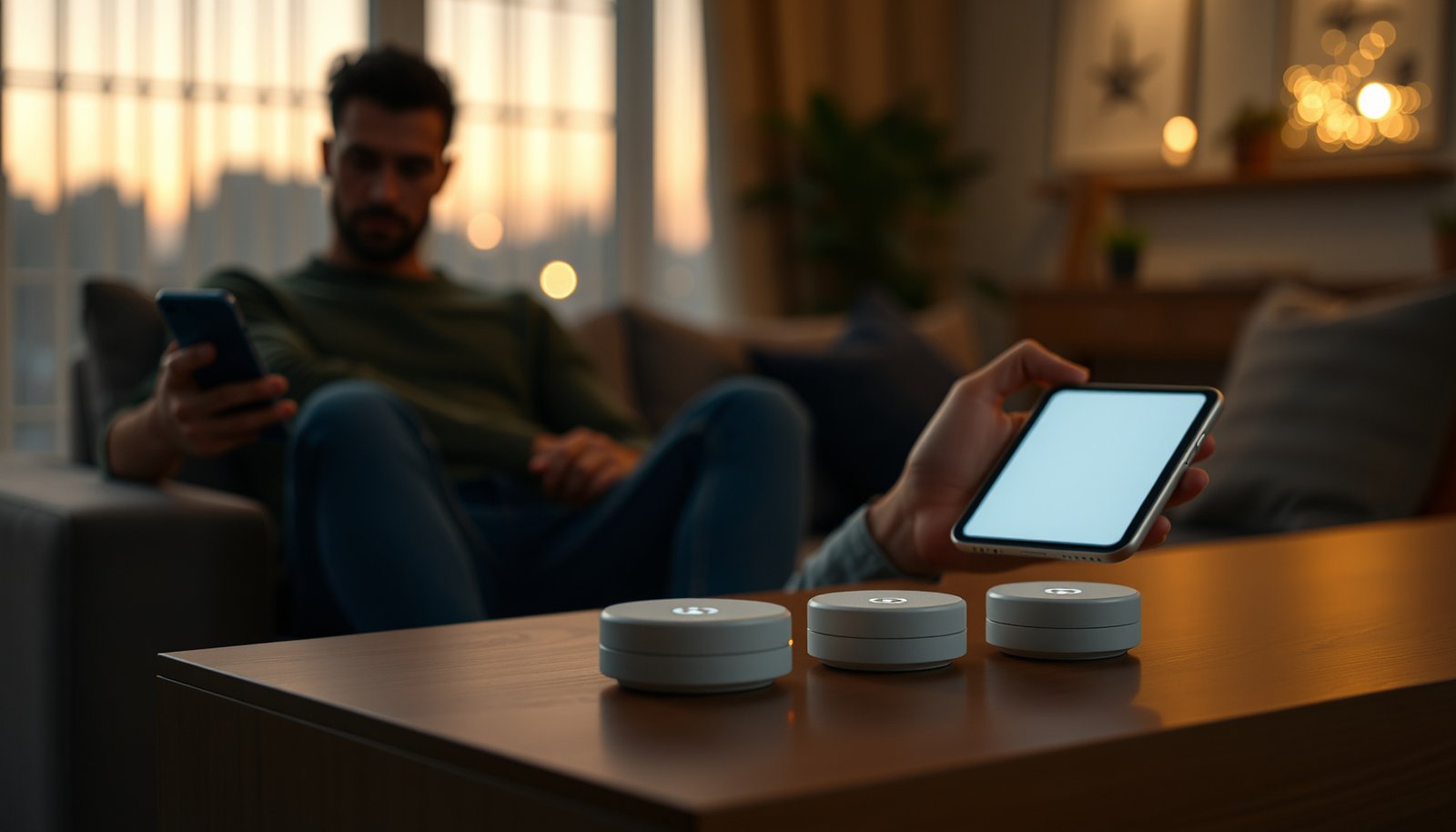
Mesh Wi-Fi with an isolated guest network wins when you need whole-home coverage and separate access for visitors. If your existing router already covers every room, enabling its guest network is the better choice than buying a mesh system just for guests. The deciding question is whether you need to fix Wi-Fi dead zones or simply keep visitors off your main network.




A guest network on a compatible mesh Wi-Fi system gives visitors separate Wi-Fi access and, when properly configured, restricts access to your main network. Support, isolation settings, and coverage across mesh nodes vary by system; this guide explains what to check, how to set it up, and how to confirm that guests cannot reach private devices.
This guide is for households that share Wi-Fi with visitors or want to keep certain connected devices separate. It also applies if you already have a guest network but are unsure whether it works throughout your mesh coverage.
How Guest Networks Work on Mesh Wi-Fi
Mesh nodes extend wireless coverage; guest-network settings determine which devices and resources guests can reach. Adding another node does not, by itself, create a security boundary.
A mesh system typically combines a primary unit with additional nodes connected through wired or wireless backhaul, the link carrying traffic between mesh units. A guest SSID, or wireless network name, gives visitors a separate connection option. However, the name is only an identifier: access restrictions must come from the system’s isolation rules.
Mesh Wi-Fi coverage and guest-network isolation are separate functions: nodes extend connectivity, while access rules determine which devices can communicate.
Two protections matter: guest-to-LAN isolation, which blocks access to the private local network, and client isolation, which blocks communication between guest devices. A system may provide one, both, or configurable exceptions.
For a concrete example, eero’s official guest-network documentation describes guests as unable to access the main network or communicate with other guest devices. Treat that as eero-specific behavior, not a promise about every mesh brand.
A separate Wi-Fi network name does not prove that guests are isolated from private devices or from one another.
Private addresses can help identify test targets, but they do not establish isolation. According to [IETF RFC 1918](https://www.rfc-editor.org/rfc/rfc1918), the private IPv4 block beginning at 10.0.0.0 uses a /8 prefix (1996). According to the same specification, the block beginning at 172.16.0.0 uses /12 (1996), and the block beginning at 192.168.0.0 uses /16 (1996). These are addressing ranges—not evidence that a firewall blocks guest access.
Set Up Guest Access Across Your Mesh
Enable guest Wi-Fi only after confirming support for your mesh model, connected nodes, and operating mode. Then verify both internet connectivity and isolation rather than relying solely on an “enabled” indicator.
1. Identify the configuration. Record the model, firmware version, and whether the system operates as a router or access point. In access-point or bridge mode, an upstream router handles routing; guest features may change.
2. Read the official instructions. For the featured eero example, use the [official guest-network setup guide](https://support.eero.com/hc/en-us/articles/207895123-How-do-I-set-up-an-eero-guest-network). For another system, find its exact model documentation.
3. Enable guest access. Choose a recognizable name that differs from your main SSID without exposing unnecessary personal information.
4. Create a unique password. Do not reuse your main Wi-Fi password or router administrator password.
5. Select compatible security. Prefer WPA3-Personal where supported by the guest feature and intended devices. Otherwise, use the strongest supported compatible option, typically WPA2-Personal with AES. Avoid open access and obsolete WEP.
6. Review access exceptions. Disable unnecessary permissions labeled “local network access,” “intranet access,” or similar. Confirm whether guest-to-guest communication is blocked.
Guest-network setup is complete only after internet access works and intended private-network resources remain inaccessible.
Test with a phone or laptop connected only to guest Wi-Fi. Temporarily disconnect Ethernet, cellular data, and VPN connections that could confuse the result. First confirm that a chosen private resource—such as a NAS login page—works from the main network. Then attempt the same address from the guest network without changing the resource’s configuration.
Walk to areas served by different nodes and repeat the checks. Use the mesh app’s connected-node information where available; proximity alone does not prove which node serves the device. A failed ping is insufficient evidence because many devices ignore ping even when other services remain accessible.
Testing a known working service by its local address provides stronger evidence of isolation than checking whether its device name disappears.
The following table is a verification plan, not a report of measured results.
Seven Checks for Internet-Only Guest Access
| # | Check | Connection | Test target | Desired outcome |
|---|---|---|---|---|
| 1 | Baseline resource access | Main Wi-Fi | Known NAS login page | Page loads |
| 2 | Internet access | Guest Wi-Fi | Public HTTPS website | Website loads |
| 3 | Private storage isolation | Guest Wi-Fi | Same NAS local address | Access blocked |
| 4 | Private printer isolation | Guest Wi-Fi | Verified printer web page | Access blocked |
| 5 | Guest client isolation | Two guest devices | Previously verified local service | Blocked when isolation is required |
| 6 | Satellite coverage | Guest Wi-Fi at each node | Internet and private resource | Internet works; private access blocked |
| 7 | IPv6 isolation, when enabled | Guest Wi-Fi | Verified private-device IPv6 service | Access blocked |
What Can Go Wrong
Guest networks can fail through permissive settings, mode-dependent limitations, or incomplete testing. They can also correctly block communication that visitors expect to work.
If a guest reaches private storage or a printer, check local-network permissions and intentional sharing exceptions first. Verify the device actually joined guest Wi-Fi rather than automatically reconnecting to the main SSID. If access remains possible, stop sharing the guest password until the manufacturer’s guidance explains the behavior.
A guest device reaching a private resource is a reason to investigate the configuration, not evidence that a separate SSID provides protection.
Casting, wireless printing, and smart-home onboarding often depend on local discovery and direct communication. Isolation can block these functions by design. Do not disable it reflexively: allowing local access may expose more than the television or printer you intended to share. Prefer documented device-specific exceptions or a separate trusted-device network where available.
Access-point and bridge modes may remove guest controls or change enforcement. For eero, consult the official bridge-mode limitations documentation rather than assuming router-mode behavior applies unchanged.
Guest Wi-Fi normally shares the household’s internet connection, so a separate network name does not guarantee separate bandwidth.
Slow guest connections can reflect a busy internet link, weak backhaul, interference, or distant nodes. Compare performance under similar conditions before attributing the problem to isolation.
When a Guest Network Is the Right Choice
An isolated guest network is a practical choice for visitors who need internet access without household-device access. It is less suitable when users need detailed permissions or dependable communication across separated networks.
Internet-only visitors are the clearest fit for an isolated mesh guest network.
- Advantages
- A separate password avoids disclosing the main Wi-Fi credential, while verified isolation reduces direct access to private devices.
- Trade-offs
- Another password requires management, and blocked device discovery can complicate printing, casting, and connected-device setup.
- When to choose advanced controls
- Households needing selective access between networks may need VLAN-capable equipment and firewall rules. A VLAN is a logically separated network segment; inter-network access still requires an appropriate routing and firewall policy.
A consumer guest network is not a substitute for fine-grained firewall rules when selected devices must communicate across network boundaries.
Some internet-only smart devices work well on guest Wi-Fi; others require a phone, hub, or controller on the same local network. Check each device’s requirements before moving it.
Guest Network Checklist
Confirm support, security, coverage, and isolation before sharing the login. For a deployment reviewed in 2026, record the installed firmware and repeat checks after significant configuration or firmware changes.
A useful guest-network checklist verifies both permitted internet access and prohibited private-network access.
– [ ] Confirm guest-network support in the mesh system’s current operating mode and verify coverage where visitors connect.
– [ ] Use a unique guest password, review local-network access settings, and check whether connected guests can communicate with one another.
– [ ] Verify that internet access works while private resources remain inaccessible; share the login details only after checking the setup.
Rechecking isolation after a network-mode change helps detect behavior that differs from the original setup.
Sources for Model-Specific Instructions
Use manufacturer documentation for operational instructions and standards documents for addressing definitions. Before applying this guide in 2026, match instructions to the exact model, firmware, and operating mode.
Model-specific documentation is more reliable than assuming every product in a mesh brand supports identical guest-network features.
– eero: [How do I set up an eero guest network?](https://support.eero.com/hc/en-us/articles/207895123-How-do-I-set-up-an-eero-guest-network) — setup and documented guest-isolation behavior.
– eero: [What features do I lose if I put my eeros into bridge mode?](https://support.eero.com/hc/en-us/articles/115000825206-What-features-do-I-lose-if-I-put-my-eeros-into-bridge-mode) — operating-mode limitations.
– IETF: [RFC 1918: Address Allocation for Private Internets](https://www.rfc-editor.org/rfc/rfc1918) — private IPv4 address ranges.
Manufacturer specifications describe intended behavior; documented local tests establish whether the installed configuration behaves as expected.
A mesh guest network is useful for sharing internet access without automatically sharing access to private devices—but its protections depend on the system and configuration. Start with your manufacturer’s instructions, review isolation settings, and verify coverage and access restrictions before giving visitors the password.
Frequently Asked Questions
What is mesh Wi‑Fi and how does it work with guest networks?
Mesh Wi‑Fi uses multiple nodes (routers) that work together to create one seamless wireless network with better coverage than a single router. Many mesh systems also support guest networks, letting you broadcast a separate SSID for visitors while keeping their devices isolated from your main Wi‑Fi. This means guests can access the internet without reaching shared files, smart home devices, or printers on your primary network.
How do I set up a guest network on my mesh Wi‑Fi system?
Open your mesh Wi‑Fi app or router web interface, then navigate to the Wi‑Fi settings and select “Guest Network” (or “Add Guest SSID”). Choose the guest network name and security type (typically WPA2/WPA3) and set a password if your system allows it. If available, enable client isolation or device isolation to prevent guests from seeing your local devices, then save and test from a phone or laptop.
Why do some guests have slow speeds or dropped connections on mesh Wi‑Fi guest networks?
Guest networks can be slower when they share limited backhaul bandwidth or when multiple nodes are negotiating weak signal links. If guest devices connect to a far node, roaming may take longer, causing intermittent disconnects, especially for 2.4 GHz vs 5 GHz behavior. To improve stability, ensure your mesh nodes have strong placement coverage, enable band steering if supported, and consider setting the guest network to prefer 5 GHz where feasible.
Which mesh Wi‑Fi features should I look for to keep my guest network secure?
Look for WPA3 (or at least WPA2) for encryption, a separate SSID for guests, and “client/device isolation” so guest devices can’t access your main LAN. Some systems also offer time-based access, guest portals, or unique guest passwords, which reduces risk if a password is shared. Avoid guest networks that allow visibility into the home network, and disable unnecessary features like LAN access or file sharing for the guest profile.
What’s the best way to manage guest access with mesh Wi‑Fi—passwords, scheduling, or captive portals?
The best approach depends on how often you host people and how you share access. For frequent guests, time-based scheduling and automatic expiration help you avoid repeatedly changing passwords, while rotating guest credentials reduce the chance of long-term exposure. If your mesh system supports a captive portal or branded sign-in page, it’s ideal for controlling access in a more trackable way while still keeping the guest network separate from your main Wi‑Fi.
📅 Last Updated: October 16, 2026 | Topic: Mesh Wi-Fi and Guest Networks | Content verified for accuracy and freshness.
References
- Mesh networking
- Wireless mesh network
- Network segmentation
- SP 800-153, Guidelines for Securing Wireless Local Area Networks (WLANs) | CSRC
- https://www.cisa.gov/resources-tools/resources/securing-your-home-network
- https://scholar.google.com/scholar?q=mesh+Wi-Fi+guest+network+isolation Google Scholar
- https://scholar.google.com/scholar?q=Wi-Fi+EasyMesh+architecture+interoperability+guide Google Scholar
- https://scholar.google.com/scholar?q=guest+network+Wi-Fi+security+access+point+isolation+WPA2+WPA3 Google Scholar



