
Setting up a multi-room audio system with Sonos is simple and enhances your home listening experience significantly. By following a few straightforward steps, you can enjoy seamless music playback throughout your home. This guide will walk you through the setup process, ensuring you get the most out of your Sonos system while enjoying your favorite tunes in every corner of your home.



Understanding Sonos Components
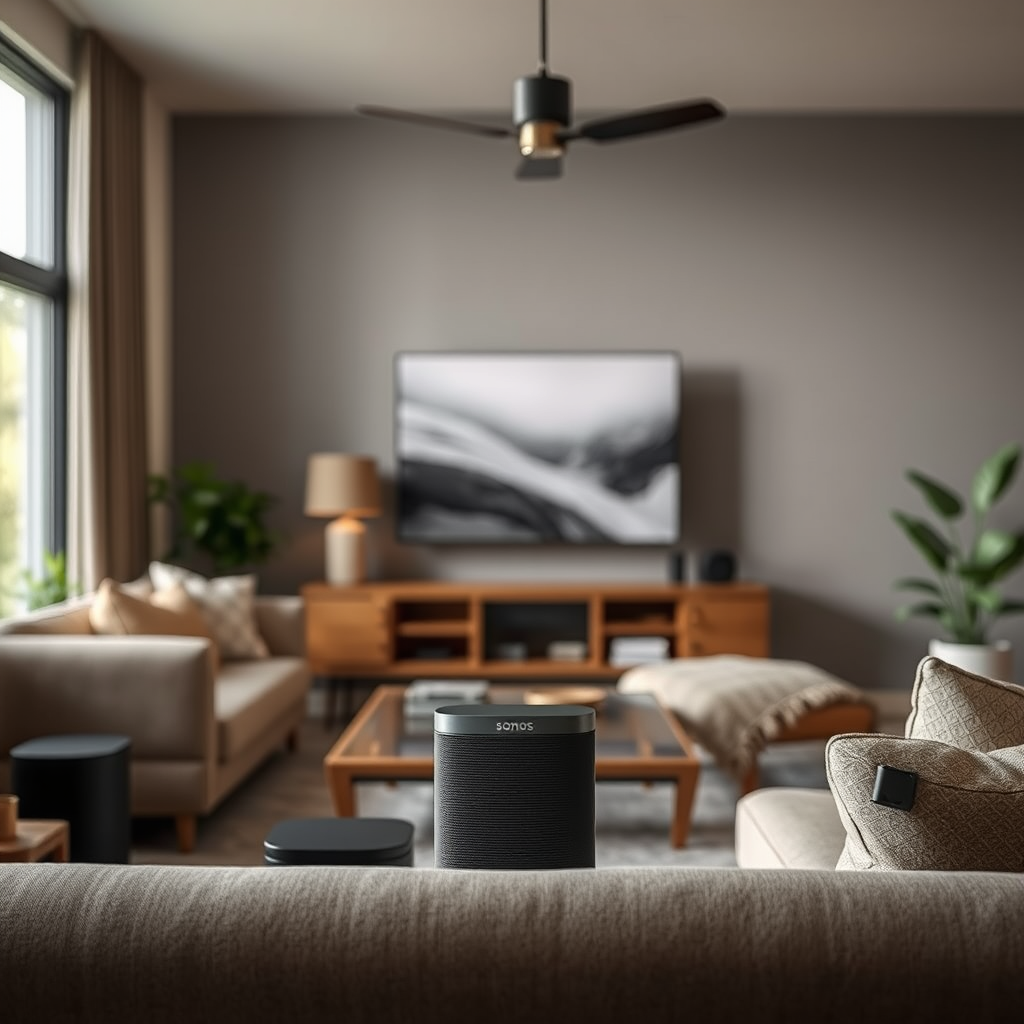
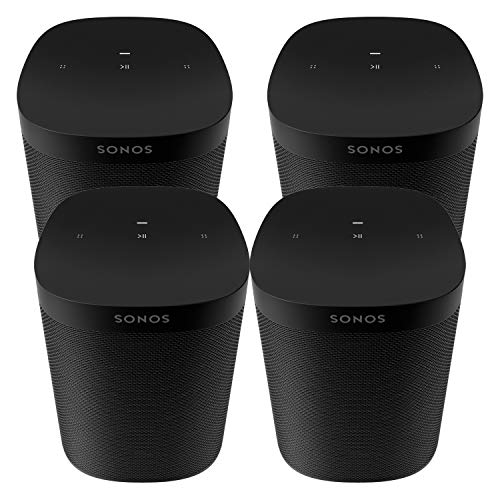
To get started, it’s important to familiarize yourself with the different Sonos speakers available. The Sonos One is a compact smart speaker that delivers excellent sound quality and includes voice control options through Alexa and Google Assistant. If you’re looking for more powerful audio, the Sonos Five provides deep bass and is ideal for larger spaces. For a cinematic experience, the Sonos Arc is a premium soundbar that supports Dolby Atmos, making it perfect for movie nights and immersive soundscapes.
Equally important is the Sonos app, which serves as the central control hub for your audio system. Available on both iOS and Android devices, the app allows you to manage all your speakers, control playback, and access various music streaming services, making it a vital tool in your Sonos experience.
Preparing for Installation
Before diving into the installation, take a moment to assess your home’s layout. Consider factors like room size, furniture placement, and how sound travels through your space. For optimal sound distribution, placing speakers at ear level and away from walls can create a more immersive listening experience.
Next, ensure that your home has a stable Wi-Fi connection. Sonos relies on your home network for streaming music and controlling speakers. A strong, reliable connection will help prevent interruptions and maintain audio quality. If your Wi-Fi signal is weak in certain areas, consider using a range extender or a mesh network system to improve coverage.
Installing the Sonos App
Getting started with Sonos is easy. Download the Sonos app on your smartphone or tablet from the App Store or Google Play. Once installed, open the app and either create a new Sonos account or log into an existing one. The app will guide you through the initial setup process, including connecting to your Wi-Fi network and preparing to add your speakers.
The app features an intuitive interface, making it simple to navigate and control your audio settings. Take a moment to explore the app’s features, as it will become your go-to tool for managing your multi-room audio system.
Adding Sonos Speakers
With the app ready, it’s time to add your Sonos speakers. The app will provide step-by-step instructions to connect each speaker to your Wi-Fi network. This process typically involves plugging in the speaker, allowing it to boot up, and then following the prompts in the app to connect it to your network.
As you add speakers, assign each one to a specific room in your home for easy identification and control. For instance, you might label one speaker as “Living Room” and another as “Kitchen.” This organization will streamline your ability to control music playback in different spaces.
Grouping Rooms for Multi-Room Playback
One of the standout features of a Sonos system is the ability to group speakers for synchronized playback across multiple rooms. In the app, you can easily create groups by selecting the speakers you want to play the same music simultaneously. This is perfect for entertaining guests or simply enjoying your favorite playlist throughout the house.
Additionally, you can customize audio settings for each room. Adjust the volume independently or fine-tune the equalization settings based on the speaker’s placement and your personal preferences. This level of control allows you to create the perfect ambiance for any occasion, whether it’s a quiet evening or a lively get-together.
Streaming Music Services
Sonos supports a wide range of music streaming services, including Spotify, Apple Music, Amazon Music, and more. To connect your favorite services, navigate to the “Settings” section in the Sonos app and select “Services.” Here, you can link your accounts, making it easy to access your playlists and favorite tracks.
Creating playlists is a breeze, and with compatible smart assistants like Alexa or Google Assistant, you can control playback using voice commands. For example, simply say, “Play my dinner party playlist in the Living Room,” and enjoy a seamless transition from silence to ambiance. The integration of voice control adds convenience, allowing you to multitask while still enjoying your music.
Troubleshooting Common Issues
While setting up your Sonos system is generally straightforward, you may encounter some common issues. If you experience connectivity problems, ensure that your Wi-Fi network is functioning properly. Restarting your router or relocating your speakers closer to the router can often resolve these issues.
Playback issues might also arise, such as delays or interruptions. In these cases, check the app for any updates, as keeping your system up to date can improve performance. If you require further assistance, Sonos offers a robust support section on their website, complete with troubleshooting guides and community forums where you can find solutions from other users.
By following these steps, you can easily set up and enjoy a multi-room audio system with Sonos. This setup not only enhances your music experience but also adds convenience and flexibility to your home entertainment. Start enjoying your favorite tunes in every corner of your home today! Whether you’re hosting a party or unwinding after a long day, your Sonos system will provide the perfect soundtrack for every moment.
Frequently Asked Questions
What components do I need to set up a multi-room audio system with Sonos?
To set up a multi-room audio system with Sonos, you’ll need a Sonos speaker for each room you want to include, such as the Sonos One, Sonos Move, or Sonos Beam. Additionally, a reliable Wi-Fi network is essential for connecting all your speakers, and you may want to download the Sonos app on your smartphone or tablet to control the system easily and access various music services.
How do I connect multiple Sonos speakers to the same Wi-Fi network?
To connect multiple Sonos speakers to the same Wi-Fi network, first ensure that your Wi-Fi router is set up and functioning. Then, use the Sonos app to add each speaker: open the app, tap on ‘Settings,’ select ‘System,’ and then ‘Add Product.’ Follow the on-screen instructions to connect each speaker to your Wi-Fi network, ensuring they are all on the same network for seamless multi-room audio playback.
Why isn’t my Sonos system syncing audio across multiple rooms?
If your Sonos system isn’t syncing audio across multiple rooms, the issue may stem from a weak Wi-Fi signal or network congestion. Ensure that all speakers have a strong Wi-Fi connection and consider moving your router closer to your Sonos devices. Additionally, make sure all speakers are updated to the latest software version via the Sonos app, as updates can resolve syncing issues and improve performance.
What is the best way to set up a Sonos multi-room audio system for a large home?
For a large home, the best way to set up a Sonos multi-room audio system is to use a combination of wired and wireless connections. Consider placing Sonos speakers in strategically important areas, such as living rooms, kitchens, and patios, and utilize Sonos products that support Ethernet connections, like the Sonos Port, to ensure stable performance. Additionally, using Sonos Boost can help extend the Wi-Fi range, providing a robust audio experience throughout larger spaces.
Which Sonos speakers are best for creating a multi-room audio experience?
The best Sonos speakers for creating a multi-room audio experience include the Sonos One for its compact size and excellent sound quality, and the Sonos Five for larger spaces where powerful audio is desired. The Sonos Beam is ideal for integrating TV audio with music playback, while the portable Sonos Roam allows you to enjoy music anywhere in your home. Choosing a mix of these speakers will provide versatility and enhance your overall listening experience.
References
- Sonos
- https://www.wired.com/story/sonos-multi-room-audio-guide/
- https://www.techhive.com/article/3314577/how-to-set-up-sonos-multi-room-audio.html
- https://www.tomsguide.com/how-to/how-to-set-up-sonos
- https://www.cnet.com/home/speakers/how-to-set-up-sonos-sound-system/
- https://www.digitaltrends.com/home-theater/how-to-set-up-sonos-multi-room-audio/
- https://www.pcmag.com/how-to/how-to-set-up-your-sonos-system
- https://www.soundguys.com/how-to-set-up-sonos-20517/
