

Experiencing audio cutting in and out on your Bluetooth speakers can be frustrating, but most issues can be resolved with a few troubleshooting steps. The key to restoring a seamless audio experience lies in identifying the root cause of the connection instability or device misconfiguration. In this article, you will learn practical solutions to restore your audio performance, whether your connection is unstable or the device needs some basic adjustments.
Check Bluetooth Connection Stability

The first step in addressing audio issues with Bluetooth speakers is to ensure that the connection is stable. Bluetooth technology relies on a strong signal to transmit audio effectively, so confirming that your device is within the recommended range is crucial. Most Bluetooth speakers operate optimally within a range of approximately 30 feet (10 meters). Moving closer to the speaker can often resolve connectivity issues.
Additionally, physical obstructions can severely impact the Bluetooth signal quality. Items such as walls, furniture, and even other electronic devices can interfere with the audio stream. To enhance connection stability, try to minimize these obstructions by positioning your Bluetooth speaker in an open space where it can maintain a direct line of sight to the connected device.
Restart Devices
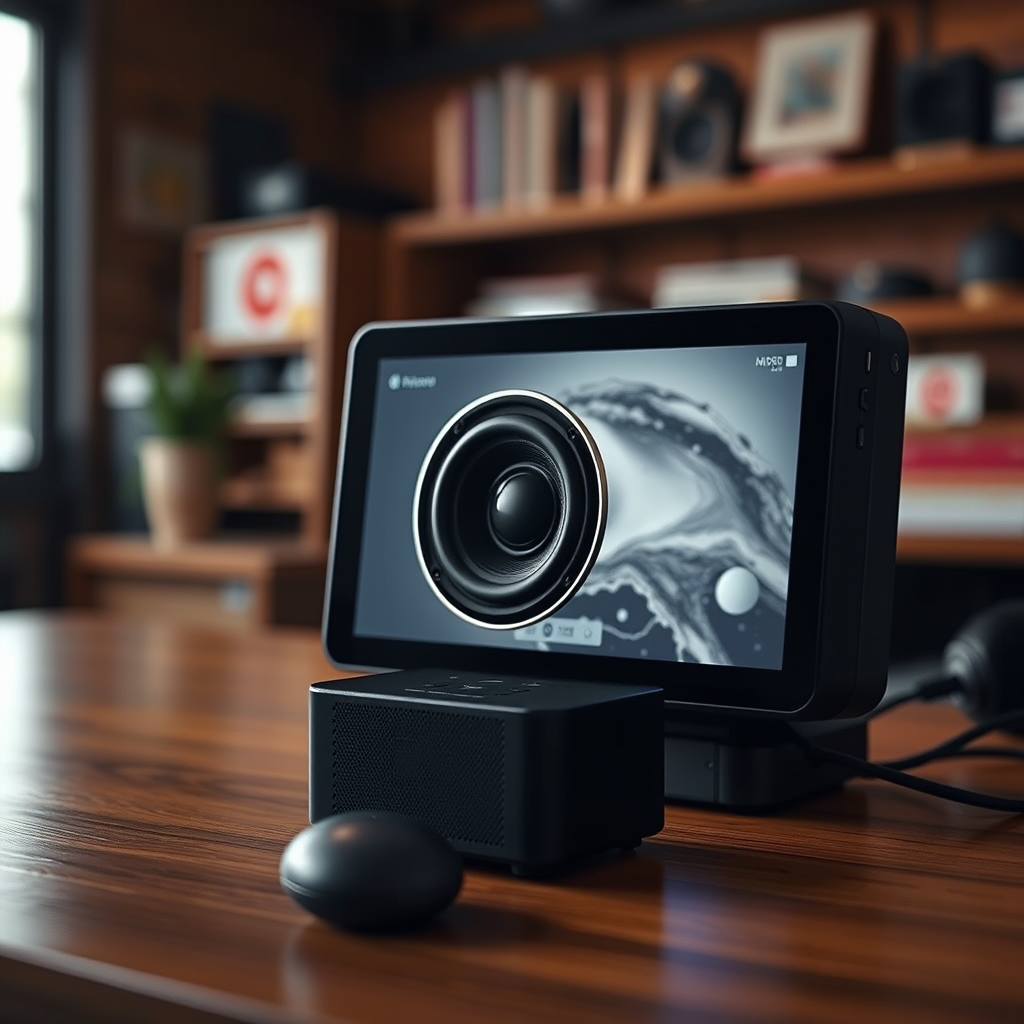
Sometimes, a simple restart can resolve connectivity problems. Power off both your Bluetooth speaker and the connected device, then power them back on to reset the connection. This process clears temporary glitches that may affect the Bluetooth connection.
Moreover, unpairing and then re-pairing the devices can also be beneficial. This step refreshes the Bluetooth connection and can eliminate any lingering issues from previous pairings. To unpair, navigate to the Bluetooth settings on your smartphone or computer, find the speaker in the list of connected devices, and select the option to forget or remove it. Afterward, re-initiate the pairing process.
Update Firmware and Software
Updating the firmware of your Bluetooth speaker can significantly enhance its performance and connectivity. Manufacturers regularly release updates that address bugs and improve compatibility with other devices. To check for firmware updates, visit the manufacturer’s official app or website, where you can often find instructions for updating your specific model.
In addition to updating your speakers, ensure that your smartphone or computer has the latest software updates installed. Operating system updates can also affect Bluetooth performance, and keeping your devices up to date ensures optimal functionality.
Optimize Device Settings
Adjusting the audio settings on your device can sometimes resolve issues with audio playback. For instance, disabling audio enhancements or equalizers in your device’s settings may improve sound quality and prevent interruptions. These enhancements can sometimes interfere with the Bluetooth audio stream, leading to choppy sound.
Furthermore, exploring the audio quality settings within your Bluetooth settings can also provide a solution. Many devices allow you to switch between different audio codecs, which can impact the fidelity and stability of the audio stream. Experimenting with these settings may yield a more stable listening experience.
Check Battery Levels
Battery levels play a crucial role in the performance of Bluetooth devices. Ensure that both your Bluetooth speaker and the connected device have sufficient battery life, as low power can lead to audio interruptions. Even if a device appears to have enough charge, fluctuating battery levels can still cause connectivity issues.
To mitigate this risk, charge both devices fully before testing the audio again. If your speaker has a battery-saving mode, consider disabling it during playback, as it can alter performance to conserve power, potentially leading to audio dropouts.
Interference from Other Devices
Bluetooth operates on the 2.4 GHz frequency band, which is shared with many other devices, including Wi-Fi routers, microwaves, and other Bluetooth devices. Identifying and reducing interference from nearby devices can significantly improve audio performance.
If possible, try to keep your Bluetooth speaker away from other electronic devices that may cause interference. Additionally, consider switching to a different frequency band if your speaker supports it. For instance, some dual-band routers allow you to switch between 2.4 GHz and 5 GHz bands, which can help reduce interference and improve connectivity.
Factory Reset the Speaker
If all else fails, performing a factory reset on your Bluetooth speaker can restore it to its default settings. This step can solve persistent issues that other troubleshooting methods cannot. To perform a factory reset, refer to the manufacturer’s instructions, as the process can vary by model.
Once the reset is complete, re-pair your devices and test the audio again. If the problem persists even after a factory reset, it may indicate a deeper hardware issue that requires professional assistance.
Common Bluetooth Speaker Issues and Solutions
| # | Issue | Possible Causes | Suggested Solutions |
|---|---|---|---|
| 1 | Audio Cuts Out | Weak signal, interference | Check range, remove obstructions |
| 2 | Low Volume | Settings misconfiguration | Adjust volume settings |
| 3 | Sound Distortion | Audio enhancements | Disable audio enhancements |
| 4 | Connection Drops | Battery issues | Charge devices fully |
| 5 | Pairing Issues | Previous connections | Unpair and re-pair |
| 6 | Inconsistent Sound | Interference | Reduce nearby devices |
| 7 | Battery Drain | Power-saving settings | Charge before use |
Bluetooth Speaker Audio Issues by Frequency (%)
By following these troubleshooting steps, you should be able to effectively resolve the audio cutting in and out on your Bluetooth speakers. Addressing connection issues promptly not only enhances your overall audio experience but also prolongs the life of your devices. If the problem persists after attempting these solutions, it may be time to consult the manufacturer for further assistance or consider replacing the device. Remember that a stable and high-quality audio experience is essential for enjoying your favorite music, podcasts, and media.
Frequently Asked Questions
What causes audio cutting in and out on Bluetooth speakers?
Audio cutting in and out on Bluetooth speakers can be caused by several factors, including poor Bluetooth connection, interference from other devices, low battery levels, or outdated firmware. Additionally, the distance between the speaker and the audio source can affect signal strength, leading to interruptions in sound quality.
How can I improve the Bluetooth connection to prevent audio dropouts?
To improve your Bluetooth connection and prevent audio dropouts, ensure that your Bluetooth speaker and source device are within a reasonable distance, ideally within 30 feet. Also, eliminate any physical barriers, such as walls or furniture, and minimize interference from other electronic devices, such as Wi-Fi routers or microwaves, which can disrupt the signal.
Why does my audio cut out when I move away from the Bluetooth speaker?
Your audio cuts out when moving away from the Bluetooth speaker due to the limitations of Bluetooth range, which typically operates effectively within 30 feet. Beyond this range, the signal weakens, leading to interruptions or complete loss of audio. It’s important to stay within the recommended distance for optimal performance.
What is the best way to troubleshoot a Bluetooth speaker with audio issues?
The best way to troubleshoot a Bluetooth speaker with audio issues includes resetting the speaker, ensuring it’s fully charged, and checking for software updates. Additionally, try deleting the Bluetooth connection on your device and re-pairing it, as this can resolve many connectivity problems and enhance audio performance.
Which devices are most likely to cause interference with Bluetooth audio?
Common devices that can cause interference with Bluetooth audio include Wi-Fi routers, microwaves, and other Bluetooth devices. These devices operate on similar frequencies, which can lead to audio dropouts. To reduce interference, try turning off nearby devices or changing the location of your Bluetooth speaker for better signal clarity.
References
- https://www.wikihow.com/Fix-Bluetooth-Speaker-Connecting-Issue
https://www.wikihow.com/Fix-Bluetooth-Speaker-Connecting-Issue - https://www.lifewire.com/how-to-fix-a-bluetooth-speaker-4172061
https://www.lifewire.com/how-to-fix-a-bluetooth-speaker-4172061 - https://www.nytimes.com/2020/12/01/technology/personaltech/bluetooth-speaker-problems.html
https://www.nytimes.com/2020/12/01/technology/personaltech/bluetooth-speaker-problems.html - https://www.bbc.com/news/technology-48244437
https://www.bbc.com/news/technology-48244437 - Google Scholar Google Scholar
https://scholar.google.com/scholar?q=Bluetooth+audio+cutting+in+and+out - Google Scholar Google Scholar
https://scholar.google.com/scholar?q=fixing+audio+issues+with+Bluetooth+speakers - Google Scholar Google Scholar
https://scholar.google.com/scholar?q=Bluetooth+speaker+troubleshooting - https://www.sciencedirect.com/science/article/pii/S2352864821000080
https://www.sciencedirect.com/science/article/pii/S2352864821000080 - Google Scholar Google Scholar
https://scholar.google.com/scholar?q=How+to+Fix+Audio+Cutting+In+and+Out+on+Bluetooth+Speakers - How to Fix Audio Cutting In and Out on Bluetooth Speakers – Search results
https://en.wikipedia.org/wiki/Special:Search?search=How+to+Fix+Audio+Cutting+In+and+Out+on+Bluetooth+Speakers