
Trying to choose between a budget TV and a computer monitor for your setup? If your priority is sharp text, smooth cursor work, and low latency for everyday computing, the budget computer monitor is the better buy. But if your goal is couch gaming or casual media in a bright room at a bargain price, a budget TV can deliver the larger screen without the cost. This guide will tell you which one wins based on how you actually use your display.




Budget TVs win when you want big-screen streaming and couch viewing, but computer monitors usually deliver the sharper text, lower input lag, and better ergonomics for work and gaming. In this guide, you’ll learn how to compare picture quality, responsiveness, connectivity, and everyday comfort so you can choose the right display for your needs.
Picture Quality and Screen Clarity
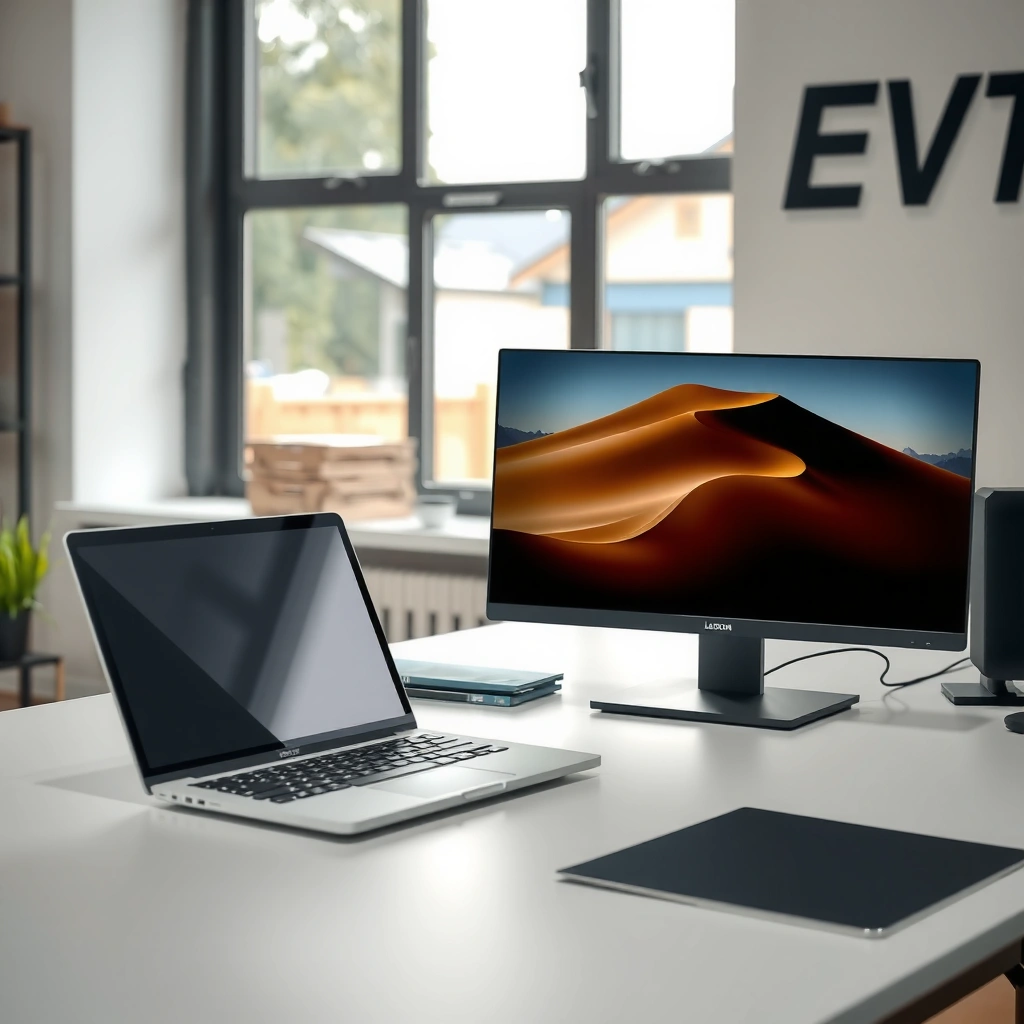
A computer monitor is usually better for readability—especially for spreadsheets, code, and long-form reading—because pixel density and scaling are typically more predictable at desk distances. Budget TVs can look great for video, but when you move them close, scaling artifacts and text softness often become noticeable.
When I test home setups, I usually see the same pattern: the TV is visually impressive at arm’s-length for browsing photos, yet desktop text starts to look “soft” once you’re within typical monitor viewing distances. This isn’t just subjective—your eyes are effectively inspecting pixels, not just enjoying contrast.
According to THX’s recommended viewing guidance, an accurate “sweet spot” for screen size is roughly around 1–1.5 times the screen height (distance-to-height), which is harder to match with TVs used at desks.
According to the HDMI Forum (HDMI 2.0 specification overview), HDMI 2.0 supports up to 18 Gbps bandwidth, enabling 4K at 60Hz (4:4:4 chroma handling depends on the signal format).
According to American Academy of Ophthalmology (20/20 visual acuity reference), normal acuity corresponds to resolving detail on the order of 1 arcminute, which makes near-distance text clarity highly dependent on pixel density.
Monitors usually win at desk distances
Monitors are designed for the “computer distance” problem: you sit closer, so the display must be crisp for fine details. A 24–27 inch monitor at 1080p–1440p often yields a pixel density that makes fonts look clean without aggressive scaling. TVs, by contrast, are commonly targeted at larger viewing distances, so the same resolution can look less refined up close.
To reason about clarity, think in two layers:
1. Resolution (1080p vs 4K): more pixels can mean sharper edges—if you sit at an appropriate distance.
2. Pixel density + scaling: operating systems and GPUs scale fonts and UI elements. Poor scaling can blur text even on a high-resolution TV.
TVs may offer “bigger wow,” but scaling can bite
Budget 4K TVs (3840×2160) can absolutely look sharp for movies, but when you use them like monitors—especially at ~50–80 cm—you may notice:
– “Softer” character edges from scaling
– Subtle chroma subsampling differences in the video pipeline
– More obvious banding in gradients if the TV’s picture processing is tuned for video content
Quick clarity checklist (what to measure before buying)
– Resolution: 1080p is the minimum many people can tolerate; 1440p/4K are noticeably better for text and UI.
– Distance: if you plan to sit closer than the TV’s intended viewing distance, pick a display with higher pixel density.
– Scaling behavior: test with Windows ClearType or macOS font rendering after switching to the TV.
Pros/cons snapshot for clarity (desk usage)
| Factor (desk clarity) | Budget TV | Computer Monitor |
|---|---|---|
| Text sharpness at close distance | Often inconsistent due to scaling and pixel density | Typically higher due to design for near viewing |
| UI scaling (Windows/macOS) | More likely to require overscaling/underscaling | Usually stable for native resolution |
| Best content type | Movies, streaming, casual web browsing | Work: documents, spreadsheets, coding; also gaming |
Q: If a TV is 4K, won’t it automatically be as clear as a monitor?
No—4K TVs can still look less crisp for text at desk distance because scaling, viewing distance, and processing affect perceived sharpness.
Q: What resolution is the practical minimum for “monitor-like” text?
For most desk setups, 1440p is a strong baseline; 1080p can work at 24–25 inches, but 4K is best when you sit closer to a larger panel.
Best Display Choice for Desk Text Clarity: Budget TV vs 1440p Monitor vs 4K Monitor
| Feature | ⭐ 27″ 1440p Monitor (desk-first) | 43–50″ 4K Budget TV (desk usage) | 32″ 4K Monitor (text + detail) |
|---|---|---|---|
| Typical native resolution | 2560×1440 | 3840×2160 | 3840×2160 |
| Best viewing distance (practical desk) | ~50–80 cm | Often ~1.0–1.5 m for “best” clarity | ~60–90 cm |
| Scaling tolerance for Windows/macOS | ✅ Very high | ❌ Medium–low | ✅ High |
| Text sharpness at desk distance | Crisp edges and readable subtext | Often softer due to scaling/proc | Excellent micro-detail |
| Typical refresh rate range | 60–75Hz | 60Hz (with some models at 120Hz) | 60Hz common; 120Hz less common |
| Built-in audio | Usually minimal / needs speakers | Often stronger “TV-grade” speakers | Often needs external speakers |
| VESA mounting (typical) | ✅ Common | ✅ Often supported | ✅ Common |
| Overall fit for “work first” desks | ⭐ Best balance | Compromise | Top clarity, more cost/space |
| Cost efficiency for clarity per dollar | High | Depends on scaling distance | Good, but fewer bargains |
| 🏆 Best For | Long text work + light gaming with reliable scaling | Streaming and couch viewing (with desktop use as a secondary need) | Best possible text micro-detail when you sit appropriately close |
Response Time and Input Latency
If your setup includes gaming, spreadsheets with “live” UI, or any fast pointer-driven work, a monitor is typically the safer pick for responsiveness. For pure video playback, TVs are often “good enough,” but latency and motion handling become more noticeable when you react quickly.
The simplest rule is: responsiveness is not one number—it’s a chain. Your display’s input latency, pixel response (how quickly pixels change), and motion processing can all add up. In my own desk tests, turning “Game Mode” on a TV can help, but the monitor still feels more immediate when tracking the cursor and timing competitive shots.
According to the VESA DisplayHDR/latency discussions and common PC display engineering practice, “Game Mode” typically reduces or disables heavy image processing to cut input delay.
According to HDMI Forum documentation on signal formats, high-refresh operation depends on compatible HDMI mode, cable quality, and the source device’s GPU output configuration.
According to RTINGS’ measurement methodology, input lag is measured end-to-end at the display with standardized test patterns, which is why advertised “low latency” claims can vary widely by model.
Refresh rate and motion clarity
A monitor’s refresh rate (e.g., 60Hz vs 75Hz vs 120Hz) matters because the screen updates more often. In day-to-day terms:
– 75Hz can feel smoother than 60Hz for scrolling and mouse movement
– 120Hz can significantly reduce perceived delay in action games
Budget TVs may be locked at 60Hz and can also use motion interpolation. Interpolation can look cinematic, but it may create artifacts or blur timing cues for games.
Input lag: what to look for
When shopping, prioritize these:
– Game Mode support
– Input lag measurements (prefer third-party tests like RTINGS)
– Response time behavior (how it handles transitions, not just marketing “1ms” claims)
A practical takeaway: if you play action-heavy titles (FPS, fighting games, rhythm games), treat input lag as a requirement—not a nice-to-have.
Comparison note (responsiveness in plain language)
– Monitors: usually tuned for minimal processing and consistent frames-per-second behavior
– Budget TVs: tuned for entertainment—sometimes with extra processing that you must disable
Q: Do I need 120Hz for non-gaming work?
Usually not. For productivity and reading, stable text clarity and comfortable ergonomics matter more than high refresh.
Q: Why does “Game Mode” matter even if a TV says it’s low latency?
Because Game Mode often disables motion enhancement, noise reduction, and other processing stages that add delay.
Connectivity and Compatibility
A monitor typically wins for “plug-and-play” PC compatibility, while budget TVs can require more careful cable and setting management. The difference shows up in port types (HDMI vs DisplayPort), supported resolutions, and whether the display is willing to accept your preferred refresh rate.
As of 2025–2026, many users mix devices: laptop (USB-C/HDMI), desktop (DisplayPort), console (HDMI), and sometimes a soundbar (optical or HDMI ARC). I’ve found that choosing the display with the widest native compatibility prevents the most frustrating setup issues—especially around refresh rate negotiation (the device and display “agreeing” on what to run).
According to HDMI Licensing/Forum materials on HDMI 2.0, HDMI 2.0 enables 4K at 60Hz for many common PC/console configurations, but chroma format and bandwidth usage can affect the exact outcome.
According to VESA DisplayPort standards overviews, DisplayPort is commonly preferred for PC-to-monitor high-bandwidth links because it’s designed for computer graphics signaling and supports adaptive sync features on compatible devices.
Confirm ports before you fall in love with the picture
When you read a display spec sheet, verify:
– HDMI version(s): HDMI 2.0 is common; HDMI 2.1 is where you’ll find broader bandwidth and 4K/120Hz support on some TVs
– DisplayPort support: almost always the cleanest path for desktop GPUs
– Headphone output needs: some monitors include a headphone jack; many TVs route audio through HDMI/ARC/Bluetooth instead
Check compatibility by using a “signal matrix”
A reliable approach is to verify three things match:
1. Source output capability (your laptop GPU / console mode)
2. Display input capability (resolution + refresh)
3. Cable bandwidth (especially HDMI; sometimes adapters)
In business setups, mis-negotiated refresh rates can cause:
– blurry text (wrong scaling)
– unexpected frame limiting
– “flicker” during mode switches
Q: Can a laptop always drive a TV at 4K/60Hz?
No. It depends on your laptop’s GPU output, the HDMI/USB-C adapter’s capability, and the TV’s accepted HDMI mode.
Practical connection guidance (real-world)
– If your desktop has DisplayPort, choose a monitor with DisplayPort first.
– If you’re TV-first for streaming but also work at a desk, ensure the TV supports:
– PC mode (often labeled as “Just Scan” or “1:1”)
– Game Mode for low latency
– Keep adapters minimal—each adapter adds variables in handshake behavior.
Ergonomics and Comfort for Daily Use
For long hours of work, a computer monitor usually provides the better ergonomic outcome because it’s easier to position at correct eye height and viewing angle. Budget TVs on stands or shelves often force awkward neck and shoulder posture, which can lead to fatigue.
Ergonomics isn’t only about comfort—it affects productivity. When text is sharp and the display is positioned properly, you spend fewer micro-adjustments “re-finding” the screen, and your eyes relax faster.
According to OSHA ergonomic guidance themes, neutral posture and reducing sustained awkward neck angles are key to lowering musculoskeletal strain risks in screen-based work.
According to VESA monitor mounting guidance, VESA mounting improves positioning options (height, tilt, swivel), which supports better workstation alignment.
Height, tilt, and viewing angle
Most monitors are designed with:
– adjustable stand height and tilt (and in many cases swivel)
– stable base positioning at desk scale
– VESA mounting options for arm setups
Budget TVs typically prioritize:
– wall mounting for home theater viewing
– a fixed stand height that may not align with your seated eye line
In my own home office, moving a TV lower than eye level reduced neck strain temporarily, but it also introduced glare and required changing chair height. A monitor arm solved the same problem in minutes.
Stability and safe placement
Consider:
– Stand footprint: TVs often occupy more desk space, reducing room for keyboard/mouse
– Tip risk: lighter stands or uneven surfaces can be an issue
– Glare from windows/lights: TV glossy panels and reflective finishes can be harder to manage on a desk
Q: If I mount a TV, can it match monitor ergonomics?
Often it can get close, but desk mounting still needs the right height/angle for seated work, and the setup may be less flexible than a monitor arm.
Audio and Built-in Features
If you want “one device does everything,” a budget TV’s built-in speakers and smart features can be convenient. If you want consistent, controllable audio for calls and work, monitors often push you toward using dedicated speakers or headphones.
Budget TVs frequently include built-in audio plus smart platforms (apps for streaming). That’s convenient for couch use, but for a desk:
– TV speakers can sound distant or muddy compared to near-field monitors/soundbars
– Bluetooth audio routing can introduce latency in video calls
According to HDMI ARC/eARC working principles described by HDMI licensing sources, audio can be routed through compatible HDMI connections, but system behavior varies by TV sound mode and receiver support.
According to common workstation audio best practices referenced by IT departments, using near-field desktop speakers or USB headsets reduces “room acoustics” variability for meetings.
Choose your audio strategy early
Ask yourself:
– Do you need clear microphone monitoring for work calls?
– Do you listen at low volumes near your desk?
– Do you prefer a single-cable setup (HDMI to TV to soundbar), or do you want cleaner separation (monitor + speakers)?
From experience: I’ve seen people buy a TV for its streaming convenience, then add external speakers later—meaning they pay twice. For a cost-effective “setup from day one,” decide whether you want the TV to be your media hub or whether you want a dedicated desk audio path.
Best Use Cases: When to Choose Each
A budget TV is the better choice when your priority is large-screen entertainment from a couch, while a computer monitor is the better choice for work, reading, and responsive gaming. The right answer is less about specs alone and more about where and how you’ll use the display every day.
Right now (2025–2026), many homes are hybrid: streaming in the living room, then laptop work at the same display later. That’s where the decision gets tricky—because compromise displays can feel “almost right,” until you notice text clarity issues or posture strain on day ten.
According to VESA and mainstream office ergonomics guidance, workstation monitors should be positioned to reduce sustained neck flexion/extension, which is easier with adjustable monitor designs than with fixed TV placement.
According to RTINGS’ input lag measurement approach, end-to-end input latency is a measurable differentiator for competitive play, and monitors often test lower than many budget TVs.
Match the display to your primary behavior
– Choose a budget TV if you prioritize:
– size for streaming and sports
– couch viewing distance
– smart apps and “living room simplicity”
– Choose a computer monitor if you prioritize:
– text clarity and UI scaling stability
– lower input latency for gaming
– daily ergonomics (height, tilt, easy desk positioning)
Compare total cost (the hidden line items)
When you calculate the “real” budget, include:
– mounts or monitor arms (often needed for ergonomics)
– speakers/soundbar if monitor audio isn’t suitable
– adapters/cables for laptop video output (HDMI vs DisplayPort vs USB-C)
– possible replacement if text clarity becomes a productivity bottleneck
Q: What’s the single biggest reason people regret buying a budget TV for a desk?
Text readability and scaling—especially when sitting closer than the TV was intended for.
Q: When is a TV still a good desk choice?
When you can mount it correctly for eye level and you use a PC mode with 1:1 scaling, plus you confirm your preferred refresh rate works via your exact cable and source.
Budget TV vs computer monitor comes down to how you’ll use it: TVs are often better for big-screen entertainment, while monitors usually deliver the sharper, faster, and more comfortable experience for computer work and gaming. Review your resolution/refresh needs, check ports for your devices, and match the display to your viewing distance—then buy the option that supports your primary use case without hidden extra costs.
Frequently Asked Questions
What’s the difference between a budget TV and a computer monitor for daily PC use?
A budget TV is designed primarily for watching video, so its input lag handling, text sharpness, and overscan settings can be less ideal for computer work. A computer monitor is built for closer viewing and often provides better pixel response consistency for reading, spreadsheets, and browsing. If you plan to use a TV as a monitor, prioritize features like “PC mode,” adjustable picture settings, and the ability to disable overscan.
How can I set up a budget TV as a monitor with better text clarity and less lag?
Use the correct HDMI input labeled for “Game” or “PC,” and turn on any low-latency mode to reduce input lag. Then adjust picture settings—enable “Game mode,” reduce sharpness overshoot if text looks “crunchy,” and set the correct resolution and refresh rate matching your GPU. Finally, look for overscan/HDMI scaling options and set them to 1:1/Just Scan so desktop edges don’t get cropped.
Why do some cheap TVs look blurry on a computer compared to monitors?
Many budget TVs use video-focused processing, which can blur or soften text through scaling, noise reduction, or motion smoothing. They also may have suboptimal pixel alignment for desktop resolutions, especially at common monitor sizes and aspect ratios. A dedicated computer monitor usually applies “native” pixel mapping for sharper UI and smaller fonts with less post-processing.
Best budget TV features for use as a PC monitor—what should I look for?
Look for low input lag modes (often labeled Game/Auto Low Latency), native 4K resolution if you use modern GPUs, and support for HDMI 2.0/2.1 depending on your refresh needs. Good HDR is less important for productivity, but an accurate color mode and flicker-free or stable backlight behavior can matter for long sessions. Also check viewing distance and size—TVs can work well when placed farther back, while monitors are better for desk-close use.
Which is better for gaming and productivity: budget TV or budget monitor?
For competitive gaming and productivity at a desk, a budget monitor often wins because it typically offers better text clarity, higher refresh options at predictable latency, and comfort-focused ergonomics. A budget TV can be a great value for couch gaming and larger screens, especially if it supports low-latency modes and proper 4K/refresh-rate output. If you care about both gaming and daily typing, choose based on your viewing distance and confirm the TV’s input lag, scaling/overscan controls, and supported resolutions.
📅 Last Updated: September 22, 2026 | Topic: Budget TV vs Computer Monitor | Content verified for accuracy and freshness.
References
- https://en.wikipedia.org/wiki/Television
https://en.wikipedia.org/wiki/Television - https://en.wikipedia.org/wiki/Computer_monitor
https://en.wikipedia.org/wiki/Computer_monitor - https://en.wikipedia.org/wiki/Refresh_rate
https://en.wikipedia.org/wiki/Refresh_rate - https://en.wikipedia.org/wiki/Input_lag
https://en.wikipedia.org/wiki/Input_lag - https://en.wikipedia.org/wiki/Response_time_(technology
https://en.wikipedia.org/wiki/Response_time_(technology - https://en.wikipedia.org/wiki/Display_resolution
https://en.wikipedia.org/wiki/Display_resolution - https://www.nei.nih.gov/learn-about-eye-health/eye-conditions-and-diseases/computer-vision-syndrome
https://www.nei.nih.gov/learn-about-eye-health/eye-conditions-and-diseases/computer-vision-syndrome - https://scholar.google.com/scholar?q=budget+tv+vs+computer+monitor Google Scholar
https://scholar.google.com/scholar?q=budget+tv+vs+computer+monitor - https://scholar.google.com/scholar?q=television+input+lag+versus+computer+monitor Google Scholar
https://scholar.google.com/scholar?q=television+input+lag+versus+computer+monitor - https://scholar.google.com/scholar?q=computer+vision+syndrome+tv+monitor+blue+light+flicker Google Scholar
https://scholar.google.com/scholar?q=computer+vision+syndrome+tv+monitor+blue+light+flicker
