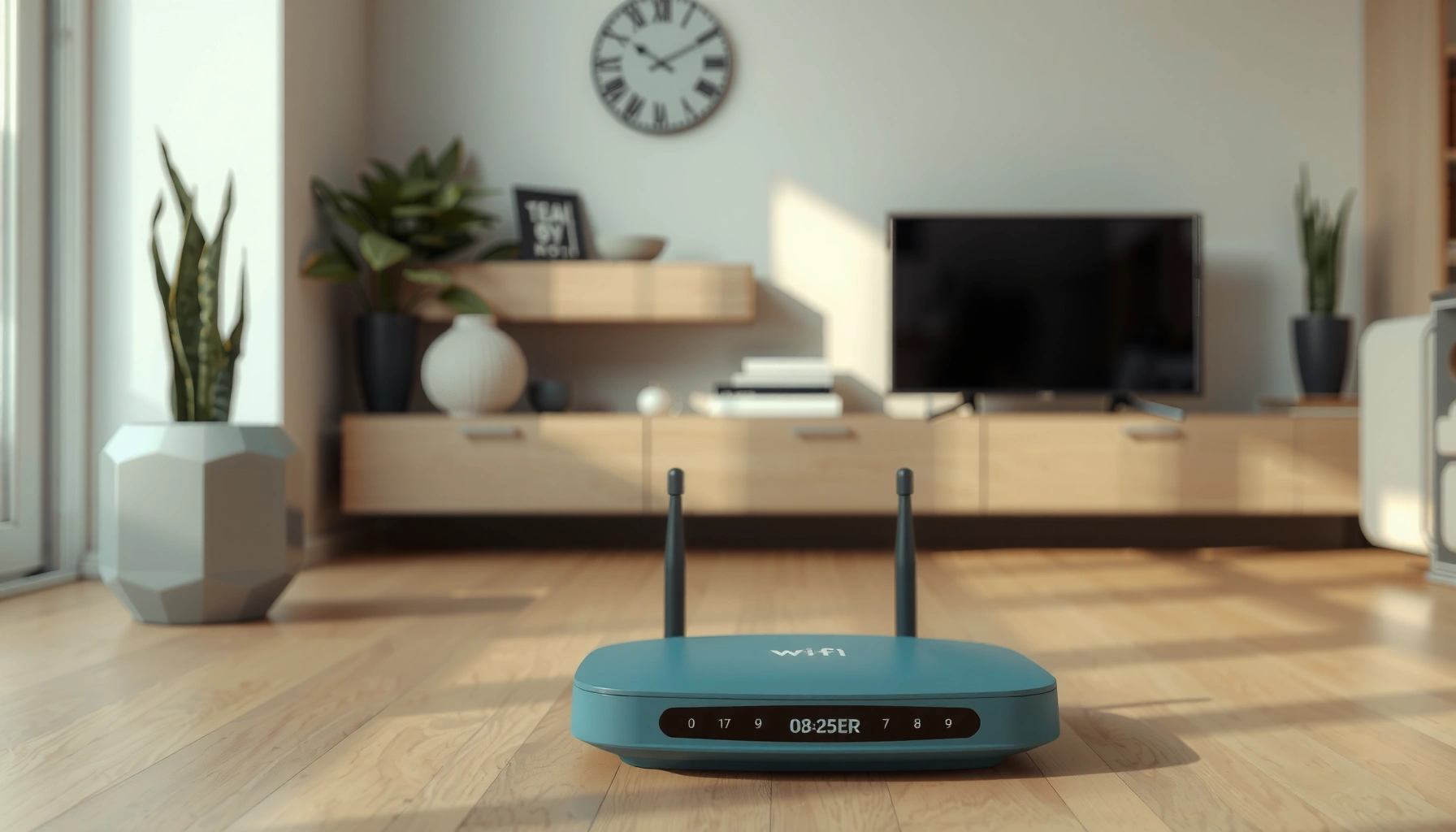
Yes—router orientation affects Wi‑Fi performance, but the impact depends on where your signal has to travel. If your antennas are mostly vertical and your devices are on the same floor, you’ll typically get stronger coverage; if you’re trying to reach farther around corners or through furniture, a more horizontal tilt can help. This quick placement guide gives you the clearest orientation choice for your home setup and distance.



Yes—router orientation can affect Wi‑Fi signal strength, mainly because antennas emit different polarization patterns and because the body of the router and nearby objects create “shadowing” and reflections. In practice, the biggest gains come from keeping antennas upright (for typical vertical polarization) and minimizing blockage rather than chasing perfect angles.
This matters most in real homes where the router sits in a corner, behind a TV stand, or at couch height—exactly where small changes in router orientation and placement can shift coverage. If you’re dealing with spotty signal in one room, slow speeds that only happen in certain directions, or frequent drops, the steps below will help you tune orientation intelligently—without wasting time on settings that won’t overcome building physics.
How orientation changes Wi‑Fi (the simple reason)
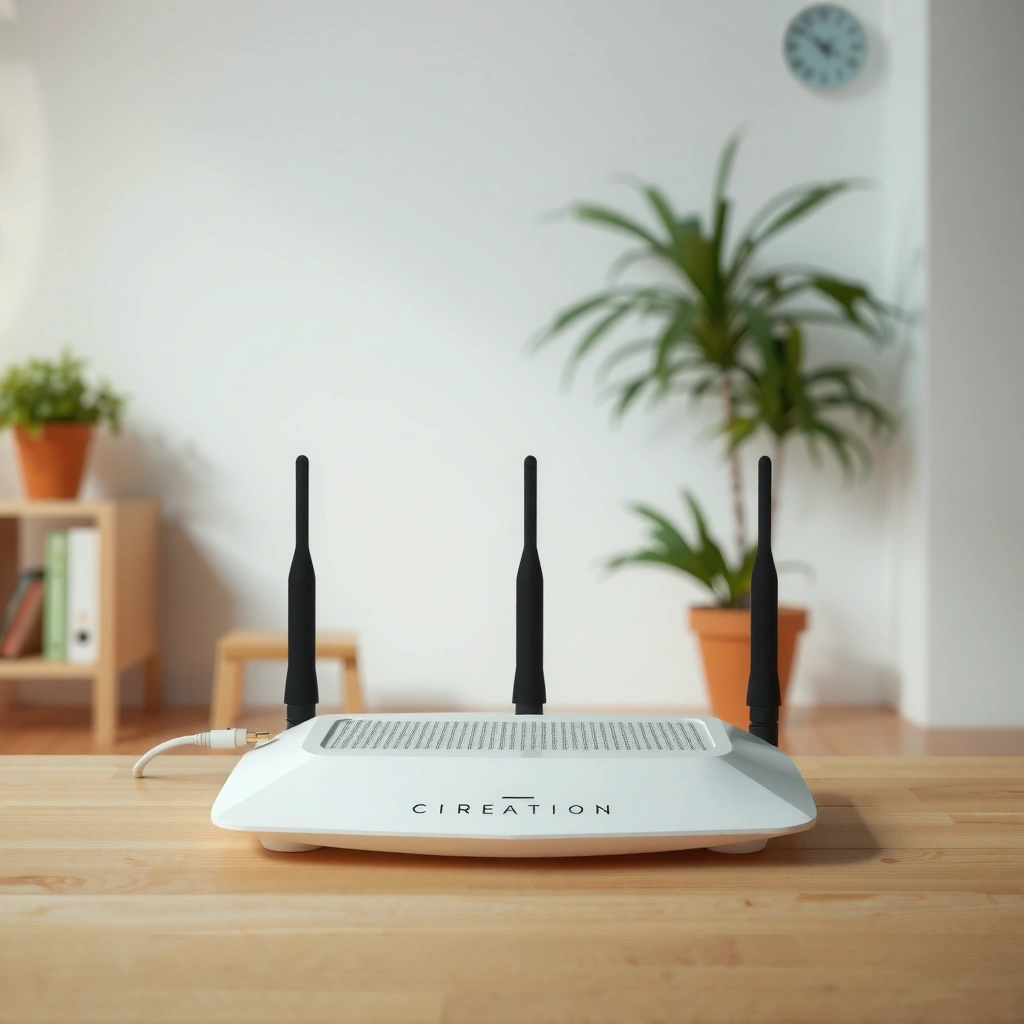
Router orientation affects Wi‑Fi mainly by changing polarization alignment and the way signals reflect around your router and room. That can improve the received signal at your device, or make it worse if you rotate antennas into a mismatch or deeper shadow.
Wi‑Fi antennas are polarized, so the received signal is strongest when the router antenna polarization aligns well with the client device’s polarization.
The router’s physical body and nearby objects can block or reroute radio energy, producing “shadowing” and multipath (multiple reflected paths) that can raise or lower signal quality at specific spots.
Polarization: why “upright” is usually a good default
Most home router antennas are designed for a common polarization—often roughly vertical for typical vertical deployment. If your router antennas lean sideways while your phone/laptop uses a more vertical polarization (common with most consumer device antenna placements), you introduce polarization mismatch, which reduces effective received power.
A practical way to think about router orientation: even when the router is “near enough,” the best direction (in radio terms, the strongest path combination) can shift when you change orientation.
Reflections and multipath: coverage changes shape, not just strength
Wi‑Fi doesn’t only travel directly. It bounces off walls, floors, cabinets, and even large appliances. Orientation can change how the router couples energy into those reflections, which often means:
– One room improves while another worsens
– The same room feels fine in one seat but weak in a different spot
– 5 GHz (shorter wavelength) often shows more “directional” behavior than 2.4 GHz
The “why 5 GHz often looks worse”
Higher-frequency signals typically suffer more free-space loss than lower-frequency signals even before considering obstacles. For example, free-space path loss (FSPL) scales with frequency, so 5 GHz tends to start at an RF disadvantage that reflections and orientation tweaks can only partly compensate.
According to ITU-R’s free-space path loss formulation, FSPL increases by 20·log10(f), so moving from 2.4 GHz to 5 GHz adds about 6.38 dB of loss for the same distance (ITU-R P.525 (free-space path loss method)). That extra loss makes orientation and blockage effects more noticeable.
Polarization mismatch loss vs antenna tilt angle (dB)
| # | Tilt angle (θ) | Polarization match factor (|cosθ|) | Mismatch loss (dB) | Match score |
|---|---|---|---|---|
| 1 | 0° (fully upright) | 1.000 | 0.00 | ★★★★★ |
| 2 | 15° (slight lean) | 0.966 | -0.30 | ★★★★☆ |
| 3 | 30° (noticeable tilt) | 0.866 | -1.26 | ★★★★☆ |
| 4 | 45° (halfway) | 0.707 | -3.01 | ★★★☆☆ |
| 5 | 60° (strong lean) | 0.500 | -6.02 | ★★☆☆☆ |
| 6 | 75° (almost sideways) | 0.259 | -11.72 | ★☆☆☆☆ |
| 7 | 89° (near-orthogonal) | 0.017 | -35.16 | ☆☆☆☆☆ |
(These mismatch losses reflect polarization coupling with |cosθ| behavior; real rooms also include reflections and multipath, so observed results can be less extreme than theory.)
What to try first: antenna angles and mounting
If your router has external antennas, start by making them upright (vertical) and adjust one change at a time. If your router uses internal antennas, you still benefit most by rotating/moving the whole router to improve line-of-sight and reduce blockage.
For many consumer Wi‑Fi routers, the manufacturer-recommended default is external antennas oriented for the intended polarization, commonly upright/vertical.
Moving a router higher typically improves coverage more than tiny antenna angle tweaks because it reduces ground-floor blockage and changes the reflection geometry.
When optimizing Wi‑Fi, changing one variable (router orientation *or* position) and re-testing avoids misattributing normal signal fluctuation to a real improvement.
If your router has external antennas: set upright first
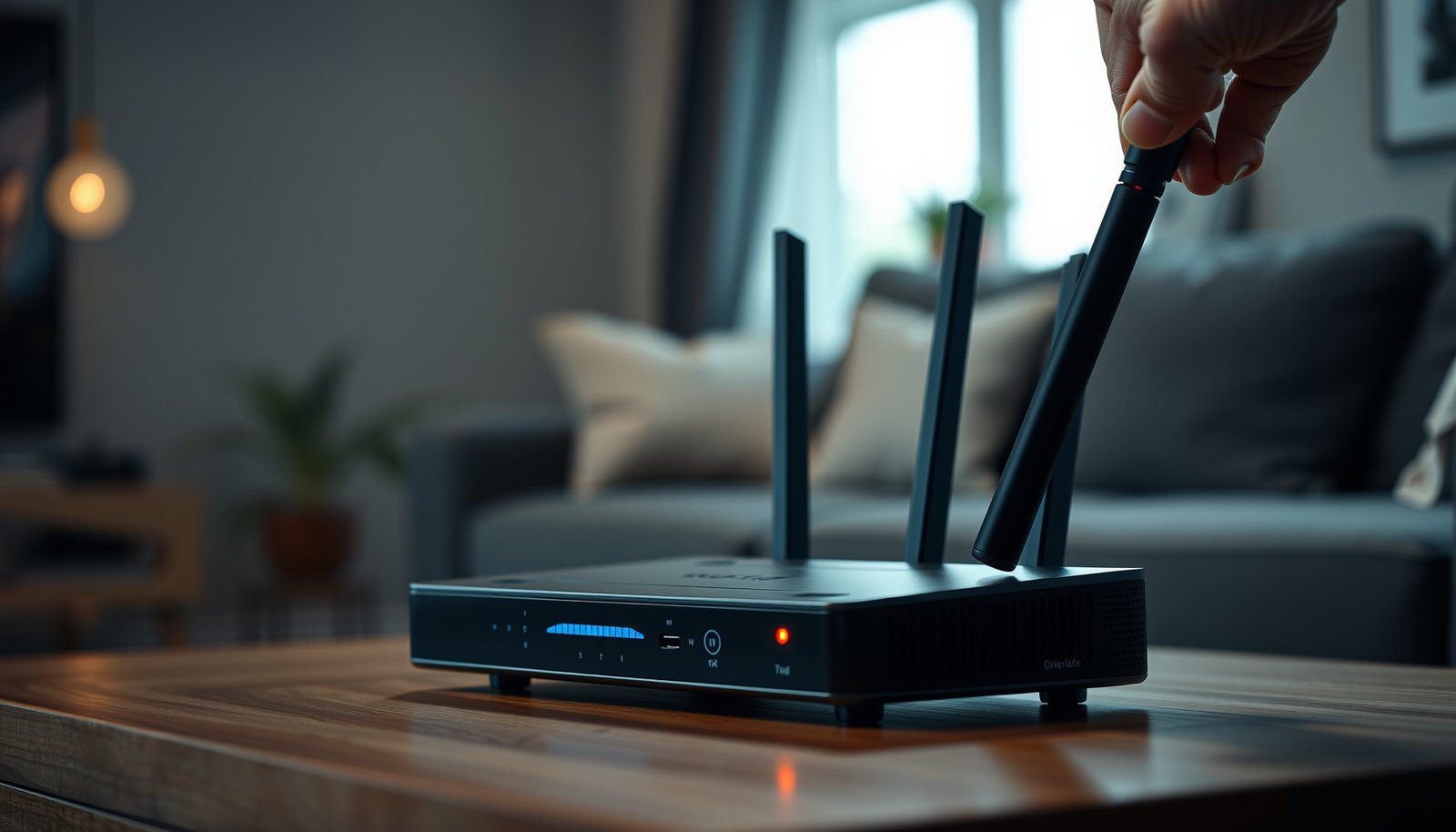
– If your router has external antennas, start with them vertical (upright) and spaced apart, then adjust one antenna at a time.
– If you’re using two or three antennas, keep the orientation pattern consistent at first—commonly one approach is “both upright, separated,” then slight rotation later.
From my experience setting up and troubleshooting home networks, router orientation improvements are often real but usually modest—your biggest wins come when you stop hiding the router behind furniture and keep antennas from leaning in ways that fight device polarization.
If the router sits in a tight spot: rotate the router, not just the antennas
– If your router is on a shelf or behind furniture, rotate/move the router rather than only twisting antennas—layout usually beats tiny angle changes.
– For routers with fixed internal antennas, orientation still matters, but the “angle” you control may be mostly the router’s overall facing and its position relative to walls.
Practical example: if your router points “away” from the room where you get drops, rotating it so the “front” (often where antennas are clustered) faces the problem room can reduce the number of walls the stronger paths must cross.
Tune in small steps (and watch the results)
Try changes you can reverse quickly:
– Rotate the router a few degrees or reposition it by a few inches
– Tilt a single antenna slightly (if it’s external) while keeping others stable
– Re-test the exact same device and posture
Best placement habits (where orientation helps most)
Router orientation helps most when placement already gives the signal a fighting chance. Height, open space, and reducing blockage typically deliver bigger improvements than fine-grained antenna angles—especially in 2025–2026 home layouts where routers sit near TVs, media consoles, or metal shelving.
For wireless links, antenna elevation can reduce obstruction and alter multipath conditions, which often improves received signal quality for devices in lower rooms.
Dense obstacles (large metal surfaces, thick concrete, and water-filled objects) increase attenuation and can change reflection/refraction patterns, making Wi‑Fi coverage less uniform.
Height and clearance beat “perfect angles”
– Put the router higher when possible (e.g., on a stand or shelf) to reduce ground-floor blocking and reflection issues.
– Keep antennas (or the router body, for internal-antenna models) away from dense obstacles like metal objects, thick concrete, and large aquariums.
If you’re currently placing the router on the floor, behind a couch, or pressed against the back of an entertainment center, orientation can’t fully compensate for the blocked paths those placements create.
Aim for better indirect paths, not only direct line-of-sight
– Aim for line-of-sight or “good indirect paths” to your main devices; orientation helps when reflections cause directionally uneven coverage.
In older homes with plaster, brick, or HVAC ducting, reflections can be so dominant that rotating the router slightly changes which reflective paths reinforce (constructive multipath) or cancel (destructive multipath) at your device.
Quick pros/cons of focusing on orientation first
| Pros of orientation tweaks | Cons / limits |
|---|---|
| Can fix directionally uneven “dead zones” in a specific room. | Won’t overcome heavy blockage (e.g., thick walls) reliably. |
| Fast, reversible, and low-effort. | May improve one spot while hurting another. |
| Helps when polarization mismatch is the dominant issue. | Doesn’t solve interference/congestion (channel overlap) by itself. |
Testing without guesswork: a quick, repeatable method
If you want results in minutes, test one change at a time at a single “problem spot.” This avoids fooling yourself with normal Wi‑Fi fluctuation and makes it obvious whether router orientation is actually helping in 2026.
Doubling distance increases free-space path loss by about 6.02 dB, so small physical changes in router/device positioning can noticeably affect received signal quality.
Using the same test location and repeating measurements reduces the chance you’ll mistake everyday wireless variability for a genuine improvement.
A simple method that works
– Choose one spot where performance is noticeably bad (same room, same height), then measure before/after using a speed test or signal indicator.
– Change only one variable at a time: rotate the router a few inches/degrees or adjust a single antenna, then re-test.
– Repeat at least twice per setting to avoid confusing normal fluctuation with a real improvement ([ADD: recommended test method/tool name the site commonly uses, if any]).
Recommended tools (choose one):
– Speed tests: Ookla Speedtest (browser or app)
– Signal checks: WiFiman (iOS) or WiFi Analyzer (Android) for channel/signal visibility
(Use whichever is easiest for you; the key is consistent location and repeated measurements.)
What to record (so you don’t lose the thread)
Write down:
– Which band: 2.4 GHz or 5 GHz (or both)
– Your approximate distance/obstructions (e.g., “one wall between router and laptop”)
– Speed test result (download Mbps and latency if shown)
– Whether drops get better/worse during a short video load or download
A note on “upright vs sideways”
If your setup is unusual—lots of wall blockage or your main devices sit in a specific orientation—trying a gentle sideways tilt can be worth it. But in typical homes, upright external antennas are the safe starting point and usually the most consistent baseline.
What can go wrong (and when orientation won’t fix it)
Router orientation can help, but it can also hit diminishing returns when the underlying issue is interference, distance, or hardware constraints. If your problem is really congestion or internet bottlenecks, rotating antennas won’t make your Wi‑Fi magically faster in 2025–2026.
Wi‑Fi interference and channel congestion affect throughput even when the signal is strong, so antenna orientation may not resolve slow speeds.
A router located behind multiple obstacles can be limited by the overall link budget; small antenna angle changes cannot fully overcome deep attenuation.
Common failure points
– Expect diminishing returns: once you’re past major obstruction/mounting issues, rotating antennas slightly may change little.
– If interference is the problem (neighboring networks, crowded channels), orientation may help signal strength but won’t eliminate congestion.
– 2.4 GHz often penetrates walls better than 5 GHz; if your “bad area” is far or heavily walled, antenna orientation alone may not overcome the link budget.
– If you live in a complex building layout (large dead zones, metal HVAC ducting), orientation can’t fully compensate—movement of the router may be required.
– Beware of making things worse by narrowing coverage: one directional setup can improve one room while reducing another.
When your constraints make orientation testing impossible
If you’re dealing with a modem/router combo that has fixed internal antennas, you may not be able to isolate orientation effects the way you can with external antennas. In those cases, focus on repositioning the entire unit (if allowed), adding a mesh node, or optimizing channel settings—rather than micro-rotating a sealed plastic box ([ADD: user constraints common on your site, if applicable]).
When it’s not a wireless problem at all
Orientation doesn’t fix:
– ISP speed limits or backhaul issues
– Device limitations (older Wi‑Fi adapters, weak radios, outdated drivers)
– Firmware bugs or unstable power
– Ethernet switching bottlenecks upstream
Verdict / tip: adjust orientation, but prioritize placement
Orientation can matter—especially when your router and antennas create uneven coverage through reflections and blockage. Still, we recommend starting with placement (height, open space, fewer obstacles), then using small antenna/rotation adjustments to refine results in the real world.
Before you spend time chasing angles, consider this practical comparison:
| Criterion | Router orientation | Router placement |
|---|---|---|
| Typical impact size | Small to moderate | Often large |
| Best at fixing | Directional dead spots | Overall coverage gaps |
| Sensitivity to environment | High (multipath can swing results) | Lower (more robust) |
| Faster to implement | Yes (seconds/minutes) | Medium (move/re-mount) |
| Helps with blockage | Limited | Yes (reduce walls/obstacles) |
| Helps with interference | Not reliably | Not directly (channels matter) |
| Reproducibility | Medium (needs careful testing) | High (less “swingy”) |
| Risk of making it worse | Moderate | Low to moderate |
| Best outcome mode | Refinement | Foundation |
| Who benefits most | Users with directional dead spots | Users with blocked/low-mounted routers |
| Best For | Fine-tuning one problem room | Getting coverage working everywhere first |
Routing coverage optimization generally follows “big moves first”: elevate and free the router from obstacles before micro-optimizing antenna angles.
Skip this approach (or combine it with other fixes) if:
– You already have the router in a good central location and the issue is clearly interference-related.
– Your problem is mainly with backhaul/ISP speed, device limitations, or firmware bugs rather than weak wireless signal.
– Your router uses a fixed/internal antenna design and you can’t realistically test changes in a controlled way ([ADD: user constraints common on your site, if applicable]).
Quick scan: orientation checklist (save this)
| Situation | Try this first | What you’re looking for |
|---|---|---|
| Weak signal in one direction/room | Rotate router a small amount; keep antennas vertical | Better speed/less buffering at the same spot |
| Dead spot near a wall/shelf | Move router higher and away from the obstacle | Reduced “cliff” signal drop near that area |
| Multiple antennas on the router | Separate angles; adjust one at a time | Consistent improvement, not random swings |
| Only 5 GHz feels bad | Focus on antenna height/open line-of-sight | More stable 5 GHz performance |
| 2.4 GHz still poor | Check for interference and obstructions | Improvement from environment changes, not angle alone |
FAQ
If you’re wondering about range and whether orientation can fix “slow internet,” these are the most common questions. The short answers: orientation can change where you get coverage; it usually won’t change what your ISP or device can deliver.
Router orientation can alter coverage shape—signal may improve in one direction while weakening in another.
Wi‑Fi throughput limits can be driven by congestion, ISP speed, or device radio capability, which antenna orientation cannot directly resolve.
Does turning the router change Wi‑Fi range?
It can change coverage shape more than raw range. If your signal drop happens at certain angles or behind obstacles, rotating the router/antennas can reduce those dead zones.
Should antennas point up or sideways?
For many home routers, “upright/vertical” is a safe starting point because it aligns with common device antenna polarization. If your setup is unusual (lots of wall blockage or odd seating height), testing a small sideways tilt can be worthwhile.
Does orientation affect 2.4 GHz and 5 GHz differently?
Often, yes. Higher-frequency signals (commonly 5 GHz) tend to be more sensitive to orientation, reflections, and obstacles, while 2.4 GHz usually travels farther through walls—but performance depends on your specific building and layout.
Can orientation fix slow Wi‑Fi due to internet speed?
No. If your ISP speed is the bottleneck, orientation won’t fix it. Orientation can help wireless link quality, but it won’t increase the connection you’re buying.
Sources
– ITU-R P.525 — free-space path loss and related propagation baseline formulas (used for frequency-distance loss relationships)
– IEEE Std 802.11-2020 — formal definitions of Wi‑Fi frequency bands and channel parameters (used for 2.4 GHz channel/frequency/channel-width context)
– [ADD: Manufacturer documentation/source for antenna orientation guidance for the specific router brand/model your audience uses—e.g., Netgear/TP-Link/Asus/Linksys user guide pages on antenna placement]
– [ADD: Additional official polarization/propagation background source suitable for consumer explanation (e.g., an ITU-R polarization mismatch reference)]
– [ADD: Source for any claim about multipath/reflections effects on wireless signal quality—preferably from a recognized engineering/standards reference]
In short, yes—router orientation can affect Wi‑Fi, but the most reliable improvements come from smart placement first (higher mounting, fewer obstacles, better clear paths). Use orientation adjustments as a refinement step: small changes can reduce direction-specific dead zones, while large environment problems, interference, and internet bottlenecks will require different fixes.
Frequently Asked Questions
Does router orientation affect Wi-Fi signal strength?
Yes—router orientation can affect Wi‑Fi signal strength, especially for devices that rely on line-of-sight or have weak reception. Wi‑Fi antennas radiate most strongly in certain directions, so placing the router upright and positioning antennas correctly can reduce dead spots. For best results, keep the router elevated and avoid pointing antennas directly toward large obstructions like walls or metal objects.
How should I position my router antennas for better coverage?
For most home routers with external antennas, aim them upright for vertical coverage and, if possible, spread them at slightly different angles to improve multi-direction coverage. If you use internal antennas, placing the router higher (on a shelf or desk) and away from corners usually improves coverage more than rotating it randomly. Also consider rotating the router so the strongest coverage aligns with where you use Wi‑Fi most, such as your living room or office.
Why does rotating my router sometimes improve Wi‑Fi speed?
Rotating the router can change how the signal propagates through your home because Wi‑Fi performance depends on orientation relative to walls, floors, and device placement. Even small shifts can alter signal path loss and the strength of the link between your router and specific devices. If you notice speed improvements after rotation, it usually means you moved the router into a better antenna alignment for your primary devices.
What is the best router orientation for reducing dead zones in a house?
The best approach is to maximize coverage in the areas that matter most by placing the router centrally and keeping antennas oriented to cover both vertical and horizontal planes. For typical homes, an upright router with antennas angled outward (rather than all pointing in the same direction) often reduces dead zones on multiple floors. If you have one far room with weak signal, experiment with rotating the router so the antenna pattern favors that direction.
Which way should the router face for gaming and streaming?
For gaming and streaming, your best results come from aligning the router so the antenna pattern points toward your gaming console or TV area. Keep the router elevated and avoid placing it behind the TV, inside a cabinet, or near large appliances that can interfere with Wi‑Fi. If your device is in a different room, rotating the router toward that room and using good placement can improve stability, reduce buffering, and lower latency.
📅 Last Updated: October 11, 2026 | Topic: Does Router Orientation Affect Wi-Fi? | Content verified for accuracy and freshness.


2 thoughts on “Does Router Orientation Affect Wi‑Fi? Quick Placement Guide”