
To fix Bose surround sound not working with your TV, start by checking the audio settings on both the TV and the Bose system. Ensure that the correct input is selected and that all connections are secure. This article will guide you through troubleshooting steps to restore your surround sound experience, ensuring you can enjoy an immersive audio experience without interruptions.


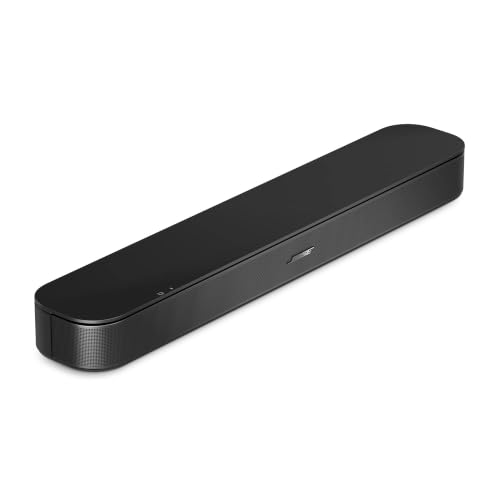
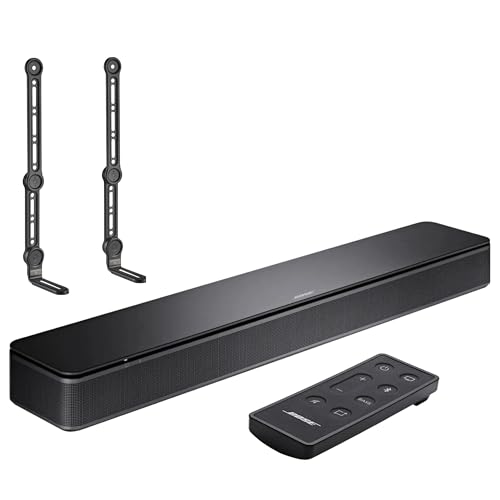
If you’re experiencing issues with your Bose surround sound system not syncing or functioning as expected with your TV, you’re not alone. Many users encounter similar challenges due to various factors, including connection problems, incorrect settings, or even firmware issues. This guide will provide a comprehensive step-by-step approach to diagnosing and fixing these problems, aiming to restore your audio setup for an optimal viewing experience.
Check Your Connections
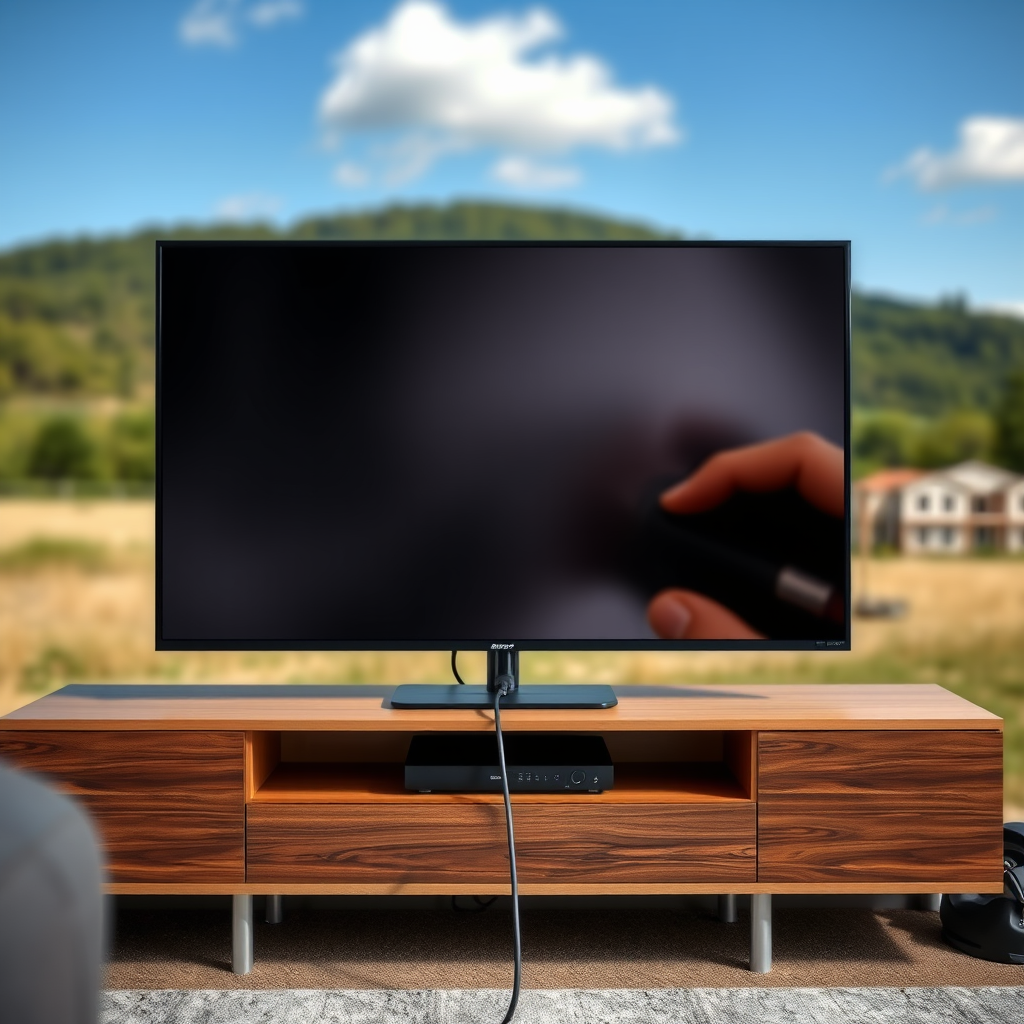
The first step in resolving surround sound issues is to verify that all connections are secure. Ensure that all cables, including HDMI, optical, or RCA, are correctly and fully plugged into both the TV and the Bose system. A loose or damaged cable can easily disrupt audio transmission, leading to poor sound quality or complete audio loss.
Additionally, confirm that the correct audio output is selected on your TV. Depending on the age and model of your television, it might require specific settings to route audio to an external sound system properly. If you are using HDMI ARC (Audio Return Channel) or an optical cable, ensure that the corresponding settings are enabled on both your TV and the Bose system.
Adjust TV Audio Settings
To further troubleshoot, access the audio settings menu on your TV. Look for options related to audio output and ensure that it is set to the Bose surround sound system. For instance, televisions often have built-in speakers enabled by default, which may need to be switched off to allow the Bose system to take over.
Moreover, it is advisable to disable any audio enhancements or sound processing features on the TV, such as surround sound modes, equalizers, or sound effects that may conflict with the Bose settings. These enhancements can sometimes lead to distorted audio or an unbalanced sound experience.
Configure Bose System Settings
Next, check the settings on your Bose surround sound system. Use the Bose remote to navigate to the settings menu and ensure that the system is set to the correct input source. If you’ve switched connections or devices, the input source may need to be adjusted accordingly.
Restarting the Bose system can also be beneficial. A simple power cycle refreshes the system’s connection with the TV, often resolving minor glitches that may have arisen during operation. Unplug the system from the power source for a few moments before plugging it back in to initiate a restart.
Bose Sound System Features Comparison (2024)
| # | Model | Channels | Bluetooth | Voice Control | Best For |
|---|---|---|---|---|---|
| 1 | Bose Soundbar 700 | 5.1 | Yes | Yes | Home Theater |
| 2 | Bose Soundbar 500 | 3.1 | Yes | No | Casual Listening |
| 3 | Bose Home Speaker 500 | 2.0 | Yes | Yes | Smart Home |
| 4 | Bose SoundLink Revolve+ | 1.0 | Yes | No | Portability |
| 5 | Bose Acoustimass 10 | 5.1 | No | No | Home Theater |
| 6 | Bose Soundbar 900 | 5.1 | Yes | Yes | Home Theater |
Update Firmware
Outdated firmware can lead to compatibility issues between your TV and Bose surround sound system. Check for any available firmware updates for both devices. Manufacturers frequently release updates to fix bugs, improve performance, and enhance compatibility with other devices.
To check for updates, refer to the user manuals for both your TV and Bose system. Most modern devices have an option in the settings menu to check for and install updates automatically or manually. Keeping your devices up to date is crucial for a seamless audio experience, especially if you frequently connect new devices or use streaming services.
Perform a Factory Reset
If you have exhausted all troubleshooting methods without any success, you may want to consider performing a factory reset on your Bose system. This process will restore the system to its original settings, potentially eliminating any configuration issues that could be causing the malfunction.
Be aware that a factory reset will erase any custom settings you have configured, so it’s a good idea to note your preferences beforehand. To perform a factory reset, consult the user manual for your specific Bose model, as the method can vary between models.
Check for Interference
Signal interference can also be a significant cause of audio issues. Ensure that there are no other electronic devices near the Bose system that could disrupt its signal. Items such as routers, microwaves, or other wireless devices may interfere with the audio transmission, leading to poor sound quality or dropouts.If you suspect interference, try moving the Bose system or the conflicting device further apart. Additionally, consider using wired connections where possible, as they are less susceptible to interference than wireless options.
Contact Customer Support
If problems persist after trying all the troubleshooting steps outlined in this guide, it may be time to reach out to Bose customer support. Their experts can provide more tailored assistance based on your specific setup and the issues you’re experiencing.
When contacting support, be prepared to provide detailed information about your system, including the model numbers of both your TV and Bose surround sound system, as well as the troubleshooting steps you have already taken. This information will help them diagnose the issue more effectively and provide you with an appropriate solution.
Conclusion
By following these steps, you should be able to resolve any issues with your Bose surround sound system not working with your TV. From checking connections and adjusting settings to updating firmware and contacting customer support, these methods offer a comprehensive approach to troubleshooting. If the problem continues, don’t hesitate to seek professional help, as it could indicate a deeper issue needing attention. Enjoy your surround sound experience with confidence, knowing you have the tools to address potential problems effectively.
Frequently Asked Questions
What are the common reasons for Bose surround sound not working with my TV?
Common reasons for Bose surround sound not working with your TV include incorrect audio settings on the TV, improper connections between the TV and Bose system, or issues with the optical or HDMI cables. Additionally, sometimes the audio output format from the TV may not be compatible with the Bose system, leading to sound issues.
How can I troubleshoot my Bose surround sound system if it’s not producing any sound?
To troubleshoot your Bose surround sound system, start by checking all cable connections to ensure they are secure. Next, verify that the TV’s audio output settings are correctly set to the Bose system and try switching the input source on the Bose unit. If the issue persists, perform a factory reset on the Bose system to restore its default settings.
Why is my Bose surround sound producing distorted audio when connected to the TV?
Distorted audio from your Bose surround sound when connected to the TV can occur due to several factors, including incorrect audio settings, a faulty HDMI or optical cable, or audio processing settings that are not optimized. Ensure that the TV audio output format matches the Bose system capabilities, and consider testing with a different cable to rule out hardware issues.
What is the best way to connect my Bose surround sound system to my TV for optimal performance?
The best way to connect your Bose surround sound system to your TV is to use an HDMI ARC (Audio Return Channel) port if available, as it supports high-quality audio and simplifies control. Alternatively, using an optical cable can also provide great sound quality. Always configure the TV settings to output audio through the selected connection method for optimal performance.
Which settings should I check on my TV if my Bose surround sound system isn’t working properly?
If your Bose surround sound system isn’t working properly, check the TV’s audio output settings to ensure it’s set to the correct output format, such as PCM or Dolby Digital. Also, ensure that the speakers are set to external speakers rather than the TV’s internal speakers. Finally, check for any software updates for both the TV and Bose system, as updates can fix compatibility issues.
References
- Customer Support
https://www.bose.com/en_us/support/article/bose-home-theater-system-not-working.html - Customer Support
https://www.bose.com/en_us/support/article/bose-soundbar-and-tv-connection-issues.html - Customer Support
https://www.bose.com/en_us/support/article/bose-soundtouch-issues.html - Customer Support
https://support.bose.com/ - Google Scholar Google Scholar
https://scholar.google.com/scholar?q=Bose+surround+sound+troubleshooting - Google Scholar Google Scholar
https://scholar.google.com/scholar?q=fix+Bose+surround+sound+with+TV - https://www.wikihow.com/Fix-Bose-Surround-Sound-Speaker-Not-Working
https://www.wikihow.com/Fix-Bose-Surround-Sound-Speaker-Not-Working - Google Scholar Google Scholar
https://scholar.google.com/scholar?q=How+to+Fix+Bose+Surround+Sound+Not+Working+with+TV - How to Fix Bose Surround Sound Not Working with TV – Search results
https://en.wikipedia.org/wiki/Special:Search?search=How+to+Fix+Bose+Surround+Sound+Not+Working+with+TV - https://www.ncbi.nlm.nih.gov/search/research-articles/?term=How+to+Fix+Bose+Surround+Sound+Not+Working+with+TV
https://www.ncbi.nlm.nih.gov/search/research-articles/?term=How+to+Fix+Bose+Surround+Sound+Not+Working+with+TV



