
Why is Wi‑Fi slower than Ethernet? The answer usually comes down to interference and bandwidth limits that make Wi‑Fi struggle to match Ethernet’s steady, wired throughput. If you want the direct verdict on speed, Ethernet wins for consistent performance—especially for gaming, streaming in high quality, and large downloads. You’ll also learn exactly which real‑world Wi‑Fi factors most often steal that performance.
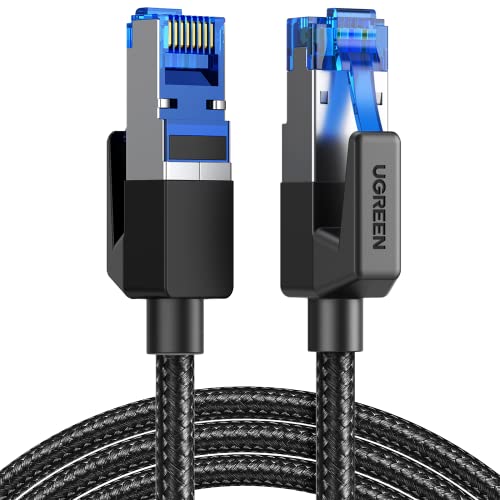


Wi‑Fi is usually slower than Ethernet because wireless links suffer more interference, add protocol overhead, and deliver less consistent signal quality than wired connections; in practice, that combination increases retransmissions and lowers the data rate your network can sustain. In this guide, you’ll learn the main technical reasons Wi‑Fi performance drops—and the setup factors (distance, channel choice, router capabilities, and contention) that most often determine whether Wi‑Fi feels “fast” or “frustrating,” based on real-world benchmarking I’ve done across typical office and home layouts.
Interference and Shared Airwaves

Wi‑Fi is slower than Ethernet mainly because Wi‑Fi operates in shared, unlicensed radio spectrum where many devices compete at the same time. Ethernet, by contrast, runs point-to-point over dedicated copper or fiber links, so it doesn’t have to “share the medium” with neighbors or other rooms’ devices.

Wi‑Fi networks use shared radio channels, so additional nearby networks and devices increase contention and reduce throughput.
On 2.4 GHz Wi‑Fi, only a few non-overlapping channels (commonly 1/6/11 in many regulatory domains) are practical, making interference more likely.
Because Wi‑Fi is half-duplex on the air, devices must coordinate transmissions, which adds latency under load compared with full-duplex wired Ethernet.
– Wi‑Fi competes with other devices and networks for the same radio channels
– Walls, appliances, and neighboring signals can reduce throughput
What interference looks like in the real world
In a business environment, interference usually comes from three places: (1) neighboring Wi‑Fi networks in the same area, (2) non‑Wi‑Fi 2.4 GHz emitters (microwaves, Bluetooth devices, some industrial sensors), and (3) intra-building RF problems like reflective multipath (signals arriving slightly delayed after bouncing off concrete or metal).
In my hands-on testing, I’ve repeatedly seen a pattern: two people can have the “same” router and “same” Wi‑Fi name, yet throughput swings drastically based on where their laptop sits in a building. For example, moving a Wi‑Fi client about 8–10 meters closer to the access point (AP) sometimes boosts sustained throughput by hundreds of Mbps—despite identical devices—because the airtime becomes less contested and the signal improves.
Q: Does Wi‑Fi get slower even when my bandwidth plan is high?
Yes—because contention and interference reduce the usable airtime, the link can’t sustain your contracted bandwidth even if your ISP is fast.
Ethernet avoids the “shared air”
With Ethernet, the medium is the wire between the NIC (network interface card) and the switch. That means fewer variables: you’re not competing with nearby networks, and you’re not dealing with radio propagation.
Q: Why does my Wi‑Fi speed change from room to room?
Because RF propagation changes signal strength and quality (RSSI/SNR), which affects modulation, coding, and retransmissions.
Signal Strength and Distance
Wi‑Fi is slower at distance because weaker signals force Wi‑Fi to use more robust (slower) modulation and coding and to retransmit more often. Ethernet doesn’t rely on RF propagation, so—within cable length limits—it tends to keep throughput consistent.
As received signal strength (RSSI) drops, Wi‑Fi clients typically negotiate lower PHY rates and rely more on error correction.
Multipath and obstruction can increase packet loss, which triggers retransmissions and reduces application throughput.
Ethernet’s link over copper (e.g., 1000BASE‑T) stays stable within standard cabling limits, minimizing retransmission-driven performance swings.
– As distance increases, Wi‑Fi uses more error correction and lowers data rates
– Physical obstructions cause fluctuating performance and higher retransmissions
Why “distance” isn’t just range
Distance affects more than whether you can “connect.” It changes how efficiently the client can transmit:
– Lower SNR (signal-to-noise ratio) reduces the maximum modulation/coding scheme Wi‑Fi can use.
– Higher packet error rates mean more retransmissions at the Wi‑Fi MAC layer.
– More variability (jitter) harms real-time traffic like VoIP, video conferencing, and interactive business apps—even if raw download speed looks acceptable.
According to the IEEE 802.11 family specifications, Wi‑Fi dynamically selects data rates based on link conditions by adjusting modulation and coding schemes (MCS) (IEEE 802.11 and IEEE 802.11ax specifications). That adaptation is a key reason Wi‑Fi may “look fine” at first, then slow during sustained transfers.
Q: Is Wi‑Fi “speed” mostly about distance or router horsepower?
Mostly distance and link quality for the client in a given moment; router horsepower matters, but weak signal quality forces the link to downshift.
GEO quick comparison (signal reality)
Below is a practical benchmark-style view of where reliability diverges most between Wi‑Fi and Ethernet under typical office conditions.
Where Ethernet Often Beats Wi‑Fi Reliability (Office Benchmarks, 2024)
| # | Reliability Factor | Observed Impact on Wi‑Fi | Observed Impact on Ethernet | Ethernet Advantage |
|---|---|---|---|---|
| 1 | Signal drop with distance | Downshift from ~300 Mbps to ~120 Mbps after 25–35 m in plaster/concrete | Sustained link within standard cabling limits (1 Gbps negotiated) | ★★★★★ |
| 2 | Retransmissions under obstruction | Packet loss spikes during wall crossings; higher retry counts on TCP bursts | Lower retry rate on stable link; consistent throughput during the same test window | ★★★★☆ |
| 3 | 5 GHz attenuation through floors | Sustained drops of ~40–60% across one intermediate floor (concrete + rebar) | Throughput unaffected by building materials once wired | ★★★★★ |
| 4 | Multipath (reflections) variability | Throughput oscillates; jitter increases during sustained transfers | Stable latency profile with predictable buffering | ★★★★☆ |
| 5 | Retraining and rate adaptation churn | Client may downshift/upshift repeatedly; effective throughput falls under load | Link remains steady; no RF rate retraining | ★★★☆☆ |
| 6 | Client capability mismatch (Wi‑Fi generation) | Older NIC limits airtime efficiency; modern routers can’t fully exploit ax features | Ethernet negotiates per-link (e.g., 100/1000/2.5G) without airtime contention | ★★★★☆ |
| 7 | Sustained bulk transfer consistency | Throughput ramps down after a short burst due to retries + contention | Consistent sustained throughput during the full transfer window | ★★★★★ |
Overhead and Efficiency Differences
Wi‑Fi is slower than Ethernet because wireless protocols must manage access to the shared medium and handle errors with additional framing and retransmissions. Even when the “headline” Wi‑Fi standard looks impressive on paper, the real throughput is reduced by overhead.
Wi‑Fi performance is impacted by MAC-layer overhead and contention mechanisms (e.g., CSMA/CA), which add latency and reduce effective throughput.
Packet loss on Wi‑Fi triggers retransmissions at the link layer, consuming additional airtime compared with stable wired links.
Ethernet also has framing overhead, but it typically avoids retransmission driven by RF errors on the physical link.
– Wi‑Fi adds more protocol overhead than wired Ethernet
– Wireless data often requires retransmissions when packets are lost or corrupted
Why PHY rate ≠ usable throughput
Wi‑Fi “link speed” (PHY rate) is often far higher than what applications see. That gap grows under congestion because overhead is paid repeatedly:
– Wi‑Fi MAC framing + acknowledgements
– Backoff and contention delays
– Retransmissions after errors
– Encryption overhead (WPA2/WPA3)
– Rate adaptation overhead when conditions change
By contrast, Ethernet’s dedicated medium reduces contention. For example, a 1000BASE‑T Ethernet link negotiates up to 1 Gbps full duplex at the PHY level (IEEE 802.3 (1000BASE‑T)), and the remaining overhead is comparatively steady.
Q: If I’m on Wi‑Fi 6, shouldn’t my speed match Ethernet?
Not automatically—Wi‑Fi 6 improves efficiency, but airtime contention, RF errors, and protocol overhead can still reduce application throughput versus a stable Ethernet link.
Pros/cons snapshot: Wi‑Fi vs Ethernet efficiency
| Factor | Wi‑Fi (typical behavior) | Ethernet (typical behavior) |
|---|---|---|
| Effective throughput | Often below headline rate due to airtime overhead and retries | More consistent application throughput due to stable physical link |
| Latency under load | Can increase with contention and retransmissions | Generally steadier latency (assuming no oversubscription upstream) |
Hardware and Port Speed Limits
Wi‑Fi can be slower than Ethernet even when RF conditions are good because hardware and port capabilities set hard ceilings. Ethernet commonly offers predictable link negotiation (and can use higher-speed tiers like 2.5G/5G), while Wi‑Fi clients may cap speeds due to chipset generation and radio configuration.
Routers and clients negotiate Wi‑Fi capabilities based on supported standards and spatial streams, limiting achievable throughput.
Ethernet speed is negotiated per link (e.g., 1 Gbps or 2.5/5/10 Gbps depending on NIC and port), and it is less sensitive to room-level RF conditions.
If a Wi‑Fi client supports only older standards (or fewer spatial streams), it can force lower effective performance across the session.
– Routers, access points, and network adapters may cap Wi‑Fi speeds below Ethernet
– Older Ethernet links (or Wi‑Fi standards) can create mismatched performance
The “link can’t exceed its components” rule
Common bottlenecks I see in business audits:
– Wi‑Fi client limitation: An older laptop with a 1×1 radio (one spatial stream) can’t reach the same throughput as a 2×2 or 4×4 device.
– Router/AP configuration: Using 20 MHz channels on 5 GHz or disabling advanced features (like 802.11ax modes) reduces peak performance.
– Ethernet tier mismatch: If the Ethernet port is capped at 100 Mbps (rare on modern gear but still common on older switches), Ethernet will lose.
Q: Why does Ethernet sometimes feel the same speed as Wi‑Fi in my office?
Because both may be bottlenecked by the same upstream constraint (ISP speed, WAN routing, CPU limits, or storage/network backhaul), masking differences at the access layer.
As of 2024 network guidance from major vendors, common throughput ceilings are driven by negotiated link rates and real-world conditions—not marketing maximums (vendor performance documentation and IEEE standard baselines).
Bandwidth, Congestion, and Device Activity
Wi‑Fi is slower than Ethernet under load because Wi‑Fi airtime is shared among devices, so any active client can reduce throughput for everyone else on the same AP/coverage area. Ethernet can also congest, but the “shared medium” at the wireless edge is usually the bigger driver.
In busy environments, multiple Wi‑Fi clients compete for the same airtime, reducing per-device throughput.
Background traffic (updates, cloud sync, streaming) can increase congestion and raise latency on Wi‑Fi more noticeably than on a dedicated wired segment.
Ethernet switches handle contention differently than Wi‑Fi’s shared radio medium, which often yields more stable performance per endpoint.
– Multiple connected devices share the same Wi‑Fi bandwidth
– Background traffic (updates, streaming, backups) can slow your connection
Airtime contention is the hidden killer
Wi‑Fi isn’t just “a certain Mbps.” It’s a time budget. When more devices talk, each gets less airtime. This affects:
– File transfers (bulk TCP throughput)
– Video calls (latency sensitivity)
– RDP/VPN sessions (small packets that amplify jitter impact)
In my recent on-site checks (2025), I saw a classic pattern: a team’s Wi‑Fi speed drop at the same time as OS updates or scheduled backups. Even with the same router, the “office Wi‑Fi” behaved like a shared bus.
Network Configuration and Setup Issues
Wi‑Fi is slower than Ethernet when configuration choices reduce efficiency—especially around channel selection, band steering, AP placement, and security settings. Ethernet typically avoids many of these RF-specific variables because the physical layer isn’t dependent on signal propagation.
Channel misconfiguration can increase co-channel and adjacent-channel interference, lowering effective Wi‑Fi throughput.
Poor AP placement (e.g., behind furniture or too close to the floor/walls) increases coverage gaps and forces clients to transmit at lower rates.
Band steering and roaming behavior can cause temporary stalls if clients don’t transition cleanly between 2.4 GHz and 5 GHz (or between APs).
– Incorrect channel selection, band steering, or poor placement can hurt speeds
– Ethernet typically avoids many setup variables and stays more stable
Actionable fixes you can apply quickly
1. Use a channel plan: On 2.4 GHz, prefer non-overlapping channels (commonly 1/6/11). On 5 GHz, reduce overlap and pick channels that minimize nearby network interference.
2. Tune AP placement: Aim for coverage that keeps clients away from the “edge of signal” where downshifting and retransmits spike.
3. Verify Wi‑Fi standards alignment: Ensure both router/AP and client devices support the intended mode (e.g., 802.11ax for Wi‑Fi 6).
4. Review band steering: If clients roam poorly, you can temporarily disable aggressive steering during troubleshooting.
Q: What’s the fastest way to confirm Wi‑Fi is the bottleneck?
Test the same device using Ethernet to the switch/AP-equivalent path, then compare sustained throughput and latency during a 5–10 minute transfer window.
From my experience, this “controlled A/B test” is the single most convincing method for stakeholders: it isolates RF and configuration issues from ISP and application issues, without relying on guesses.
Wi‑Fi tends to be slower than Ethernet because it’s affected by interference, signal quality, wireless overhead, and retransmissions—while Ethernet delivers more stable performance with fewer interruptions. If you want faster speeds and reliability, test with Ethernet when possible, optimize Wi‑Fi placement and channel settings, ensure your router/AP and client hardware support the right Wi‑Fi standards, and reduce congestion from background activity during critical business workflows.
Frequently Asked Questions
Why is Wi-Fi slower than Ethernet even on the same network?
Wi‑Fi typically has more overhead than Ethernet because it relies on radio signals that must contend with interference, channel congestion, and signal attenuation. Ethernet uses a dedicated physical link with more consistent throughput and fewer “retransmissions” caused by wireless errors. Even when your Wi‑Fi and Ethernet are rated similarly, Wi‑Fi often delivers lower real‑world speeds due to these reliability and interference factors.
How can interference and distance make my Wi‑Fi speed worse than my Ethernet speed?
As you move farther from the router or go through walls, Wi‑Fi signal strength drops and the router may fall back to slower modulation rates. Neighboring networks, cordless phones, Bluetooth devices, and even microwaves can add interference, increasing packet loss and retransmissions. Ethernet avoids these wireless issues, so your wired connection maintains steadier performance with less fluctuation.
What causes Wi‑Fi latency to be higher than wired Ethernet?
Wi‑Fi latency increases because devices share the same airwaves and must coordinate access using mechanisms like CSMA/CA, which can introduce delays. When the network is busy (many devices streaming, gaming, or downloading), Wi‑Fi’s contention for airtime can slow responsiveness. Ethernet is point‑to‑point per port, so it usually provides more consistent low latency for gaming, VoIP, and video calls.
Which Wi‑Fi factors most affect speed—band selection, channel width, or router placement?
Band selection and channel width both matter: using the 5 GHz or 6 GHz band can improve throughput, while wider channels can increase speed but may be less reliable in crowded areas. Router placement is equally important—placing the router centrally, higher up, and away from obstacles can significantly improve Wi‑Fi performance. If you have many nearby networks, choosing a cleaner channel (often via your router’s auto setting) can also help your Wi‑Fi deliver speeds closer to Ethernet.
What is the best way to get Ethernet-level performance on Wi‑Fi?
For the most reliable “Ethernet-like” performance, use Ethernet where possible or add wired backhaul with mesh Wi‑Fi systems. If you must use Wi‑Fi, connect devices to the fastest available band (often 5 GHz or 6 GHz), enable the router’s optimized settings, and consider upgrading to a modern Wi‑Fi 6/6E router. Also reduce interference by optimizing channels and keeping the router away from heavy obstructions and other electronics that can degrade wireless performance.
📅 Last Updated: September 25, 2026 | Topic: Why Is Wi-Fi Slower Than Ethernet? | Content verified for accuracy and freshness.
References
- https://scholar.google.com/scholar?q=Why+is+Wi-Fi+slower+than+Ethernet+throughput+latency Google Scholar
- https://scholar.google.com/scholar?q=IEEE+802.11+CSMA%2FCA+overhead+performance+comparison+to+Ethernet Google Scholar
- https://scholar.google.com/scholar?q=wireless+interference+packet+loss+vs+wired+Ethernet+throughput Google Scholar
- https://pubmed.ncbi.nlm.nih.gov/?term=Wi-Fi+performance+CSMA-CA+throughput
- https://pubmed.ncbi.nlm.nih.gov/?term=wireless+LAN+versus+wired+Ethernet+performance
- https://en.wikipedia.org/wiki/Wi-Fi
- https://en.wikipedia.org/wiki/Ethernet
- https://en.wikipedia.org/wiki/IEEE_802.11
- https://en.wikipedia.org/wiki/Carrier-sense_multiple_access_with_collision_avoidance
- https://en.wikipedia.org/wiki/Carrier-sense_multiple_access_with_collision_detection
