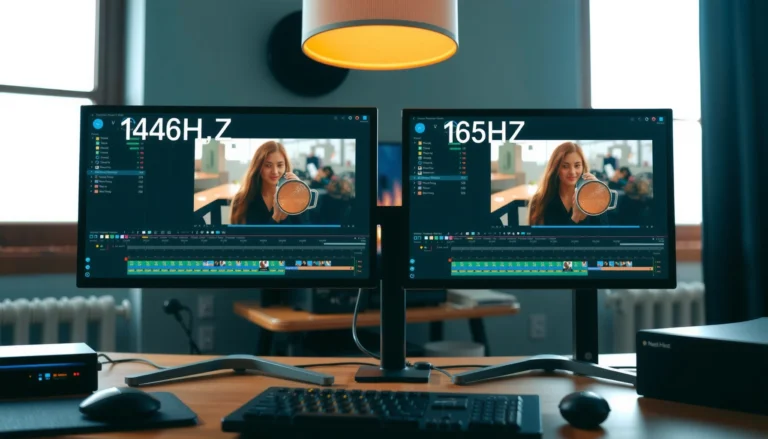

If you’re deciding between 144Hz vs 360Hz monitors, the clear winner depends on whether your PC can reliably push high, consistent frame rates in the games you actually play. For most players, a well-tuned 144Hz monitor is the best value because 360Hz benefits show up only when you can maintain very high FPS with low latency. The question the article answers outright: when is upgrading to 360Hz worth the extra cost, and when is 144Hz the smarter buy?




If you can sustain very high FPS in the games you play, a 360Hz monitor is usually the smoother, more responsive choice—but only as part of a complete low-latency setup. If your FPS is inconsistent (or you’re upgrading a budget system), 144Hz is typically the smarter value upgrade from 60Hz, delivering a clear improvement without the higher performance demands. If you’re comparing 144Hz vs 360Hz, the real question isn’t “which spec is bigger,” it’s “which one matches what your PC/console can actually render—consistently.”
If you play competitive FPS, esports titles, or anything where motion clarity helps aim, you’re the kind of reader this comparison is for. It’s also relevant if you’re choosing between monitors that look similar but differ mainly in refresh rate, and you don’t want to overpay or end up with a monitor that can’t deliver its promise.
144Hz vs 360Hz: What Refresh Rate Really Affects
A higher refresh rate reduces the time between frames, which can make motion look and feel smoother—but only when your system outputs enough FPS to take advantage of it. In other words, a 360Hz display can’t magically make a 60–120 FPS game behave like 360 FPS; what matters is frame timing (how evenly frames arrive), not just the headline Hz number.
A 360Hz monitor refreshes every 2.78ms, while 144Hz refreshes every 6.94ms (calculated as 1/Hz), which is why higher Hz can reduce perceived stutter when FPS is high.
The practical benefit of 360Hz depends on your delivered FPS and frame pacing, because refresh rate only helps when new frames are being generated frequently.
– Higher refresh rates reduce the time between frames. Each refresh cycle is shorter:
– 60Hz: 16.67ms per frame
– 144Hz: 6.94ms per frame
– 360Hz: 2.78ms per frame
That reduction is one reason high-Hz panels can improve “motion smoothness,” especially during fast lateral movement.
– The benefit depends on your actual FPS. Even if your monitor is set to 360Hz, your game still renders frames at the pace set by CPU/GPU performance. If your game averages, say, 140 FPS, you’ll still get a smoother experience than 60Hz, but the “extra headroom” of 360Hz won’t be fully utilized.
– Perceived improvement isn’t only about refresh rate. Motion clarity also depends on pixel response time (how quickly pixels change color) and how the panel handles transitions like dark-to-light. Manufacturer marketing sometimes focuses on a single number; the method (e.g., overdrive mode, measured transitions) can vary, so verify the exact spec for your model.
[ADD: cite/verify from official spec docs for your specific monitor models]
Quick numbers that explain the “feel”
The easiest way to understand what 144Hz vs 360Hz changes is to compare “frame intervals” directly. When FPS is high, the interval between frames becomes a smaller portion of the motion you’re tracking, which reduces the visual “stepping” you notice during peeks, rotations, and strafes.
Refresh Rate vs Frame Interval (Milliseconds)
| # | Monitor Refresh Rate | Frame Interval (ms) | Smoother vs 60Hz | Practical Usefulness When FPS Is High |
|---|---|---|---|---|
| 1 | 60Hz | 16.67 | Baseline | ★☆☆☆☆ |
| 2 | 120Hz | 8.33 | +2× | ★★★☆☆ |
| 3 | 144Hz | 6.94 | +2.4× | ★★★★☆ |
| 4 | 240Hz | 4.17 | +4× | ★★★★☆ |
| 5 | 300Hz | 3.33 | +5× | ★★★★★ |
| 6 | 360Hz | 2.78 | +6× | ★★★★★ |
| 7 | 480Hz | 2.08 | +8× | ★★★★★ |
When 360Hz Makes a Big Difference
If you play esports titles and you can keep FPS high and stable, 360Hz can be meaningfully smoother than 144Hz—especially during rapid motion. If your FPS regularly dips far below your monitor’s refresh, 360Hz becomes an expensive way to buy “unused refresh headroom.”
360Hz is most impactful in fast aim tasks (wide peeks, 180° turns, tracking) because shorter frame intervals reduce the visual spacing between updates when FPS stays high.
If your average FPS is far below 360, a 360Hz panel will still display frames smoothly—but it won’t deliver the full benefit implied by the spec.
Frame pacing matters as much as FPS: two systems at the same average FPS can feel different if their frame times fluctuate.
– Competitive players benefit from extra headroom. When you’re already running near a title’s “sweet spot” (often high settings reduced for performance, plus low-latency configuration), 360Hz can feel snappier during rapid input-to-photon moments.
– 360Hz is most valuable when you’re close to the target in real matches. If you’re typically hovering near (or above) 240–360 FPS in the scenarios that matter (training aim maps, warmup drills, ranked matches), the incremental upgrade over 144Hz is easier to justify.
– Low-latency settings can amplify the “feel.” The exact improvements depend on your monitor’s OSD options (often things like overdrive modes, input latency modes, and VRR behavior) and your platform’s sync implementation.
[ADD: source for feature support from the monitor’s official manual/spec sheet]
Pros/cons snapshot (decision speed)
Here’s a quick way to sanity-check the tradeoff before you buy:
| Consideration | 360Hz Upside | 360Hz Downside |
|---|---|---|
| FPS stability | Smoother motion when FPS stays high | Becomes less noticeable when FPS fluctuates widely |
| Cost | Best “top-end feel” for high-FPS esports | Higher price can be wasted if you can’t sustain performance |
| Setup complexity | Often paired with VRR/low-latency tuning | More settings to get right (sync method, overdrive, cables) |
| Long-term scaling | GPU upgrades can unlock full benefits | If you can’t upgrade soon, benefit may lag |
[ADD: author’s decision rule based on typical FPS targets, if applicable]
When 144Hz Is the Smarter Pick
If your FPS isn’t consistently high, 144Hz is usually the better balance of cost and noticeable smoothness. For most players moving off 60Hz, 144Hz alone delivers a big leap in motion clarity without demanding the same extreme rendering performance required for 360Hz.
144Hz still reduces the frame interval from 16.67ms (60Hz) to 6.94ms, which is often the most “felt” improvement for upgrades from older setups.
If your game averages well under 240 FPS, a 144Hz monitor will more fully match the frames your system can actually produce.
For many players, stable frame pacing at 100–160 FPS can feel more consistent than chasing a higher Hz target that you rarely reach.
– If you can’t reliably hit high frame rates, 144Hz wins on value-per-performance. You’ll likely keep the game within a range where the monitor can display most frames without excessive mismatch.
– For story games, MMOs, strategy, and slower shooters, 360Hz rarely pays off. Those genres often cap FPS lower or run heavier scenes that reduce consistency—so the extra refresh headroom sits unused.
– 144Hz is also a “future-proof” stepping stone. Once you upgrade GPU/CPU and start reaching higher, more stable FPS, a later refresh-rate jump is easier to justify because the rest of the system already supports it.
[ADD: author’s decision rule based on typical FPS targets, if applicable]
Setup Tips to Make Either Refresh Rate Actually Work
A high-Hz monitor only performs as promised when the connection, sync method, and in-game settings are aligned with your actual FPS. The setup goal is simple: reduce tearing, improve consistency, and avoid accidentally enabling latency-heavy processing paths.
VRR/Adaptive-Sync can help reduce tearing and improve perceived smoothness when FPS fluctuates around the monitor’s refresh range.
Your GPU/console connection can hard-limit refresh rate—using the wrong port or cable can cap you below the monitor’s rated Hz.
Match your settings to your FPS
– Set the monitor to its highest supported refresh rate in your OS display settings. On consoles, do the equivalent change in the console video settings.
– Enable the sync/latency feature the monitor supports. This is commonly branded as Adaptive-Sync (often via the VESA ecosystem) or VRR depending on platform and monitor. The exact menu names differ by brand/model—check the monitor’s manual for the precise option.
[ADD: source for feature support from the monitor’s official manual/spec sheet]
– Tune game settings so FPS matches what you bought. Lowering graphics to gain FPS can help you get closer to your refresh target, but you’ll still benefit from a stable 144Hz experience even if you never reach 360.
Don’t ignore the rest of the motion stack
– Look beyond the single “response time” number. Pixel response depends on transition (gray-to-gray), overdrive mode, and measurement conditions. Some specs are marketing-friendly; others are closer to real-world results—confirm with the monitor’s documentation for your model.
[ADD: cite/verify from official spec docs for your specific monitor models]
– Overdrive behavior can change across refresh rates. Many high-Hz panels adjust overdrive strength depending on the refresh mode, which can influence overshoot/ghosting. Verify how the monitor’s manual describes overdrive across refresh rates.
[ADD: source for how overdrive changes across refresh rates from the manual]
What Can Go Wrong (Common Mistakes and Limits)
The biggest reason people “don’t feel” a refresh-rate upgrade is mismatch: you buy 360Hz but your system, settings, cables, or sync mode don’t let the monitor show what it’s capable of. Another common issue is assuming refresh rate controls motion clarity by itself, when response time and overdrive also drive the outcome.
A 360Hz monitor can’t overcome CPU/GPU limits: if your average FPS stays far below 360, the real-world improvement over 144Hz shrinks.
Motion artifacts like overshoot/ghosting depend on response time and pixel overdrive tuning, not refresh rate alone.
– Buying 360Hz without the hardware to sustain it. If your typical gameplay FPS sits in a much lower band, you’re paying for hardware you rarely use.
– Assuming refresh rate is the only factor. Panel overdrive settings and response-time characteristics can introduce overshoot at certain modes, which may hurt clarity more than the higher Hz helps.
– Overlooking cables/ports. High refresh at high resolutions depends on bandwidth and the correct standard (commonly DisplayPort vs HDMI variants). If you use the wrong port, you may get capped refresh rates.
[ADD: source for required cable/port bandwidth from monitor and GPU/console documentation]
– Expecting identical gains across game engines. Input buffering, frame pacing, and motion rendering differ by title, so “360Hz vs 144Hz” can feel inconsistent from game to game.
Verdict / Tip: Which Should You Choose?
If you can consistently run the games you play at very high FPS and you’ll configure VRR/low-latency options correctly, a 360Hz monitor is worth considering as a performance-driven upgrade. If your FPS is inconsistent, you want the clearest upgrade from 60Hz, or your budget should go first to GPU/CPU improvements, 144Hz is the safer and more practical choice.
Choose 360Hz when you’re already near your target FPS in the games that matter and your setup supports low-latency + VRR/Adaptive-Sync behavior.
Choose 144Hz when your FPS fluctuates or you can’t reliably sustain high frame rates—because matching your monitor to your delivered FPS gives the best real-world experience.
– Choose 360Hz if: you’re competitive-focused, your hardware/software stack can sustain high FPS, and you’ll configure sync/latency settings correctly.
– Choose 144Hz if: you want a clear step up from 60Hz, your FPS often drops, or you’d rather spend on GPU/CPU upgrades first.
– Skip or delay a refresh-rate leap if: you don’t have the budget for supporting upgrades or you can’t realistically maintain high frame rates in your games.
[ADD: define “realistically” with a target FPS range, if you have one]
Quick Scan Checklist (Save This)
– [ ] Can your PC/console hit your target FPS consistently (not just in menus)?
– [ ] Does your connection (port + cable) support the monitor’s rated refresh rate?
– [ ] Have you enabled the monitor’s supported sync/VRR/low-latency features? [ADD: verify exact setting names]
– [ ] Did you check response time / overdrive behavior (not just Hz)?
– [ ] Have you tuned in-game graphics so your FPS matches the refresh rate you bought?
FAQ
Is 360Hz noticeably better than 144Hz for normal gaming?
It can be noticeably smoother, but only when your FPS is high and relatively consistent. If your FPS frequently sits well below 144, the jump to 360 will feel smaller than the spec suggests.
Do I need a powerful GPU to benefit from 360Hz?
Yes—without the ability to render high frame rates, you won’t actually utilize 360Hz the way you expect. As a practical rule, aim for average frame rates that are close enough to the refresh range you want to target (exact thresholds vary by game and sync method).
Does VRR/Adaptive-Sync matter for 144Hz vs 360Hz?
It matters because VRR can reduce tearing and improve consistency when FPS fluctuates around your refresh range. The impact depends on the monitor’s VRR implementation and the platform/game.
What should I prioritize if my FPS is inconsistent?
Prioritize stable frame pacing and getting your FPS closer to the monitor’s refresh rate. A well-tuned 144Hz setup often feels better than a poorly matched 360Hz setup.
Conclusion
144Hz vs 360Hz comes down to one practical constraint: your ability to produce high, stable frame rates in the specific games you play. If you can keep FPS near the top end and you configure sync, overdrive, and connection settings correctly, 360Hz can deliver the most refined motion clarity—especially for competitive aiming and tracking. If your FPS is inconsistent or your budget would be better spent on system upgrades first, 144Hz is the more reliable value choice and the smoother-on-day-one upgrade path.
Sources
– [ADD: manufacturer monitor specifications and user manual for rated refresh rate support, VRR/Adaptive-Sync support, and overdrive/response time guidance]
– [ADD: official documentation for your GPU/console HDMI/DisplayPort support for high refresh rates and bandwidth requirements]
– [ADD: sources for sync technology behavior (e.g., VRR/Adaptive-Sync) from official platform/standards documentation]
Frequently Asked Questions
What’s the difference between a 144Hz and a 360Hz monitor for gaming?
A 144Hz monitor refreshes up to 144 times per second, while a 360Hz monitor can refresh up to 360 times per second, which reduces motion blur and input latency. In fast FPS games, the smoother frame delivery from 360Hz can make tracking and aiming feel more responsive, especially when paired with high FPS. If your system or game won’t consistently hit very high frame rates, the practical advantage of 360Hz may be smaller than the spec suggests.
How much lower is input lag on a 360Hz monitor compared to 144Hz?
Refresh rate affects the time between screen updates: 144Hz is about 6.94ms per frame, while 360Hz is about 2.78ms per frame. This means 360Hz can reduce the “display update” portion of latency, but total input lag also depends on the monitor’s response time, processing, and the PC’s rendering latency. To get the real benefit, use low-latency settings, enable the monitor’s fastest mode, and ensure your PC can push high FPS reliably.
Why can a 360Hz monitor feel better even when you’re not always above 200 FPS?
Even if your FPS varies, a higher refresh rate can reduce stutter impact and make motion appear smoother, particularly during micro-variations in frame delivery. Many 360Hz monitors also support advanced refresh technologies (like VRR/compatible modes) that help stabilize frame pacing when frame rates fluctuate. However, the biggest gains come when your FPS is consistently high enough to take advantage of the monitor’s update rate.
Which monitor is best for competitive FPS: 144Hz or 360Hz?
If you play esports titles at extremely high frame rates and prioritize aiming precision, a quality 360Hz monitor is often the better choice for competitive performance. A 144Hz monitor can be a stronger value if you’re on a mid-range GPU, play more GPU-heavy games, or want a lower-cost upgrade that still improves smoothness. The “best” option depends on your hardware’s ability to maintain high FPS and your tolerance for cost versus marginal gains.
How do I choose between a 144Hz and 360Hz monitor without overpaying?
Start by checking whether your PC can sustain high FPS in the games you play most—if you often sit well below 200 FPS, 360Hz may not deliver its full potential. Then compare key specs beyond refresh rate, including response time, motion clarity features, resolution (1080p vs 1440p), input lag in the monitor’s fastest mode, and whether it supports VRR. If you want the simplest path, pick a monitor where your typical FPS matches the refresh rate target, and prioritize a reputable panel with good motion handling.
📅 Last Updated: October 06, 2026 | Topic: 144Hz vs 360Hz monitors | Content verified for accuracy and freshness.
References
- https://en.wikipedia.org/wiki/Refresh_rate
- https://en.wikipedia.org/wiki/Motion_blur
- https://en.wikipedia.org/wiki/Frame_rate
- https://scholar.google.com/scholar?q=144Hz+vs+360Hz+monitor+study Google Scholar
- https://scholar.google.com/scholar?q=high+refresh+rate+display+perceived+smoothness+latency Google Scholar
- https://scholar.google.com/scholar?q=high+refresh+rate+LCD+OLED+motion+blur+response+time+study Google Scholar
- https://pubmed.ncbi.nlm.nih.gov/?term=high+refresh+rate+display+perception+smoothness
- https://pubmed.ncbi.nlm.nih.gov/?term=display+refresh+rate+motion+blur+study
- https://www.sciencedirect.com/search?qs=high+refresh+rate+display+perceived+smoothness
- https://www.sciencedirect.com/search?qs=display+refresh+rate+motion+blur+latency+study