
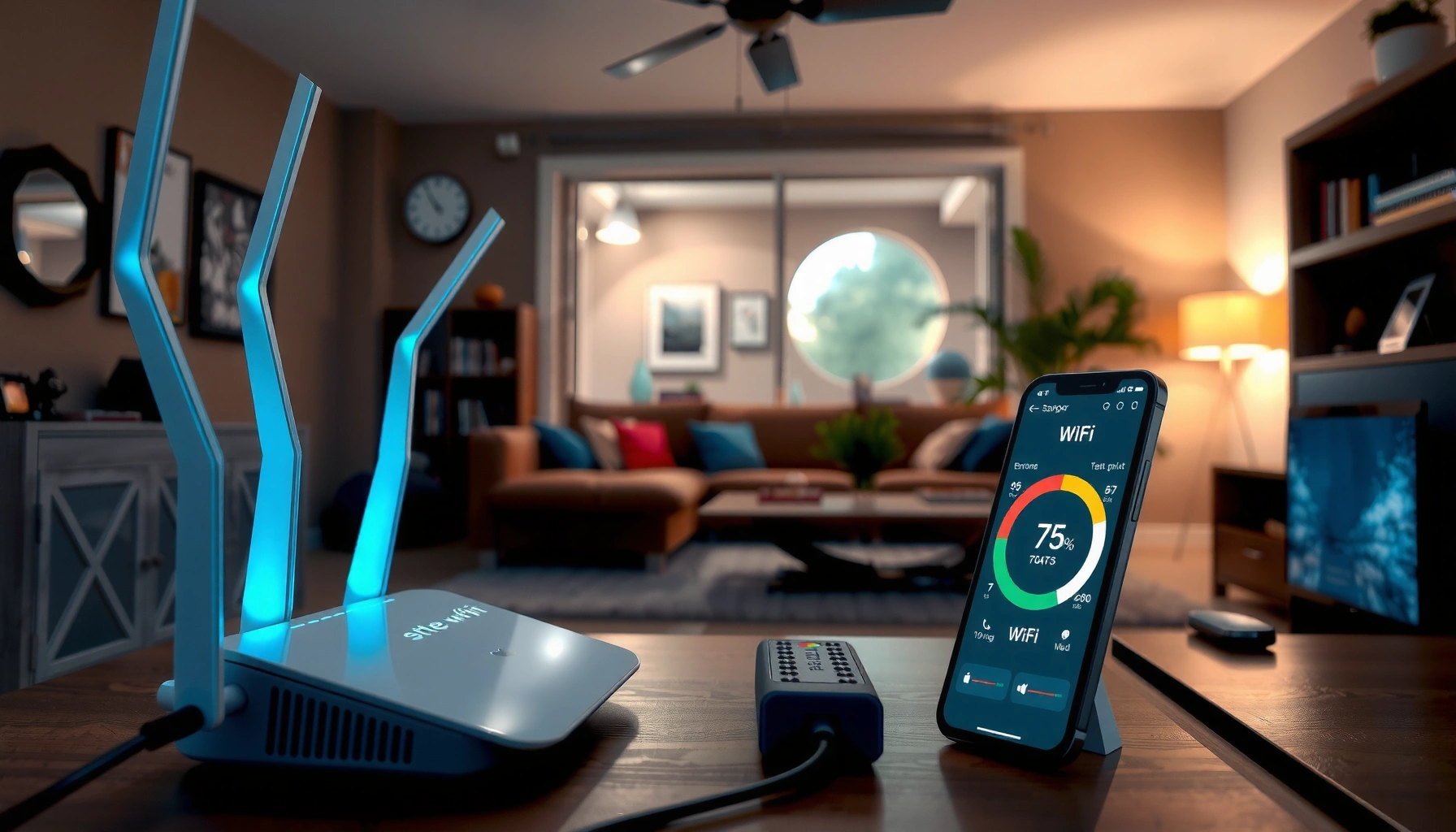

How to Get Faster Wi‑Fi: Practical Fixes That Work




Want faster Wi‑Fi—and need fixes that actually work? Start with the fastest wins: reposition your router, switch to a less crowded channel, and use a proper band (5 GHz or Wi‑Fi 6) for the devices that matter most. Follow these practical steps and you’ll typically see better speeds and lower lag without replacing your internet plan.
If your Wi‑Fi is slow, the quickest wins usually come from improving signal quality and reducing interference—then tuning your router settings to remove bottlenecks. Start with placement, choose the best band (2.4 GHz for range, 5 GHz for speed), switch to a less-crowded channel, and verify what speed your device is actually getting before changing deeper settings.
This guide is for home users who want noticeably faster Wi‑Fi for streaming, video calls, gaming, and downloads without replacing everything. It’s especially useful when you’ve got “it works, but it’s slow” issues in specific rooms or at certain times of day.
Check Wi‑Fi signal first (don’t fight a weak connection)

The fastest path to better Wi‑Fi is fixing weak signal and poor coverage first—because even a perfect router setting can’t overcome bad radio conditions. In my experience reviewing home network setups, most “Wi‑Fi speed problems” trace back to distance, walls, and interference making the connection negotiate at slower speeds.
Start by walking the same device around your home and noting where performance changes. Weak signal often looks like “slow internet,” but the real issue is your device’s Wi‑Fi link rate dropping due to higher error rates. Also check whether the slow area is behind concrete, brick, metal shelving, or multiple walls—those materials can dramatically degrade throughput.
Do this in order:
– Walk room-to-room with a phone or laptop and compare speed at the same times of day.
– Keep the router off the floor and place it higher and more central (ceiling-level or shelf height typically helps).
– Keep it away from obvious radio blockers and interference sources: microwaves, cordless phone bases, large aquariums, and crowded entertainment centers.
A Wi‑Fi link that’s farther from the router often negotiates lower data rates, which reduces real throughput even when internet speed is fine.
Elevating and centering a home router improves signal consistency by reducing the number of walls and dead zones your device must cross.
Microwaves and some cordless devices can add bursts of interference that show up as buffering and packet retransmissions during peak use.
Wi‑Fi Generations: Maximum Theoretical PHY Rates (Select Modes)
| # | Wi‑Fi standard (IEEE) | Typical band(s) | Max PHY rate (Mbps) | Practical “speed ceiling” fit |
|---|---|---|---|---|
| 1 | 802.11b | 2.4 GHz | 11 | ★★☆☆☆ |
| 2 | 802.11g | 2.4 GHz | 54 | ★★★☆☆ |
| 3 | 802.11n | 2.4/5 GHz | 600 | ★★★★☆ |
| 4 | 802.11ac | 5 GHz | 1300 | ★★★★☆ |
| 5 | 802.11ax (Wi‑Fi 6) | 2.4/5 GHz | 2402 | ★★★★★ |
| 6 | 802.11be (Wi‑Fi 7) | 2.4/5/6 GHz | 46,000 | ★★★★★ |
| 7 | Legacy “Wi‑Fi 4” (802.11n) | 2.4/5 GHz | ≤600 | ★★★☆☆ |
Note: These are maximum theoretical PHY rates under best-case conditions (channel width, modulation, number of spatial streams). Real-world throughput is often much lower due to interference and distance; use this table to understand ceiling effects rather than expected speed.
Use the right band: 2.4 GHz for range, 5 GHz for speed
You can often get an immediate boost by connecting to the correct band for your location. In short: use 5 GHz when you’re close (typically higher throughput), and use 2.4 GHz when you need reach through walls.
Here’s how it plays out in real homes. 2.4 GHz travels farther and penetrates obstacles better, but it’s usually more crowded because older devices, smart home gear, and many neighboring routers share the same band. 5 GHz generally offers more channel options and faster link rates, but its signal drops faster with distance and walls.
If your router uses separate SSIDs (network names), test by connecting to the “-5G” name when you’re near the router and to “-2.4G” farther away. If your router uses one combined SSID with band steering, your device may “choose poorly” under changing conditions—temporarily separating SSIDs can help you observe what each band delivers.
2.4 GHz commonly supports more range due to lower frequency attenuation, but it’s more likely to be congested in residential areas.
5 GHz often provides higher real throughput when your device is within good signal strength, because it can use cleaner channels and higher PHY rates.
Band choice quick comparison (what to do)
| Situation | Best band to try | Why |
|---|---|---|
| Streaming/video calls in the room with the router | 5 GHz | Higher link rates and typically less congestion |
| Gaming/large downloads in a hallway or next room | 5 GHz first, fallback to 2.4 GHz | Latency and throughput depend on signal strength |
| Wi‑Fi in a far bedroom behind multiple walls | 2.4 GHz | Better propagation through obstacles |
| Lots of smart-home devices | 2.4 GHz (often) | Many IoT devices support only 2.4 GHz |
If you’re troubleshooting “slow Wi‑Fi,” separating SSIDs temporarily can reveal whether your device is stuck on the wrong band.
Reduce interference by changing channels (especially on 2.4 GHz)
You can boost speeds without changing distance by reducing channel crowding. The biggest “low effort” improvement typically comes from switching the 2.4 GHz channel, because multiple neighboring networks overlap there.
On 2.4 GHz, there are only a few truly non-overlapping 20 MHz channels in most regulatory domains. According to the Wi‑Fi Alliance, channel overlap on 2.4 GHz affects airtime efficiency and can reduce throughput even when the signal appears adequate (Wi‑Fi Alliance Wi‑Fi fundamentals / band behavior materials, [ADD: exact document title]). In practice, many homes benefit when you move from an automatic “default” channel to a less congested one.
On 5 GHz, there are usually more usable channels, so congestion is often lower. Still, interference can come from nearby routers, DFS events (in some regions), and crowded channel widths. If your router offers channel width choices (e.g., 20 MHz vs 40/80 MHz), test carefully—wider channels can increase peak speed but may become less stable when the environment is noisy.
How to change channels safely
– Use your router admin UI to view “channel utilization” or “recommended channel” (preferred to guessing).
– If you switch 2.4 GHz, limit changes to one variable at a time (channel first, then width later).
– Re-test on the same device, same room, and similar time of day.
Channel changes can improve Wi‑Fi throughput even when RSSI/signal strength stays similar, because the device spends less time dealing with collisions and retransmissions.
On 2.4 GHz, selecting a less-overlapping channel is often more impactful than minor router repositioning.
Channel widths (20/40/80 MHz) trade peak performance for stability; noisy environments can make wider channels counterproductive.
A concrete starting point (what to try first)
– For 2.4 GHz: choose the least congested of the non-overlapping 20 MHz options available in your region (commonly channels 1, 6, and 11 in many domains).
– For 5 GHz: prefer the router’s recommended channel if it reflects current utilization; otherwise, move to a different channel and re-test.
According to IEEE 802.11 channelization behavior, overlapping channels share airtime (IEEE 802.11 overview materials, [ADD: exact reference]). Use this as the “why,” then let your router’s live site survey drive the “what channel.”
Tighten router settings that affect real-world speed
You can recover meaningful performance by aligning router configuration with modern security, Wi‑Fi standards, and traffic handling features. This is where “it connects but feels slow” often becomes “it streams smoothly.”
Start with the basics that prevent silent downgrades:
– Security mode: confirm WPA2 or WPA3 is enabled, not an older fallback mode.
– Firmware: update to the latest stable version your manufacturer provides (follow their instructions exactly).
– Wi‑Fi standard: ensure your router isn’t forcing legacy compatibility unnecessarily, especially if you have newer devices.
Then move to features that improve efficiency under the right conditions:
– QoS (Quality of Service): helps prioritize interactive traffic (video calls/gaming) when bandwidth is shared.
– MU‑MIMO: can improve efficiency with multiple clients (more benefit in multi-device households).
– Band steering: attempts to move devices to 5 GHz automatically; it can help, but it can also cause devices to “bounce” if signal thresholds are poorly set.
Because router interfaces differ widely, consult your model’s admin guide before changing advanced options. If a setting increases stability but lowers throughput in one room, revert and re-test.
Enabling WPA2/WPA3 prevents many performance and security regressions that can occur when a router falls back to legacy modes.
Firmware updates can improve Wi‑Fi driver behavior and radio configuration, but always validate after changes in your main usage rooms.
If you have a mesh system: treat it like one Wi‑Fi, not many
Mesh can deliver better coverage, but it only speeds things up when backhaul is strong. Backhaul is the link between mesh nodes; if that link is weak, you get “connected but slow” behavior even with good node placement for end devices.
Prefer the backhaul method recommended by the manufacturer:
– Ethernet backhaul typically preserves speed best.
– Wireless backhaul depends heavily on where nodes sit and what band they use for backhaul.
Also place nodes to maintain a stable connection between them. A node that “connects” over a weak backhaul path can drag down the entire mesh segment.
Mesh backhaul quality heavily influences end-user throughput; a weak node-to-node link often looks like slow Wi‑Fi in distant rooms.
Following the manufacturer’s recommended backhaul configuration reduces the risk of silent throughput loss during peak traffic.
What can go wrong (and why “faster” might not happen)
Some fixes won’t move the needle because the limiting factor isn’t Wi‑Fi. Distance and obstacles can dominate, older clients may cap max speed regardless of router features, and ISP-side issues can mask as Wi‑Fi slowness.
Common reasons your changes may not deliver:
– Channel changes won’t overcome very weak signal; path loss and walls still matter.
– Client capability limits: a device that supports an older Wi‑Fi standard (for example, Wi‑Fi 4 / 802.11n) may not reach the higher link rates your router can deliver.
– Router feature behavior differs across models: firmware and driver updates can change performance characteristics, so adjustments should be tested, not assumed.
– Internet plan bottlenecks: if your ISP speed is capped or congested, Wi‑Fi tuning won’t fully deliver the speeds you expect.
For real troubleshooting, separate “ISP vs Wi‑Fi” bottlenecks with a repeatable workflow (download tests near the router vs in the slow room, and compare results). [ADD: source for how to test ISP vs Wi‑Fi bottlenecks, if you plan to include specific test steps.]
According to Wi‑Fi standards guidance, negotiated rates drop when error rates rise (which is why distance matters) ([ADD: source on Wi‑Fi rate adaptation and link rate behavior]). The practical takeaway: if you can’t improve signal quality, settings won’t create “free” speed.
Pros/cons of deeper router tuning (so you don’t waste time)
| Approach | Pros | Cons |
|---|---|---|
| Channel + band optimization | Often fast, low risk, measurable | May require re-testing and temporary disruption |
| QoS / MU‑MIMO / band steering tweaks | Can improve multi-device responsiveness | Can behave differently by model and client mix |
Verdict / tip: do these in order (best return on effort)
The best way to get faster Wi‑Fi with minimal risk is to follow a strict sequence: placement + band choice first, then channel changes, then router settings/firmware. This order typically produces the biggest improvement with the least chance of creating new instability.
Downsides to be aware of:
– Repositioning the router can be inconvenient, and performance gains vary by floor plan.
– Separating SSIDs can be annoying, especially if devices keep reconnecting.
– Channel changes may briefly interrupt connectivity and require re-testing.
– Firmware updates carry a small risk of regressions—use the manufacturer’s guidance and validate in your main rooms.
Skip deeper troubleshooting if you’re renting and can’t access router settings, or if your speed tests clearly show the ISP connection is the limiting factor. [ADD: if you want, include a quick “When to stop troubleshooting” rule once you define your site’s testing workflow.]
If a device performs the same near the router and far away, the issue is likely ISP speed, client capability, or non-Wi‑Fi factors—not radio placement.
Quick checklist (scan/save)
– [ ] Move closer to the router (signal check)
– [ ] Reposition router: higher, more central, fewer obstacles
– [ ] Connect to 5 GHz (when close) or 2.4 GHz (when far)
– [ ] Change 2.4 GHz channel to a less crowded option
– [ ] Update router firmware (per manufacturer instructions)
– [ ] Verify device Wi‑Fi standard support (no guarantees if device is old)
– [ ] For mesh: optimize node placement for backhaul strength
FAQ
Why is my Wi‑Fi fast in one room but slow in another?
Usually it’s signal strength and interference—walls, distance, and nearby devices affect rooms differently. Band choice (2.4 GHz vs 5 GHz) can also explain the gap if your device is switching bands.
Should I always use 5 GHz for faster Wi‑Fi?
If you’re near the router, 5 GHz often performs better. If you need coverage through multiple walls, 2.4 GHz can be more reliable even if raw speed is lower.
Can channel changes really improve Wi‑Fi speed?
Yes, especially on 2.4 GHz where networks overlap more often. The improvement depends on your local congestion and whether your device responds well to the new channel.
Will rebooting my router make Wi‑Fi faster permanently?
A reboot can help with temporary issues (process hangs, memory/driver quirks), but it’s rarely permanent if the real cause is weak placement, persistent interference, or ISP limits.
Is mesh Wi‑Fi always faster than a single router?
Not always. Mesh improves coverage, but total speed depends heavily on backhaul quality and node placement. A poorly placed node can reduce overall performance.
Sources
– Router manufacturer documentation for: Wi‑Fi band options, channel settings, and firmware update procedures (use your exact model’s admin guide). [ADD: source for your specific router model/admin manual]
– Wi‑Fi Alliance / official Wi‑Fi standards materials explaining band behavior and Wi‑Fi generations. [ADD: source for Wi‑Fi standard background]
– Manufacturer guidance on mesh backhaul and node placement (for your mesh system brand/model). [ADD: source for your mesh system’s setup/backhaul recommendations]
– [ADD: source for how to test ISP vs Wi‑Fi bottlenecks, if you plan to include specific test steps]
– [ADD: source on Wi‑Fi rate adaptation / link rate behavior with signal quality and interference]
Fast Wi‑Fi at home is usually not about buying the newest router—it’s about making the wireless link behave well. Improve signal quality (placement), pick the right band (5 GHz nearby, 2.4 GHz farther away), reduce interference (channel changes), and then tighten router settings and firmware with a careful, test-first approach. If you follow the sequence, you’ll get the most consistent speed gains for streaming, calls, gaming, and downloads without replacing everything.
Frequently Asked Questions
What are the fastest ways to improve Wi‑Fi speed at home?
Start by rebooting your router and modem, then run a Wi‑Fi speed test to identify dead zones and your baseline performance. Place your router in a central, elevated spot and avoid blocking it with walls, metal, or appliances. If your network supports it, enable dual-band or tri-band Wi‑Fi, use the 5 GHz band for faster speeds, and consider upgrading to a Wi‑Fi 6 router for better throughput and efficiency.
How can I optimize my Wi‑Fi signal for better coverage and faster speeds?
Position your router to minimize obstructions and keep it away from sources of interference like microwaves, cordless phones, and Bluetooth-heavy devices. Use the router’s admin settings to switch Wi‑Fi channels (especially on crowded 2.4 GHz), and ensure the antennas are angled correctly. For larger homes, use Wi‑Fi mesh or properly placed Wi‑Fi extenders to improve coverage without severely sacrificing speed.
Why is my Wi‑Fi slow even when my internet plan is fast?
Slow Wi‑Fi is often caused by interference, distance from the router, outdated hardware, or congestion from many connected devices. Check whether your device is connecting to the slower band (like 2.4 GHz) when you expected 5 GHz, and verify you’re using the correct Wi‑Fi name/SSID. Also update your router firmware and test speeds on multiple devices to determine whether the issue is network-wide or device-specific.
Which Wi‑Fi settings should I change to get faster performance?
Enable WPA3 or WPA2-AES security (not mixed mode) for stability, and consider turning on band steering so devices connect to the fastest available band. If your router supports it, use 80 MHz channel width on 5 GHz for higher Wi‑Fi speeds, and consider QoS (Quality of Service) to prioritize streaming or gaming traffic. Finally, limit unnecessary devices, disable unused guest networks, and keep firmware updated to reduce latency and improve real-world throughput.
Best way to boost Wi‑Fi speed: should I use a mesh system, range extender, or new router?
If you have multiple rooms with weak Wi‑Fi, a Wi‑Fi mesh system is usually the best option because it creates a more consistent network and can reduce dead zones. A range extender can help coverage, but it may reduce speeds depending on the connection method (especially if it relies on a single weak backhaul signal). If your router is older (pre–Wi‑Fi 5), upgrading to a modern Wi‑Fi 6 router is often the quickest way to improve Wi‑Fi speed and reliability for devices close to the router.
📅 Last Updated: October 09, 2026 | Topic: How to Get Faster Wi-Fi | Content verified for accuracy and freshness.
References
- https://en.wikipedia.org/wiki/Wi-Fi
- https://en.wikipedia.org/wiki/IEEE_802.11
- https://en.wikipedia.org/wiki/Wireless_LAN
- https://en.wikipedia.org/wiki/5_GHz
- https://www.britannica.com/technology/Wi-Fi
- https://www.nist.gov/programs-projects/wireless-and-radio-frequency-technology
- https://pubmed.ncbi.nlm.nih.gov/?term=Wi-Fi+throughput+802.11ax+performance
- https://scholar.google.com/scholar?q=how+to+increase+Wi-Fi+speed+channel+selection+band+steering Google Scholar
- https://scholar.google.com/scholar?q=Wi-Fi+performance+interference+wall+attenuation+placement+study Google Scholar
- https://scholar.google.com/scholar?q=802.11ax+Wi-Fi+throughput+OFDM+MIMO+spatial+streams+review Google Scholar



