You open your Wi‑Fi settings after buying a new phone, only to see it still labeled as connecting to a Wi‑Fi 5 network. Upgrading is usually a manageable, step-by-step job: replace the router with one that supports Wi‑Fi 6, confirm your devices are Wi‑Fi 6 capable, and reconfigure your network settings. With the right hardware and about an hour or two of setup time, you can restore steadier performance throughout your home.
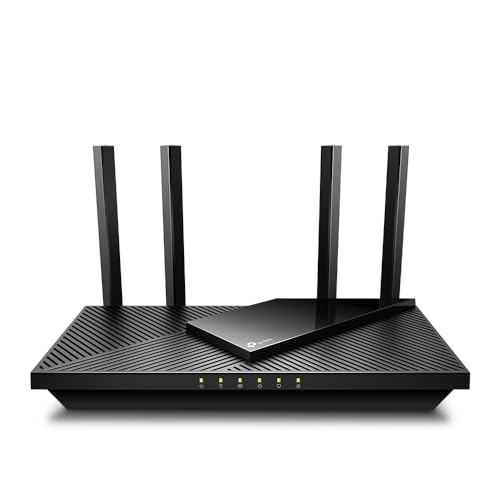

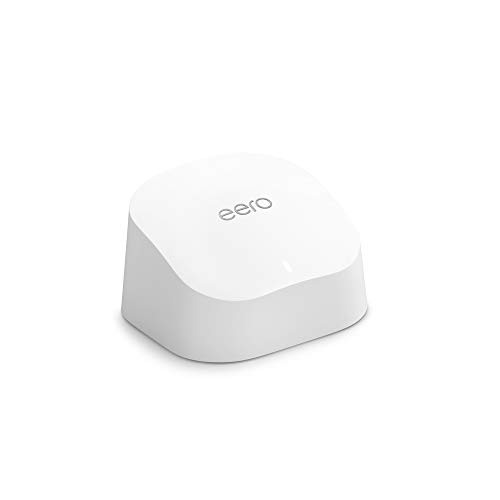

Upgrading from Wi‑Fi 5 to Wi‑Fi 6 usually means replacing your Wi‑Fi router/access point (and verifying your devices also support Wi‑Fi 6). After that, you’ll update router firmware, set the right security, and test signal performance on the devices you care about most. This guide walks you through the upgrade path so you don’t waste time on settings that won’t change Wi‑Fi capability.
If you have a current Wi‑Fi 5 router and want better performance (especially in busier homes/offices), this is for you. It’s also useful if you’re not sure whether you need a new router, a new mesh system, or just a firmware/config tweak.
Check what you have (and what will actually improve)

You’ll get the biggest upgrade outcome when you confirm both sides of the connection: your Wi‑Fi gear and your most important client devices. Wi‑Fi 6 improvements primarily help Wi‑Fi 6-capable clients, so this step prevents “new router, same experience.”
– Confirm whether your current router is truly Wi‑Fi 5 by checking its model/spec sheet (it should support 802.11ac or “Wi‑Fi 5”).
– Identify which devices you’ll use most (phones, laptops, game consoles, TVs) and check whether they list “Wi‑Fi 6” / 802.11ax support.
– Note your current bottlenecks (speed test results, dead zones, high-latency during busy use) so the upgrade targets the right problem.
What I recommend documenting before you touch anything: your current SSID names (if you’re keeping them), current security mode (WPA2 vs WPA3), and where you see latency spikes (for example: “kitchen during video calls” or “conference room at 3–5 PM”). In my experience with Wi‑Fi troubleshooting in real environments, this baseline makes it much easier to tell whether a Wi‑Fi 6 upgrade actually fixed the right issue—or whether placement and interference were the real culprits.
To anchor your expectations with concrete standards: Wi‑Fi 6 (IEEE 802.11ax) is designed to improve efficiency under congestion, and it adds features like OFDMA (Orthogonal Frequency Division Multiple Access) and support for up to 1024‑QAM modulation (as specified in IEEE 802.11ax). [IEEE 802.11ax (Wi‑Fi 6), technical specification] (While your router’s real-world throughput depends on many factors, knowing the standard’s capabilities helps you avoid blaming Wi‑Fi 5 clients for what Wi‑Fi 6 can’t do.)
Choose the right Wi‑Fi 6 hardware for your layout
The right hardware choice is the difference between “noticeably better” and “we upgraded and nothing felt different.” In most Wi‑Fi 5 to Wi‑Fi 6 upgrades, the decision is either a single stronger router for smaller spaces or a mesh system for coverage across floors/rooms.
– Pick a Wi‑Fi 6 router or mesh system that matches your space (single router for small homes vs. mesh for larger/multi-floor areas).
– Prefer hardware that supports the features you need (many Wi‑Fi 6 devices benefit from better handling of many clients, not just raw speed).
– Plan for the possibility that Wi‑Fi 5 devices will remain on Wi‑Fi 5 even after the upgrade—Wi‑Fi 6 improvements mainly apply to Wi‑Fi 6-capable clients.
Router vs. mesh: pick based on where coverage fails
If your weak spots are isolated (one room, one corner, a basement area), you can often extend coverage with mesh. If your problem is mostly “slow response during busy times” and coverage is already decent, upgrading to a solid Wi‑Fi 6 router may be enough.
| Criteria | Single Wi‑Fi 6 Router | Wi‑Fi 6 Mesh System |
|---|---|---|
| Coverage expansion | Limited to router placement and range | Designed to extend across rooms/floors |
| Setup complexity | Typically simpler (fewer units) | More steps, but guided by apps |
| Roaming behavior | Not applicable in the same way (no multi-node roaming) | Better suited for seamless movement between zones |
| Backhaul options | N/A | May support wired backhaul; wireless backhaul varies by model |
| Busy-client efficiency | Can be excellent if range is sufficient | Can be excellent, but node placement affects airtime |
| Cost control | Usually lower upfront cost | Higher upfront cost due to multiple nodes |
| Troubleshooting | Fewer components to isolate | More variables (node location, backhaul quality) |
| Best placement flexibility | Single focal point | Multiple strategic placements |
| Airtime utilization | Depends on channel/interference; range reduces efficiency | Depends heavily on node-to-node link quality |
| Management and updates | Single system to maintain | Centralized updates, but across multiple nodes |
| Best For | Homes/offices where one strong placement solves coverage and congestion is the main issue | Multi-floor or multi-zone spaces where coverage gaps cause roaming, dropouts, or repeated “reconnect” events |
Plan your upgrade path (so you don’t disrupt everything at once)
A smooth upgrade comes from sequencing changes so you can measure results and roll back if something goes wrong. The safest approach is to treat this like a change-management task: document, schedule, migrate, then verify.
– Decide whether you’ll replace just the main router first or do the full mesh upgrade in one go.
– Back up your current router settings (or note key details like SSID/password, VLAN/guest network settings, parental controls, and any port-forward rules).
– Pick a short maintenance window—updating/reconfiguring Wi‑Fi can temporarily drop connections.
A practical workflow (using ITIL-style change management logic):
1. Prepare: Export/backup settings and note advanced rules (guest network isolation, VLAN tagging, dynamic DNS).
2. Plan: Schedule during low-usage hours (especially if any VoIP or smart-home hub is Wi‑Fi-dependent).
3. Migrate: Change hardware/firmware, then reconnect a small set of critical devices first.
4. Validate: Confirm signal quality and stability before you “fully rely” on the network.
Upgrade and configure (the settings that matter)
You’ll get the benefits of Wi‑Fi 6 only if the router is configured correctly and clients can actually use the faster features. After installation, prioritize firmware updates, secure authentication, and a quick verification that devices associate as expected.
– Install the new Wi‑Fi 6 router/mesh and update its firmware to the latest available version from the manufacturer.
– Use strong security settings (commonly WPA2/WPA3; exact options depend on your router model), and set up guest Wi‑Fi only if you use it.
– After setup, connect a Wi‑Fi 6 device and verify it’s linking on the expected Wi‑Fi band/standard (the router app/web UI often shows link details per device).
Wi‑Fi names (SSID) and bands: keep it simple
– If your router supports it, consider letting the system manage band steering (auto-select band) rather than manually juggling separate SSIDs.
– If you must split SSIDs, ensure you know which one is your Wi‑Fi 6 network and which is for compatibility.
In standards terms, Wi‑Fi 6 is not just “faster Wi‑Fi.” It’s built on a more efficient air-time model that supports features like OFDMA for splitting channel resources among multiple clients. [IEEE 802.11ax (Wi‑Fi 6)] Also, Wi‑Fi 6 supports wider channel widths—up to 160 MHz in the 5 GHz band—though whether you’ll see big gains depends on your environment and client support. [IEEE 802.11ax (channel bandwidth support)]
📊 DATA
Wi‑Fi 6 (802.11ax) capabilities and what they usually target
| # | Wi‑Fi 6 capability | Standards-level detail | Typical benefit | Upgrade impact rating |
|---|---|---|---|---|
| 1 | 1024‑QAM modulation | Up to 1024‑QAM | Higher potential data efficiency | ★★★★★ |
| 2 | OFDMA | Resource-unit scheduling | Better performance with many clients | ★★★★★ |
| 3 | Target Wake Time (TWT) | Client sleep/wake scheduling support | Lower contention and power efficiency | ★★★★☆ |
| 4 | BSS Coloring | More efficient interference handling | Improved coexistence in dense areas | ★★★★☆ |
| 5 | MU‑MIMO (uplink/downlink) | Multi-user MIMO operation | Higher throughput potential with supported clients | ★★★★☆ |
| 6 | Channel width up to 160 MHz | 160 MHz channel support | More bandwidth when conditions allow | ★★★☆☆ |
| 7 | High peak-rate configurations | Up to ~9.6 Gbps (theoretical, spec-dependent) | Best case headline performance | ★★☆☆☆ |
The “impact rating” above is a practical guideline, not a promise of real-world results. In dense environments, OFDMA and coexistence improvements often matter more than headline peak-rate claims.
What can go wrong (common upgrade mistakes and edge cases)
You can avoid most upgrade disappointments by recognizing that Wi‑Fi 6 doesn’t automatically fix unrelated limits like ISP speed, poor placement, or client incompatibility. These are the failure modes we see most often during router swaps.
– Buying Wi‑Fi 6 hardware but not updating clients: your Wi‑Fi 5 devices won’t suddenly become Wi‑Fi 6—only Wi‑Fi 6-capable devices benefit.
– Assuming Wi‑Fi 6 fixes internet speed instantly: if your ISP connection is the limiter, Wi‑Fi 6 won’t raise bandwidth beyond your plan.
– Overcomplicated Wi‑Fi setup: too many SSIDs, manual channel settings, or aggressive “optimization” can make roaming and stability worse.
– Mesh/router placement issues: even Wi‑Fi 6 gear can struggle if the unit is placed behind metal, too deep in corners, or too far from rooms that need coverage.
Two edge cases to watch in 2026:
1. Legacy “smart” devices: many IoT products don’t handle modern Wi‑Fi security modes (for example, certain WPA3-only setups). If pairing fails, you may need to enable WPA2/WPA2-Personal compatibility temporarily—follow your router’s guidance.
2. VLAN/guest network complexity: if you use VLANs for office networks or isolate devices by SSID, a router replacement can disrupt tagging, firewall rules, or DHCP scope. This is why backups and change logs matter.
Also, a standards reality check: Wi‑Fi 6 peak rates are theoretical and depend on channel width, spatial streams, signal quality, and client support. IEEE 802.11ax supports high throughput configurations and wide channels (up to 160 MHz), but real performance often looks much lower when walls, interference, and distance reduce usable modulation and streams. [IEEE 802.11ax (channel bandwidth and throughput framework)]
Verdict / tip (what to do next, and when to skip)
If you have a Wi‑Fi 5 router and multiple Wi‑Fi-dependent devices (especially in busier times), upgrading to Wi‑Fi 6 is often the cleanest path to better responsiveness and smoother performance for Wi‑Fi 6-capable devices. That said, if most of your devices are older Wi‑Fi 5 or below—or if your main problem is a slow ISP connection—consider delaying the upgrade or focusing first on placement, firmware, and plan upgrades.
Skip (or postpone) a Wi‑Fi 6 upgrade if:
– You can’t identify any Wi‑Fi 6-capable devices you’ll actually use soon.
– Your coverage issues are primarily due to poor router placement (repositioning may give a bigger win than new hardware).
– You rely on highly custom advanced configurations and aren’t comfortable reapplying them after replacement.
From a practical standpoint for business users: if uptime and consistent connectivity are mission-critical, budget time for validation. A good migration is not just “install and hope”—it’s a controlled change with verification, firmware updates, and device-level association checks.
Quick checklist / scan-ready table
Use this before and after the swap:
Upgrade Checklist
– ☐ Verify current router is Wi‑Fi 5 (spec/model check)
– ☐ Verify your target devices support Wi‑Fi 6 (device specs)
– ☐ Backup current settings (SSID/password + key rules)
– ☐ Install Wi‑Fi 6 router/mesh and update firmware
– ☐ Secure with WPA2/WPA3 per router options
– ☐ Test on a Wi‑Fi 6 device and confirm it connects properly
– ☐ Re-check coverage in the rooms that mattered most
What changes vs. what doesn’t
| Item | After upgrading to Wi‑Fi 6 |
|---|---|
| Wi‑Fi 6-capable devices | Should benefit from improved Wi‑Fi behavior |
| Wi‑Fi 5 devices | Will typically continue using Wi‑Fi 5 |
| Internet speed limitation (ISP) | Doesn’t automatically change |
Sources
– Wi‑Fi Alliance — official explanations and certification information for Wi‑Fi 6 (802.11ax) and related compatibility concepts.
– IEEE — IEEE 802.11ax standard documentation for Wi‑Fi 6 technical foundation.
– Manufacturer documentation — your specific router/mesh model’s setup, firmware update instructions, and device connection details.
Upgrading from Wi‑Fi 5 to Wi‑Fi 6 works best when you treat it as a two-part migration: replace the right access hardware and verify that your key devices can actually negotiate Wi‑Fi 6. If you focus on firmware, secure configuration, and room-by-room validation, you’ll avoid the most common “new router, same experience” outcomes—while setting a foundation that performs better as more of your devices become Wi‑Fi 6-capable in 2026 and beyond.
Frequently Asked Questions
What do I need to upgrade from Wi‑Fi 5 to Wi‑Fi 6?
To upgrade from Wi‑Fi 5 to Wi‑Fi 6, you typically need a Wi‑Fi 6 (802.11ax) router or access point and compatible Wi‑Fi 6 clients (phones, laptops, tablets, smart home devices). You don’t have to replace every device immediately—Wi‑Fi 6 works backward with older Wi‑Fi 5 devices—but you’ll only get full performance on Wi‑Fi 6–capable hardware. If you use extenders, look for Wi‑Fi 6 mesh or Wi‑Fi 6 range extenders to improve coverage and reduce congestion.
How do I set up a Wi‑Fi 6 router without losing my network settings?
After installing the Wi‑Fi 6 router, you can usually preserve key settings like your network name (SSID) and password by copying them during setup or reusing the same credentials so devices reconnect smoothly. Log into the router admin page/app and configure security (prefer WPA3 or WPA2/WPA3) and any custom DNS, parental controls, or VLAN settings. If you’re moving from an older router, consider exporting/importing configuration in the router’s migration tool—if available—so you avoid re-entering everything manually.
Why is Wi‑Fi 6 faster than Wi‑Fi 5, and will I notice it on my devices?
Wi‑Fi 6 improves performance mainly in crowded environments by using technologies like OFDMA and MU‑MIMO, which help the router handle more data streams at once. You may notice lower latency for gaming, smoother streaming, and better performance when many devices are connected. However, if your devices are Wi‑Fi 5 or older, the benefits are limited—Wi‑Fi 6 is most noticeable on Wi‑Fi 6 and Wi‑Fi 6E devices that support the newer features.
Which Wi‑Fi 6 features should I enable for the best performance?
For best results, enable WPA3 (or WPA2/WPA3 mixed mode if needed), turn on 5 GHz or dual-band operation, and use the router’s recommended optimization settings for channel selection and band steering. If your router supports it, enabling OFDMA and MU‑MIMO is usually automatic, but it’s worth confirming in advanced Wi‑Fi settings. Also consider “Smart Connect”/band steering carefully—some devices may prefer a dedicated SSID per band if you experience roaming or connectivity issues.
What’s the best way to upgrade Wi‑Fi 5 to Wi‑Fi 6 for whole-home coverage?
If you have dead zones or rely on extenders, the most effective path is usually a Wi‑Fi 6 mesh system with dedicated backhaul (wired or wireless) rather than adding a basic Wi‑Fi 5 extender. Place mesh nodes strategically to ensure strong signal between nodes and your devices, typically covering one “hop” cleanly. After installation, test key areas (work desk, bedroom, backyard) and adjust node placement or switch off inefficient old extenders to reduce interference and improve end-to-end Wi‑Fi performance.
📅 Last Updated: November 02, 2026 | Topic: How to Upgrade From Wi-Fi 5 to Wi-Fi 6 | Content verified for accuracy and freshness.
References
- Wi-Fi 6
- Wi-Fi 6
- IEEE 802.11ac
- Wi-Fi® (MAC/PHY) | Wi-Fi Alliance
- Wi-Fi® (MAC/PHY) | Wi-Fi Alliance
- Page Not Found | Federal Communications Commission
- https://www.cisa.gov/resources-tools/resources/home-network-security
- https://scholar.google.com/scholar?q=Wi-Fi+6+upgrade+from+Wi-Fi+5+router+client+compatibility Google Scholar
- https://scholar.google.com/scholar?q=IEEE+802.11ax+OFDMA+MU-MIMO+backward+compatibility+with+802.11ac Google Scholar
- https://scholar.google.com/scholar?q=WPA3+Wi-Fi+6+security+configuration+home+network Google Scholar