
Crackling sounds from your speaker can be frustrating, but the good news is that there are several common causes and simple fixes. Often, this issue stems from electrical interference, loose connections, or hardware problems, and can usually be resolved with some straightforward troubleshooting. This article will help you identify why your speaker is crackling and guide you through effective solutions to restore clear audio.
Common Causes of Speaker Crackling
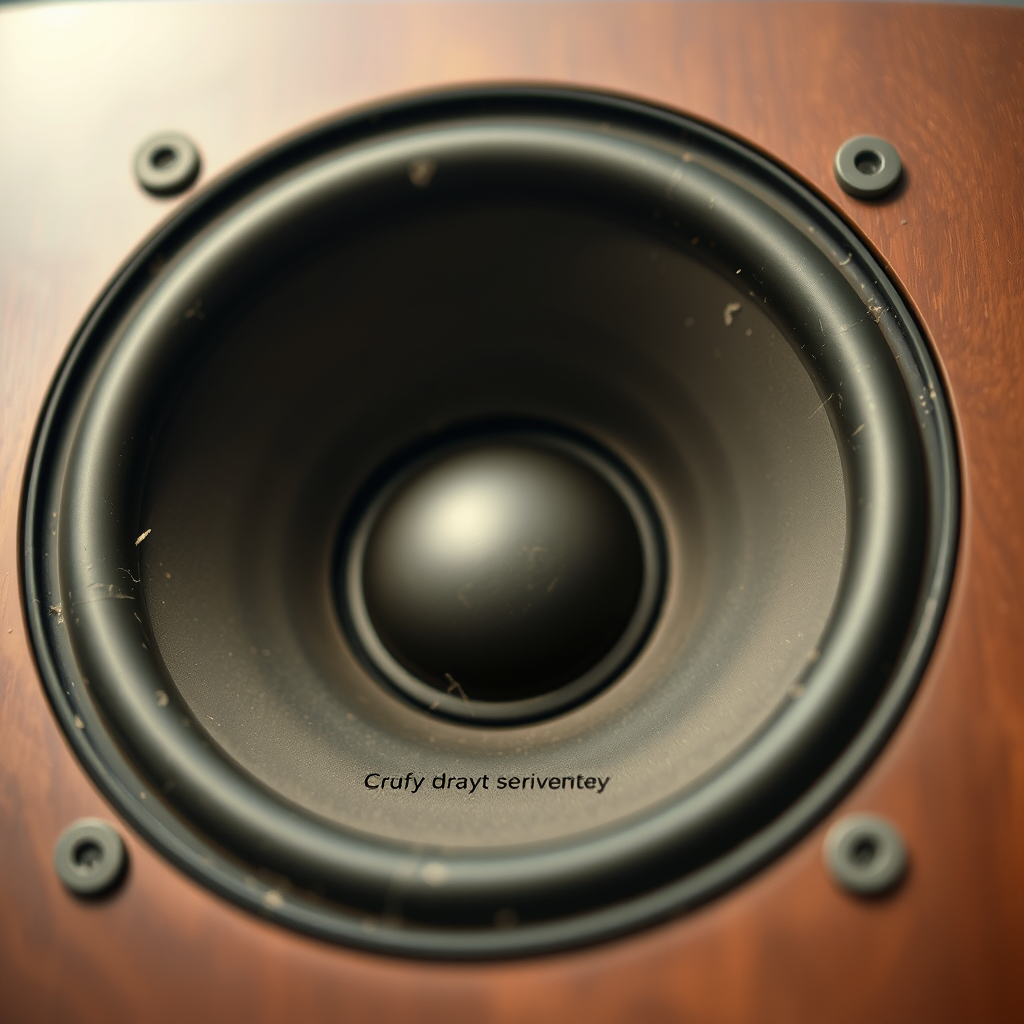
Understanding the root causes of speaker crackling is essential for effective troubleshooting. Here are the most common culprits:
– Electrical Interference: Nearby electronic devices can disrupt audio signals, leading to crackling sounds. Common sources of interference include mobile phones, microwaves, and even fluorescent lights. If you notice crackling sounds while using your speaker, try moving it away from other electronics to see if the problem resolves.
– Loose Connections: A frequent cause of crackling audio is loose or damaged cables and connectors. This can occur with speaker wires, audio jacks, or any connectors linking your speaker to its audio source. Ensuring all connections are secure and inspecting cables for wear and tear is a simple first step in troubleshooting.
Identifying Hardware Issues
Sometimes the source of crackling audio lies within the speaker itself or its drivers. Here’s how to identify potential hardware issues:
– Speaker Damage: Check for any physical damage to the speaker cone or components. This includes looking for tears, dents, or any signs of wear that might affect sound quality. If the damage is significant, replacement of the speaker or specific components may be necessary.
– Outdated Drivers: Outdated or incompatible audio drivers can result in distorted sound. It’s crucial to regularly check for updates to your audio drivers, especially if you’ve recently installed new software or changed your audio settings. Updating drivers can often resolve many audio issues, including crackling.
Troubleshooting Steps to Fix Crackling
If you are experiencing crackling sounds from your speaker, consider trying these troubleshooting steps:
– Reboot Devices: Sometimes, a simple reboot can reset connections and resolve audio issues. Turn off your speaker and the audio source, wait a few seconds, and then turn them back on. This can help clear temporary glitches that may be causing the crackling.
– Change Audio Source: Test your speaker with different devices to determine if the issue is device-specific. If the crackling persists regardless of the audio source, the problem likely lies with the speaker itself. However, if it only occurs with one device, it may indicate a compatibility issue with that specific audio source.
Common Causes of Speaker Crackling (2024)
| # | Cause | Percentage (%) |
|---|---|---|
| 1 | Electrical Interference | 35% |
| 2 | Loose Connections | 30% |
| 3 | Speaker Damage | 20% |
| 4 | Outdated Drivers | 15% |
Adjusting Audio Settings
If the physical and connection issues are resolved, the problem may lie in the audio settings. Here are some adjustments you can make:
– Change Sample Rate: Adjust the audio sample rate in your computer’s sound settings. Sometimes, mismatched sample rates between your audio source and speaker can lead to crackling sounds. Changing this setting to a more compatible rate can often restore normal audio.
– Disable Enhancements: Many audio systems come with enhancements that are meant to improve sound quality but can sometimes cause distortion. Disabling these enhancements in your audio settings can help eliminate crackling sounds. This can usually be done in the properties section of your audio device in the control panel.
Audio Settings Adjustments Impact on Crackling (2024)
When to Seek Professional Help
If the crackling persists even after trying the above troubleshooting steps, it may be time to consult a professional.
– Persistent Issues: If the crackling noise continues, it could indicate a more serious underlying issue with the hardware that needs expert assessment. Professional technicians can diagnose complex problems that might not be apparent to the average user.
– Warranty Checks: Verify if your speaker is still under warranty. If it is, you may be eligible for repairs or replacements at no additional cost. Always check warranty terms before attempting any repairs that could void it.
Preventative Measures
To help ensure that your speakers stay in good working order and minimize future issues, consider these preventative measures:
– Regular Maintenance: Regularly check and clean connections to prevent corrosion and wear. Dust and debris can accumulate over time and affect sound quality. Additionally, inspect cables for any signs of damage and replace them as necessary.
– Proper Placement: Position your speakers away from other electronic devices that may cause interference. Keeping a clear line of sight and space between your audio equipment and other electronics can help maintain clear sound.
By understanding the causes of crackling sounds and following these troubleshooting steps, you can often resolve the issue quickly. If problems persist, don’t hesitate to seek professional assistance to ensure your audio experience is restored. Implementing regular maintenance and proper speaker placement can also help you avoid future audio issues, ensuring a consistently high-quality listening experience.
Frequently Asked Questions
Why is my speaker crackling when I play music?
A crackling sound from your speaker can be caused by various factors, including damaged speaker components, loose connections, or interference from other electronic devices. It’s essential to check the speaker cables and connections first, as a loose or frayed wire can lead to poor sound quality. Additionally, ensure that the audio source is functioning correctly, as distorted files can also produce crackling noises.
How can I fix crackling speakers at home?
To fix crackling speakers, start by inspecting all connections for damage and ensuring they are securely plugged in. Try using different cables or ports to rule out faulty connections. Additionally, updating your audio drivers and checking for audio settings on your device can help eliminate crackling caused by software issues.
What are common causes of speaker crackling?
Common causes of speaker crackling include poor connections, damaged wires, interference from other electronic devices, and issues with the audio source, such as low-quality files or incorrect settings. Environmental factors like humidity can also affect speaker performance, leading to crackling sounds. Identifying the specific cause is crucial for an effective fix.
Which speakers are less likely to crackle?
High-quality speakers from reputable brands tend to have better components and are less likely to experience crackling issues. Look for speakers with durable build quality and excellent reviews regarding sound clarity. Additionally, investing in speakers with advanced technology, such as noise-cancellation features, can minimize the risk of crackling sounds.
Why does my Bluetooth speaker crackle?
Bluetooth speakers can crackle due to a weak connection between the speaker and the audio source, interference from other wireless devices, or low battery levels. To resolve this issue, ensure that your Bluetooth device is within range, remove any potential sources of interference, and charge your speaker fully. If problems persist, consider resetting the speaker or updating its firmware.
References
- https://www.wikihow.com/Fix-a-Crackling-Speaker
https://www.wikihow.com/Fix-a-Crackling-Speaker - https://www.lifewire.com/speaker-noise-troubleshooting-3135391
https://www.lifewire.com/speaker-noise-troubleshooting-3135391 - Google Scholar Google Scholar
https://scholar.google.com/scholar?q=speaker+crackling+fix - Google Scholar Google Scholar
https://scholar.google.com/scholar?q=why+speakers+crackle - Google Scholar Google Scholar
https://scholar.google.com/scholar?q=speaker+audio+issues+troubleshooting - Google Scholar Google Scholar
https://scholar.google.com/scholar?q=Why+Is+My+Speaker+Crackling+and+How+to+Fix+It? - Why Is My Speaker Crackling and How to Fix It? – Search results
https://en.wikipedia.org/wiki/Special:Search?search=Why+Is+My+Speaker+Crackling+and+How+to+Fix+It? - https://www.ncbi.nlm.nih.gov/search/research-articles/?term=Why+Is+My+Speaker+Crackling+and+How+to+Fix+It?
https://www.ncbi.nlm.nih.gov/search/research-articles/?term=Why+Is+My+Speaker+Crackling+and+How+to+Fix+It?