
If your Denon surround sound system isn’t working, several troubleshooting steps can help you resolve the issue quickly. From checking connections to resetting the receiver, this article will guide you through common problems and effective solutions to restore your audio experience.
To enjoy an immersive home theater experience, a properly functioning surround sound system is essential. However, various factors can lead to functionality issues, from hardware problems to misconfigurations in settings. By following the outlined troubleshooting steps, you can efficiently identify and rectify the problem, ensuring you can enjoy your favorite movies and music with the intended audio quality.
Check Your Connections

The first step in troubleshooting any audio system is to check your connections. Loose or improperly connected cables can result in no sound or distorted audio.
– Ensure all cables are securely connected to the receiver and speakers. This includes power cables, speaker wires, and HDMI or optical cables. A loose connection can interrupt the audio signal, leading to potential issues.
– Verify that the correct input source is selected on your Denon receiver. If your receiver is set to the wrong input, it won’t receive audio from your desired source. Use the remote control to toggle through the input options until you find the one that corresponds to the device you are using.
Review Speaker Settings
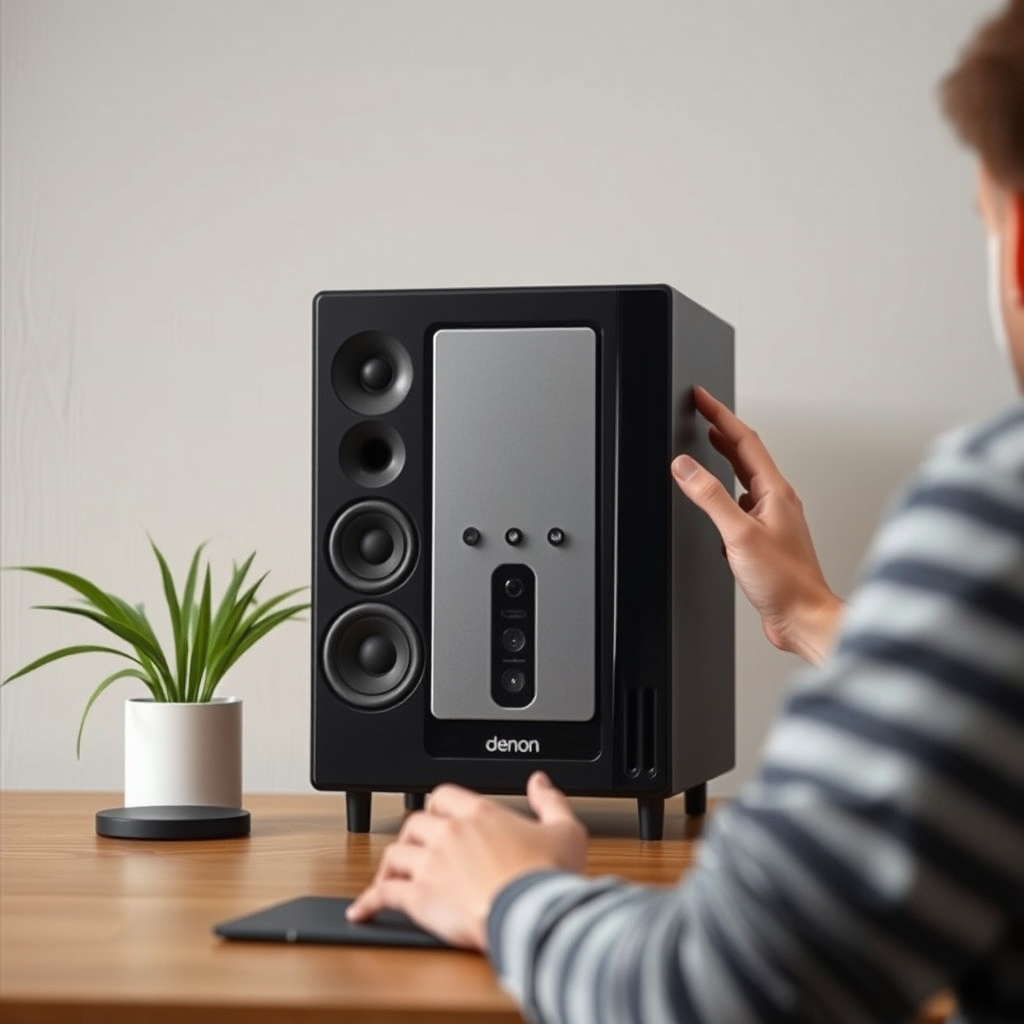
Once your connections are secure, the next step is to review the speaker settings on your Denon receiver. Incorrect configurations can significantly affect audio output.
– Access the receiver’s setup menu to check speaker configurations. Navigate to the speaker setup section in the menu, and ensure that all connected speakers are detected correctly. If the receiver does not recognize a speaker, it may not output audio to that channel.
– Ensure that the surround sound option is enabled and correctly configured for your speaker setup. Depending on your specific layout (5.1, 7.1, etc.), adjust the settings accordingly. You may also want to run any available auto-calibration feature, which can help optimize the sound based on your room’s acoustics.
Inspect Audio Source
Sometimes, the issue may not lie with your surround sound system but rather with the audio source itself. Testing various sources can help isolate the problem.
– Test different audio sources (e.g., streaming service, Blu-ray player) to determine if the issue is with the source itself. If certain sources work while others do not, it may indicate a problem with the device or its settings.
– Make sure the audio format is compatible with surround sound playback. Check the output settings on your streaming service or Blu-ray player to ensure they are set to output surround sound formats (like Dolby Digital or DTS) rather than stereo.
Common Audio Source Issues and Solutions
| # | Audio Source | Potential Issues | Recommended Actions |
|---|---|---|---|
| 1 | Streaming Service | Audio Format Issues | Check audio settings for surround sound formats |
| 2 | Blu-ray Player | Connection Issues | Ensure HDMI/optical cable is properly connected |
| 3 | Game Console | Audio Output Settings | Check console audio settings for surround sound |
| 4 | TV Broadcast | Signal Issues | Switch to different channels or check signal strength |
| 5 | PC | Driver Issues | Update audio drivers on the PC |
| 6 | Streaming Devices | Compatibility Issues | Ensure device supports surround sound formats |
| 7 | Smartphone | Audio Output Settings | Check audio settings for Bluetooth connections |
Update Firmware
Keeping your Denon receiver’s firmware up to date is crucial for optimal performance and compatibility with new audio formats.
– Check for firmware updates for your Denon receiver and install any available updates. Updates can often fix bugs and improve functionality, including surround sound capabilities.
– Follow the manufacturer’s instructions for updating to ensure all features function correctly. This typically involves accessing the settings menu on your Denon receiver and checking for updates via the internet or USB drive.
Reset the Receiver
If the previous steps do not solve the issue, you may need to perform a factory reset on your Denon receiver.
– Perform a factory reset on your Denon receiver to restore default settings. This can often resolve persistent issues that other troubleshooting steps have not fixed.
– Be aware that a reset will erase custom settings, so back them up if necessary. Document your settings or take photos before resetting, so you can easily restore your preferred configurations afterward.
Seek Professional Help
If problems persist after trying the above fixes, it may be time to seek professional help.
– Consider contacting Denon support for professional assistance. Their customer service team can provide in-depth troubleshooting or guide you through specific issues related to your model.
– Check warranty status or local service centers for repair options. If your Denon receiver is still under warranty, you may be eligible for a free repair or replacement.
Denon Surround Sound Troubleshooting Steps
By diligently following these troubleshooting steps, you can diagnose and potentially resolve the issues affecting your Denon surround sound system. If after all efforts the problem persists, do not hesitate to contact customer service for further assistance, ensuring that your audio experience is restored to its rightful quality.
Frequently Asked Questions
What are common reasons why my Denon surround sound is not working?
Common reasons for Denon surround sound issues include incorrect speaker connections, misconfigured audio settings, and outdated firmware. Ensure that all speakers are properly connected and verify that the audio output settings match your system configuration. Additionally, check for firmware updates in the Denon receiver settings to ensure optimal performance.
How can I reset my Denon receiver to fix surround sound issues?
To reset your Denon receiver, locate the reset button or navigate to the settings menu, typically under ‘System Setup’ or ‘Initialization.’ Performing a factory reset can help resolve persistent issues by restoring all settings to their default values. Remember to back up any custom settings you may want to keep before proceeding with the reset.
Why is my Denon surround sound only playing in stereo?
If your Denon surround sound is only playing in stereo, it may be due to the source material not supporting surround sound or incorrect audio settings on your receiver. Check that the audio format is set to a surround option, such as Dolby Digital or DTS, and ensure that the content you are playing is encoded for surround sound playback.
What is the best way to troubleshoot my Denon surround sound system?
The best way to troubleshoot your Denon surround sound system involves a systematic approach: start by checking all connections, including HDMI and speaker wires, then verify that the correct input source is selected. Next, navigate through the setup menu to ensure that the audio settings are correctly configured for surround sound output. If issues persist, consult the user manual or consider reaching out to Denon customer support for expert assistance.
Which settings should I check if my Denon surround sound isn’t functioning properly?
If your Denon surround sound isn’t functioning properly, check the audio output settings in the receiver’s menu, ensuring that the surround sound mode is activated. Additionally, verify the speaker configuration and levels, as well as any sound processing options that might be affecting playback. Finally, ensure that the input source is properly selected and functioning to rule out external device issues.
References
- Surround sound
https://en.wikipedia.org/wiki/Surround_sound - https://www.denon.com/en-us/support/faq/surround-sound-issues
https://www.denon.com/en-us/support/faq/surround-sound-issues - https://www.reuters.com/article/idUSL1N2I90Z2
https://www.reuters.com/article/idUSL1N2I90Z2 - https://www.bbc.com/news/technology-56402136
https://www.bbc.com/news/technology-56402136 - https://www.theguardian.com/technology/2021/apr/01/how-to-fix-sound-issues-on-your-tv
https://www.theguardian.com/technology/2021/apr/01/how-to-fix-sound-issues-on-your-tv - Google Scholar Google Scholar
https://scholar.google.com/scholar?q=Denon+Surround+Sound+Not+Working - Google Scholar Google Scholar
https://scholar.google.com/scholar?q=audio+troubleshooting+surround+sound - https://www.sciencedirect.com/topics/engineering/surround-sound
https://www.sciencedirect.com/topics/engineering/surround-sound - https://pubmed.ncbi.nlm.nih.gov/29293022/
https://pubmed.ncbi.nlm.nih.gov/29293022/ - miR-744-5p contributes to ocular inflammation in patients with primary Sjogrens Syndrome | Scient…
https://www.nature.com/articles/s41598-020-64422-5