
If your Sonos Trueplay tuning isn’t working, don’t worry—there are several steps you can take to troubleshoot and resolve the issue. By following this guide, you can address common problems and ensure your Sonos speakers deliver optimal sound tailored to your environment.
Understanding Trueplay Tuning
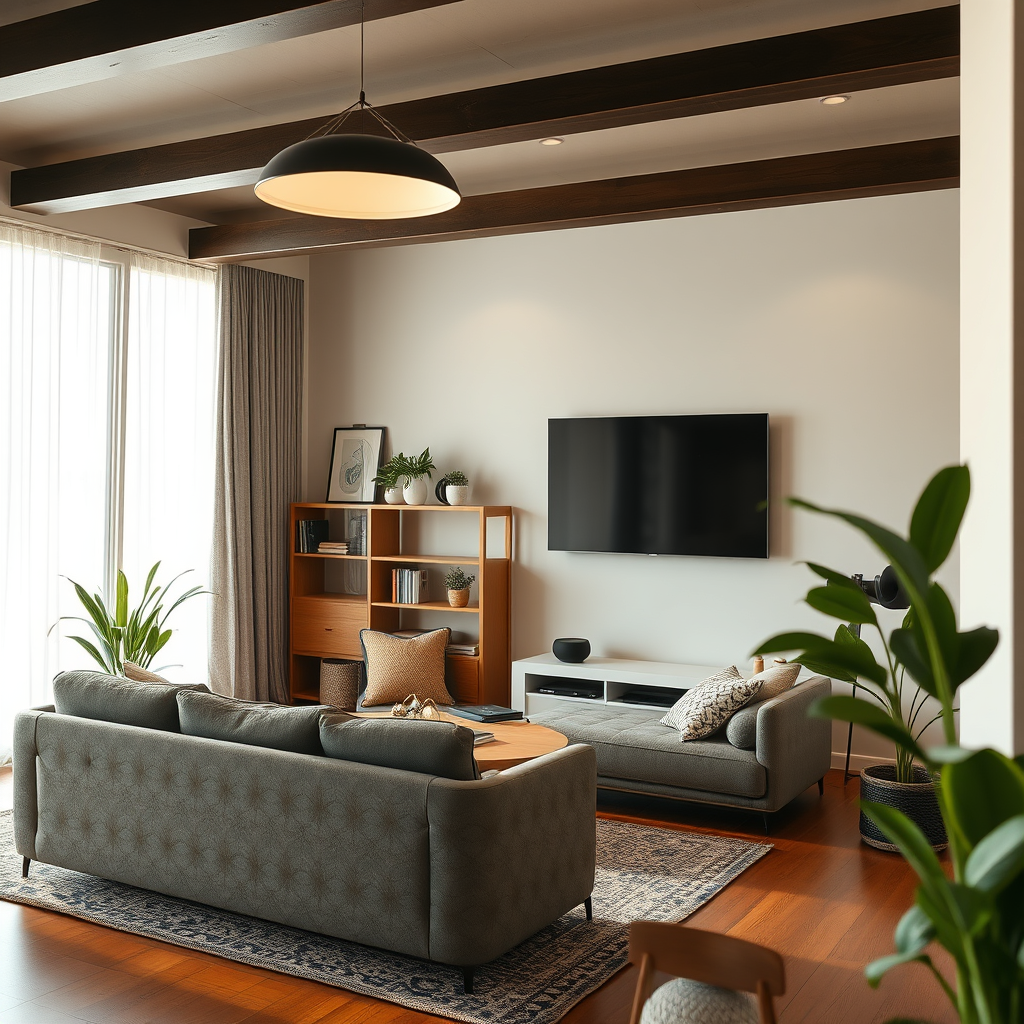
Trueplay is an innovative feature designed to enhance the audio experience of Sonos speakers by optimizing sound quality based on the unique characteristics of your room. This technology works by utilizing the microphone on your mobile device to analyze how sound waves interact with the space, taking into account factors such as wall materials, furniture placement, and room dimensions. The result is an audio profile specifically calibrated to your listening environment, allowing for a more immersive experience whether you’re enjoying music, podcasts, or movies.
The tuning process is essential as it compensates for acoustic anomalies that may distort sound. Without Trueplay, you might miss out on the full potential of your Sonos speakers, as they might not sound as good in one room compared to another. Given the importance of this feature, it’s crucial to troubleshoot when things don’t go according to plan.
Common Issues with Trueplay
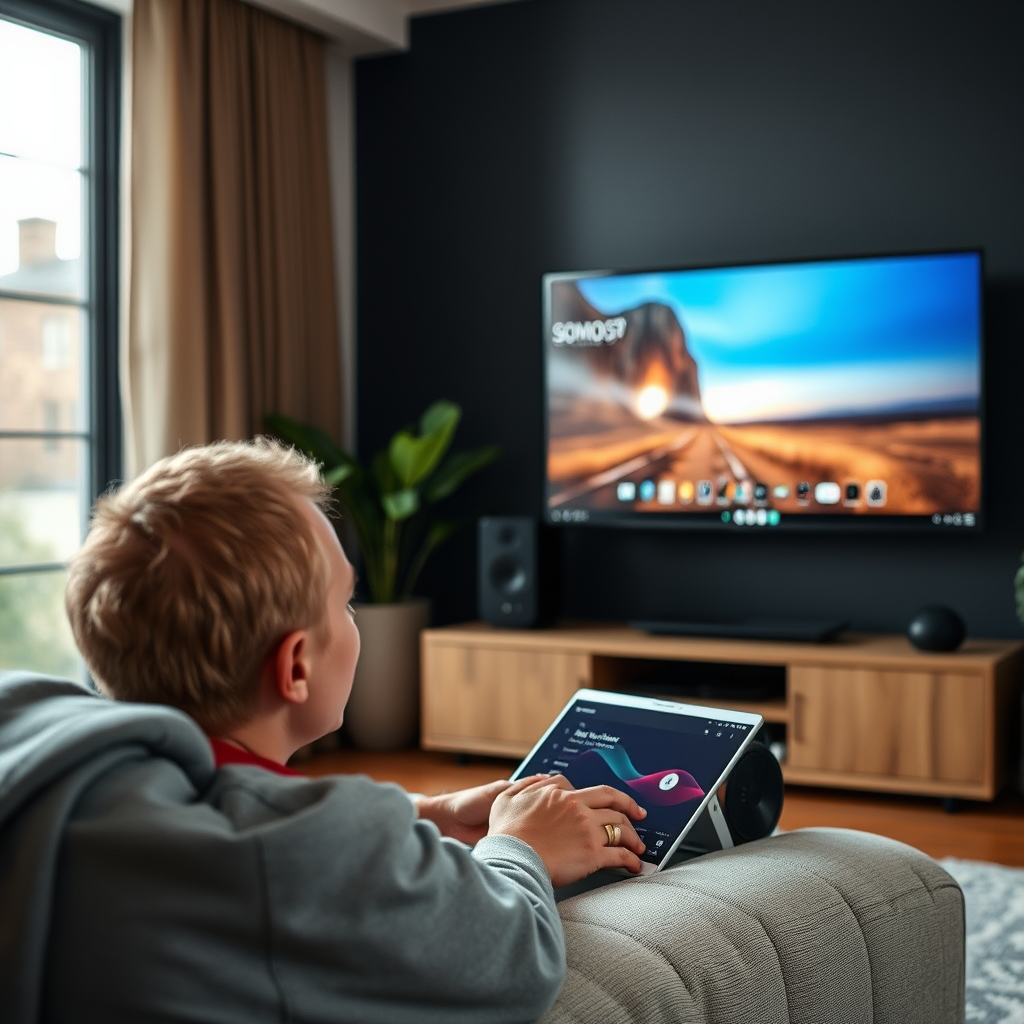
Several factors can impede the proper functioning of Trueplay tuning.
– Inconsistent measurements: The accuracy of Trueplay relies heavily on the environment in which it is being performed. Items like furniture, rugs, and curtains can absorb or reflect sound waves, creating interference that results in inconsistent measurements. For instance, a large sofa placed too close to a speaker may muffle sound, leading to suboptimal tuning results.
– Device compatibility: Not all smartphones and tablets support Trueplay tuning. It’s important to ensure that you are using a compatible device, as this feature is primarily available on iOS devices, while some Android devices may not support it at all. Always check the official Sonos website for the most current compatibility information.
Step-by-Step Troubleshooting
If you find that Trueplay tuning is not working as expected, consider these troubleshooting steps:
– Restart your Sonos system: A simple reboot can often resolve minor connectivity issues that may hinder the tuning process. Disconnect your Sonos speakers from power, wait a few seconds, and then plug them back in.
– Update your Sonos app: Ensure you are using the latest version of the Sonos app, as software updates frequently include bug fixes and performance enhancements. Visit your device’s app store to check for updates.
– Check your network connection: A stable Wi-Fi connection is essential for Trueplay to function correctly. Make sure your Sonos devices are connected to the same network as your mobile device and that the signal is strong.
Optimizing Your Room for Trueplay
To achieve the best results from Trueplay, consider optimizing your room’s acoustics:
– Clear obstacles: Make a conscious effort to move any objects that may obstruct sound waves. This includes rearranging furniture or removing decorative items that could interfere with sound propagation. For example, avoid placing speakers near corners or behind large furniture.
– Adjust lighting: Bright lights can create reflections that might affect the tuning process. Dim the lights or turn them off if possible while running Trueplay to minimize interference.
– Choose the right time: Ambient noise can also affect the tuning process. It’s best to perform Trueplay when the room is quiet, free from distractions like loud appliances or conversations.
Top Features of Sonos Speakers (2024)
| # | Feature | Sonos One | Sonos Five | Sonos Arc |
|---|---|---|---|---|
| 1 | Trueplay Tuning | ✔️ | ✔️ | ✔️ |
| 2 | Multi-Room Audio | ✔️ | ✔️ | ✔️ |
| 3 | Voice Control | ✔️ | ✔️ | ✔️ |
| 4 | AirPlay 2 Compatibility | ✔️ | ✔️ | ✔️ |
| 5 | Dolby Atmos Support | ❌ | ❌ | ✔️ |
| 6 | Stereo Pairing | ✔️ | ✔️ | ✔️ |
| 7 | Surround Sound | ❌ | ❌ | ✔️ |
Re-running Trueplay
If you continue to experience issues with Trueplay, consider re-running the tuning process.
– Follow the app instructions carefully: The Sonos app will guide you through each step of the tuning process. Ensure you are in the correct position and follow the prompts precisely. For best results, stand in the main listening area while the app conducts the measurements.
– Use a different device: If the problem persists after following the initial steps, try running Trueplay on a different compatible device. Sometimes, specific devices may have hardware limitations that can impact the tuning process.
– Check for interference: While tuning, ensure that other electronic devices are not in close proximity, as they can create interference. This includes Wi-Fi routers, microwaves, and other wireless devices that may affect the quality of the measurements.
Sonos Trueplay Tuning Steps (2024)
When to Seek Further Help
If you’ve gone through all the troubleshooting steps and Trueplay still isn’t functioning correctly, it may be time to seek further assistance:
– Contact Sonos support: The Sonos support team can provide specialized help and may be able to diagnose deeper issues that might not be apparent. They can assist you with technical support and guide you through advanced troubleshooting techniques.
– Check community forums: The Sonos community is an invaluable resource where users often share their experiences and solutions. Browsing these forums can provide insights from other users who have encountered similar issues and found resolutions.
– Consider hardware issues: In rare cases, the problem may be related to hardware malfunction. Assess whether your Sonos speakers are functioning correctly in other respects, and if not, consider having them inspected or repaired.
By following these steps, you can troubleshoot and hopefully fix the Trueplay tuning issue with your Sonos speakers. Taking the time to ensure the setup is correct will enhance your listening experience and maximize the sound quality in your space. With the right adjustments and support, you can fully enjoy the tailored audio experience that Trueplay offers.
Frequently Asked Questions
What are the common reasons why Sonos Trueplay tuning is not working?
Common reasons for Sonos Trueplay tuning not working include poor room acoustics, interference from other devices, and incorrect device placement. Additionally, if the Sonos app is outdated or if the microphone on your mobile device is blocked or malfunctioning, Trueplay may fail to calibrate properly.
How can I reset Sonos Trueplay tuning and try again?
To reset Sonos Trueplay tuning, open the Sonos app and navigate to the room you want to retune. Tap on Settings, then select “Trueplay,” and follow the prompts to redo the tuning process. Ensure that you are in the same position and that the environment is quiet for the best results.
Why is my Sonos speaker not responding during the Trueplay tuning process?
If your Sonos speaker is not responding during the Trueplay tuning process, it may be due to a low battery, poor Wi-Fi connection, or software issues. Check that your speaker is powered on, connected to Wi-Fi, and that the Sonos app is updated to the latest version to ensure a smooth tuning experience.
What is the best way to prepare my room for Sonos Trueplay tuning?
The best way to prepare your room for Sonos Trueplay tuning is to minimize background noise and remove any obstacles around the speaker area. Make sure the furniture is arranged to reflect sound effectively, and consider temporarily moving any large objects that could interfere with sound waves for optimal tuning results.
Which devices are compatible with Sonos Trueplay tuning?
Sonos Trueplay tuning is compatible with iOS devices such as iPhones and iPads, as well as select Android devices. To ensure compatibility, check that your mobile device has a built-in microphone and is running the latest version of the Sonos app before attempting to use Trueplay tuning.
References
- How Sonos Works | Sonos
https://www.sonos.com/support/trueplay - Google Scholar Google Scholar
https://scholar.google.com/scholar?q=Sonos+Trueplay+tuning+issues - Google Scholar Google Scholar
https://scholar.google.com/scholar?q=sonos+trueplay+troubleshooting - Google Scholar Google Scholar
https://scholar.google.com/scholar?q=Sonos+Trueplay+Tuning+Not+Working?+How+to+Fix+It - Sonos Trueplay Tuning Not Working? How to Fix It – Search results
https://en.wikipedia.org/wiki/Special:Search?search=Sonos+Trueplay+Tuning+Not+Working?+How+to+Fix+It - https://www.ncbi.nlm.nih.gov/search/research-articles/?term=Sonos+Trueplay+Tuning+Not+Working?+How+to+Fix+It
https://www.ncbi.nlm.nih.gov/search/research-articles/?term=Sonos+Trueplay+Tuning+Not+Working?+How+to+Fix+It