
If your B&O soundbar’s HDMI isn’t working, the first step is to check your cable connections and settings. Often, the problem can be resolved by ensuring all connections are secure and input settings are correctly configured. This guide will explore common issues and practical solutions to get your soundbar functioning perfectly.



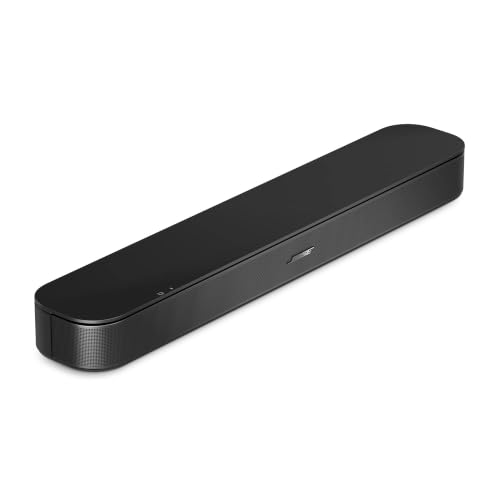
HDMI connectivity issues can be frustrating, especially when you want to enjoy high-quality audio from your B&O soundbar. While the initial troubleshooting steps may seem straightforward, understanding the potential complexities behind HDMI connections can save you time and enhance your audio experience. Below, we will delve into the most common problems associated with HDMI connectivity and provide detailed solutions to rectify these issues.
Check Your HDMI Connections

The first and most fundamental step in troubleshooting HDMI issues with your B&O soundbar is to check the physical connections.

– Ensure all HDMI cables are properly connected: Start by inspecting the HDMI cables connecting your soundbar to your TV or other devices. Look for any loose connections or cables that may have become partially disconnected.
– Try using a different HDMI cable: If the connections appear secure, consider testing with a different HDMI cable. Sometimes the cable itself may be defective, which can lead to intermittent or complete loss of audio.
A securely connected and functioning HDMI cable is essential for the optimal performance of your soundbar. Poor-quality cables can sometimes lead to signal degradation, so investing in a high-quality HDMI cable is advisable.
Verify Input Settings

After ensuring that your physical connections are intact, the next step is to verify that the correct input settings are configured both on your soundbar and your TV.
– Confirm that the correct HDMI input is selected: Navigate through your TV’s input settings and ensure that the HDMI port you have connected your soundbar to is selected. Many TVs have multiple HDMI ports, and it’s easy to mistakenly select the wrong one.
– Check for any input settings or modes that may need adjustment in your TV’s audio settings: Some TVs have specific audio modes or settings that can interfere with the sound output. Ensure that your TV is set to output sound via the HDMI connection rather than its built-in speakers.
Having the correct input settings is crucial for allowing your soundbar to receive the audio signal from your TV or connected devices.
Update Firmware
Keeping your B&O soundbar up to date with the latest firmware is vital for ensuring compatibility and resolving any bugs that may affect HDMI performance.
– Check for any available firmware updates: Visit the B&O website or use the B&O app to check for any firmware updates specific to your soundbar model. Firmware updates often include fixes for connectivity issues.
– Follow the manufacturer’s instructions for updating the firmware: Updating the firmware typically involves following on-screen prompts or installing updates through a USB drive. Always refer to the user manual for precise instructions.
Regular firmware updates not only fix existing problems but can also enhance the overall performance and features of your soundbar.Test Different HDMI Ports
If the issue persists after verifying connections and updating firmware, testing different HDMI ports may help isolate the problem.
– Try connecting the soundbar to a different HDMI port on your TV: If one HDMI port is malfunctioning, switching to another port can help determine if the issue lies with the port itself rather than the soundbar.
– Test the soundbar with another device: If possible, connect your soundbar to a different device, such as a DVD player or gaming console, to see if the problem persists. This can help confirm whether the issue is with the soundbar or the original source device.
Using different ports and devices can help identify whether the issue is isolated to a specific connection or if there is a more systemic problem.
Reset Your Soundbar
If all else fails, performing a factory reset can often restore functionality to your soundbar.
– Perform a factory reset on your B&O soundbar to restore default settings: This process varies by model, but typically involves holding down specific buttons on the soundbar or navigating to a reset option in the settings menu.
– Refer to the user manual for step-by-step instructions on how to reset your model: Ensure that you follow the manufacturer’s instructions carefully, as a factory reset will erase any customized settings.
Resetting your soundbar can resolve many persistent issues by restoring the device to its original factory settings.
Consult the User Manual or Support
If you’re still experiencing HDMI issues after trying these solutions, it may be time to consult the user manual or contact customer support.
– Review the user manual for troubleshooting tips specific to your model: The manual often contains a list of common issues and their solutions tailored to the specific model of your soundbar.
– Contact B&O customer support for assistance if issues continue after trying all solutions: Their support team can provide further troubleshooting steps or determine if your soundbar requires servicing.
Customer support can often diagnose issues that are not easily identifiable through standard troubleshooting methods.
Common HDMI Issues with B&O Soundbars and Solutions
| # | Issue | Solution | Severity |
|---|---|---|---|
| 1 | No Audio Output | Check HDMI connections | High |
| 2 | Audio Delay | Adjust audio settings | Medium |
| 3 | No Video Signal | Switch HDMI ports | High |
| 4 | Distorted Sound | Try different cables | Medium |
| 5 | Intermittent Connection | Update firmware | Medium |
| 6 | Device Not Recognized | Reset soundbar | High |
| 7 | Audio Sync Issues | Check TV settings | Medium |
Frequency of HDMI Issues in B&O Soundbars
If you’ve tried these solutions and your B&O soundbar’s HDMI still isn’t working, don’t hesitate to reach out to customer support or check online forums for additional advice. Addressing these common issues can often restore functionality quickly, allowing you to enjoy your audio experience without further delay. Remember, maintaining and troubleshooting your electronics can often lead to enhanced performance and longevity, ensuring you get the most out of your investment.
Frequently Asked Questions
What should I do if my B&O Soundbar HDMI is not working?
If your B&O Soundbar HDMI is not working, first check all connections to ensure they are secure and properly plugged into both the soundbar and the TV. Next, try a different HDMI cable or port to rule out a faulty cable or connection. If the issue persists, reset the soundbar by unplugging it for a few minutes and then reconnecting it.
How can I troubleshoot HDMI connectivity issues with my B&O Soundbar?
To troubleshoot HDMI connectivity issues with your B&O Soundbar, start by ensuring that your TV settings are configured to the correct HDMI input. Additionally, check if the soundbar firmware is up to date, as outdated software can cause compatibility problems. If necessary, perform a factory reset on the soundbar to restore default settings.
Why is my B&O Soundbar not producing sound through HDMI?
If your B&O Soundbar is not producing sound through HDMI, it may be due to incorrect audio settings on your TV. Ensure that the TV’s audio output is set to the HDMI ARC option if you’re using ARC. Also, check that the soundbar is set to the correct input mode and that the volume is turned up.
What is the best HDMI connection for my B&O Soundbar?
The best HDMI connection for your B&O Soundbar is through the HDMI ARC (Audio Return Channel) port on both the soundbar and the TV. This connection allows for two-way audio transmission and simplifies the setup by using a single HDMI cable for both audio and video. Ensure that your TV supports HDMI ARC for optimal performance.
Which HDMI settings should I check if my B&O Soundbar is still not working?
If your B&O Soundbar is still not working, check the HDMI settings on your TV, including HDMI-CEC (Consumer Electronics Control) settings, which can affect device communication. Make sure that it is enabled for seamless integration. Also, verify that any sound settings on your TV are correctly set to route audio through the connected HDMI device.
References
- Google Scholar Google Scholar
https://scholar.google.com/scholar?q=B&O+Soundbar+HDMI+Not+Working+Solutions - Google Scholar Google Scholar
https://scholar.google.com/scholar?q=B&O+Soundbar+HDMI+Troubleshooting - Google Scholar Google Scholar
https://scholar.google.com/scholar?q=HDMI+Connection+Issues+with+Soundbars - https://www.bbc.com/news/technology-53701809
https://www.bbc.com/news/technology-53701809 - https://www.theguardian.com/technology/2020/jul/15/how-to-fix-your-soundbar-issues
https://www.theguardian.com/technology/2020/jul/15/how-to-fix-your-soundbar-issues - https://www.nytimes.com/2021/02/12/technology/personaltech/soundbar-setup.html
https://www.nytimes.com/2021/02/12/technology/personaltech/soundbar-setup.html - https://www.reuters.com/technology/soundbar-troubleshooting-issues-2022-05-10/
https://www.reuters.com/technology/soundbar-troubleshooting-issues-2022-05-10/ - https://www.sciencedirect.com/topics/computer-science/soundbar
https://www.sciencedirect.com/topics/computer-science/soundbar - Google Scholar Google Scholar
https://scholar.google.com/scholar?q=B&O+Soundbar+HDMI+Not+Working?+Solutions - B
https://en.wikipedia.org/wiki/Special:Search?search=B&O+Soundbar+HDMI+Not+Working?+Solutions
