
If you’re experiencing audio delay issues with your Denon system, the good news is that syncing sound with video is possible through a few simple adjustments. In this article, you’ll learn effective methods to troubleshoot and fix audio lag, ensuring a seamless viewing experience. By understanding the causes and applying the right settings, you can enhance your audio-visual enjoyment significantly.



Understanding Audio Delay
Audio delay, often referred to as “lip sync” issues, occurs when the sound output from your Denon system is not aligned with the video on your screen, leading to a disjointed viewing experience. This can be particularly frustrating during dialogue-heavy scenes, where a mismatch can detract from the immersion of your favorite films or shows.
Common causes of audio delay in Denon systems include digital processing, the type of connection used (HDMI vs. optical), and the settings configured on your receiver. For instance, when using advanced audio processing formats like Dolby Atmos, additional processing time may introduce a delay. Similarly, suboptimal cable connections or outdated firmware can exacerbate these issues.

Checking Your Connections
One of the first steps in resolving audio delay issues is to ensure that all cables are securely connected and in good condition. Loose or damaged cables can cause interruptions in the audio signal, leading to delays and distortions.
Using high-quality HDMI and optical cables is crucial for maintaining a robust signal. HDMI cables are preferred for their ability to transmit high-definition audio and video signals simultaneously. Opt for cables that meet the HDMI 2.0 standard or higher for optimal performance, as these support higher bandwidths necessary for advanced audio formats.
Additionally, double-check the connections between your Denon receiver and your TV, as well as any external devices. Make sure that all devices are configured properly to use the same audio format and connection type.
Adjusting Audio Settings on Your Denon Receiver
To access and modify the audio settings on your Denon receiver, start by navigating to the setup menu using your remote. Here, you’ll find various options to customize your audio experience.
One critical adjustment is the lip-sync setting, which allows you to delay the audio to match the video. To access this feature:
1. Press the “Setup” button on your remote.
2. Navigate to “Audio” settings.
3. Select “Lip Sync” or “Audio Delay” options.
4. Adjust the delay time incrementally, testing the results after each change until you achieve perfect synchronization.
This feature is invaluable for correcting minor discrepancies that may arise from different processing times between audio and video.
Utilizing Video Processing Features
Denon receivers often come equipped with advanced video processing features that can help reduce audio lag. These features include video scaling and frame rate conversion, which can enhance the overall performance of your system.
To enable or adjust these features:
1. Access the “Video” settings in the setup menu.
2. Look for options labeled “Video Processing” or “HDMI Setup.”
3. Experiment with settings such as “Auto” for resolution and frame rate to see which combinations yield the best performance.
By utilizing these features, you may reduce the processing time required for video output, thereby aligning it more closely with the audio.
Top Denon Receiver Models and Their Audio Processing Features
| # | Model | Audio Formats Supported | Video Processing | HDMI Version |
|---|---|---|---|---|
| 1 | Denon AVR-X6700H | Dolby Atmos, DTS:X | 8K Upscaling | HDMI 2.1 |
| 2 | Denon AVR-S960H | Dolby Atmos, DTS Virtual:X | 4K Upscaling | HDMI 2.0 |
| 3 | Denon AVR-X8500HA | Dolby Atmos, Auro-3D | 8K Upscaling | HDMI 2.1 |
| 4 | Denon AVR-X4500H | Dolby Atmos, DTS:X | 4K Upscaling | HDMI 2.0 |
| 5 | Denon AVR-S750H | Dolby TrueHD, DTS-HD Master Audio | 4K Upscaling | HDMI 2.0 |
| 6 | Denon AVR-X3200W | Dolby TrueHD, DTS-HD | 4K Upscaling | HDMI 2.0 |
Exploring External Equipment Solutions
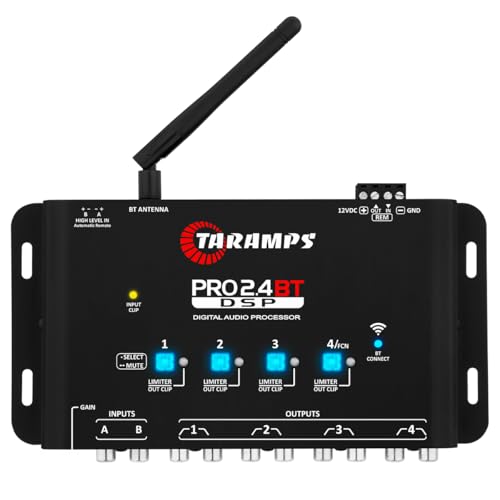
If internal adjustments don’t resolve the audio delay, consider exploring external equipment solutions. Devices like A/V sync processors or soundbars equipped with built-in synchronization features can be highly effective in addressing audio lag issues.
A/V sync processors work by analyzing the audio and video signals and adjusting the output timing as needed. This ensures that the sound matches the video regardless of the source. For example, the Sync by CAVS and Kramer Electronics offer reliable options that can be integrated into your existing setup.
Alternatively, investing in a soundbar with advanced processing capabilities may also alleviate the issue. Many modern soundbars come equipped with features designed to minimize latency, particularly those supporting Bluetooth or Wi-Fi audio streaming, which can sometimes introduce lag.
Troubleshooting Common Issues
For persistent audio delay issues, the following troubleshooting steps can help identify the root cause:
1. Reset the Receiver: Sometimes, a simple reset can resolve minor glitches. Disconnect the receiver from power for about 10 seconds, then reconnect it.
2. Check Firmware Updates: Ensure that your Denon receiver’s firmware is up to date. Firmware updates can enhance performance and fix known issues, including audio delay problems. Check the Denon website or use the receiver’s built-in update feature.
3. Reconfigure Audio Settings: If you have made several adjustments without success, consider reverting to factory settings and reconfiguring your audio setup.
4. Test Different Connections: If you are using multiple devices, try switching between HDMI and optical connections to see if one performs better than the other.
5. Monitor for External Interference: Wireless devices such as routers or microwaves can cause interference. Ensure that your receiver is positioned away from such devices.
Seeking Professional Help
If you’ve tried the above steps and still face audio delay issues, it may be time to consult with Denon support or a professional installer. Complex setups, especially those involving multiple components and advanced configurations, can sometimes require expert calibration to optimize performance.
A professional can assess your entire audio-visual setup and suggest adjustments or replacements that may not be immediately apparent. Their expertise can help ensure that your system is configured to deliver the best possible audio-visual experience.
In summary, addressing audio delay issues with your Denon system can significantly enhance your viewing experience. By checking connections, adjusting settings, and exploring both internal and external solutions, you can achieve perfect audio-visual sync. If issues persist, don’t hesitate to seek professional assistance to ensure your system is performing optimally.
Frequently Asked Questions
What causes audio delay issues in Denon receivers?
Audio delay issues in Denon receivers can be caused by various factors, including the processing time required for digital signals, improper settings in the receiver’s audio configuration, or lag from the connected device, such as a TV or streaming box. Environmental factors, like the use of Bluetooth or wireless speakers, can also contribute to synchronization problems.
How can I fix audio delay on my Denon receiver?
To fix audio delay on your Denon receiver, start by checking the audio settings in the menu, specifically the lip-sync or audio delay options. Make adjustments to the delay settings to match the video. Additionally, ensure that your firmware is up to date, and try using a wired connection instead of wireless for more stable performance.
Why is my Denon receiver out of sync with my TV?
Your Denon receiver may be out of sync with your TV due to mismatched audio and video processing speeds, which can occur when using different sources or signal formats. It’s also possible that the TV’s internal processing adds latency; thus, checking for any audio delay settings on both devices can help in synchronizing them.
What is the best way to ensure sound and video are in sync on a Denon receiver?
The best way to ensure sound and video are in sync on a Denon receiver is to utilize the built-in lip-sync adjustment feature, which allows you to fine-tune the audio delay. Additionally, selecting the correct audio format, such as PCM or Dolby Digital, can improve synchronization. Regularly updating the receiver’s firmware can also resolve potential bugs contributing to delay issues.
Which settings should I adjust to reduce audio delay on my Denon AV receiver?
To reduce audio delay on your Denon AV receiver, adjust the “Audio Delay” settings found in the audio setup menu. You might also want to explore the “Video Processing” settings, as enabling or disabling certain features can affect latency. Finally, ensure that the receiver is set to process the audio in the most efficient format for your specific setup.
References
- https://en.wikipedia.org/wiki/Audio_delay
https://en.wikipedia.org/wiki/Audio_delay - https://www.sciencedirect.com/topics/engineering/audio-delay
https://www.sciencedirect.com/topics/engineering/audio-delay - https://www.ncbi.nlm.nih.gov/pmc/articles/PMC7206830/
https://www.ncbi.nlm.nih.gov/pmc/articles/PMC7206830/ - https://www.bbc.com/news/technology-43923492
https://www.bbc.com/news/technology-43923492 - https://www.theguardian.com/technology/2020/jul/06/what-is-audio-lag-and-how-to-fix-it
https://www.theguardian.com/technology/2020/jul/06/what-is-audio-lag-and-how-to-fix-it - https://www.nature.com/articles/s41598-020-70686-4
https://www.nature.com/articles/s41598-020-70686-4 - Google Scholar Google Scholar
https://scholar.google.com/scholar?q=Denon+Audio+Delay+Issues - Google Scholar Google Scholar
https://scholar.google.com/scholar?q=Sync+Sound+with+Video - Google Scholar Google Scholar
https://scholar.google.com/scholar?q=Audio+Video+Synchronization - Page Not Found – Site Help – Mayo Clinic
https://www.mayoclinic.org/diseases-conditions/hearing-loss/expert-answers/audio-sync-issues/faq-20057883
