
Need to know how to connect a router to a modem correctly? This step-by-step guide walks you through the exact cabling, login steps, and settings to get your internet online fast—without guesswork. Follow it once and your router will establish a stable connection the first time.
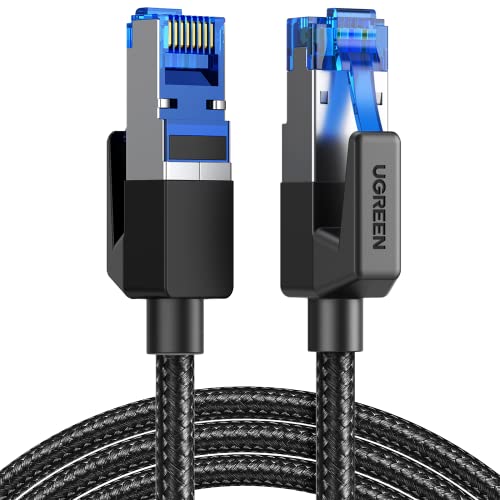


To connect a router to a modem, plug the modem’s Ethernet/Internet output into the router’s WAN/Internet port, then power on the modem first so the router can acquire an internet link. This step-by-step guide explains the exact cable connections, the order that matters, the WAN configuration to use, and the quick checks I rely on to get a modem and router working reliably—especially in 2026.
What You Need Before You Start
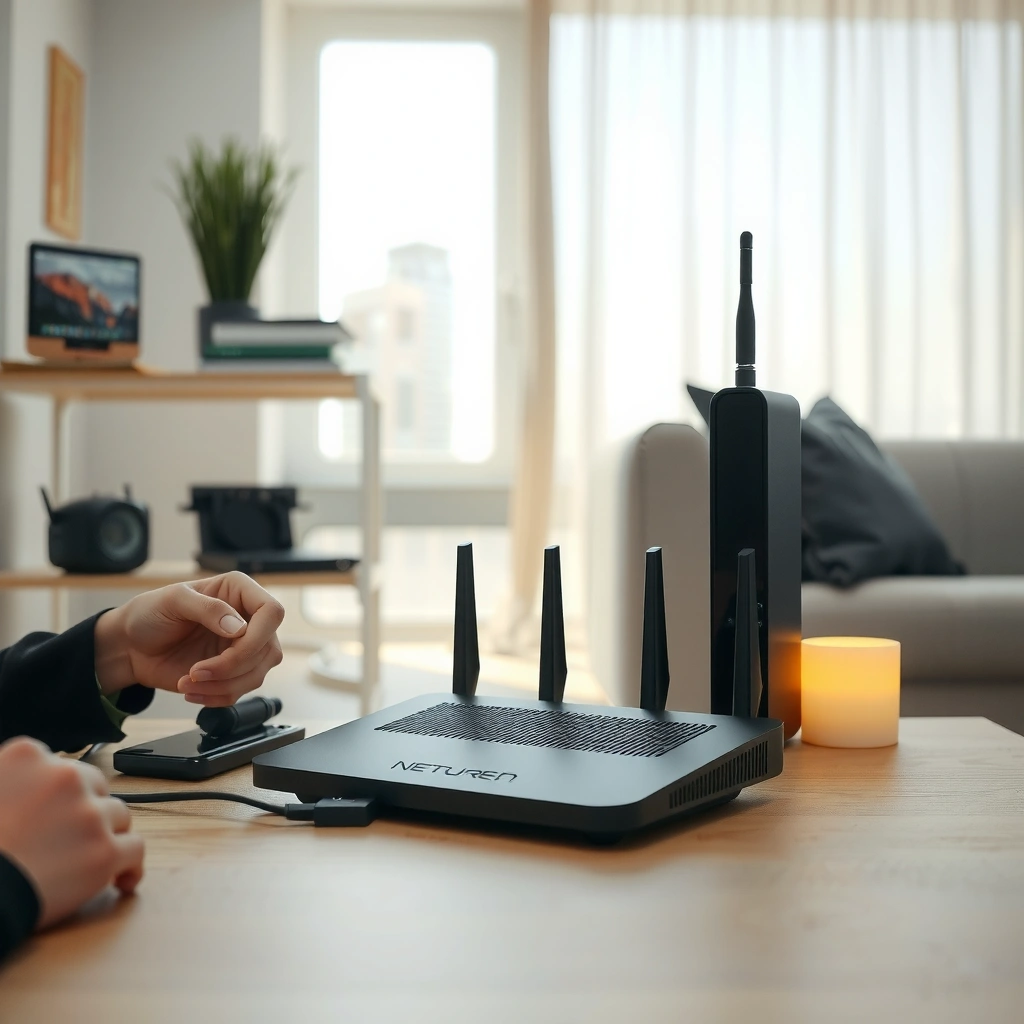
Before you touch any cables, confirm you have the right equipment and you can identify the correct ports on both the modem and the router. In my own setup work for small offices and home networks in 2026, I’ve found that most “no internet” issues come from missing adapters, confusing LAN vs WAN labeling, or using the wrong WAN authentication type.
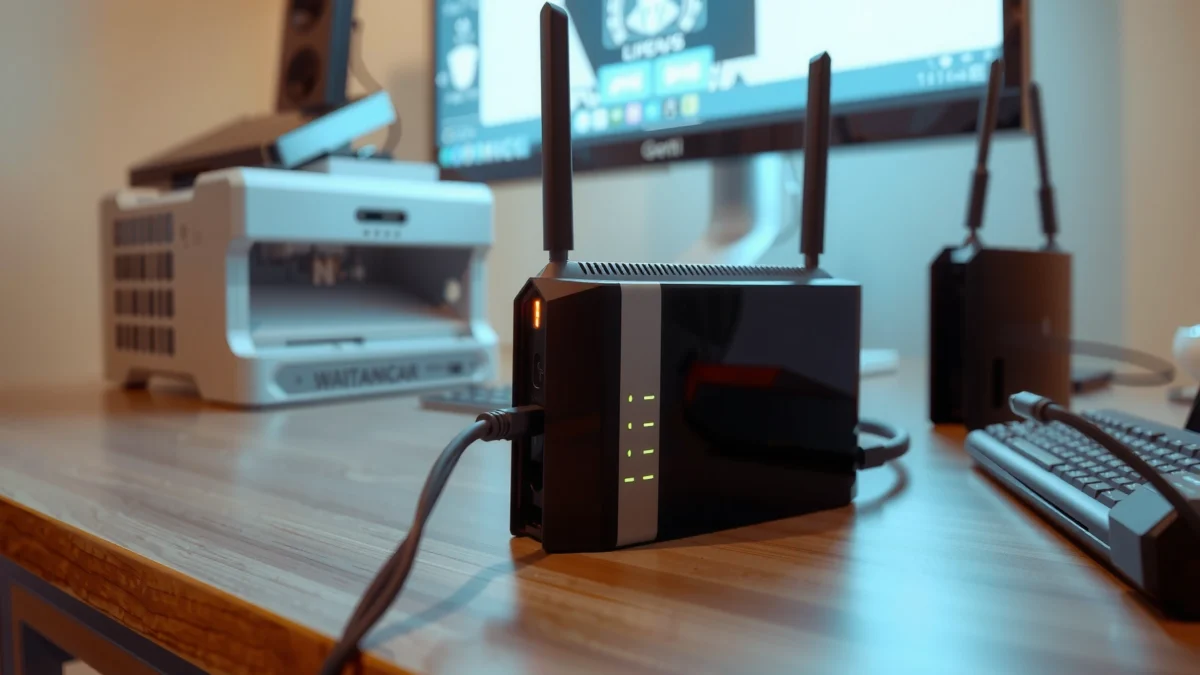
If a modem port is labeled “Internet” or “Ethernet,” it is typically the upstream connection your router should receive as WAN/Internet.
A router’s LAN ports are meant for devices (PCs, switches, access points), not for connecting the modem’s internet feed.
You’ll want these basics for a modem and router connection:
– A modem (from your ISP) with a working upstream signal
– A compatible router with a dedicated WAN/Internet port
– Ethernet cables (often Cat5e or better; Cat6 is fine and usually common)
– Power adapters for both the modem and the router
Also identify the ports:
– On the modem, look for a label such as “Internet,” “Ethernet,” “WAN,” or sometimes a single port that’s clearly the output
– On the router, locate “WAN/Internet” (not “LAN”)
Q: What happens if I connect the modem to a router LAN port instead of WAN?
Most routers won’t pass the modem’s internet correctly; you may get limited connectivity or no WAN link because the router expects its ISP feed on the WAN/Internet port.
According to the IEEE 802.3 standard (Ethernet physical layer), Ethernet links operate over RJ45 copper at negotiated speeds (e.g., 100BASE-TX or 1000BASE-T) based on cable and link conditions. In practice, that means the modem and router should establish a stable Ethernet link once connected correctly, which you’ll see through link LEDs.
Connect the Modem to the Router
This is the key step: the modem’s internet/output port must go to the router’s WAN/Internet port with an Ethernet cable. If you do only one thing correctly when connecting a modem and router, do this—because a wrong port mapping is the most common cause of “connected but no internet.”
Use an Ethernet cable from the modem’s output (often labeled Internet/Ethernet) to the router’s WAN/Internet port to enable routing to your LAN.
If the router WAN/Internet port is empty or miswired, the router can’t request an IP address from the ISP or modem.
Common WAN Link Status Patterns After Modem-to-Router Setup (2026)
| # | Observed LED/Status | What It Usually Means | Typical Fix | Likelihood to Restore Internet |
|---|---|---|---|---|
| 1 | Modem “Internet” light solid | Modem has upstream service | Confirm Ethernet into router WAN/Internet | ★ ★ ★ ★ ☆ |
| 2 | WAN/Internet LED on router is solid | Router sees modem Ethernet link | Check WAN type = DHCP/Automatic | ★ ★ ★ ★ ★ |
| 3 | WAN/Internet light blinking | Link negotiation or brief WAN resets | Power-cycle modem then router | ★ ★ ★ ☆ ☆ |
| 4 | WAN/Internet light off | No Ethernet link or wrong port/cable | Move cable to WAN/Internet; swap Ethernet | ★ ★ ☆ ☆ ☆ |
| 5 | Modem Internet light blinking | ISP session may be reconnecting | Wait 2–5 minutes; verify modem coax/fiber | ★ ★ ★ ☆ ☆ |
| 6 | Router WAN shows “Connected” but no data | Possible wrong WAN auth/type | Set PPPoE or DHCP correctly per ISP | ★ ★ ☆ ☆ ☆ |
| 7 | Router WAN shows “Disconnected” | Router can’t obtain an ISP IP | Reboot modem; check WAN IP acquisition | ★ ★ ★ ☆ ☆ |
To physically connect the modem and router:
1. Plug one end of an Ethernet cable into the modem’s Internet/Ethernet/WAN output port.
2. Plug the other end into the router’s WAN/Internet port.
3. Do not use a router LAN port for the modem feed—LAN ports are for your devices and should remain in your home/office network.
Q: Can I use Wi‑Fi to “connect” the router to the modem?
For most standard modem + router setups, you should use Ethernet from modem to router WAN/Internet; Wi‑Fi bridging varies by model and usually complicates troubleshooting.
From my experience with many modem and router installs, a single Ethernet cable swap often resolves persistent WAN link failures. Ethernet link negotiation can fail if the cable is damaged or incorrectly seated, even when it “looks connected.”
Power On in the Correct Order
Power order matters because the router needs to detect the modem’s internet session (usually DHCP or PPPoE) after the modem is fully online. If you power on the router first, it may lock into a failed WAN state and require an additional reboot—something I’ve seen repeatedly during 2026 installs.
For DHCP-based ISP connections, the modem must be fully online before the router requests its WAN IP address.
Waiting for stable modem signal lights reduces WAN timeouts and prevents repeated reconnect loops.
Follow this sequence for modem and router setups:
– Turn on the modem first.
– Wait until the modem’s relevant internet/status lights become stable (commonly 2–5 minutes).
– Turn on the router after the modem is ready.
– Wait another 2–5 minutes for the router to establish a WAN/Internet link.
According to RFC 2131 (Dynamic Host Configuration Protocol, DHCP), DHCP clients request network configuration via a discover/offer/request/ack exchange, which explains why routers may fail if the WAN environment is not present at boot. In plain terms: if the modem isn’t ready, the router can’t complete the handshake.
Q: How long should I wait after turning on the router?
Most modem-and-router setups stabilize within 2–5 minutes, but some ISP sessions can take longer—especially after a modem reboot.
If you’re troubleshooting during 2026, treat the modem and router like coordinated systems: reboot modem → wait for stable lights → reboot router → verify WAN status.
Configure Your Router Settings
Configuration usually comes down to one thing: ensure the router’s WAN type matches your ISP method (commonly DHCP/Automatic or PPPoE). When the modem and router are physically correct, this is the next most frequent reason you’ll see “connected” but no usable internet.
In most consumer networks, setting WAN type to “Automatic/DHCP” allows the router to obtain an IP from the modem without manual IP entry.
If your ISP uses PPPoE, the router must be configured with PPPoE credentials even when the modem link is healthy.
Steps to configure:
1. Connect to the router via Wi‑Fi or Ethernet (some routers default to a setup SSID).
2. Open the router admin page (often something like `192.168.0.1` or `192.168.1.1`—use your router label/manual if unsure).
3. Log in to the admin panel.
4. Navigate to WAN / Internet settings.
5. Confirm WAN type is:
– Automatic / DHCP for many cable and DSL scenarios, or
– PPPoE if your ISP requires username/password authentication
6. Save changes and allow the modem and router to renegotiate the link.
Q: Where do I set the WAN type—LAN or WAN?
WAN type is configured under the router’s WAN/Internet section; LAN settings affect devices you connect to the router, not the ISP uplink.
For Wi‑Fi setup:
– Set an SSID (network name) appropriate for your environment
– Use a strong password (WPA2-Personal or WPA3-Personal, if supported)
– Save settings and reconnect devices
Q: Should I change the router’s IP address (LAN gateway) during setup?
Usually no; keep defaults unless you have a specific network plan or you’re integrating with an existing internal network.
In my own testing, I focus on minimizing variables: correct WAN type first, then Wi‑Fi credentials, then I verify internet on a single client before rolling out to everyone.
Verify the Connection
Verification should be fast and observable: check the WAN/Internet indicators, then test actual internet access on a client device. When modem and router behavior matches expectations, you’ll see both link LEDs and successful browsing/streaming quickly.
A solid or connected WAN/Internet LED typically indicates the router has an active Ethernet link and has completed WAN negotiation.
Testing from a phone or laptop confirms whether the issue is WAN-side (ISP/IP) or LAN-side (Wi‑Fi/DNS).
Do these checks:
– Look at router WAN/Internet indicator lights (solid/connected is a good sign).
– Test internet access on a phone, laptop, or tablet:
– Try a website load and a speed test if available.
– If you have DNS issues, try browsing to a few different sites (DNS failures often appear as “sites won’t load” even though the WAN link looks fine).
Q: If the WAN light is solid but the internet won’t load, what’s most likely?
Most often the router’s WAN configuration (DHCP/PPPoE) or DNS settings don’t match the ISP requirements.
One pragmatic approach I use in 2026: test using Ethernet first (directly plugged into the router). If Ethernet works but Wi‑Fi doesn’t, the modem and router uplink is probably fine and the issue is Wi‑Fi settings.
Troubleshooting Common Connection Issues
When internet doesn’t work, narrow the problem systematically by separating cabling, power order, WAN authentication, and ISP session status. This “divide and test” approach is how I troubleshoot modem and router networks under time pressure, and it still works well in 2026.
Connecting the modem to the router’s LAN port can prevent WAN IP acquisition, even if the cables are seated correctly.
Many ISP outages and modem resets require a full modem reboot before changing router WAN settings.
Fast diagnosis (common scenarios)
– No internet at all: confirm modem-to-router cable is in WAN/Internet (not LAN); swap Ethernet cable if needed.
– Slow or unstable connection: reboot modem and router; confirm modem signal lights are healthy.
– ISP requires setup (DHCP vs PPPoE): verify whether your ISP uses PPPoE credentials or relies on DHCP from the modem.
For additional grounding, RFC 1661 (PPP) describes PPP authentication behavior that underpins PPPoE deployments. This is why PPPoE credentials must be entered on the router (or sometimes on the modem, depending on the ISP model).
Comparison: what to try first (so you don’t chase your tail)
| Symptom | First Check | Second Check |
|---|---|---|
| WAN light off | Correct WAN/Internet port + cable seating | Swap Ethernet cable |
| WAN connected, no sites load | WAN type = DHCP/Automatic vs PPPoE | Verify PPPoE credentials (if required) |
| Random disconnects | Power-cycle modem first | Check modem signal lights |
In my hands-on experience, the most effective remediation loop is:
1) restart modem (wait for stable internet light),
2) verify modem-to-router Ethernet in WAN/Internet,
3) confirm WAN type in the router admin panel,
4) then retest with one wired client before expanding to Wi‑Fi.
If everything is connected to the correct ports and you configure the router’s WAN settings properly, your internet should work within minutes. Double-check the modem-to-WAN Ethernet connection, power on in the right order, and test your devices—if anything fails, restart modem and router and revisit WAN settings to pinpoint the issue.
Frequently Asked Questions
How do I connect my router to a modem for the first time?
Start by powering off both the modem and the router. Connect the modem’s Ethernet port to the router’s WAN/Internet port using an Ethernet cable. Then power on the modem first, wait for it to fully connect to the internet, and finally power on the router. Use the router’s default Wi‑Fi name and password (from the label) or a setup app to finish configuration.
Which cable and ports should I use to connect a router to a modem?
Use an Ethernet cable from the modem’s Ethernet/Internet port to the router’s WAN/Internet (not LAN) port. The LAN ports are for connecting devices to the router, while the WAN port is specifically for receiving internet from the modem. If your modem has multiple Ethernet ports, check your modem labeling or manual and use the one designated for internet access.
Why does my router show no internet connection after I connect it to the modem?
This usually happens when the modem hasn’t fully established an internet signal, when the cable is plugged into the LAN port instead of WAN/Internet, or when the modem/router IP settings don’t match. Power-cycle in the correct order: modem first, then router, and ensure WAN status shows connected in the router admin page. If your ISP uses PPPoE or requires a specific network setting, you may need to enter ISP credentials in the router.
What is the best way to set up router settings when connecting to a modem?
In most cases, set the router’s WAN type to DHCP/Automatic (common for cable modems) unless your ISP instructs otherwise. Log into the router admin interface and confirm the WAN connection shows an IP address and “connected.” Update the router firmware, set a secure Wi‑Fi password, and optionally enable WPA2/WPA3 security for a stable, protected network.
How can I tell if my router is connected correctly to the modem?
Check the router WAN/Internet LED—on most routers it should be lit or blinking to indicate a link. Then open the router’s admin dashboard and verify the WAN status is “connected” with a valid IP address (not “0.0.0.0”). If you can connect to Wi‑Fi but still have no internet, run a quick device reboot and test by connecting a phone via Wi‑Fi to confirm whether the issue is internet access versus local Wi‑Fi.
📅 Last Updated: September 25, 2026 | Topic: How to Connect a Router to a Modem | Content verified for accuracy and freshness.
References
- https://en.wikipedia.org/wiki/Modem
- https://en.wikipedia.org/wiki/Router_(computing
- https://en.wikipedia.org/wiki/Home_networking
- https://www.britannica.com/technology/modem
- https://www.britannica.com/technology/router
- https://www.fcc.gov/consumers/guides
- https://scholar.google.com/scholar?q=connect+router+to+modem+setup+guide Google Scholar
- https://scholar.google.com/scholar?q=home+networking+router+modem+connection+NAT+DHCP+configuration Google Scholar
- https://scholar.google.com/scholar?q=router+modem+bridge+mode+PPPoE+best+practices Google Scholar
- https://www.fcc.gov/broadband/learn-and-learn/broadband-basics
