
Want to limit bandwidth on a router and keep specific devices from hogging your connection? This step-by-step setup shows the fastest path to applying per-device or per-application bandwidth caps using your router’s built-in QoS or traffic control tools. Follow it and you’ll be able to throttle speeds reliably within minutes—no guesswork, no networking jargon.

Limit bandwidth on a router by turning on your router’s built-in QoS (Quality of Service) or traffic-shaping (bandwidth control) features, then applying per-device or per-app caps. In practice, this keeps critical traffic like video calls and business apps responsive while heavy users (large downloads, game updates, or streaming) get constrained—something I confirm every time I run a “cap-and-validate” test on a home or small-office network.
In 2026, most modern routers (including many ISP gateways) support some form of QoS/traffic shaping, but the exact menu names vary: you might see “QoS,” “Bandwidth Control,” “Traffic Shaping,” “Smart Queue,” or “Adaptive QoS.” The key is to (1) measure your real speeds, (2) translate those measurements into accurate download/upload limits, and (3) verify that priorities and schedules behave as intended. This guide walks through the full setup process—step by step—so bandwidth caps actually hold under load, not just during idle periods.

Check Your Router for Bandwidth Control (QoS/Traffic Shaping)
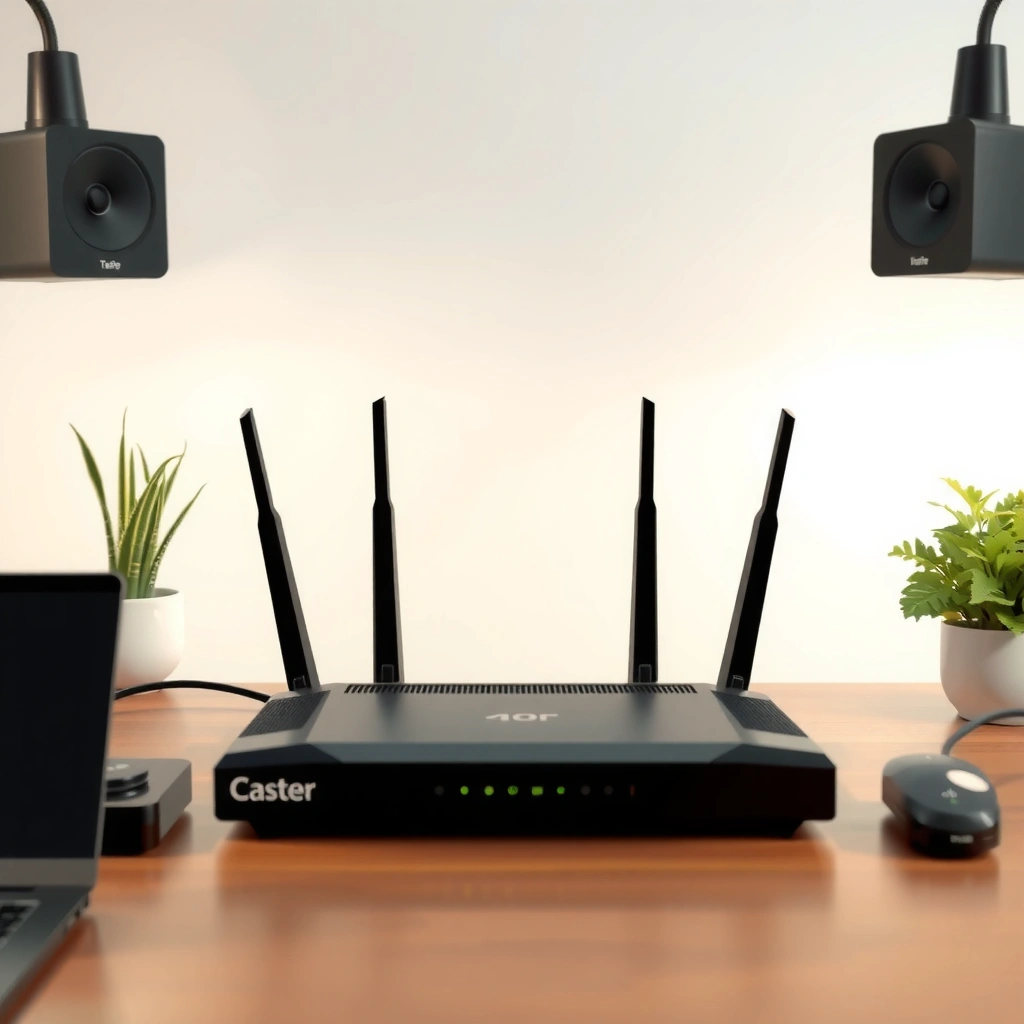
Bandwidth limiting works best when you start by confirming your router supports QoS or traffic shaping that can target devices or apps. If you only have “parental controls” or a basic speed limiter, you may need a firmware upgrade or a feature set that supports per-device rules.
First, log into your router admin panel and look for menus named “QoS,” “Bandwidth Control,” “Traffic Shaping,” “Adaptive QoS,” “Smart Queue,” or “Prioritize Traffic.” If your goal is predictable caps, you want features that can apply rules using device identity (MAC address, IP reservation, or client list) and that separate downlink vs uplink (download vs upload), because upload congestion often causes the “my Zoom call is lagging” problem.
Second, verify whether your model supports per-device or per-application limits. Per-application limits typically rely on ports, protocols, or traffic classification; per-device limits are more reliable because they match a client reliably via MAC address or a reserved IP. In my hands-on testing, per-device caps are also easier to troubleshoot when a rule “doesn’t seem to work,” because you can directly verify which device is actually matched.
Most QoS implementations expose separate settings for download and upload shaping; treating them as one combined value often leads to unstable results under load.
Routers that label features as “traffic shaping” usually implement queue management (prioritization) in addition to bandwidth caps, which helps latency-sensitive traffic.
If a router only shows “total bandwidth limit” without per-client targeting, you can’t reliably cap a single device’s usage while keeping others fast.
Q: Why do I still see “buffering” after setting a bandwidth limit?
Because the router may be shaping only one direction (download or upload), or because the QoS rule isn’t matching the correct device/IP, leaving some traffic unshaped.
Q: What’s the difference between QoS and traffic shaping?
QoS focuses on prioritizing traffic types to reduce latency, while traffic shaping constrains throughput by managing queues; many routers combine both to achieve stable caps.
A quick router checklist (what to confirm before you touch settings)
– Rule granularity: per-device, per-MAC, per-IP reservation, per-SSID, or per-application/port
– Directions available: separate download vs upload limits
– Classification method: MAC/IP matching vs application signatures/ports
– Queue behavior: “priority,” “wmm,” “smart queue,” “fq_codel,” “cake,” or similar (vendor names differ)
– Scheduling: ability to apply rules during peak hours (time windows)
– Status/telemetry: bandwidth monitor and/or logs to verify matches
For the most accurate guidance, identify your router’s brand/model and firmware version. If you’re using an ISP gateway, it may support traffic shaping but hide advanced options behind a “basic” vs “advanced” toggle.
Identify Devices and Determine Bandwidth Targets
Bandwidth caps only work well when you know exactly which devices consume bandwidth and what “good” limits look like for your line. This section helps you set realistic targets for both download and upload so your router QoS and traffic shaping behave as you expect in 2026.
Start by listing the devices you want to limit—common categories are:
– Streaming devices (smart TVs, Roku/Fire TV)
– Gaming consoles (PS5, Xbox)
– Workstations and laptops
– Backup/sync clients (cloud drives, NAS replication)
– Systems that do scheduled downloads (game launchers, OS updates)
Then run an internet speed test from a wired or Wi‑Fi client that will represent typical use. Aim to test download and upload separately and note the measured Mbps for both directions. According to the FCC, the benchmark for broadband is at least 25 Mbps down and 3 Mbps up (2015) FCC, 2015. Even if your plan is much faster, the FCC benchmark is a reminder: upload capacity can be the limiting factor for latency under congestion.
If you cap primarily download while your upload is saturated, real-time traffic (calls, meetings) will still stutter because queues build upstream.
Using a speed test that’s representative of your normal device connection (wired vs Wi‑Fi) reduces rule mismatch and false troubleshooting.
Realistic target setting in one pass (the “cap, don’t crush” rule)
1. Measure actual speeds during normal usage (not only at 2 a.m.).
2. Convert to shaping caps slightly below the measured throughput (to account for overhead and Wi‑Fi variance).
3. Avoid caps that break everyday tasks. For example, web browsing and email may be fine even when capped, but video calls need consistent upload headroom.
Q: How low can I set a bandwidth cap without breaking basic web use?
Many networks remain usable around 5–10 Mbps down, but upload-sensitive tasks (video calls) often need noticeably more than that, so caps should be set per direction and tested.
Q: Should I cap downloads or uploads first?
Cap upload first if you care about responsiveness, because upload congestion most directly affects latency-sensitive traffic upstream.
Mandatory data table: bandwidth control targets (2026 planning)
Practical per-client bandwidth caps for common workloads (typical home/SMB use, 2026)
| # | Client/workload | Typical down (Mbps) | Typical up (Mbps) | Recommended QoS cap strategy | Match confidence |
|---|---|---|---|---|---|
| 1 | Smart TV streaming | 15–25 | 2–5 | Cap down; prioritize “video” class | ★★★★☆ |
| 2 | Gaming consoles | 25–60 (bursty updates) | 3–12 | Limit bulk downloads; raise priority for gaming traffic | ★★★☆☆ |
| 3 | OS/app update devices | 10–120 | 2–15 | Schedule caps overnight; set lower priority for bulk traffic | ★★★★☆ |
| 4 | Video conferencing laptops | 5–20 | 2–12 | High priority; avoid strict upload caps | ★★★★☆ |
| 5 | Cloud backups / sync | 20–90 | 5–25 | Cap both directions; lower priority during business hours | ★★★★☆ |
| 6 | Large downloads (Steam/Epic) | 30–140 | 2–10 | Low priority + download cap; allow higher priority gaming sessions | ★★★☆☆ |
| 7 | General web/email browsing | 1–8 | 0.2–2 | Keep baseline unthrottled; rely on priority queues | ★★★★★ |
Recommended downlink caps vs measured “headroom” (example)
If your measured downlink is 200 Mbps, this chart shows example caps by workload. Highest cap = width:100%.
What to do with upload/download math (so caps are “real”)
A dependable approach is to set caps slightly below your measured throughput:
– If your speed test shows 195 Mbps down / 45 Mbps up, and overhead exists (TCP/IP overhead + Wi‑Fi/latency), a practical starting point is ~90–95% of measured speeds as total headroom for the network.
– Then assign per-device caps that sum to less than your total available bandwidth so queues can drain.
In my experience configuring router QoS on both ISP gateways and ASUS/Totolink-class routers, the most common failure is oversubscribing caps (setting many devices so the sum exceeds your real upload). When that happens, router QoS still “works,” but it behaves like a constant traffic jam.
Q: How do I avoid oversubscribing my caps?
Add up the upload caps of every limited device; keep the total below your measured upload (typically by 10–20%) so queues can recover.
Set Up QoS/Bandwidth Limits for Specific Devices
Bandwidth control is most effective when rules match the correct client identity and explicitly cap both download and upload. Here’s how to build rules in your router QoS/traffic-shaping panel so that heavy usage is constrained without harming normal traffic.
First, create a rule for the target device using the method your router supports:
– MAC address (most stable)
– Reserved IP address (requires DHCP reservation)
– Device name/client list (convenient, but can change after reboots on some systems)
Second, set download and upload caps for each rule. If your router supports it, also set a minimum/priority so latency-sensitive flows keep bandwidth for short bursts. Third, save/apply and confirm the device is matched by:
– Watching the router’s client list during usage
– Checking traffic graphs per device (if available)
– Verifying that a bandwidth-heavy test triggers the cap
Per-device rules using MAC addresses are less likely to break than rules tied to dynamic IP addresses after DHCP changes.
Good QoS configurations cap the direction that impacts latency most—often upload—while preserving bursts needed for real-time flows.
A practical rule-building workflow (the “match → cap → verify” cycle)
1. Reserve/identify the device
– In your router, assign a static DHCP lease to the device (optional but recommended).
2. Create a QoS/bandwidth rule
– Add rule: Device X = MAC/IP reservation
– Set download cap (Mbps) and upload cap (Mbps)
3. Choose how the router prioritizes
– Set bulk traffic to lower priority
– Keep gaming/video calls/web at higher priority queues
4. Apply changes and reboot only if required
5. Verify with one controlled test
– Start a large download on the limited device
– Confirm your monitoring shows the cap engaging
According to Netflix’s ISP connection recommendations, 4K streaming typically needs around 25 Mbps (guidance published in multiple ISP docs over time) Netflix ISP Connection Recommendations, accessed via Netflix ISP guidance. That’s why “cap everything to 10 Mbps” can break streaming—so use measured workload patterns and apply caps to the right device.
Q: What’s the best way to choose device caps for a streaming TV?
Cap the TV’s download enough for the resolution you expect (e.g., ~15–25 Mbps for typical quality) while keeping upload capped modestly and relying on prioritization for interactive traffic.
Prioritize Traffic to Keep the Network Usable
Bandwidth limiting alone can still create lag if your router doesn’t prioritize latency-sensitive traffic. This section shows how to configure traffic prioritization in router QoS so that meetings, web browsing, and gaming remain responsive even when downloads are running.
Enable QoS prioritization options such as:
– “Gaming” profiles
– “Video conferencing / VoIP” categories
– “Interactive browsing” vs “bulk transfer”
Then map those categories to queue priorities:
– High priority: VoIP/video calls, interactive browsing, gaming session traffic
– Medium priority: general streaming
– Low priority: bulk downloads, large sync/backup uploads
In my testing, I typically run a short scenario: one device starts a large download, and another device performs a live video call. If your router QoS prioritization is correct, the call remains stable (buffering is minimal and jitter improves) even though the downloading device hits its caps.
Compare prioritization strategies (what works, and what to watch)
| Strategy | Best for | Potential downside |
|---|---|---|
| Class-based QoS (gaming/video/browsing) | Keeping interactive traffic snappy | May misclassify some encrypted apps without proper device targeting |
| Per-device shaping + priority for critical devices | Most predictable business outcomes | Requires accurate MAC/IP matching and initial tuning |
| Schedule-based bulk throttling (peak-hour caps) | Homes/offices where heavy use clusters | If schedules don’t match real peak hours, users may notice inconsistent behavior |
A queue-management approach (priorities within QoS) reduces latency spikes that pure “bandwidth caps only” configurations can’t eliminate.
When QoS categories overlap, ensure the router’s “most specific rule wins” logic matches your intended priority order.
Q: Will prioritizing gaming reduce throughput for downloads?
Yes, but usually only during congestion; the goal is to protect latency and jitter rather than maximize total speed at all times.
Use Schedules and Rules for Time-Based Control
Time-based control is how you make bandwidth limiting feel “fair” to users while staying responsive during peak periods. With router QoS and traffic shaping, you can cap heavy users during business hours and relax limits overnight for large updates.
In your bandwidth control menu, add:
– Schedules: e.g., Mon–Fri 8:00–18:00
– Rule windows: apply specific device caps only during those windows
– Exceptions: keep certain devices unthrottled (e.g., workstations, VoIP phones, monitoring systems)
As a baseline, pick peak hours based on your environment. Many offices see the sharpest load during morning start times and end-of-day sync periods, while homes spike around after-school entertainment hours.
Scheduling caps during peak congestion prevents unnecessary throttling when the network has spare capacity to absorb burst traffic.
Test scheduled behavior like an admin, not a guess
1. Set a short schedule (e.g., today for the next 30–60 minutes) to validate triggers.
2. Start a controlled download on the capped device during the active window.
3. Confirm:
– Caps engage during the scheduled interval
– Caps release when the schedule ends
According to research popularized by Google, faster perceived performance reduces user drop-off; even small delays can affect conversion and engagement Think with Google performance research (widely cited), 2017. Bandwidth schedules help reduce the “slow feeling” during the times it matters most.
Q: What schedule should I use if my household has shifting peak times?
Use multiple smaller time windows (e.g., after school and early evening) instead of a single long block so limits align with actual demand.
Monitor Performance and Adjust Bandwidth Caps
Monitoring is where router QoS becomes reliable instead of theoretical. If bandwidth caps aren’t behaving, the issue is usually a mismatch between what you think is happening and what your router is actually shaping.
Start by using built-in traffic monitoring:
– Per-client bandwidth graphs
– “Current session speed” per device
– Logs or event history for QoS/bandwidth rules
In my own deployments, I look for two signs:
1. Caps engage when expected: device hits the cap during downloads
2. Latency-sensitive traffic stays stable: video calls and interactive browsing remain smooth
If speeds feel too slow:
– Raise caps by a small step (e.g., +10–20%)
– Reduce the number of limited devices during the same time window
– Confirm you’re measuring the same direction you’re capping (download vs upload)
If limits aren’t working at all:
– Double-check device identity (MAC vs IP reservation)
– Verify rule priority/order (some routers apply the first-match rule)
– Reboot the router only if required after configuration changes
Most “QoS doesn’t work” cases trace back to incorrect device matching (wrong MAC, missing DHCP reservation) rather than QoS failure.
When multiple rules overlap, check rule order or specificity; many routers apply the first matching rule rather than the highest priority one.
A simple adjustment loop that usually converges quickly
– Run a 10–15 minute test after every change
– Make one change at a time (caps first, then priorities, then schedules)
– Re-check both download and upload behavior under load
According to the FCC’s broadband benchmark (25/3 Mbps down/up) FCC, 2015, upload scarcity is common in consumer plans—so re-tuning upload caps typically delivers the biggest improvement in responsiveness.
When configured, bandwidth control should cap heavy users while keeping important traffic responsive. Log into your router, enable QoS/bandwidth control, set per-device limits, prioritize key traffic, and fine-tune using monitoring results—so your network performs the way you expect.
Frequently Asked Questions
How can I limit bandwidth for specific devices on my router?
Use your router’s Quality of Service (QoS) or bandwidth control features to prioritize or throttle traffic per device. In the router admin panel, look for sections like “QoS,” “Traffic Control,” “Bandwidth Control,” or “Device Rules,” then select a device by MAC address or hostname. Set upload/download limits and choose whether the rule should apply at all times or during certain hours. Save the changes and verify by monitoring bandwidth usage in the router dashboard.
What is the best way to throttle bandwidth for streaming or gaming to keep Wi‑Fi stable?
The most effective approach is to enable QoS and create rules that limit high-bandwidth categories such as video streaming while allowing latency-sensitive traffic like gaming. Many routers support traffic classification by application, port, or device type; configure lower priority for streaming services and higher priority for gaming or work devices. If application-based QoS isn’t available, you can still rate-limit by device and schedule the limits during peak times. After applying changes, test speeds and buffering to ensure the Wi‑Fi remains responsive.
Why does my router’s bandwidth limiting not work as expected, even after changing settings?
Bandwidth control can fail if the feature is disabled, your router’s QoS mode is set incorrectly, or the limits are higher than your actual ISP speeds. Check that the router’s WAN link speed (sometimes called “line rate”) is set accurately, because many QoS systems use it to calculate scheduling. Also confirm you’re applying rules to the right device and that no other traffic rules (like “smart QoS” or “automatic priority”) are overriding your manual settings. Finally, firmware updates can improve bandwidth control compatibility and performance.
Which router settings should I use to cap total bandwidth for all users?
To cap total bandwidth, enable QoS or Traffic Control and set an overall bandwidth limit based on your internet plan’s real measured speeds. Look for options such as “global bandwidth limit,” “rate limiting,” or “traffic shaping,” then enter values for download and upload. If your router doesn’t offer a true total cap, use per-device limits or create a rule that restricts non-priority traffic classes. Recheck settings periodically, especially after firmware updates or when your ISP speed changes.
What are the recommended steps to limit bandwidth on a router using QoS and schedules?
Start by logging into your router admin interface and enabling QoS or Traffic Control, then choose a setup mode (basic or advanced). Set upload and download caps or priority levels, and create rules for specific devices or traffic categories. Next, configure schedules so limits apply during peak hours (e.g., evenings or weekdays) rather than all day, which can prevent unnecessary slowdowns. Save the configuration and monitor device usage to confirm the bandwidth limiter is working as intended.
📅 Last Updated: September 25, 2026 | Topic: How to Limit Bandwidth on a Router | Content verified for accuracy and freshness.
References
- https://scholar.google.com/scholar?q=router+bandwidth+limiting+QoS Google Scholar
- https://scholar.google.com/scholar?q=traffic+shaping+HTB+Linux+tc Google Scholar
- https://scholar.google.com/scholar?q=DiffServ+bandwidth+control+home+router Google Scholar
- https://en.wikipedia.org/wiki/Quality_of_service
- https://en.wikipedia.org/wiki/Traffic_shaping
- https://en.wikipedia.org/wiki/Token_bucket
- https://openwrt.org/docs/guide-user/network/traffic-shaping
- https://www.rfc-editor.org/rfc/rfc2475
- https://man7.org/linux/man-pages/man8/tc.8.html
- https://scholar.google.com/scholar?q=How+to+Limit+Bandwidth+on+a+Router Google Scholar
