
If your Pioneer wireless speaker is frequently disconnecting, the solution often lies in simple adjustments. This article will guide you through the most effective troubleshooting steps to restore a stable connection, ensuring you can enjoy uninterrupted audio. By following these steps, you can resolve connectivity issues, enhancing your listening experience without the frustration of frequent disruptions.




Check Bluetooth Connection
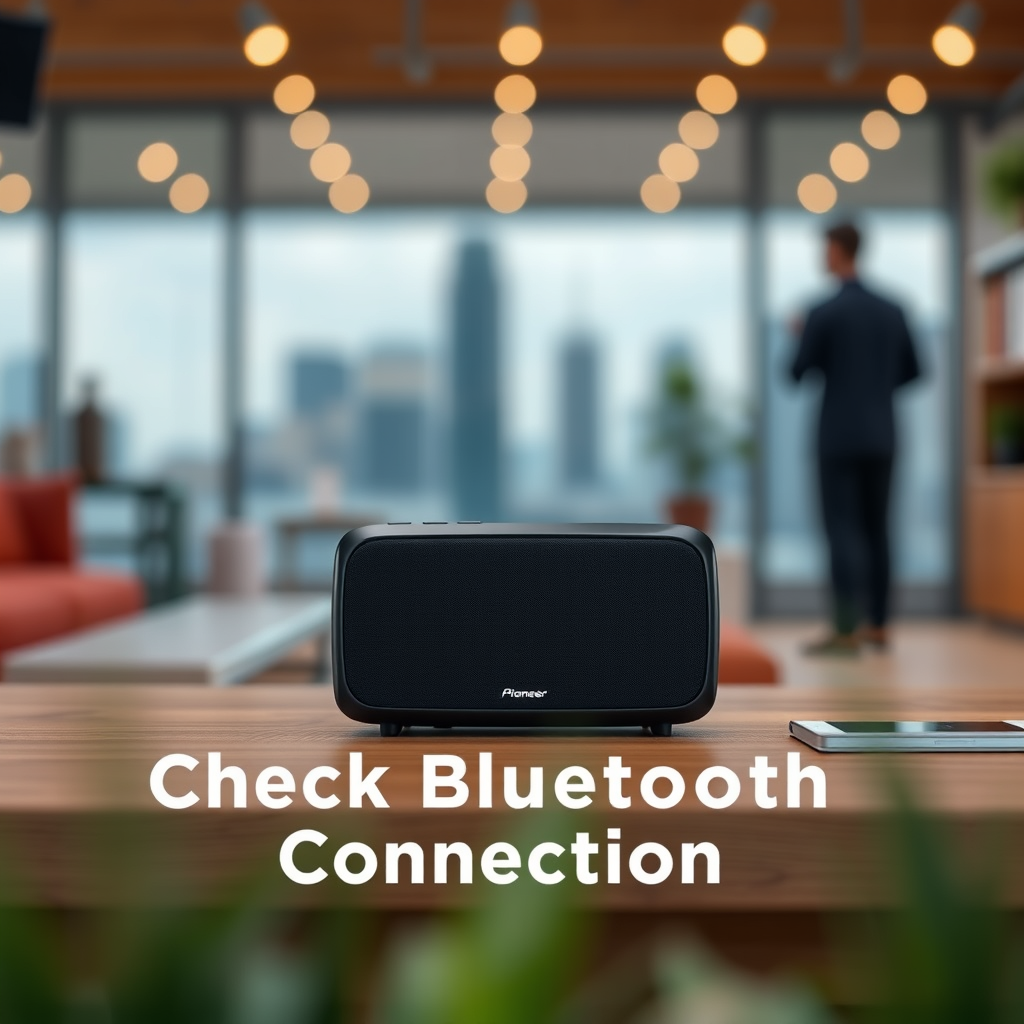
The first step in troubleshooting a disconnecting Pioneer wireless speaker is to ensure a solid Bluetooth connection. Start by confirming that your speaker and the connected device, whether it’s a smartphone, tablet, or computer, are within a reasonable range of each other. Ideally, this should be within 30 feet to minimize interference. Additionally, make sure that Bluetooth is enabled on your device and that it is properly paired with the speaker. Sometimes, removing the device from the speaker’s paired list and re-pairing can help establish a more stable connection.
If you find that the speaker still disconnects frequently, consider checking for any other devices that might be paired with it. Multiple connections can lead to conflicts, which may cause the speaker to disconnect from the primary device. Ensure your Pioneer speaker is only connected to the device you’re currently using, as this will make the connection more reliable.

Update Firmware
Keeping your Pioneer wireless speaker’s firmware up to date is crucial for maintaining optimal performance and connectivity. Manufacturers often release updates to fix bugs, improve compatibility, and enhance features. To check for firmware updates, refer to the Pioneer website or the companion app associated with your speaker model.
Once you locate the appropriate update, follow the manufacturer’s instructions carefully to install the latest version. This process typically involves downloading the update file and transferring it to the speaker via Bluetooth or USB. Regular updates not only improve connection stability but can also introduce new features that enrich your audio experience.
Reduce Interference
Wireless speakers are susceptible to interference from various electronic devices. Common culprits include Wi-Fi routers, microwaves, and even other Bluetooth devices. To mitigate these issues, try to identify and minimize potential sources of interference.
For instance, when using your Pioneer speaker, ensure that there are no other wireless devices operating in close proximity. If possible, turn off devices like microwaves or Wi-Fi routers temporarily while listening. Additionally, if your speaker supports different Bluetooth versions, check if using an older or less congested version helps maintain a stable connection.
Top 7 Causes of Bluetooth Interference
| # | Interference Source | Impact Level | Solution |
|---|---|---|---|
| 1 | Wi-Fi Routers | High | Move the speaker away |
| 2 | Microwaves | Medium | Avoid using during playback |
| 3 | Other Bluetooth Devices | High | Disconnect other devices |
| 4 | Wireless Speakers | Medium | Use one at a time |
| 5 | Bluetooth Speakers | Medium | Limit active connections |
| 6 | Cordless Phones | Low | Keep away from speaker |
| 7 | USB Devices | Medium | Disconnect unused USB devices |
Reset the Speaker
If you have tried all previous steps and the problem persists, performing a factory reset on your Pioneer wireless speaker may be necessary. This process can clear any lingering issues that may disrupt connectivity. Typically, you can find instructions for resetting the speaker in the user manual or on the manufacturer’s website.
To reset, you may need to press and hold a specific combination of buttons on your speaker. After the reset, re-pair the speaker with your device. This fresh connection can often resolve persistent issues and restore functionality.
Optimize Device Settings
Your device’s settings can significantly impact the performance of your Pioneer wireless speaker. Start by examining your device’s audio settings. Make sure that any enhancements or equalizers are appropriately configured and not causing interference with the playback.
Additionally, ensure that power-saving settings are disabled, as these can sometimes lead to Bluetooth disconnections. When a device enters a low-power state, it may disrupt the connection to your speaker. Adjusting these settings can provide a more stable audio experience.
Check Power Supply
Lastly, it is essential to ensure that your Pioneer wireless speaker is adequately powered. A low battery can lead to connectivity issues and frequent disconnections. Check the battery level of your speaker and charge it fully before using it.
Moreover, inspect the charging cable and port for any signs of damage. A faulty cable or port can prevent the speaker from charging properly, leading to power-related disconnections. If necessary, replace the charging accessories to ensure uninterrupted performance.
Contact Customer Support
If you’ve followed all the troubleshooting steps and your Pioneer wireless speaker continues to disconnect, it may be time to contact customer support. Before reaching out, gather all relevant information, including the model number of your speaker and a detailed description of the issues you are experiencing. This information can help the support team diagnose the problem more efficiently.
Pioneer’s customer support is equipped to handle various technical issues and can provide specialized guidance. Whether it’s a warranty concern or a technical glitch, they can assist you in finding a solution.
By implementing these troubleshooting steps, you can effectively address the disconnection issues with your Pioneer wireless speaker. If the problem continues, don’t hesitate to contact customer support for professional guidance. Enjoy your listening experience without interruptions!
Frequently Asked Questions
Why does my Pioneer wireless speaker keep disconnecting from Bluetooth?
Your Pioneer wireless speaker may keep disconnecting due to several reasons, including interference from other devices, low battery levels, or outdated firmware. Ensure that your speaker is fully charged, away from potential interference, and check for any available firmware updates to enhance connectivity.
How can I reset my Pioneer wireless speaker to fix disconnection issues?
To reset your Pioneer wireless speaker, locate the reset button or a combination of buttons, typically the power and volume buttons, depending on the model. Press and hold these buttons for about 10 seconds until you see the LED indicator flash, which indicates that the reset is complete and can help resolve persistent disconnection issues.
What should I do if my Pioneer wireless speaker disconnects frequently during playback?
If your Pioneer wireless speaker disconnects frequently during playback, try moving closer to the audio source to minimize distance-related connectivity problems. Additionally, check if other Bluetooth devices are connected and disconnect them, as multiple connections can lead to instability.
Which settings can I adjust on my device to improve the connectivity of my Pioneer wireless speaker?
To improve the connectivity of your Pioneer wireless speaker, check your device’s Bluetooth settings and ensure that it is set to ‘discoverable.’ Also, turning off power-saving modes or features like ‘Smart Bluetooth’ can help maintain a stable connection, as these settings can sometimes limit Bluetooth performance.
What are the best troubleshooting steps for a Pioneer wireless speaker that keeps disconnecting?
The best troubleshooting steps for a Pioneer wireless speaker include checking the battery level, ensuring the speaker is within range, and removing any obstructions that may interfere with the Bluetooth signal. Additionally, clearing the device’s Bluetooth cache or forgetting and re-pairing the speaker can often resolve persistent connectivity issues.
References
- Wireless speaker
https://en.wikipedia.org/wiki/Wireless_speaker - https://www.ncbi.nlm.nih.gov/pmc/articles/PMC7062645/
https://www.ncbi.nlm.nih.gov/pmc/articles/PMC7062645/ - https://www.sciencedirect.com/topics/engineering/wireless-speaker
https://www.sciencedirect.com/topics/engineering/wireless-speaker - https://www.bbc.com/news/technology-45567782
https://www.bbc.com/news/technology-45567782 - https://www.hindawi.com/journals/jece/2020/8881241/
https://www.hindawi.com/journals/jece/2020/8881241/ - https://www.researchgate.net/publication/337195321_An_Overview_of_Wireless_Speakers
https://www.researchgate.net/publication/337195321_An_Overview_of_Wireless_Speakers - https://www.theguardian.com/technology/2021/mar/03/how-to-fix-your-wireless-speaker-issues
https://www.theguardian.com/technology/2021/mar/03/how-to-fix-your-wireless-speaker-issues - https://www.cdc.gov/nceh/lead/tips/wireless_speakers.html
https://www.cdc.gov/nceh/lead/tips/wireless_speakers.html - Google Scholar Google Scholar
https://scholar.google.com/scholar?q=Pioneer+Wireless+Speaker+Keeps+Disconnecting - Google Scholar Google Scholar
https://scholar.google.com/scholar?q=Wireless+Speaker+Connection+Issues
