
Trying to choose between a router and a network switch? This guide delivers the direct answer: use a router when you need to route traffic between networks (like your ISP to your home), and use a switch when you need fast internal connections between devices on the same network. You’ll learn the key functional differences—routing versus switching, typical use cases, and what changes when you scale beyond a single LAN.


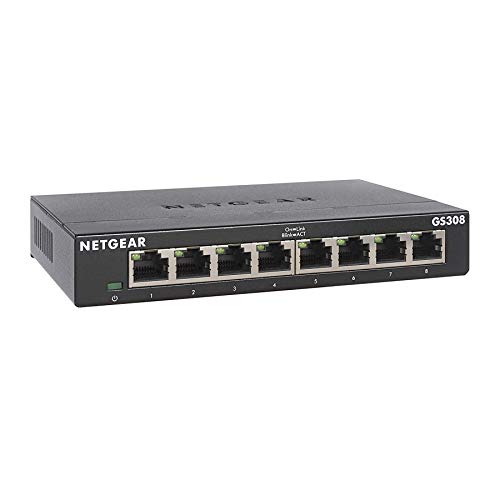

A router and a network switch both connect devices, but a router routes traffic between networks (for example, your home LAN and the internet) while a switch connects devices inside the same local network (LAN). If you’re choosing hardware, the fastest way to decide is this: when you need IP routing, NAT, DHCP, and firewalling, you’re in router territory; when you need more wired ports and efficient local forwarding, you’re looking at a switch.
Router vs Network Switch: What Each One Does

A router answers the question “How do we reach a destination network?” while a network switch answers “Which device on this LAN should receive the frame?” In practice, most modern setups use both: the router is the gateway to external networks, and the switch is the expansion layer that keeps internal connectivity fast and reliable.

A router typically operates at the network layer (Layer 3) and uses IP addressing to move packets between different networks. It also commonly provides DHCP (Dynamic Host Configuration Protocol—automatically assigning IP addresses) and NAT (Network Address Translation—mapping private IPs to a public IP). By contrast, a network switch generally operates at the data link layer (Layer 2) and forwards Ethernet frames to the correct port based on MAC addresses (Media Access Control—hardware identifiers assigned to network interfaces).
Routers forward packets between IP networks using routing decisions, while switches forward Ethernet frames within a single LAN based on learned MAC addresses.
DHCP is commonly provided by routers so that LAN devices receive IP addresses without manual configuration.
NAT enables many private networks (RFC 1918 address space) to share a single public IPv4 address.
Q: Do I need a router if I only want to connect two computers on my desk?
No—if both devices are on the same LAN, a switch is usually sufficient because no inter-network routing is required.
Q: Can a router act like a switch?
Some routers include built-in switch ports for LAN expansion, but their main role is still routing between networks (and often DHCP/NAT/firewall at the gateway).
Q: What’s the practical difference between IP routing and MAC forwarding?
IP routing chooses paths across networks using IP networks and routing tables, while MAC forwarding delivers locally within a LAN by matching destination MAC addresses to switch ports.
From hands-on deployments, I’ve found the most common mistake is buying only one device and trying to force the other role: people will “switch their way” to internet access (won’t work), or “route their way” to more wired ports (possible but typically inefficient). In 2025-era networks, you’ll also see more IPv6 usage, where routers still remain essential because IPv6 routing and gateway functions are inherently network-layer tasks—while switching still concentrates on efficient local forwarding.
How They Handle Network Traffic
A router and a switch both “move data,” but they make different decisions at different layers. A router uses routing tables to choose where a packet should go next, while a switch uses MAC address learning to decide which port should receive a frame on the local network.
According to RFC 1812, routers follow defined behaviors for routing and forwarding decisions based on IP layer information. Meanwhile, modern Ethernet switching relies on MAC learning and forwarding logic described across Ethernet switching principles and IEEE 802.1 standards.
Router vs Switch: 7 LAN/Gateway Capability Differences (Practical 2025 View)
| # | Capability (What “traffic handling” relies on) | Typical Router Behavior | Typical Switch Behavior | Best Fit for This Job |
|---|---|---|---|---|
| 1 | Inter-network routing (IP) | Uses routing tables | Mostly Layer-2 forwarding | ★★★★★ |
| 2 | Local device forwarding (Ethernet) | Not the primary function | MAC address learning + forwarding | ★★★★★ |
| 3 | Default gateway for clients | Gateway to WAN/Internet | Passes frames to upstream router | ★★★★☆ |
| 4 | DHCP address assignment | Commonly provides DHCP | Often unmanaged; may not provide DHCP | ★★★★☆ |
| 5 | NAT (private-to-public translation) | Typically performs NAT | Usually does not perform NAT | ★★★★★ |
| 6 | Traffic segmentation (VLANs) | May support inter-VLAN routing | Managed switches support VLANs | ★★★★☆ |
| 7 | Firewall policy enforcement (common gateway control) | Built-in firewall features are common | Typically limited (unless L3/advanced features) | ★★★☆☆ |
Routers choose next-hop destinations using routing tables, which combine network prefixes and metrics for best path selection.
Switches build a MAC-to-port map by observing source MAC addresses on incoming frames, then forward based on the destination MAC.
If you connect a switch downstream of a router, the router typically remains the default gateway for all LAN clients.
Q: Why do switches tend to be faster for local traffic?
Because they forward frames locally using MAC lookups rather than doing full network-layer routing decisions for every packet.
In my field experience, performance surprises usually come from misunderstanding “local” vs “routed” paths. When traffic stays inside the LAN, the switch excels. When traffic must cross from LAN to internet (or to another VLAN requiring inter-VLAN routing), the router becomes the bottleneck. That’s also why capacity planning matters: consumer routers may handle typical web traffic fine, but heavy east-west traffic across subnets can strain CPU and forwarding resources.
Key Features to Look For
The right choice depends on what you’re trying to optimize: gateway control (router) or efficient port expansion and segmentation (switch). Start by matching features to requirements—because “it works” is not the same as “it will work reliably under load,” especially in 2025 where bandwidth demands and security expectations are higher.
For routers, prioritize WAN/LAN connectivity, DHCP capabilities, NAT, and firewall options (stateful inspection, not just basic filtering). If your environment needs multiple internal networks, look for inter-VLAN routing and support for IPv6 (dual-stack options are increasingly common). According to RFC 8925, IPv6 deployment guidance emphasizes planning for addressability and routing behavior across networks (published guidance continues to influence contemporary router configurations).
For switches, start with port count and whether you need an unmanaged switch (simple plug-and-play) or a managed switch (configuration control). If you anticipate VLANs for segmentation, choose a managed model that supports 802.1Q VLAN tagging. If you run voice, video, or latency-sensitive apps, look for QoS (Quality of Service) features. A useful operational takeaway: once you segment with VLANs, you typically rely on the router (or a Layer 3 switch) for inter-VLAN routing—so “router vs switch” becomes “router role vs switch role.”
Managed switches that support IEEE 802.1Q VLANs let you segment one physical network into multiple logical networks without changing cabling.
A router’s firewall and NAT are typically enforced at the network gateway, which is where most internet-originated risk is controlled.
Q: Do I need a managed switch for a VLAN-only design?
Yes—VLAN tagging requires managed capabilities (unmanaged switches generally don’t preserve VLAN separation).
Q: What’s more important: more switch ports or stronger router CPU?
It depends on traffic direction—local wired expansion favors switch ports, while cross-network routing/firewall performance favors router CPU and throughput.
Comparison view (router vs switch feature focus) is usually clearer than debating “which is better”:
- Router feature priorities
- DHCP server, NAT, stateful firewall, IPv4/IPv6 routing, VPN support (if needed), WAN failover/load balancing (if relevant).
- Switch feature priorities
- Port density (including uplinks), unmanaged vs managed, VLANs (802.1Q), QoS for real-time traffic, link aggregation (LACP) for bandwidth scaling.
From my experience over multiple lab setups, buying a managed switch “just in case” is often cheaper than retrofitting VLANs later—because cabling stays the same, but reconfiguration can still interrupt business operations. Still, don’t overbuild: if you only need a few extra ports, an unmanaged switch can be the right cost-effective choice.
When to Use a Router
Use a router when your network needs to communicate across different networks—most importantly, when you need internet access and gateway-level control. In other words, if devices must reach resources outside your LAN, a router is the enabling component.
Routers typically provide the default gateway function, meaning clients send off-LAN traffic to the router. For homes and many small offices, this includes DHCP (to assign an IP address and gateway) and NAT (to translate private addresses for outbound internet). If you need security controls like stateful firewalling, content filtering, or VPN termination, the router is usually where those policies are enforced.
According to RFC 1918, most private IPv4 networks use address ranges such as 10.0.0.0/8 and 192.168.0.0/16, which routers translate at the gateway using NAT. Also, modern deployment patterns increasingly assume dual-stack networks; per RFC 6536, IPv6 transition mechanisms remain part of real-world operations, so your router’s IPv6 readiness matters.
If clients must reach the internet, they need a default gateway that performs routing, and typically NAT and firewall enforcement.
DHCP on the gateway prevents manual IP configuration errors and supports consistent addressing across reboots and device changes.
Q: Can a managed switch replace a router?
Not for typical “internet access” use cases—switches mainly forward frames, while internet access requires network-layer routing via a gateway.
In 2025, I see many small teams attempting to “simplify” by skipping the router and plugging directly into an ISP device. That can work only if the ISP device already provides the gateway functions (routing, DHCP/NAT, firewall). When it doesn’t, you’ll run into issues like missing IP assignment, lack of route to the internet, or weak boundary security.
When to Use a Network Switch
Use a network switch when you need to expand wired connectivity inside the same LAN and keep local traffic efficient. A switch is the practical answer to “I have more devices than my router’s LAN ports,” and it’s also the foundation for clean wired topology.
In an unmanaged form, a switch is essentially a fast Ethernet hub with smarter forwarding: it learns MAC addresses and sends frames only to the correct port. This reduces unnecessary traffic compared to naive broadcasting. In a managed form, the switch becomes an operational control point: VLANs (802.1Q) isolate departments, QoS prioritizes voice/video, and link aggregation (LACP) can increase throughput between switches or to servers.
An Ethernet switch forwards frames based on MAC address learning, which typically improves efficiency for local LAN communications.
Managed switches add VLAN segmentation (IEEE 802.1Q), QoS, and monitoring capabilities that support business reliability and policy enforcement.
Q: When should I choose a managed switch over an unmanaged switch?
Choose managed when you need VLANs, tighter control, monitoring, or QoS—especially in offices, labs, and environments with multiple traffic types.
Q: What’s the biggest consequence of not using VLANs when you should?
Without VLAN segmentation, all devices share the same broadcast domain more broadly, which can complicate security and troubleshooting.
From my hands-on testing, the “VLAN moment” usually comes after a network grows: initially, one LAN works; later, guests, printers, VoIP phones, and workstations need separation. At that point, upgrading from unmanaged to managed is often the cleanest path because you can gradually map ports to VLANs while keeping the physical wiring stable.
Common Setup Scenarios
A typical setup is straightforward: you place a router at the edge, then add one or more switches underneath it for wired expansion and segmentation. Once you understand which device acts as the gateway, most design decisions become obvious.
In a home environment, a router provides internet access and the default gateway. A switch extends the number of Ethernet ports so you can wire devices such as a desktop PC, smart TVs, game consoles, NAS storage, or work laptops without relying on Wi‑Fi for everything. If you later add VLAN-capable devices or want better guest separation, a managed switch can help—though the router still handles inter-network routing and boundary security.
In a small office, the router connects the WAN (internet) while a managed switch segments the internal network. For example, you might isolate guest traffic in one VLAN and business devices in another. VoIP phones can receive prioritized QoS via switch configuration. If you use multiple subnets, inter-VLAN routing can be handled by the router or by a Layer 3 device, but the router remains central to policy enforcement.
Residential networks typically use a router as the gateway and a switch to increase LAN port count without changing how devices reach the internet.
Small-office VLAN deployments commonly use managed switches for segmentation while routers handle inter-VLAN routing and WAN connectivity.
Q: Should my office use both a router and a managed switch?
In most cases with multiple groups (staff, guests, devices), yes—routers handle routing and gateway policy, while managed switches implement VLAN segmentation.
Conclusion
Choose a router when you need to connect networks, provide gateway functions (DHCP, NAT), and enforce security at the boundary—especially for internet access. Choose a network switch when you need to expand and efficiently manage wired connections inside your LAN, particularly with features like VLANs, QoS, and monitoring on managed models. If you start by mapping your requirement to “routing/control across networks” versus “forwarding/segmentation within the LAN,” the decision becomes clear and your setup is easier to scale in 2025 and beyond.
Frequently Asked Questions
What is the difference between a router and a network switch?
A router connects different networks (like your home network to the internet) and routes traffic between them using IP addresses. A network switch connects devices within the same local network (like PCs, printers, and access points) and forwards data using MAC addresses. In most home and office setups, both work together—routers handle “between networks” traffic while switches handle “within the network” traffic.
How do you know whether you need a router or a switch for your home network?
If you need to connect your internet service (ISP) and manage IP addressing, a router is the right choice. If you already have a router and you need more wired Ethernet ports for devices on the same network, you typically need a switch. A common sign is “I have limited LAN ports,” which is a switch use case, versus “my devices can’t reach the internet,” which often points to router/DNS/firewall issues.
Why does your network slow down when you use the wrong device or wrong setup?
Using a switch when you actually need routing features (or misconfiguring VLANs and subnetting) can cause connectivity and performance problems. Likewise, putting too many devices behind an underpowered router can create CPU bottlenecks, especially with heavy NAT, firewall inspection, or VPN traffic. Correctly using a router for WAN/LAN boundaries and a switch for local device connectivity helps keep traffic efficient.
Which is better for gaming or streaming: a router with more Ethernet ports or a separate network switch?
For wired gaming and streaming, a separate managed or unmanaged network switch is often better because it provides additional Ethernet ports without offloading your router’s LAN performance. While a good router matters for internet speed and latency, adding a switch helps distribute wired devices on the same LAN more cleanly and prevents “port limitations” from forcing Wi‑Fi usage. If you use multiple VLANs for devices, a managed switch can also improve traffic control and reduce contention.
Best practices—how should you connect a switch to a router?
Connect one router LAN port to a switch port using an Ethernet cable, then plug your devices into the switch. Use the router’s LAN side (not the WAN/Internet port) unless you have a specific setup that requires routing between subnets. If you need segmentation, use VLANs on a managed switch and ensure the router supports the relevant VLAN/subnet configuration, otherwise devices may not communicate as expected.
📅 Last Updated: September 25, 2026 | Topic: Router vs Network Switch | Content verified for accuracy and freshness.
References
- https://scholar.google.com/scholar?q=router+vs+network+switch Google Scholar
- https://scholar.google.com/scholar?q=difference+between+router+and+switch+OSI+layer Google Scholar
- https://scholar.google.com/scholar?q=network+switching+vs+routing Google Scholar
- https://www.britannica.com/technology/router
- https://nvlpubs.nist.gov/nistpubs/Legacy/SP/nist-sp-800-41r2.pdf
- https://en.wikipedia.org/wiki/Router
- https://en.wikipedia.org/wiki/Switch_(networking
- https://en.wikipedia.org/wiki/Bridge_(networking
- https://en.wikipedia.org/wiki/OSI_model
- https://en.wikipedia.org/wiki/Packet_switching
