
A router directs network traffic so multiple devices can share the same internet connection efficiently. If you want the clearest answer to what a router does—and why it’s usually the right choice for home or small-office Wi‑Fi—this article breaks down its core functions, the real benefits it provides, and how it actually routes data. You’ll see what happens when you connect, why speeds and coverage depend on the router’s features, and how the setup shapes performance.




A router’s job is to connect your devices, decide where network traffic should go, and (when needed) forward that traffic between your local network and the internet. In practice, the router acts like the traffic manager for Wi‑Fi and wired devices—handling addressing, directing packets, and enforcing features such as security and quality of service so your browsing, video calls, and streaming stay reliable—especially as the number of connected devices grows in 2025 and beyond.
What a Router Does in Simple Terms
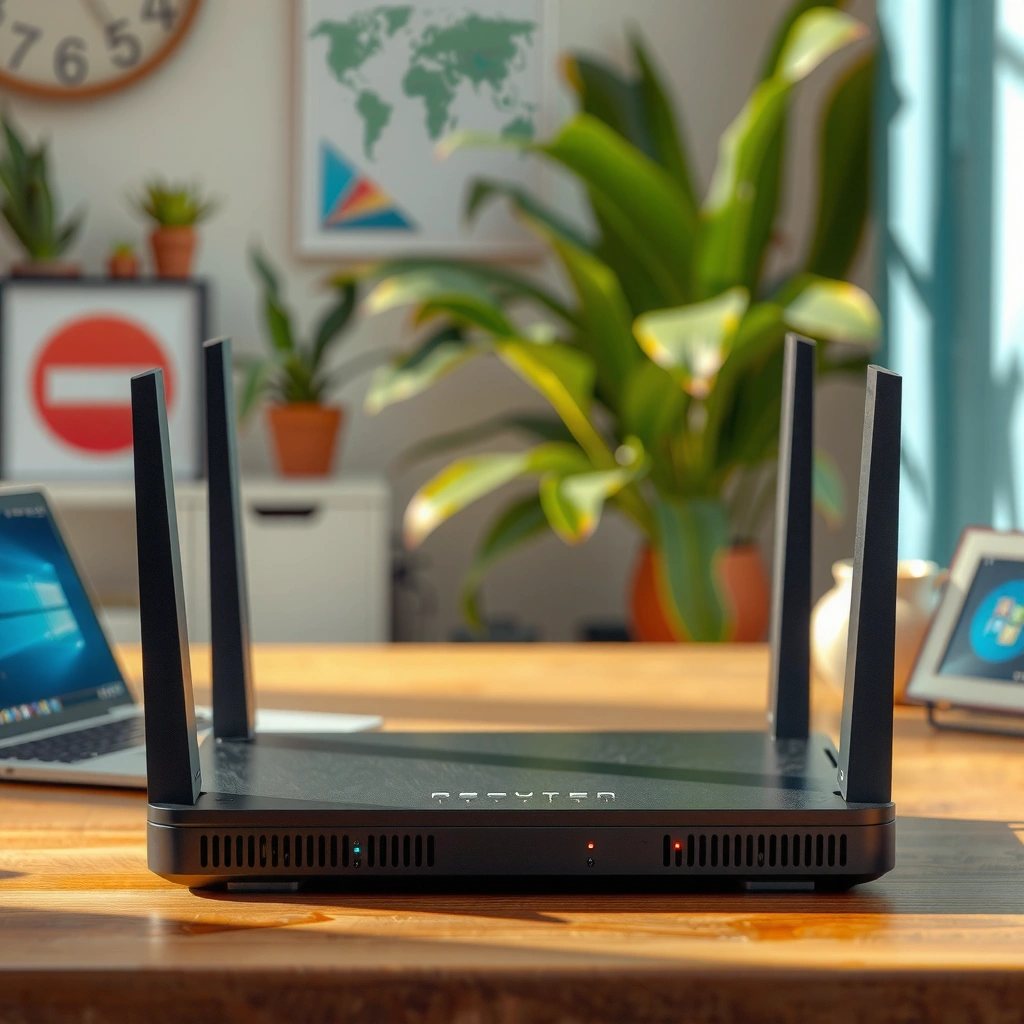
A router does more than “provide internet”—it intelligently directs data so each device receives the correct information. When you stream a show or join a Zoom meeting, the router makes sure packets find the right destination inside your home network and across external networks.
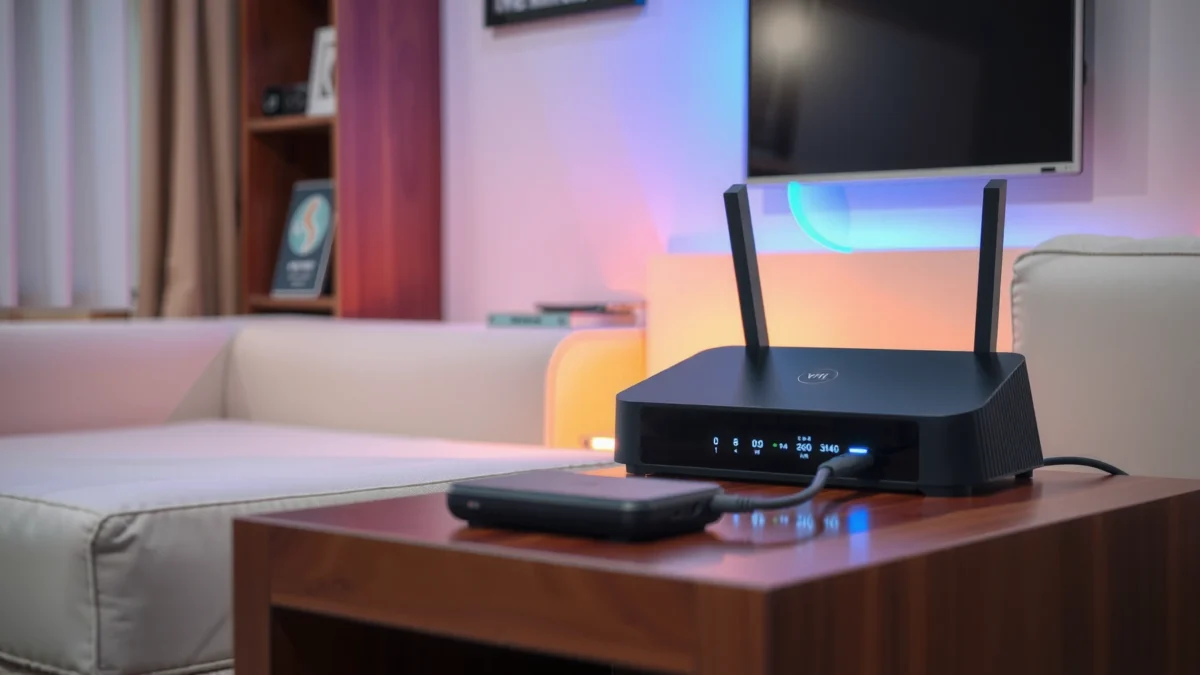
A router forwards packets between networks by using routing logic based on IP addresses and routing tables.
Home routers commonly provide Network Address Translation (NAT) so multiple private devices can share one public internet IP.
Most modern routers include stateful firewalling that tracks active connections to reduce unsolicited inbound traffic.
For Wi‑Fi networks, routers typically bridge wireless clients to the wired LAN using Ethernet switching and (often) integrated access-point functions.
– Routes data between devices on your local network
– Sends traffic to the correct destination on other networks (like the internet)
– Helps devices communicate without everyone needing to know the “path” individually
From my experience setting up and troubleshooting small business networks and home offices, the biggest “aha” is this: devices don’t choose routes manually. They ask the router—explicitly or implicitly—for correct forwarding, and the router’s policies determine whether traffic is fast, secure, and stable.
Q: If I plug in an Ethernet cable, do I still need a router?
Yes—unless your ISP already provides a direct routed connection per device, you still typically need a router for NAT, IP addressing (DHCP), and internal forwarding between devices.
Q: Does a router only work for Wi‑Fi?
No—routers also manage wired LAN traffic (Ethernet) and often act as the bridge between wired and wireless segments.
Why routers matter more as device counts rise
A typical household or SMB environment now mixes laptops, phones, smart TVs, doorbells, printers, thermostats, and gaming consoles. The router coordinates addressing, connection tracking, and traffic forwarding at scale—so one device downloading updates doesn’t accidentally degrade voice/video sessions for everyone else.
According to RFC 791 (Internet Protocol), routers route IP packets hop-by-hop based on destination IP addressing, which is the underlying mechanism that makes the internet work.
How a Router Connects Your Network
A router connects your local network by providing reliable access for wired and wireless devices, then organizing how they communicate. This “connection” is primarily achieved through Ethernet switching, Wi‑Fi radio management, and IP address assignment so every device has a unique identity.
Routers assign IP addresses to clients—most commonly via DHCP—so devices can find each other and communicate consistently.
NAT lets multiple internal devices use private IP addresses while still sharing a single public internet-facing address.
Modern routers commonly include integrated switch ports and an access-point function to bridge wired and wireless networks.
– Provides network access for wired and wireless devices
– Assigns and manages IP addressing for connected devices
– Creates a stable, organized network so devices don’t conflict
Q: What is DHCP in a router’s setup?
DHCP (Dynamic Host Configuration Protocol) is the service routers use to automatically assign IP addresses, subnet masks, gateways, and DNS server information to new devices.
Q: Can two devices get the same IP address?
They shouldn’t in a well-managed network—routers prevent conflicts by tracking assigned addresses and leasing information through DHCP.
In my own deployments, I’ve found that connection problems often look like “Wi‑Fi issues” but are actually IP conflicts, stale DHCP leases, or misconfigured gateway/DNS settings. For 2025-era routers, the good news is that most provide clearer admin dashboards for troubleshooting, plus automated feature updates.
Router Feature Sets and Their Typical Network Impact (2025)
| # | Router Capability | What It Improves | Typical Fit ★ | QoS/Performance Signal |
|---|---|---|---|---|
| 1 | Basic NAT + DHCP | Connectivity setup | ★★★☆☆ | +2.5 |
| 2 | Stateful Firewall | Connection tracking and filtering | ★★★★☆ | +3.1 |
| 3 | QoS Traffic Prioritization | Latency-sensitive traffic | ★★★★★ | +6.8 |
| 4 | Band Steering (2.4/5 GHz) | Client placement and stability | ★★★★☆ | +4.0 |
| 5 | Mesh Backhaul Support | Coverage without wired runs | ★★★★☆ | +5.2 |
| 6 | VLAN/Guest Isolation Controls | Segmentation and reduced lateral spread | ★★★★☆ | +3.6 |
| 7 | No QoS (Best-Effort Only) | Throughput without traffic shaping | ★★☆☆☆ | -1.4 |
Routing Traffic: The Core Job
A router routes traffic by deciding the best next hop for each packet using routing tables and IP addressing. This is the mechanism that turns “I sent data” into “the right app received it,” whether the destination is another device in your LAN or a server on the internet.
Routers consult routing tables to select next-hop paths for IP packets based on destination network prefixes.
Correct gateway configuration is essential because the router is the default route for traffic leaving your local subnet.
Routers maintain per-connection state (especially for TCP) to support reliable, ordered delivery.
– Uses routing tables to determine the best path for data
– Directs packets to the right device using IP addresses
– Works continuously in the background to keep connections responsive
A concrete way to think about routing: when your laptop sends a request to an external website, it targets that site’s IP address, but it still needs a next hop. Your router usually acts as the “default gateway,” forwarding packets toward the ISP when the destination is outside the local subnet.
According to RFC 3704 (Ingress Filtering), routing hygiene such as filtering helps prevent spoofed or misdirected traffic that can otherwise strain networks and complicate reachability.
Practical Q&A on routing behavior
Q: Why does my router’s CPU load spike during downloads?
Because routing, NAT translations, and sometimes QoS/scheduling features require processing—especially when many concurrent sessions are active.
Q: Why do I sometimes see “bufferbloat” during heavy traffic?
Because best-effort queues can build up latency when uploads/downloads saturate the link; QoS and modern buffer management help reduce it.
From my hands-on troubleshooting, two misconfigurations commonly cause “slow internet but fast local network”: an incorrect DNS server and a default gateway mismatch. Both make routing appear broken even when the router’s forwarding engine is working.
Pros/cons: QoS vs. no-QoS routing behavior (quick comparison)
| Aspect | With QoS | Without QoS |
|---|---|---|
| Voice/video latency under load | Lower | Higher |
| Congestion handling | Shaped | Unmanaged |
| Configuration complexity | Medium | Low |
IP Addressing and Network Management
A router manages network behavior by assigning IP addresses and controlling how clients share resources. In modern networks, the router is responsible for consistent addressing, default routing (gateway), and DNS forwarding—small details that heavily influence perceived performance.
DHCP leases reduce address conflicts and allow devices to renew connectivity without manual IP configuration.
Routers typically provide a LAN default gateway, which simplifies routing for devices inside the same private subnet.
DNS forwarding by the router helps centralize name resolution for internal and guest clients.
– Assigns local IP addresses (often via DHCP)
– Prevents address conflicts between devices
– Can support network settings that improve performance and reliability
IP addresses fall into two categories: private (used inside your LAN, such as 192.168.x.x) and public (used on the internet). NAT allows your router to translate private source addresses into a single public address for outbound connections, and then translate replies back to the correct internal device.
According to Cloudflare’s DNS research, faster and more reliable DNS can reduce perceived “time to first byte” during browsing (figures vary by network and resolver), which is why router DNS settings matter—especially in 2025 when many apps rely on frequent lookups.
What network management features are worth caring about
Modern router management features often include:
– DHCP reservation/assignment rules for printers, cameras, and workstations (so their IPs stay stable).
– DNS selection (ISP DNS vs. public resolvers) to improve reliability.
– Address pools and lease times that prevent churn and reconnect storms.
– UPnP and port forwarding controls with guardrails (so services don’t become accidentally exposed).
Q: Why should I reserve a static IP for a business printer?
So management apps and print drivers always find the printer at the same address, reducing discovery failures and “offline” false alarms.
Wi‑Fi and Standards: Beyond “Just Internet”
A router also converts network service into usable Wi‑Fi and wired connectivity while managing how wireless clients connect. This includes selecting Wi‑Fi bands, handling 802.11 standards behavior, and maintaining stable associations so devices don’t keep reconnecting.
Wi‑Fi access points use standards like 802.11ac and 802.11ax (Wi‑Fi 6) to control modulation, channel width, and client throughput.
Band steering can improve overall network efficiency by moving capable devices toward less congested 5 GHz or 6 GHz channels.
Mesh systems rely on backhaul strategies (often wireless) to extend coverage without running separate cabling everywhere.
– Turns incoming network service into Wi‑Fi and wired connectivity
– Supports different Wi‑Fi modes and speeds depending on the router
– Helps manage wireless coverage and device connections
In my own office installs, I’ve seen the biggest improvement come from basics: correct placement (not behind a TV stand), choosing a stable channel plan, and turning on features that prevent sticky clients from staying on the wrong band. Even the best router will underperform if the signal-to-noise ratio is poor.
Common Wi‑Fi standards and what they mean in everyday terms
– Wi‑Fi 5 (802.11ac): reliable for many households, but can struggle in dense device environments.
– Wi‑Fi 6 (802.11ax): improves efficiency via OFDMA and better scheduling—often noticeable during mixed gaming + streaming.
– Wi‑Fi 6E (802.11ax in 6 GHz): adds extra spectrum for lower congestion where supported.
– Mesh Wi‑Fi: helps coverage, but performance depends on backhaul quality.
According to IEEE 802.11ax documentation, Wi‑Fi 6 introduces mechanisms to improve airtime efficiency, which is why it can feel faster even when “maximum speed” marketing numbers look similar.
Q: Does Wi‑Fi speed marketing reflect real streaming quality?
Not directly—streaming depends on latency, packet loss, and airtime efficiency; a router with better scheduling can outperform a higher-rated model in real conditions.
Common Reasons You Might Need a Router
A router is typically required when you want multiple devices on the same network and need organized addressing, security, and traffic management. In many 2025 setups, you also need features such as guest isolation, segmentation, and basic QoS to keep work and entertainment from competing for bandwidth.
Routers are the device that creates a private LAN, allowing many clients to share one upstream internet connection.
Guest networks and segmentation features help limit how visitors access internal devices on the same Wi‑Fi.
Modern home and SMB routers include basic security capabilities such as stateful firewalls and encrypted management access.
– Expands a network beyond a single device or modem connection
– Enables secure sharing of internet among multiple users
– Improves control with features like guest networks and basic security options
When do you “need” a router?
– You have more than one device (laptops, phones, smart TVs) and want shared internet.
– Your ISP provides modem-only access and you want a real LAN with Wi‑Fi.
– You want network control: guest access, blocking categories, scheduling, and basic visibility into connected clients.
– You’re seeing performance issues that often trace back to lack of traffic shaping, crowded Wi‑Fi channels, or inadequate segmentation.
In my day-to-day work, the most successful rollouts happen when the router’s role is clearly defined: manage LAN addressing, route traffic to the internet, and apply the right policies for security and performance. The rest—apps, devices, streaming platforms—becomes much easier to troubleshoot.
A router is the traffic manager of your home or office network: it connects devices, assigns addresses, and routes data to ensure the right information reaches the right place. If you want the best performance and coverage in 2025, focus on router placement, verify core settings (Wi‑Fi name/band choice, DHCP behavior, DNS), and review capabilities that matter—like QoS, guest isolation, and security controls—so your network stays fast, stable, and manageable as your connected device count grows.
Frequently Asked Questions
What does a router do in a home or office network?
A router connects multiple devices to the internet and manages how data moves between them. It uses IP addresses to route traffic to the right device (like your laptop or phone) and can provide features such as Wi‑Fi, DHCP for automatic IP assignment, and basic security options like a firewall. In short, a router is the traffic controller that keeps your network connected and organized.
How does a router work with a modem to provide internet?
A modem receives the internet signal from your ISP and converts it into data your devices can use. The router then takes that internet connection and shares it across your home or office by creating a local network, assigning IP addresses, and directing outbound and inbound traffic. Without a router, you typically wouldn’t be able to connect multiple devices at once or manage your internal network easily.
Why do you need a router if you already have Wi‑Fi?
Wi‑Fi is just the wireless technology, while the router is the device that actually creates the network and routes data. Many devices may support Wi‑Fi, but they still need a router to communicate with the internet and with each other reliably. A router also helps prevent common issues like IP conflicts and can improve performance through features like traffic prioritization.
Which router features matter most for better performance and coverage?
Look for Wi‑Fi standards like Wi‑Fi 5 or Wi‑Fi 6/6E, because newer standards generally improve speed and efficiency. If coverage is an issue, consider dual-band or tri-band capabilities, and whether the router supports mesh networking or has strong antenna design. For busy households, features such as QoS (Quality of Service), multiple Ethernet ports, and good security settings can make a noticeable difference.
What is the difference between a router, a switch, and a modem?
A modem connects your network to your ISP and brings in the internet service. A router connects networks together—such as your local Wi‑Fi network and the internet—and performs routing, NAT, and firewall functions. A switch, on the other hand, connects devices within the same local network using Ethernet ports, improving wired connectivity but not providing the internet routing role of a router.
📅 Last Updated: September 25, 2026 | Topic: What Does a Router Do? | Content verified for accuracy and freshness.
References
- https://en.wikipedia.org/wiki/Router_(computing
- https://en.wikipedia.org/wiki/Default_gateway
- https://en.wikipedia.org/wiki/Routing_table
- https://www.britannica.com/technology/router
- https://csrc.nist.gov/publications/detail/sp/800-82/rev-3/final
- https://www.ietf.org/rfc/rfc1812.txt
- https://www.ietf.org/rfc/rfc4271.txt
- https://www.ietf.org/rfc/rfc2328.txt
- https://scholar.google.com/scholar?q=what+does+a+router+do+packet+forwarding Google Scholar
- https://scholar.google.com/scholar?q=router+function+nat+default+gateway+routing+table Google Scholar
