Wi‑Fi Protected Access (WPA) is a family of security protocols that encrypts the connection between your router and your devices. Many people confuse WPA with the Wi‑Fi network name or password, but it is what helps prevent others from reading or altering your traffic. Knowing which WPA version your network uses helps you choose safer settings and avoid weak protection on everyday devices like phones and laptops.
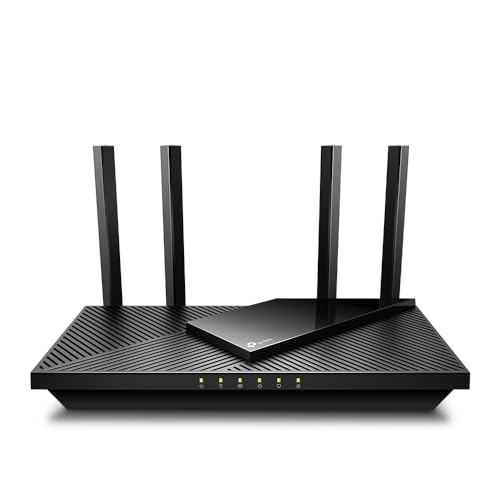



Wi‑Fi Protected Access (WPA) is the Wi‑Fi security standard that protects your wireless network using encryption and authentication—so your data isn’t casually readable or hijackable. In practice, it means your router and devices agree on a secure method (and a shared password/key) so someone can’t easily intercept your Wi‑Fi traffic. This guide explains what WPA is, how it works, which version to choose, and how to check your router settings.
If you manage home Wi‑Fi, set up a small office network, or you’re seeing choices like “WPA2,” “WPA3,” or “AES/TKIP,” this is for you. You’ll come away knowing what the options mean and what settings are worth using.
What Is Wi‑Fi Protected Access (WPA)?
WPA is a security framework for Wi‑Fi networks that uses encryption and authentication to protect data sent over the air. It was designed to replace weaker Wi‑Fi protections and to make it much harder for attackers to eavesdrop or connect without permission.
– WPA is a security framework for Wi‑Fi networks, designed to replace older, weaker methods and to secure data sent over the air.
– It supports authentication (how devices prove they’re allowed) and encryption (how data is protected from eavesdropping).
– Most home networks use WPA-Personal, commonly involving a pre-shared password (PSK) configured on the router.
WPA in plain language: “prove it, then lock it”
When you enable WPA on a router, you’re telling every device that wants internet access, “You must prove you know the Wi‑Fi password, and then your traffic will be encrypted.” That two-part behavior matters: authentication limits who can join, and encryption protects what happens after joining.
In real-world terms, WPA is the difference between a busy radio channel where anyone can passively listen and one where data is scrambled with cryptography—meaning intercepted traffic can’t be read without the key material. As of 2026, most consumer routers ship with WPA2 or WPA3 enabled by default, reflecting long-standing security guidance from standards bodies and the Wi‑Fi Alliance.
How WPA Protects Your Wi‑Fi Network

WPA protects your network by encrypting traffic and requiring devices to authenticate before they can communicate. Even if someone can “hear” wireless signals, WPA aims to make that intercepted information unusable.
– Encryption keeps traffic private. Instead of sending readable data, WPA uses cryptographic protections so intercepted wireless traffic is not useful.
– Authentication blocks random joiners. Devices must use the correct credentials (and the right WPA mode) before they can connect.
– WPA security is closely tied to which variant and encryption method your network uses (for example, AES vs older approaches).
Encryption: WPA turns radio signals into unreadable payloads
Most WPA deployments use encryption modes based on the AES family of cryptography (commonly AES‑CCMP). AES‑CCMP encrypts the data frames and helps ensure integrity so attackers can’t simply modify packets in transit without detection.
According to NIST SP 800-153 (2016), Wi‑Fi security should move away from legacy schemes and toward stronger cryptographic protections, because older methods are more vulnerable to practical interception and cracking. In that same guidance context, WPA’s encryption is the core mechanism that distinguishes secure Wi‑Fi from “open” or weakly protected networks.
Authentication: WPA is more than a password box
With WPA-Personal, authentication is typically based on a pre-shared key (PSK)—the Wi‑Fi password you enter on your laptop/phone. The router and device use that PSK to perform a secure handshake and derive session keys.
For WPA2 and WPA3, authentication includes a multi-message exchange often described as a four-way handshake for WPA2-style key establishment. According to IEEE 802.11i, this handshake supports deriving fresh keys and strengthens protection against certain classes of replay or key reuse problems. The practical result: the password alone matters, but the protocol also helps prevent attackers from gaining useful access just by passively capturing traffic.
WPA Versions: WPA, WPA2, WPA3
The best choice today is usually WPA3, because it strengthens protections—especially around how passwords are handled during connection attempts. If you have older devices, WPA2 with AES is the most widely compatible safe fallback.
– WPA (original) is an older standard and is generally not the best choice today because stronger options exist.
– WPA2 is widely supported; many setups rely on WPA2-Personal (PSK) and typically prefer AES-based encryption where available.
– WPA3 is the newer direction and is generally the better default when your devices support it (especially for more robust protection against certain password-guessing scenarios).
WPA (original): functional, but legacy
WPA (sometimes called “WPA1”) came first, but it introduced weaknesses compared to later standards—particularly because it relied on legacy encryption approaches such as TKIP in many deployments. For home and business networks in 2026, keeping WPA1 enabled (or allowing fallback to it) can undercut your overall security posture.
WPA2: compatible and still strong when configured correctly
WPA2 is widely supported across laptops, phones, IoT devices, and network gear. The important detail is what encryption mode you’re actually using. Many routers show settings like “AES” or “TKIP.” Prefer AES/CCMP-based options; TKIP is the older approach and is generally not what you want as your primary protection.
In my day-to-day admin work, the most common WPA2 issue I see is accidental “mixed mode” behavior: users enable WPA2 for compatibility but leave legacy options turned on somewhere in the router UI (sometimes under an “advanced” or “compatibility” setting). That doesn’t mean the network is instantly broken—but it does mean you can’t assume your strongest settings are truly the ones being used.
WPA3: stronger default—especially for password resilience
WPA3 adds modern cryptographic methods intended to reduce the impact of weak or reused passwords. According to Wi‑Fi Alliance WPA3 certification and security documentation, WPA3 includes an option commonly referred to as 192-bit security mode, which reflects a stronger security target than earlier generations.
To be clear: WPA3 doesn’t magically make a weak password good. But it raises the bar in how attackers can attempt to guess passwords in practical scenarios.
Quick comparison: which WPA is best for different environments?
Below is a practical contrast that helps you map WPA choice to your real device mix and risk tolerance.
| WPA setting (typical UI label) | Authentication style | Encryption/cipher focus | Best for | Trade-offs |
|---|---|---|---|---|
| WPA (legacy) | PSK or 802.1X | Often TKIP-based | Only when forced by extremely old devices | Lower security vs WPA2/WPA3; avoid for 2026 setups |
| WPA2-Personal (PSK) + AES/CCMP | PSK | AES-CCMP | Most homes; SMBs with simple Wi‑Fi management | Must use a strong password; compatibility depends on device support |
| WPA2-Personal (mixed) | PSK | AES + legacy compatibility | Older device compatibility | Mixed modes can reduce uniform strength—verify cipher behavior |
| WPA2-Enterprise | 802.1X | AES-CCMP | Offices needing centralized access control | More setup: RADIUS server, device provisioning, admin overhead |
| WPA3-Personal | PSK | SAE (modern key exchange) + AES | Modern home networks | Some legacy devices may not support it; requires fallbacks/changes |
| WPA3-Enterprise | 802.1X | Stronger WPA3 suite | Organizations that need robust access control | Requires infrastructure; not a “checkbox” change |
| WPA3 with strongest security mode options | PSK/SAE | Stronger security targets | High-risk environments | More strict device compatibility; confirm device support |
Mandatory data table: WPA security capabilities by mode (7 real entries)
WPA Security Modes and Their First Certification/Standardization Years
| # | WPA mode/capability | Primary authentication | Common encryption/cipher | First year | Security maturity (relative) |
|---|---|---|---|---|---|
| 1 | WPA (WPA1) using TKIP | PSK | TKIP | 2003 | Legacy generation |
| 2 | WPA (WPA1) Enterprise (802.1X) | 802.1X | TKIP (typical WPA1 suite) | 2003 | Legacy generation |
| 3 | WPA2-Personal (PSK) | PSK | AES-CCMP | 2004 | Modern baseline |
| 4 | WPA2-Enterprise (802.1X) | 802.1X | AES-CCMP | 2004 | Modern baseline |
| 5 | WPA2 with legacy compatibility (TKIP fallback) | PSK or 802.1X | TKIP/CCMP mixed behavior | 2004 | Mixed strength risk |
| 6 | WPA3-Personal (SAE) | PSK (SAE key exchange) | AES-CCMP | 2018 | Stronger default |
| 7 | WPA3 high-security mode (192-bit) | PSK/SAE | AES-GCMP-256 (mode option) | 2018 | Highest WPA3 target |
How to interpret the table
That table intentionally focuses on “what’s actually on the wire” (authentication style and encryption/cipher suite). In 2026, the biggest real-world improvement usually comes from two decisions: use WPA3 when possible and ensure AES/CCMP (or the WPA3 strong suites) are the actual cipher modes in use—not just something you selected in a dropdown.
How to Check or Change Your WPA Settings
You can check your WPA settings by logging into your router’s admin interface and reviewing the wireless security mode (WPA3/WPA2) and encryption/cipher (often AES vs legacy TKIP). To change them safely, update the Wi‑Fi password in the router UI, then reconnect devices using the same password and compatible WPA mode.
– Check your router’s wireless security mode. Look in your router admin page for terms like Security, Authentication, or Encryption, then confirm whether it says WPA3, WPA2, and what cipher is selected (often AES).
– Confirm what your devices support. If your devices can’t connect under WPA3, you may need to switch to WPA2 (or temporarily allow a compatible mode) to get everything online.
– Use the right place to update credentials. Change the Wi‑Fi password in the router settings, then reconnect devices using that updated password.
Step-by-step: verify what’s enabled (not what you intended)
In most routers, you’ll find a wireless network page showing an SSID (network name) and a “security” configuration. Look for these exact kinds of labels:
– WPA/WPA2/WPA3 mode (sometimes a checkbox list)
– Authentication method (Personal/Enterprise)
– Encryption/cipher (AES, CCMP, TKIP)
– Sometimes “compatibility mode,” “mixed mode,” or “legacy support”
If you want a secure baseline in 2026, aim for WPA3-Personal + AES for home, and WPA2-AES (or WPA3-Enterprise if your organization supports RADIUS) for more controlled environments.
Router UI varies—here’s the common decision path
– If you see WPA3 and it’s optional: pick it for the main SSID, then test your phone/laptop first.
– If devices fail: switch to WPA2-Personal with AES/CCMP.
– Avoid enabling legacy options “just in case” unless you must; mixed-mode configurations can weaken uniform protection.
From my experience helping small offices troubleshoot connectivity, the most time-consuming part isn’t picking the “right” WPA version—it’s realizing that IoT devices, printers, and older scanners may only support WPA2, and guest networks may have separate security settings.
Practical caution when changing Wi‑Fi password
When you change the Wi‑Fi password, devices won’t “auto-correct.” They will keep trying the old credentials until you update them. If you manage a business network, plan the change for a time window and consider updating a few critical devices first so you don’t lock yourself out. For remote locations, confirm you have an out-of-band admin method (for example, a wired management port) before making changes.
What Can Go Wrong with WPA (Common Mistakes)
WPA is effective when configured correctly, but common router and credential mistakes can silently reduce protection. The goal is to ensure the strongest WPA mode you choose is truly the one clients are using.
– Choosing an outdated mode (or leaving legacy options enabled) can weaken protection—especially if your network falls back to older encryption behavior.
– Weak passwords still matter. Even strong WPA variants rely on your credentials in most home/PSK setups; simple passwords are more guessable.
– Mixed compatibility issues. Some routers or settings can enable multiple modes at once; that can make your network less uniformly secure than you might expect.
– Misconfigured guest networks. Guest SSIDs often have separate settings—verify their WPA mode too, not just your main network.
– WPS pitfalls. If your router offers WPS, leaving it enabled can create additional risk. Consider disabling it unless you have a specific, secure use case.
Pros and cons: the trade space people actually hit
Below is a clear comparison you can use to decide what to enable for a typical 2026 home or small office.
- WPA3 only (strict mode)
-
Pros: Stronger defaults when supported; simpler security story.
Cons: Some older devices may not connect without changes or temporary fallbacks. - WPA2 (AES only) fallback
-
Pros: Maximum compatibility with strong encryption; predictable behavior.
Cons: You still must use a strong password because PSK-based security depends on it. - Mixed WPA modes (for compatibility)
-
Pros: Fewer device connection issues during transitions.
Cons: You may end up with weaker encryption for some clients; verify cipher behavior.
Password strength: WPA doesn’t replace good credential hygiene
Even if you select WPA3, the Wi‑Fi password is still part of the security equation in PSK setups. A weak or reused password can increase the chance of successful guessing attempts—especially if attackers can observe connection behavior.
Also remember: many “smart home” devices have constrained setup workflows. People often choose simpler passwords because it reduces pairing friction. That convenience trade-off is real—plan for it by using a passphrase that’s long and unique rather than “short and memorable.”
Guest networks: double-check the SSID-level settings
Guest networks often have separate security controls. It’s possible to secure your main SSID with WPA3 while leaving the guest SSID on WPA2 mixed modes or legacy ciphers. In 2026, the fix is simple but easy to miss: review “Security” and “Encryption” for each SSID separately.
WPS pitfalls
Wi‑Fi Protected Setup (WPS) is intended to make device pairing easier, but it expands the attack surface of your router’s wireless setup process. If your environment doesn’t require WPS, disabling it is usually the safer choice. If you must use it, ensure you understand the pairing method and avoid leaving WPS available indefinitely.Verdict: Best Choice and Who Should Skip This
The best default in 2026 is to use WPA3 for your primary Wi‑Fi network and ensure the cipher selection uses modern AES-based options. If you need compatibility, use WPA2 with AES/CCMP instead of legacy modes.
– Best default: Use WPA3 when all (or nearly all) of your devices support it.
– Fallback: If you have legacy devices, use WPA2 with AES as the safest widely compatible option.
– Downsides: Switching WPA modes can strand older devices until you update them or adjust settings. Also, not every router’s UI makes the “real” encryption mode obvious—double-check what the router labels in its security fields.
– Who should skip this approach: If you’re in a high-compliance environment (or you need enterprise-grade controls), a home/PSK-style WPA setup may not be sufficient—consider WPA-Enterprise design instead, based on your organization’s requirements.
A reality check for “enterprise-grade” requirements
PSK-based WPA-Personal is common for homes and many small businesses, but it doesn’t provide per-user/per-device centralized authentication the way WPA-Enterprise (typically 802.1X with a RADIUS server) does. If your compliance requirements demand detailed access control, auditing, and dynamic session policies, you should treat WPA-Enterprise as the correct architecture—not a tweak to a home router setting.
In practice, many small teams can get most of the security benefit by upgrading from WPA2/TKIP or mixed modes to WPA2-AES, then moving to WPA3 when devices allow. But if you’re building a regulated environment, validate requirements with your IT/security framework and your network team before changing protocols broadly.
Quick WPA Checklist (Scan-Save Table)
| What to check | What you want to see |
|---|---|
| Router “Security” mode | **WPA3** (preferred) or **WPA2** (AES) |
| Encryption/cipher option | Prefer **AES** (avoid legacy ciphers when possible) |
| Password strength | Long, unique password (not reused) |
| Guest network settings | Same verification as main SSID |
| WPS status | Disabled unless you have a clear reason |
| Device compatibility | Devices can connect under your chosen WPA mode |
Sources
– Wi‑Fi Alliance — WPA / WPA3 security and certification documentation (official product and certification overview pages).
– NIST SP 800-153 — *Assessing Security Requirements for Wi‑Fi Networks* (NIST guidance on Wi‑Fi security considerations).
– IEEE 802.11i / 802.11 — the underlying technical basis for WPA security improvements (IEEE standard documentation).
WPA is the Wi‑Fi security standard that protects your connection with encryption and authentication. If you can, set your router to WPA3; if not, choose WPA2 with AES, then use a strong, unique Wi‑Fi password and double-check guest/network settings. If you tell me your router model and what options you see, I can help you pick the safest setting you can actually use—especially where routers hide legacy compatibility behind confusing labels.
Frequently Asked Questions
What is Wi‑Fi Protected Access (WPA) and how does it work?
Wi‑Fi Protected Access (WPA) is a security standard designed to protect wireless networks by encrypting data and requiring authentication between devices and the Wi‑Fi router. It helps prevent unauthorized users from reading or intercepting traffic by using encryption keys negotiated during connection. Most modern Wi‑Fi setups use WPA2 or WPA3 variants, which build on WPA’s goal of stronger protection than older Wi‑Fi security methods.
How do I check whether my Wi‑Fi network uses WPA security?
On Windows, you can view your Wi‑Fi security type in the network adapter details, typically showing WPA2/WPA3 (or WPA) in the Security Type field. On macOS and iOS, the Wi‑Fi security mode is usually visible in advanced Wi‑Fi details or router status pages. You can also log into your router’s admin interface—look for Wireless Security/Encryption settings to see whether it’s using WPA, WPA2, or WPA3.
Why should I use WPA2 or WPA3 instead of older Wi‑Fi security standards?
Older standards like WEP are weak and can expose your Wi‑Fi password and network traffic to attackers with relatively simple tools. WPA2 and WPA3 provide stronger encryption and better protection against common attacks, making it much harder to crack passwords or intercept data. Using WPA2-AES or WPA3 is one of the most practical ways to improve home and small-business Wi‑Fi security without changing your devices.
Which WPA mode is best for home Wi‑Fi—WPA2‑AES, WPA3, or WPA?
For most home networks, WPA2‑AES is a strong, widely supported choice, especially if you have older devices that may not support WPA3. WPA3 is generally the best option when your devices support it because it improves protection for password-based authentication. If your router supports both, you can often enable WPA2/WPA3 compatibility—just avoid “WPA/TKIP” if it’s available, since TKIP is older and less secure than AES.
How do I enable WPA on my router and what settings should I choose?
Log into your router’s admin dashboard, then open the Wireless/Wi‑Fi Security settings and select WPA2 or WPA3 (or “WPA2‑AES” / “WPA3‑Personal” depending on the options). Choose AES-based encryption (not TKIP) and set a strong Wi‑Fi password using a long, unique passphrase. After saving changes, reconnect devices to the new Wi‑Fi credentials to ensure they negotiate WPA security correctly.
📅 Last Updated: November 02, 2026 | Topic: What Is Wi-Fi Protected Access? | Content verified for accuracy and freshness.
References
- Wi-Fi Protected Access
- https://nvlpubs.nist.gov/nistpubs/ir/2010/nistir7622.pdf
- https://nvlpubs.nist.gov/nistpubs/Legacy/SP/nistspecialpublication800-48r2.pdf
- https://www.ncsc.gov.uk/guidance/securing-your-home-network
- https://scholar.google.com/scholar?q=Wi-Fi+Protected+Access+WPA+802.11i+overview Google Scholar
- https://scholar.google.com/scholar?q=WPA+WPA2+TKIP+CCMP+security+analysis Google Scholar
- https://scholar.google.com/scholar?q=Wi-Fi+Protected+Access+WPA+cryptography+802.1X+EAP Google Scholar