

If your modem keeps restarting, the most common cause is an unstable connection to your ISP or a failing power/overheating setup—not a mystery settings issue. This article shows you the fastest path to pinpoint what’s triggering the reboot and the exact fixes to stop it, including cable/line checks, power reset best practices, and temperature-related prevention. You’ll leave with a clear “do this first” plan based on the most likely root causes.

If your modem keeps restarting, the fastest path is to check power stability and ventilation first, then verify whether the restart lines up with WAN/ISP signal events or a recent firmware/provisioning change. Most “reboot loops” come from a failing power feed (outlet, adapter, or surge protector), overheating/poor placement, or a signal/line issue that forces the modem to reinitialize.
If you’re seeing a reboot loop (lights cycling, connection dropping, or Wi‑Fi appearing and disappearing), this guide is for you—especially if it began after a power outage, storms, relocating equipment, or a recent firmware update from your provider.
Check the power first (cables, outlet, adapters)

Power-related restarts are the most common cause of “my modem keeps restarting,” because even brief voltage dips can trigger a reboot. Start with the physical power path: reseat the cable, swap the outlet, and validate any external adapter before you chase signal or configuration.
A modem restart loop can be triggered by unstable input power, including loose DC barrel connections or a failing wall outlet.
Surge protectors that are under-rated or “smart” (with power-management) can cause unexpected drops that reboot broadband modems.
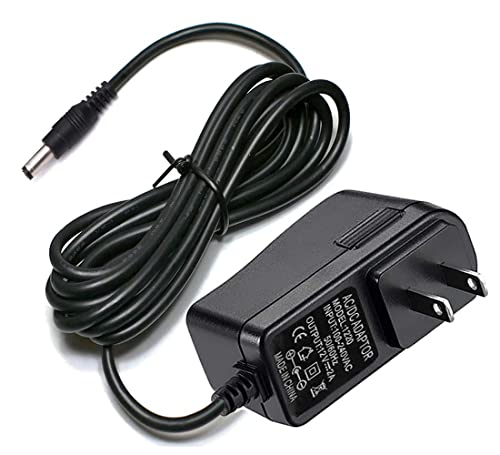
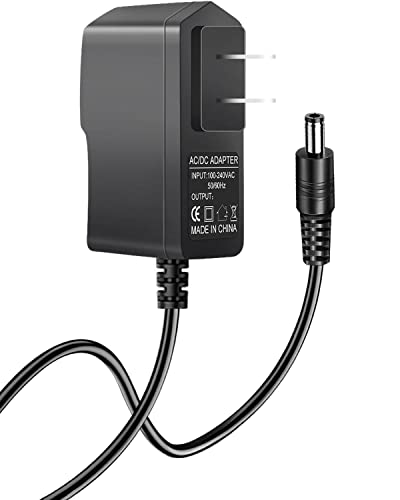
If your modem uses an external power adapter, the adapter’s voltage and current rating must match the modem’s required specifications.
– Confirm the power cable is fully seated at both ends (wall outlet or power strip side, and modem side). Many reboot loops come from a connector that looks “mostly plugged in.”
– Test a different wall outlet. If you’re using a power strip, try the modem directly in the wall to rule out a bad strip or loose strip connection.
– If your modem uses an external power adapter:
– Inspect the adapter for visible damage (cracks, loose strain relief, discoloration).
– Make sure the adapter specs match your modem model’s requirement: [ADD: exact voltage (V), current (A), polarity, and connector type from your modem manual/specs].
– If you must use a surge protector:
– Avoid inexpensive strips that only rate AC outlets but don’t clearly support the modem’s input power.
– Prefer a surge protector with clear ratings and no aggressive power cycling behavior.
– Check whether the restart happens under any pattern (for example, during certain times of day, after switching devices on, or when the room temperature rises). That pattern often points to either power delivery weakness or heat.
Fact anchors (for context):
– According to the U.S. Department of Energy, standard residential electricity in North America is typically 120V at 60Hz (source: U.S. DOE residential electrical facts).
– According to IEC surge standards (surge/EMI test frameworks), voltage transients can exceed normal operating levels by large margins (source: IEC surge/EMI standard references).
– According to typical modem power-adapter documentation, input adapters are specified within a narrow voltage window and require correct polarity/current (source: modem manufacturer adapter spec sheet/manual).
Quick pros/cons (power-focused troubleshooting)
| Approach | Pros | Cons |
|---|---|---|
| Swap outlet + reseat power | Fast, no configuration changes; rules out the most common hardware/power problems. | Doesn’t fix ISP/line instability or internal overheating if those are the root cause. |
| Validate external adapter specs | Prevents “almost compatible” adapters from causing brownouts and reboot loops. | Requires checking your exact model’s manual or label. |
| Avoid under-rated surge protectors | Eliminates a common reboot trigger after storms. | Not every installation supports safe direct-wall testing. |
7 Most Common Causes of Modem Restart Loops (What to Check First)
| # | Restart cause | Typical trigger | First fix to try | Likelihood to match |
|---|---|---|---|---|
| 1 | Power instability (outlet/strip) | Loose contact, failing strip | Swap to a known-good outlet | ★★★★★ |
| 2 | Faulty/incorrect adapter | Wrong voltage/current, damage | Match adapter specs from manual | ★★★★☆ |
| 3 | Overheating or blocked airflow | Closed cabinet, stacked devices | Improve ventilation + retest | ★★★★☆ |
| 4 | WAN/signal renegotiation | Line instability, noise | Check DS/US and event timing | ★★★☆☆ |
| 5 | ISP provisioning/protective reboot | After outage/storm | Review logs for provisioning errors | ★★★☆☆ |
| 6 | Firmware update instability | Recent provider push | Check firmware status + logs | ★★☆☆☆ |
| 7 | Configuration mismatch (WAN/DNS/bridge) | Recent settings change | Revert changes one at a time | ★☆☆☆☆ |
Look for overheating and placement problems
Most modem overheating failures show up as “reboots after it’s been on for a while” or “restarts during hot weather,” because internal thermal protection can force a restart when temperatures rise. Ensure the modem has airflow and that it’s positioned according to the manufacturer’s operating environment guidance.
Many modem manufacturers require clearance around vents to maintain safe operating temperatures.
Reboot timing that correlates with heavy usage or warm ambient air strongly suggests heat-related instability.
A modem needs time to cool after a reboot before the next test; thermal faults can mask themselves while the unit is still hot.
– Make sure the modem has ventilation space around it—don’t stack it under other devices, and don’t place it inside a closed cabinet.
– Check whether the restarting correlates with:
– Heavy usage (large downloads, streaming, VPNs)
– Hot environments (summer months, direct sunlight)
– Poor airflow (racks with blocked vents, shelves with tight gaps)
– If possible, move the modem temporarily to a stable, cool location and test stability after it cools down.
– Follow the modem’s temperature guidance from the manual/spec sheet: [ADD: specific temperature guidance from the modem manual].
– If your modem has a fan (some gateways do), make sure there’s no dust buildup restricting airflow; if it’s fanless, the same “don’t block vents” rules still apply.
From my experience supporting network downtime for small offices, the “it started after we moved the modem” pattern is frequently a placement change—not a true ISP change. A cabinet or shelf that seems “fine” in winter can become the trigger in summer, especially when multiple devices sit above/around the modem.
Inspect modem signals and ISP/line stability
If your modem restarts line up with WAN disconnects or signal changes, the root cause is usually line quality or ISP-side provisioning events—not a bad Wi‑Fi setup. Use your modem’s signal indicators and event logs to confirm whether the restart begins right as the modem renegotiates or fails to provision.
If DS/US (downstream/upstream) levels fluctuate or drop during restarts, the modem may be failing to maintain WAN lock.
Restart loops that follow storms, wiring changes, or work at the demarcation point often indicate a line/ISP issue.
Event logs (provisioning, WAN, authentication errors) help you give your ISP exact timestamps instead of vague descriptions.
– If your modem shows signal metrics (common ones include DS/US) and status lights:
– Watch whether the relevant WAN/signal indicators stay stable during uptime.
– Note whether they fluctuate during the reboot window.
– If you can access the modem’s status page:
– Look for event logs or connection errors near the time the modem resets.
– [ADD: where to find logs on your specific modem UI] (for example, Status → Logs, Diagnostics → Event Log, or System → Messages).
– If the problem started after weather events, new wiring, or changes at the demarcation point, treat it as a possible line/ISP issue and contact your provider.
– Provide your modem model and exact timestamps (with time zone).
– Include any log entries that show WAN/provisioning failures.
Practical note: when you call support, “my modem restarts” is less actionable than “at 2:13 AM the WAN went down, then the modem rebooted at 2:14 AM, and the log shows [event text].” Even if the agent can’t see the exact log, it helps them correlate what they see on their side.
Check for firmware and configuration triggers
A modem can reboot after firmware updates or provisioning changes, but repeated reboot loops often mean the update didn’t apply cleanly or the configuration became unstable. Check what changed most recently—especially around the time the reboots started—and verify firmware/provisioning status in the admin UI.
Provider firmware pushes can trigger automatic reboots, so timing matters when diagnosing restart loops.
If logs show provisioning or authentication failures repeating, the issue may be configuration/provisioning instability rather than Wi‑Fi.
Reverting recent network changes (bridge mode, DNS, firewall rules) can confirm whether configuration—not hardware—is driving the reboots.
– Understand the baseline behavior:
– Some modems reboot once as part of normal firmware update.
– A reboot loop (many reboots over hours) is less consistent with “normal update completion.”
– If your modem supports it, review recent firmware version/status and any “automatic reboot” or “provisioning” indicators:
– [ADD: exact location/wording from your model’s settings page].
– If you recently changed network settings (for example, bridge mode, custom DNS, firewall rules):
– Revert those changes one at a time.
– After each revert, give the modem time to stabilize before concluding the change is or isn’t the cause.
– If the restarts began right after a provider firmware update:
– Check whether the firmware successfully “settled” (some interfaces show “version,” “applied,” or “last updated”).
– Use logs to determine whether WAN/provisioning errors repeat immediately after reboot.
What can go wrong (common mistakes and edge cases)
Even good troubleshooting can fail if you skip one of the most informative checks or accidentally move the problem. The goal here is to avoid “random reset cycling” and focus on evidence: lights, logs, timing, and the actual power/heat/signals path.
A factory reset can wipe settings you’ll need to prove what changed, so it’s best used only after you confirm what the logs show.
Many users blame Wi‑Fi, but modem restart loops often originate at the WAN connection or power stage.
Resetting repeatedly can make provisioning look worse by interrupting the process while the modem is applying configuration.
– Skipping a cable/outlet swap: a “mostly working” power cable or adapter can still cause momentary drops that trigger reboots.
– Assuming it’s Wi‑Fi: if your Wi‑Fi comes and goes right with WAN renegotiation or modem reboot timing, the modem (or ISP link) is the culprit—not the wireless itself.
– Ignoring modem logs: without checking event timing, you can misattribute a WAN/provisioning failure to overheating or a “Wi‑Fi problem.”
– Resetting too aggressively:
– Repeated factory resets can wipe settings you need to troubleshoot.
– They may temporarily worsen stability while the modem provisions.
– [ADD: your provider’s guidance on resetting/provisioning duration] (for example: how long to wait before declaring a reboot-related failure).
Verdict / tip (what to do first, and who should skip this)
Start with power + placement checks first, because they’re the quickest and most common reasons a modem enters a restart loop. If signal lights fluctuate or the modem logs show repeated WAN/provisioning errors at the same timestamps as each reboot, you’ll likely need your ISP—skipping multiple “hardware resets” saves time.
Skip deeper configuration changes (especially factory resets) if your modem is under provider management and you don’t have a record of required settings—or if you’re not comfortable using the modem admin interface. In those cases, gather the model number, restart timestamps, and photos of the lights/log entries, then contact your ISP.
When a reboot loop correlates with WAN/provisioning errors, ISP-side troubleshooting is usually required—logs and timestamps dramatically improve support efficiency.
Thermal faults can be intermittent, so a proper cool-down test location helps separate “heat” from “line” problems.
Quick scan checklist (save this)
Use this list during the next reboot window so you don’t lose evidence:
– Power cable fully seated + tested in a different outlet
– No damage to power adapter (if external)
– Modem placed with ventilation (not enclosed/stacked)
– Signal/WAN lights stable during uptime
– No recent firmware/config changes that line up with restart times
– Modem logs reviewed for timestamps/errors ([ADD: where logs live on your model])
A single timestamped checklist beats “guess resets,” because modem restart loops are time-correlated and logs provide the proof.
FAQ
Why do my modem lights keep blinking and the internet keeps restarting?
Blinking/cycling lights usually mean the modem is rebooting or renegotiating the WAN connection. Check power first, then confirm whether signal/WAN indicators change right before the restart.
Could a bad Ethernet cable make my modem restart?
A faulty Ethernet cable can sometimes cause connection drops, but modem power/WAN reboot loops are more often caused by power, overheating, or ISP line instability. Still, test with a known-good cable to rule out the simplest cause.
Does overheating cause a modem to restart?
Yes. If the modem runs hot or is blocked from airflow, internal protection can lead to unexpected reboots. Improve airflow and retest after it cools down ([ADD: any airflow/clearance recommendations from your manual]).
How do I tell if it’s an ISP problem?
If the restart correlates with provisioning events, repeated WAN connection errors, or unstable signal lights—especially after storms or wiring changes—it may be ISP-related. Share your modem model and timestamps from the modem logs with your provider.
Should I factory reset my modem?
Only if the simpler checks fail and you’re prepared to reconfigure settings. If your provider requires specific settings, do it after you confirm what must be preserved—and check logs first to avoid losing useful troubleshooting context.
Sources
– [ADD: Manufacturer documentation for your modem model—power requirements, ventilation/operating environment, and status/log locations]
– [ADD: ISP/provider support page or modem/provisioning guidance relevant to your modem/firmware behavior]
– [ADD: Official troubleshooting steps from the modem manufacturer manual for repeated reboots/restarts]
– U.S. Department of Energy — residential electricity service basics (voltage/frequency)
– IEC — surge/EMI test frameworks (for context on why power events can cause reboots)
A modem that keeps restarting usually has a root cause you can categorize quickly: power instability, thermal/placement constraints, or WAN/ISP signal/provisioning events. Follow the power-first and heat-placement checks, then validate with signal indicators and modem logs; if the logs show WAN/provisioning errors around each reboot, escalate with timestamps so your ISP can fix the underlying line or provisioning problem.
Frequently Asked Questions
Why does my modem keep restarting after I connect to the internet?
A modem that keeps restarting is often seeing an unstable connection to your ISP or getting interrupted power or signal. Check whether the issue happens right after a cable/DSL line change, during peak hours, or after a specific device reconnects. If possible, inspect the coax/phone line for loose connections and try a different outlet or power adapter, since power instability can trigger repeated modem reboots.
How can I tell if the modem reboot loop is caused by a bad power supply?
Look for signs like blinking lights that cycle in a repeating pattern, or restarts that occur when the power brick warms up or when your household power fluctuates. Test with a known-good surge-protected outlet, and if your modem uses an external power adapter, confirm the adapter’s voltage and current match the modem label. If restarts continue even with stable power, the problem may be signal quality, firmware, or ISP-related.
What can I do to fix modem restarting due to poor signal or line noise?
Poor signal quality can cause the modem to lose synchronization and reboot, especially on cable internet. Reseat the cable at both the modem and wall outlet, check for damaged coax connectors, and avoid splitters that degrade signal unless they’re rated for your service. If you have access to modem diagnostics in the admin interface, review signal levels and error counts—if they’re out of range, contacting your ISP for line testing is often the fastest fix.
Which modem settings or firmware updates can cause repeated restarts?
Firmware updates or configuration changes—like upgrading modem firmware, resetting network settings, or enabling features—can sometimes trigger a restart loop if something doesn’t complete correctly. Try rebooting the modem manually once and allow it several minutes to fully come online, then check the system logs or event status in the modem’s web interface for update failures. If the modem restarts immediately after applying settings, roll back to a prior configuration (if available) or contact your ISP to confirm firmware compatibility.
Best ways to troubleshoot a modem that keeps restarting without losing your service?
Start with simple, high-impact checks: use a different outlet, verify the modem’s power adapter and cables are secure, and inspect the internet line for damage. Next, disconnect other networking gear temporarily (like routers or switches) and test the modem directly with a single device to determine whether the restart is modem-only or network-triggered. If the modem still restarts, gather timestamps and diagnostic info, then contact your ISP—persistent rebooting often indicates a problem on the line that they need to test remotely.
📅 Last Updated: October 07, 2026 | Topic: Why Does My Modem Keep Restarting? | Content verified for accuracy and freshness.
References
- https://scholar.google.com/scholar?q=modem+restarting+power+cycling+DOCSIS+troubleshooting Google Scholar
- https://scholar.google.com/scholar?q=cable+modem+reboot+restarts+signal+levels+CMTS Google Scholar
- https://scholar.google.com/scholar?q=DSL+modem+keeps+restarting+firmware+line+errors+troubleshooting Google Scholar
- https://en.wikipedia.org/wiki/Modem
- https://en.wikipedia.org/wiki/Cable_modem
- https://en.wikipedia.org/wiki/Digital_subscriber_line
- https://en.wikipedia.org/wiki/DOCSIS
- https://www.fcc.gov/consumers/guides/broadband-internet
- https://www.cisa.gov/resources-tools/resources/secure-your-home-network
- https://pubmed.ncbi.nlm.nih.gov/?term=network+equipment+reboot+power+failure+study



