

To reset a KEF wireless speaker, simply press and hold the reset button located on the speaker until the LED indicator flashes. This straightforward process restores the speaker to factory settings, providing you with a fresh start. In this guide, you’ll learn the step-by-step process to reset various KEF models, troubleshoot common issues, and optimize your speaker’s performance for an enhanced listening experience.
Understanding the Reset Process
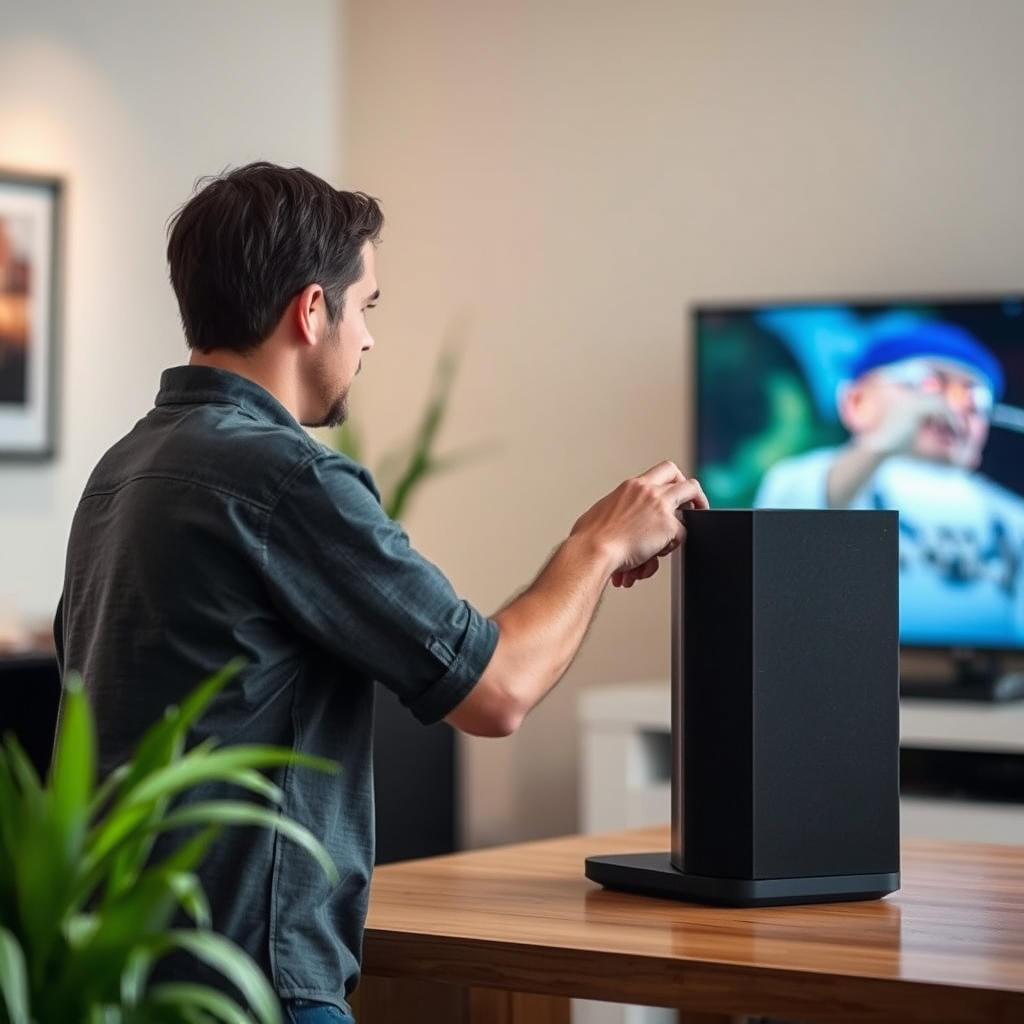
The reset button’s location and function can vary across KEF wireless speaker models. Generally, you will find the reset button on the back or the bottom of the speaker, depending on the model. For instance, the popular KEF LSX has a reset button conveniently positioned on the rear panel, while the KEF Q Series models often incorporate it near the power input. This button is essential for resolving connectivity issues, restoring factory settings, or troubleshooting several operational glitches.
Different models may have unique reset procedures or features, so knowing your specific KEF model is crucial for a successful reset. For example, the KEF LSX and KEF Q Series speakers may have different LED indicators or reset sequences that are specific to their design and technology.
Preparing for the Reset
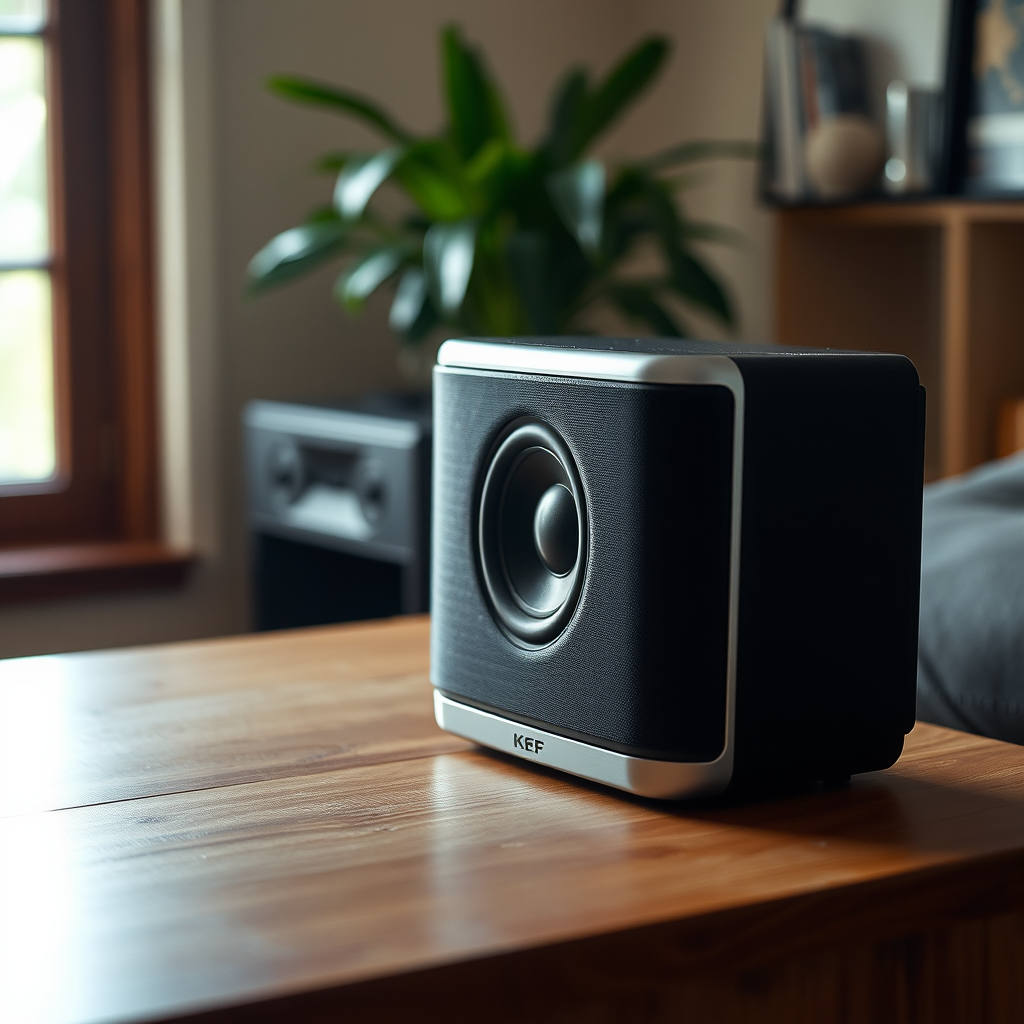
Before you initiate the reset, it’s essential to ensure that the speaker is powered on and connected to a power source. The reset process may not work correctly if the speaker is not adequately powered. Additionally, if you have personalized settings, such as equalizer adjustments or network configurations, consider backing these up, as resetting will erase all custom settings.
If your speaker is paired with other devices or applications, ensure you are ready to reconnect them after the reset to avoid frustration later. This preparation sets the stage for a seamless reset and reconnection process.
Step-by-Step Reset Instructions
Resetting a KEF wireless speaker can be done in a few simple steps. Here’s how to reset different models:
KEF LSX Reset Instructions:
1. Ensure the speaker is powered on.
2. Locate the reset button on the rear panel.
3. Press and hold the reset button for approximately 10 seconds until the LED indicator flashes rapidly.
4. Release the button. The speaker will reboot and restore factory settings.
KEF Q Series Reset Instructions:
1. Power on the speaker and ensure it is connected.
2. Find the reset button, usually positioned near the power input.
3. Press and hold the reset button for 5-10 seconds until the LED indicator changes color.
4. Release the button. The speaker will now reset to factory settings.
KEF R Series Reset Instructions:
1. Turn on the speaker.
2. Locate the reset button, which is typically found on the rear.
3. Press and hold the button for 10 seconds until the speaker emits a sound or the LED indicator blinks.
4. Release the button, and the reset will be complete.
These steps may slightly vary depending on the specific model, so be sure to consult the user manual for any unique instructions.
Comparison of KEF Wireless Speaker Models
| # | Model | Reset Button Location | Factory Reset Time | LED Indicator Behavior |
|---|---|---|---|---|
| 1 | KEF LSX | Rear Panel | 10 seconds | Flashes rapidly |
| 2 | KEF Q Series | Near Power Input | 5-10 seconds | Changes color |
| 3 | KEF R Series | Rear Panel | 10 seconds | Emits sound |
| 4 | KEF LS50 Wireless | Underneath | 5 seconds | Flashes blue |
| 5 | KEF Muo | Rear | 8 seconds | Turns off |
| 6 | KEF EGG | Bottom | 6 seconds | Flashes white |
Troubleshooting Common Issues
After performing a reset, you may encounter some issues. If the reset doesn’t appear to work, ensure that you are correctly following the instructions for your specific model. Check if the LED indicator is functioning as expected during the reset process. If it isn’t, there may be a power issue or a malfunction with the speaker itself.
Connectivity issues often arise post-reset. If your speaker fails to reconnect to Wi-Fi or Bluetooth, try the following steps:
1. Ensure the speaker is within range of your router or device.
2. Restart your router or device to refresh the connection.
3. Re-enter any necessary passwords for Wi-Fi networks.
If issues persist, consult the user manual for model-specific troubleshooting tips, or consider reaching out to KEF support for assistance.
Reconnecting Your KEF Speaker
After a successful reset, your next step is to reconnect your KEF speaker to your preferred audio source. For Wi-Fi connections, follow these steps:
1. Open the KEF Control app or your network settings on the device.
2. Locate your KEF speaker in the list of available devices.
3. Enter the Wi-Fi password if prompted, ensuring you have the correct credentials.
For Bluetooth connections, follow these instructions:
1. Enable Bluetooth on your device and ensure your KEF speaker is powered on.
2. Put the speaker into pairing mode by pressing the Bluetooth button.
3. Select the speaker from the list of available devices on your device.
It’s also important to update the firmware post-reset. This ensures optimal performance and access to the latest features. Check the KEF Control app for any available updates and follow the prompts to install them.
Optimizing Your Speaker After Reset
Once your KEF speaker is reset and reconnected, it’s time to optimize its performance. Consider the following recommendations for enhancing audio quality:
– Adjust Equalizer Settings: Use the KEF app to tailor the sound profile to your preferences. Experiment with treble, bass, and midrange settings to achieve the best audio experience.
– Placement: The location of your speaker can significantly impact sound quality. Position it away from walls and corners to minimize reflections and maximize sound clarity. Ideally, place the speaker at ear level for optimal listening.
Additionally, consider using acoustic panels or soft furnishings in your room to absorb sound and reduce echo, enhancing the overall audio experience.
Additional Resources and Support
For further assistance, KEF provides a wealth of resources. Visit [KEF’s official support page](https://www.kef.com/support) for user manuals, FAQs, and troubleshooting guides tailored to your specific model. Community forums can also be a valuable resource, offering insights and solutions from other users who may have encountered similar issues.
By leveraging these resources, you can ensure an optimal listening experience with your KEF wireless speaker, maximizing both its performance and your enjoyment.
In summary, resetting a KEF wireless speaker is a straightforward process that can resolve many connectivity issues. Always ensure you follow the specific instructions for your model and take advantage of the resources available for optimizing your listening experience. If you encounter any difficulties, don’t hesitate to reach out to KEF support or check online forums for more tips.
Frequently Asked Questions
How do I reset my KEF wireless speaker to factory settings?
To reset your KEF wireless speaker to factory settings, first ensure the speaker is powered on. Then, press and hold the ‘Pairing’ button along with the volume up and volume down buttons simultaneously for about 10 seconds, until you see the LED indicator flash. This process will erase any previous connections and reset all settings.
Why would I need to reset my KEF wireless speaker?
You might need to reset your KEF wireless speaker if you’re experiencing connectivity issues, persistent sound problems, or if you want to pair it with a new device. Resetting can resolve glitches and restore the speaker to its original performance, ensuring a better listening experience.
What should I do if my KEF wireless speaker won’t reset?
If your KEF wireless speaker won’t reset, first check that it is charged and powered on. If the reset method does not work, try unplugging the speaker for a few minutes and then attempt the reset again. If issues persist, consult the user manual or contact KEF customer support for troubleshooting assistance.
Which KEF wireless speaker models can be reset using the same method?
Most KEF wireless speaker models, including the KEF LSX and KEF LS50 Wireless, can be reset using the same method of holding the pairing and volume buttons. However, it’s always best to refer to the specific user manual for your model to confirm the reset procedure, as there may be slight variations.
What are the best practices for maintaining my KEF wireless speaker after a reset?
After resetting your KEF wireless speaker, ensure to keep it updated with the latest firmware to enhance performance and connectivity. Additionally, regularly clean the speaker and store it in a cool, dry place to prevent overheating. Proper maintenance will prolong its lifespan and ensure optimal sound quality.
References
- KEF
https://en.wikipedia.org/wiki/KEF - Google Scholar Google Scholar
https://scholar.google.com/scholar?q=How+to+Reset+a+KEF+Wireless+Speaker - Google Scholar Google Scholar
https://scholar.google.com/scholar?q=KEF+Wireless+Speaker+resetting - https://pubmed.ncbi.nlm.nih.gov/
https://pubmed.ncbi.nlm.nih.gov/ - https://www.bbc.com/news/technology-59119265
https://www.bbc.com/news/technology-59119265 - https://www.theguardian.com/technology/2021/jul/01/how-to-reset-your-wireless-speaker
https://www.theguardian.com/technology/2021/jul/01/how-to-reset-your-wireless-speaker - How to Reset a KEF Wireless Speaker – Search results
https://en.wikipedia.org/wiki/Special:Search?search=How+to+Reset+a+KEF+Wireless+Speaker - https://www.ncbi.nlm.nih.gov/search/research-articles/?term=How+to+Reset+a+KEF+Wireless+Speaker
https://www.ncbi.nlm.nih.gov/search/research-articles/?term=How+to+Reset+a+KEF+Wireless+Speaker