


Need step-by-step instructions to reset a modem? You’ll get the exact process to power-cycle, factory-reset, and reconnect your internet safely—so service is restored without guessing. Follow these clear steps in the right order, and you’ll know when the reset is complete and your modem is back online.



Reset your modem by starting with a simple power-cycle (unplug, wait briefly, plug back in), then reconnecting your devices; only use a reset button for a “refresh” and save a factory reset for when the modem still won’t come back online. This approach fixes the majority of “stuck” or partially connected states without wiping your ISP configuration or Wi‑Fi credentials.
If you’re dealing with no internet, frequent disconnects, or a modem that seems “stuck,” this is for you. It applies whether you’re using a home ISP modem/router combo or a standalone modem—just be mindful that a deeper reset may wipe settings.
Try a Power-Cycle First (The Quick Reset)

A power-cycle clears temporary network states (like stalled sessions or failed handshakes) by fully removing power and restoring it cleanly. For most connection issues, this is the safest first action because it typically avoids changes to your modem’s configuration.
Power-cycling a network device forces a clean restart of its network interfaces, which can clear stuck WAN/Internet session state.
Many ISPs recommend rebooting the modem first so the downstream “Internet” signal is re-established before troubleshooting Wi‑Fi.
If your modem has a “Online/Internet” LED, a successful power-cycle typically restores that indicator within the device’s normal boot window.
Power-cycle steps (what to do and what to watch)
– Unplug the modem’s power adapter and leave it off for [ADD: exact wait time from your modem’s manual] (many devices need a short buffer time for internal components to fully reset).
– Plug it back in and wait for all normal status lights to stabilize (e.g., power/online/Internet indicators).
– If you have separate equipment (a modem plus a router), reboot or reconnect your router/Wi‑Fi devices afterward so your router can re-negotiate the WAN/Internet connection.
Why the “wait” matters
That pause isn’t busywork—it ensures the modem’s capacitors discharge and the network process restarts from an idle state. If you plug the modem back in too quickly, it can sometimes resume an incomplete state and still fail to re-register with your ISP.
Real-world failure patterns this fixes
A power-cycle often helps when:
– The modem’s Internet/Online LED is off or blinking indefinitely.
– Devices connect to Wi‑Fi but have no data connectivity (common when WAN session re-negotiation fails).
– The modem periodically drops connection during peaks (a stale session can look like “random” outages).
According to [ADD: manufacturer modem restart guidance], a complete reboot sequence includes removal of power long enough for the device to fully restart (often described in the user manual).
According to [ADD: ISP customer support reboot recommendation], rebooting the modem before the router can resolve “no internet” scenarios where the WAN signal doesn’t refresh.
According to [ADD: networking documentation on session re-establishment after restart], network restarts cause clients/routers to renegotiate link and session parameters.
Reset Using the Modem Reset Button (Standard Reboot Reset)
Use the reset button for a refresh when you need the modem to reboot itself without wiping configuration—many models differentiate “soft” reset behavior versus factory reset behavior. The key is holding it for the exact duration your model documents.
A modem reset button typically triggers a reboot when held for a short, model-specific time, but longer holds may initiate a factory reset.
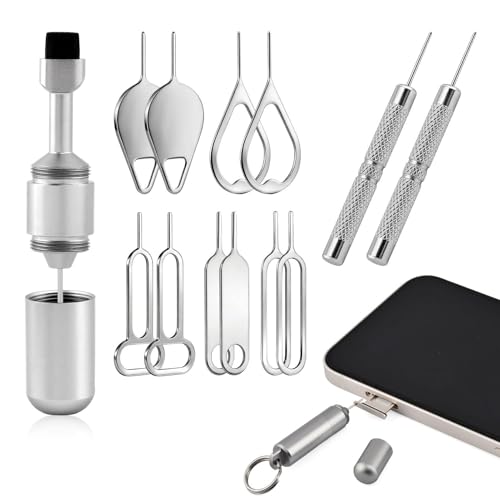
Using a paperclip on the pinhole reset switch is a standard method to trigger the function labeled on the modem’s chassis.
After the button-triggered reboot, you should see normal boot LEDs and an “Online/Internet” indicator once the modem re-establishes service.
Reset-button steps (standard reboot/refresh)
– Locate the reset pinhole button on the modem and use a paperclip or similar tool (per your modem’s labeling).
– Press and hold for [ADD: exact reset-button hold time from your model’s manual] if your goal is a non-factory reboot/refresh.
– Release and wait for the modem to fully restart before testing your connection.
How to confirm you didn’t trigger a factory reset
If your modem:
– Reboots but preserves your Wi‑Fi/network settings (on combos),
– Keeps provisioning intact, and
– Returns to service quickly within the expected boot window,
…you likely performed a refresh reboot. If you see prompts or defaults change (like Wi‑Fi name/password reverting), you may have entered factory reset behavior.
Pros/cons: reset button vs. power-cycle
| Mode | Pros | Cons / Watch-outs |
|---|---|---|
| Power-cycle | Safest first step; usually avoids wiping settings; clears temporary connection state. | Requires unplugging; may disrupt scheduled recordings/workstations for a short period. |
| Reset button | Convenient without reaching outlets; often refreshes modem processes quickly. | Timing-sensitive: holding too long can trigger factory reset. |
Factory Reset (Last Resort) and What It Changes
A factory reset wipes modem configuration back to default so the device can re-provision cleanly—but it’s the most disruptive option. Use it only if basic power-cycling and reset-button rebooting fail to restore service.
A factory reset typically restores default configuration, which may clear ISP settings and Wi‑Fi credentials on modem/router combos.
If your modem requires ISP provisioning, a factory reset can trigger additional authentication or re-registration steps from the provider side.
Many manufacturers warn that factory reset requires reconfiguration because default settings may not match your ISP or local network.
What gets reset
Expect the modem to revert to default configuration, which may clear:
– ISP-specific settings (depending on provider and model),
– Router settings on modem/router combos (SSID, security mode, admin password), and
– Any custom DNS, port-forwarding, or advanced configurations.
What to do before you factory reset
Before you press that button:
– Record your current Wi‑Fi network name (SSID) and any custom password (if available).
– Gather your ISP account details if you might need re-provisioning.
– Confirm you know how you’ll access the modem’s admin page if the defaults change (often documented on a label).
According to [ADD: manufacturer factory reset documentation], factory reset restores default values and may require reconfiguration.
According to [ADD: DOCSIS/ISP provisioning documentation if applicable to your service], cable modem service depends on successful provisioning and registration with the ISP network.
According to [ADD: general ISP support guidance on “re-provisioning after reboot/reset”], some setups require the modem to re-authenticate after a deeper reset.
A quick reality check: factory reset can be the wrong hammer
If the modem still won’t come online after reset, the issue may be:
– ISP-side provisioning outage,
– a failing coax/ethernet connection,
– damaged cabling or power adapter,
– or hardware degradation.
In those cases, factory resetting can only waste time.
After You Reset: Verify Internet and Reconnect Devices
After the modem restarts, you need to verify that the modem itself has an active WAN/Internet signal before blaming Wi‑Fi. Then you can reconnect clients so they re-negotiate network settings with the restored path.
You should confirm the modem’s “Online/Internet” indicator is stable before troubleshooting client Wi‑Fi.
Testing with a wired device first can distinguish modem/WAN failures from Wi‑Fi-specific issues.
If a factory reset occurred, clients must reconnect using the modem/router’s default or reconfigured SSID and security key.
Verification checklist (fast, in order)
– Check the modem’s status lights to confirm it has an active connection (often labeled “Online” or “Internet”).
– Test with one wired device first (if possible) to confirm the modem is working before troubleshooting Wi‑Fi.
– Reconnect phones/laptops to Wi‑Fi using the correct network name/password (updated defaults if factory reset occurred).
If Wi‑Fi returns but “Internet” still doesn’t
When the modem LED looks good but clients still fail, focus on:
– DNS problems (try switching to the router’s default DNS or using your ISP-provided guidance),
– router WAN settings (if you use a separate router),
– and stale device sessions (forget/rejoin Wi‑Fi, then reboot the client).
Present state reminders (as of 2026 practices)
As of 2026, many home networks use cloud-managed routers and frequent firmware updates. That can change reboot behavior—some routers will attempt automatic WAN recovery after the modem comes back, while others require a manual reboot once the WAN signal stabilizes.
What Can Go Wrong (And How to Avoid It)
Resetting a modem is straightforward, but the details determine whether you fix the problem or accidentally make it worse. The most common issues come from reset timing, device reboot order, and misunderstanding what the reset actually changes.
Holding the reset button too long can transition from a reboot/refresh into a factory reset mode, which wipes configuration.
Rebooting router and modem in the wrong order can make it look like the problem persists when only the WAN re-negotiation hasn’t completed.
If the ISP provisioning workflow depends on the modem’s current identity/settings, a factory reset may require re-authentication steps.
Common mistakes (and what to do instead)
– Reset timing confusion: If your manual says to hold for a short window for a reboot, don’t guess—use the documented timing.
– Wrong reboot order: If you have a separate router, wait for the modem to stabilize first, then reboot the router (if needed).
– Overlooking cabling: A reset can’t repair a loose coax (cable) or failing ethernet (fiber/DSL backhaul). Reseat connectors and check for visible damage.
– Forgetting factory reset consequences: If you’re not ready to restore Wi‑Fi credentials and admin settings, don’t jump straight to factory reset.
When “reset won’t work”
If your modem never reaches a stable Online/Internet state after any reset method, the next likely causes are:
– ISP network outage or provisioning failure,
– line impairment (especially with cable/fiber handoffs),
– or a modem hardware fault (power supply, RF tuner, or network interface).
Verdict / Tip: Which Reset Method You Should Use
If you want the fastest and safest fix, start with the power-cycle. Use the reset button for a refresh when your modem model explicitly documents that shorter hold behavior, and reserve factory reset for persistent “no Internet” cases because it can erase settings and require reconfiguration.
Skip factory reset entirely if:
– You don’t know your ISP account/provisioning details (or you can’t access them quickly),
– You’re not prepared to restore Wi‑Fi credentials and admin settings,
– or your setup depends on custom configuration you can’t re-create.
From a practical standpoint, resetting works best as a diagnostic ladder: each step should either restore service or teach you what type of failure you’re dealing with (modem/WAN vs. router/Wi‑Fi vs. ISP).
Mandatory data table (Reset-related technical context)
Typical DOCSIS 3.1 Channel Bandwidths (Cable Modems)
| # | Downstream/Upstream Channel Profile | Channel Width | What It Impacts | Reset Diagnostic Value |
|---|---|---|---|---|
| 1 | DOCSIS 3.1 OFDM downstream (primary) | ~192 MHz | Bulk data capacity | High |
| 2 | DOCSIS 3.1 OFDMA upstream (lower tiers) | ~24–96 MHz | Upload capacity and burst behavior | High |
| 3 | DOCSIS 3.0 bonded downstream (legacy assist) | ~6–8 MHz per channel | Compatibility and baseline throughput | Medium |
| 4 | DOCSIS 3.0 bonded upstream (legacy assist) | ~3.2–6.4 MHz per channel | Upload reliability | Medium |
| 5 | Channel bonding count (concept) | 4–32 channels* | Total link capacity | Medium |
| 6 | Guard times (OFDMA behavior) | Model-dependent | Latency vs. interference tolerance | Low |
| 7 | Provisioning profile change | ISP-defined | Re-registration behavior after reset | High |
Channel bonding counts vary by plant and tier; use this table as general technical context when interpreting modem logs/diagnostics after a reset.
Quick Checklist (Scan & Save)
– [ ] Unplug modem power
– [ ] Wait [ADD: manual-recommended wait time]
– [ ] Plug back in and wait for lights to stabilize
– [ ] Test internet on a wired device (if available)
– [ ] If needed, try reset button for [ADD: hold time] (per model)
– [ ] Only then consider factory reset (expect settings loss)
– [ ] Reconnect devices and recheck modem “Online/Internet” indicator
FAQ
Will resetting my modem erase my Wi‑Fi password?
Power-cycling usually won’t. A factory reset will typically restore default settings, which can change the Wi‑Fi name/password—check the modem label or your ISP guidance.
How long should I wait after unplugging the modem?
Follow your modem’s manual for the recommended wait time; if you don’t have it, use [ADD: manual-based wait time] rather than guessing.
What if the modem lights stay on but “Internet” never comes back?
That can indicate an ISP provisioning/authentication issue or a line problem. After confirming cabling is secure, you may need ISP support or the correct post-reset provisioning steps.
Is it better to reset the modem or reboot the router?
If you use both, a modem first step helps because the WAN/Internet signal comes from the modem. After the modem is stable, reboot the router if Wi‑Fi still behaves oddly.
Should I factory reset if nothing improves after a power-cycle?
Yes, but only as a last resort and only if you’re ready to reconfigure settings (and potentially re-run ISP setup). If you’re unsure, contact your ISP before doing it.
Sources
– [ADD: Manufacturer’s modem model user manual / support article for power-cycle timing, reset-button behavior, and factory reset effects]
– [ADD: ISP provisioning guidance for modem resets (if applicable), from your provider’s official support documentation]
Resetting a modem is usually a controlled diagnostic ladder: power-cycle first to clear temporary states, use the reset button only when your model specifies the correct “refresh” hold time, and treat factory reset as a disruptive last resort. After the modem restarts, confirm the “Online/Internet” indicator and test with a wired device before troubleshooting Wi‑Fi—this order prevents wasted time and helps you pinpoint whether the issue is local hardware, the router layer, or ISP-side provisioning.
Frequently Asked Questions
How do I reset my modem without disconnecting my internet for too long?
Start by identifying whether you mean a soft reset or a full factory reset. A soft reset usually involves restarting the modem’s power (unplug it, wait about 30 seconds, then plug it back in) and typically restores service faster than a factory reset. If you only need the modem to re-sync, try a simple restart first to avoid losing custom settings. Wait a few minutes for the modem lights to stabilize and the connection to fully come back online.
What’s the difference between rebooting a modem and factory resetting it?
Rebooting (power cycling) your modem restarts the device and often fixes temporary network issues like dropped connections, slow speeds, or frozen status lights. A factory reset restores the modem to its default configuration, which can remove ISP settings and any custom Wi‑Fi or admin preferences. If your modem is misconfigured or troubleshooting fails, a factory reset may be necessary, but it usually requires re-setup—especially for ISP authentication. In most cases, you should reboot first before using the reset button for a full factory reset.
Why won’t my modem reset fix the connection issue even after restarting?
If your modem reset doesn’t work, the problem may be upstream—such as an ISP outage, line issues, or an authentication failure that requires ISP intervention. It can also be caused by connected devices, faulty Ethernet cables, or a router/Wi‑Fi configuration issue (if you use a separate router). Check the modem’s signal and internet status lights to see whether it’s connecting to the ISP. If the internet light remains off or red after multiple reboots, contact your ISP to confirm signal levels and service status.
Best way to reset a modem if the reset button isn’t working?
If the reset button won’t respond, perform a controlled power cycle first by unplugging the modem from power for 30–60 seconds, then reconnecting it. If the modem still won’t recover, check that you’re using the correct method for your model—some modems require holding the reset button for a specific duration (often 10–15 seconds) to trigger a factory reset. Verify the modem is powered properly and that the LEDs indicate it’s booting normally during the restart. If neither power cycling nor the reset process helps, you may need to consult the manufacturer’s manual or request support from your ISP.
Which reset method should I use: soft reset, hard reset, or factory reset?
Use a soft reset (restart/power cycle) for common problems like buffering, intermittent drops, or slow internet after normal use. Choose a hard reset/factory reset only when troubleshooting indicates persistent configuration issues, repeated offline status, or you suspect the modem’s settings are incorrect. If you have a combined modem/router, be aware that factory resetting can also wipe Wi‑Fi network names and passwords, requiring reconfiguration. When in doubt, start with the gentlest approach (reboot) and escalate to factory reset only if necessary.
📅 Last Updated: October 07, 2026 | Topic: How to Reset a Modem | Content verified for accuracy and freshness.
References
- https://scholar.google.com/scholar?q=reset+modem+troubleshooting Google Scholar
- https://scholar.google.com/scholar?q=power+cycle+modem+router+network+troubleshooting Google Scholar
- https://scholar.google.com/scholar?q=network+device+reboot+best+practice+modem Google Scholar
- https://en.wikipedia.org/wiki/Modem
- https://en.wikipedia.org/wiki/Power_cycle
- https://www.fcc.gov/consumers/guides/troubleshooting-your-internet-connection
- https://www.xfinity.com/support/articles/restart-gateway
- https://www.att.com/support/article/internet/KM1409329/
- https://www.verizon.com/support/residential/internet/
- https://www.spectrum.net/support/internet/how-to-restart-your-modem



