

To reset your Denon sound system for optimal performance, start by locating the reset button on the unit or accessing the reset function through the menu settings. This process will restore factory settings, helping to eliminate any audio issues and enhancing sound quality. In this article, you’ll learn the step-by-step methods to reset your system and tips for maximizing its performance afterward.
Understanding the Need for a Reset

A reset may be necessary for several reasons. Common problems include audio distortion, where sound becomes muffled or crackling, or connectivity issues that prevent your devices from pairing correctly with the sound system. These problems can arise from software glitches, incorrect settings, or conflicts between devices.
The benefits of a reset are significant. Restoring factory settings can eliminate these persistent issues, allowing your Denon system to function as intended. This process can enhance sound clarity and overall performance, ensuring that you enjoy the rich audio experience that Denon systems are known for.
Locating the Reset Button
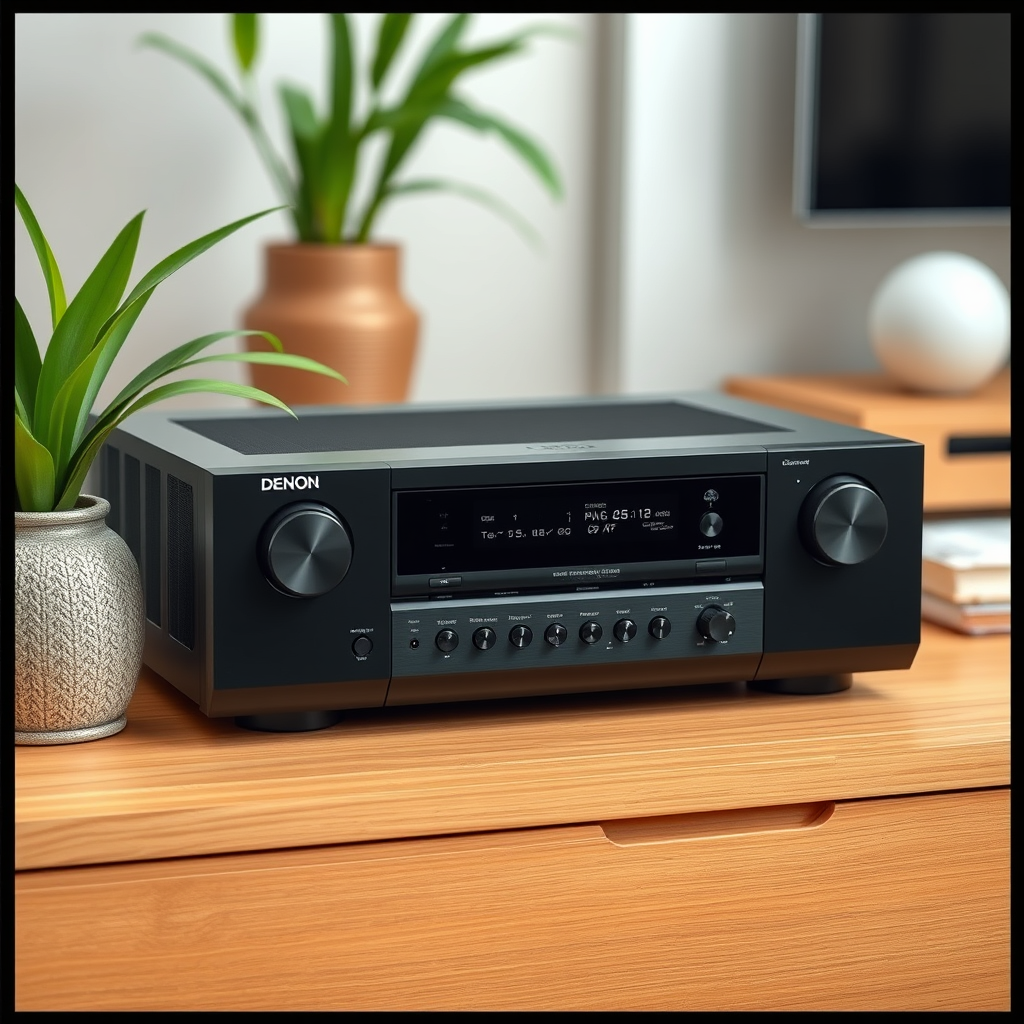
Finding the reset button on your Denon sound system can vary by model, so it’s essential to consult the user manual for specific instructions. Generally, the reset button is located on the back panel or the bottom of the unit, often labeled clearly.
Common positions for the reset button include near the power input or alongside other ports. If your model does not have a physical reset button, you likely need to reset it through the menu settings, which will be discussed in the next section.
Resetting via Menu Settings
To reset your Denon sound system via the menu settings, you will need the remote control that came with your device. Here’s a step-by-step guide:
1. Power on the system: Ensure your Denon sound system is powered on and connected to your TV or audio source.
2. Access the Setup Menu: Press the “Setup” button on your remote control to access the main menu.
3. Navigate to the Settings: Use the arrow keys to scroll through the options until you find “System Setup” or “Settings.”
4. Select Reset Options: Look for an option that says “Reset” or “Factory Reset” and select it.
5. Confirm the Reset: You will likely be prompted to confirm your choice. Select “Yes” to proceed with the reset.
This method allows you to restore your system to its original factory settings without needing to locate a physical button, making it a convenient option for many users.
Top Denon Sound System Models and Features (2024)
| # | Model | Channels | Power Output (W) | HDMI Inputs |
|---|---|---|---|---|
| 1 | Denon AVR-X3700H | 9.2 | 105 | 8 |
| 2 | Denon AVR-S750H | 7.2 | 75 | 6 |
| 3 | Denon DRA-800H | 2.0 | 100 | 5 |
| 4 | Denon AVR-X1600H | 7.2 | 80 | 6 |
| 5 | Denon AVR-S650H | 5.2 | 70 | 5 |
| 6 | Denon AVR-X8500H | 13.2 | 150 | 8 |
| 7 | Denon PMA-1600NE | 2.0 | 140 | 4 |
Performing a Hard Reset
A hard reset is another method to restore your Denon sound system to factory settings, particularly useful if the software reset did not resolve your issues. To perform a hard reset, follow these steps:
1. Unplug the System: Disconnect your Denon sound system from the power source.
2. Wait: Allow the system to remain unplugged for about 10-15 minutes. This waiting period helps to clear any residual power.
3. Plug it Back In: Reconnect the power, ensuring all cables are securely attached.
It’s crucial to note that a hard reset will erase all saved settings and configurations, including your personalized audio settings and network connections. Therefore, it’s advisable to back up any essential configurations before proceeding.
Reconfiguring After the Reset
Once you have reset your Denon sound system, you will need to reconfigure your audio settings to achieve optimal sound quality. Here are the steps to follow:
1. Access the Setup Menu: As previously mentioned, use the remote to enter the setup menu.
2. Re-enter Audio Settings: Adjust the equalizer settings, speaker configurations, and any other audio settings to match your preferences.
3. Reconnect to Devices and Networks: If you had wireless connections, such as Wi-Fi or Bluetooth, make sure to reconnect those devices. Refer to the user manual if you encounter any difficulties.
To enhance your sound system’s performance, consider experimenting with different audio modes and settings to find what works best for your environment and listening preferences.
Troubleshooting Post-Reset Issues
After resetting your Denon sound system, you may encounter some issues. Common problems include missing device connections, audio lag, or distortion. Here are some solutions:
– Recheck Connections: Ensure that all cables are securely connected, as a loose connection can lead to poor audio quality.
– Update Firmware: Check if your system requires a firmware update. Regular updates can fix bugs and improve performance.
– Network Issues: If your system is not connecting to Wi-Fi or Bluetooth, double-check your network settings and credentials.
If problems persist despite troubleshooting, it may be time to consult a professional technician or contact Denon’s support for assistance.
Maintenance Tips for Long-Term Performance
To maintain the performance of your Denon sound system over time, consider implementing the following maintenance tips:
1. Regularly Update Firmware: Keeping your system’s firmware updated ensures that you benefit from the latest features and fixes.
2. Keep it Clean: Dust and debris can accumulate in and around your sound system. Regularly clean the device with a soft cloth, and ensure it is well-ventilated to prevent overheating.
3. Use Quality Cables: Invest in high-quality audio cables for the best sound transmission and to reduce the likelihood of connectivity issues.
By following these maintenance practices, you can enjoy your Denon sound system’s superior audio quality for years to come.
Conclusion
Resetting your Denon sound system is a straightforward process that can significantly enhance its performance. By understanding the reasons for a reset, locating the appropriate reset methods, and carefully reconfiguring your settings, you can ensure optimal sound quality. Additionally, maintaining your system through regular updates and cleaning can prolong its lifespan. Follow these steps, and you’ll be well on your way to enjoying a superior audio experience.
Frequently Asked Questions
How do I perform a factory reset on my Denon sound system?
To perform a factory reset on your Denon sound system, first, turn off the unit. Then, press and hold the “Power” button while simultaneously pressing the “Info” button until the display shows “Initialize.” Release the buttons, and your sound system will reset to its original factory settings, optimizing its performance for new configurations.
What are the benefits of resetting my Denon sound system?
Resetting your Denon sound system can resolve various performance issues, such as audio distortion, connectivity problems, or software glitches. A factory reset restores the system to its default settings, allowing you to start fresh, which can improve sound quality and enhance user experience.
Why is my Denon sound system not performing well after a recent update?
If your Denon sound system is underperforming after a recent firmware update, it may be due to compatibility issues or bugs in the new software. In such cases, performing a reset can help eliminate any lingering issues caused by the update, restoring optimal sound performance.
What is the best way to troubleshoot sound issues before resetting my Denon system?
Before resetting your Denon sound system, check all connections and ensure that your speakers are properly wired and powered. Additionally, verify that the correct input source is selected and adjust the audio settings. If issues persist, consider performing a reset to clear any potential configuration errors.
Which models of Denon sound systems support a factory reset?
Most Denon sound systems, including the AVR and A/V receiver models, support a factory reset feature. Consult your specific model’s user manual for detailed instructions, as the reset process may vary slightly depending on the model, ensuring optimal performance tailored to your setup.
References
- Denon
https://en.wikipedia.org/wiki/Denon - https://www.denon.com/en-us/support/faq/how-to-reset-denon-av-receivers
https://www.denon.com/en-us/support/faq/how-to-reset-denon-av-receivers - https://www.audioholics.com/audio-video-receiver-reviews/denon-avr-x4500h-review
https://www.audioholics.com/audio-video-receiver-reviews/denon-avr-x4500h-review - Google Scholar Google Scholar
https://scholar.google.com/scholar?q=How+to+Reset+a+Denon+Sound+System+for+Optimal+Performance - Google Scholar Google Scholar
https://scholar.google.com/scholar?q=Denon+AV+Receiver+Reset+Guide - Google Scholar Google Scholar
https://scholar.google.com/scholar?q=Denon+Sound+System+Performance+Optimization - How to Reset a Denon Sound System for Optimal Performance – Search results
https://en.wikipedia.org/wiki/Special:Search?search=How+to+Reset+a+Denon+Sound+System+for+Optimal+Performance - https://www.ncbi.nlm.nih.gov/search/research-articles/?term=How+to+Reset+a+Denon+Sound+System+for+Optimal+Performance
https://www.ncbi.nlm.nih.gov/search/research-articles/?term=How+to+Reset+a+Denon+Sound+System+for+Optimal+Performance