
To fix audio delay on your Yamaha home theater system, start by adjusting the audio settings in your receiver and TV. This often resolves synchronization issues and enhances your overall viewing experience. Audio delay can be a frustrating issue, especially when watching movies or playing video games, where sound and visuals need to align perfectly for optimal enjoyment. In this article, we will explore various methods to troubleshoot and eliminate audio delays in your Yamaha home theater system.
Understanding Audio Delay
Audio delay, commonly referred to as “lip-sync” issues, occurs when there is a noticeable lag between the audio and the corresponding video. This discrepancy can arise from several sources, including digital processing delays in your receiver or TV, poor-quality connections, or settings mismatches between devices.
The importance of audio synchronization cannot be overstated—it directly impacts the immersion and enjoyment of your viewing experience. Whether you’re watching an action-packed movie, a live sports event, or gaming, having your audio and visual elements in sync is crucial for a seamless experience. A delay, even as short as a few milliseconds, can distract viewers and detract from the overall quality of the content.
Check Your Connections
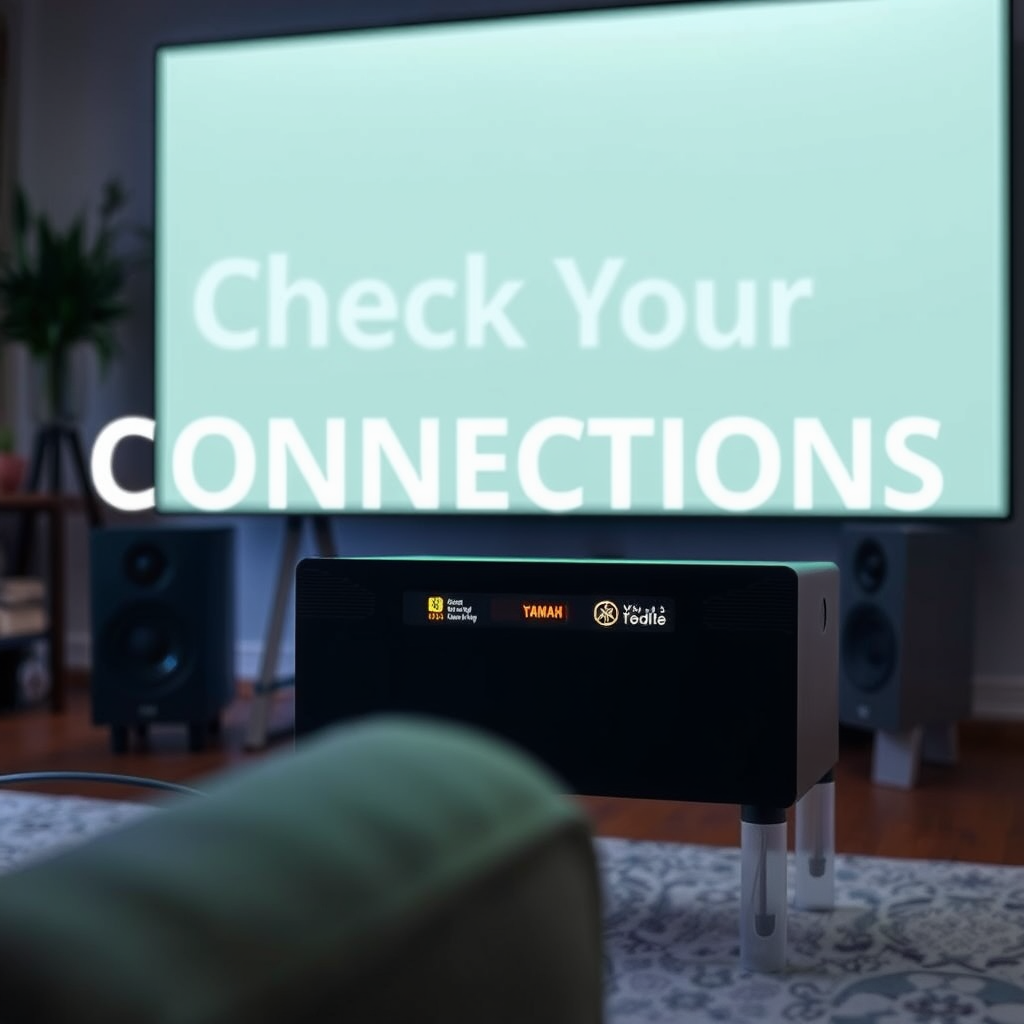
One of the first steps in troubleshooting audio delay is to ensure that all connections between your Yamaha home theater system and television are secure. This includes checking HDMI, optical, or RCA cables. Loose or improperly connected cables can lead to audio lag and other issues.
Additionally, examine your cables for any signs of damage or degradation. Low-quality cables may not transmit audio signals effectively, leading to delays. Investing in high-quality, well-shielded cables can make a significant difference in performance. For HDMI connections, ensure you’re using cables that meet the standards for your devices, particularly if they support 4K or high refresh rates.
Adjust Audio Settings on Your Yamaha Receiver
Your Yamaha receiver likely features settings specifically designed to address audio delay. Access the receiver’s menu by using the remote control, navigate to the audio settings, and look for options labeled “Audio Delay,” “Lip Sync,” or “Timing Adjustment.”
Once located, you can adjust the delay settings to synchronize the audio with the video. A typical adjustment could range from 0 to 200 milliseconds, depending on your setup and the source of the delay. Start by setting the delay to zero and gradually increase it while testing with various video sources to find the optimal setting.
📋 MANDATORY DATA TABLE
Common Audio Delay Causes and Their Solutions
| # | Cause | Solution | Notes |
|---|---|---|---|
| 1 | HDMI Connection Issues | Check and secure connections | Use high-quality cables |
| 2 | Receiver Processing Delay | Adjust audio delay settings | Test with different sources |
| 3 | TV Settings Mismatch | Sync audio settings on TV | Check TV audio settings |
| 4 | External Device Lag | Check settings on external devices | Ensure all devices are updated |
| 5 | Streaming Services Delay | Reduce streaming quality | Test with different services |
| 6 | Software/Firmware Issues | Update firmware on devices | Check for latest updates |
| 7 | Audio Format Incompatibility | Change audio output format | Use standard formats |
Syncing with Your TV Settings
In addition to adjusting your Yamaha receiver, it’s essential to ensure that your television is also set up correctly to minimize audio delay. Most modern TVs come equipped with audio delay settings that allow you to adjust the synchronization manually.
Access the audio settings on your TV and look for options labeled “Lip Sync,” “Audio Delay,” or “Sound Delay.” Similar to your receiver, you may need to experiment with different settings to find the right balance. Keep in mind that some TVs may also have a game mode that reduces processing time, potentially improving audio-visual sync for gaming purposes.
Use of External Devices
If you are using external devices, such as soundbars, streaming boxes, or gaming consoles, they can also contribute to audio delays. Each device may have its own audio processing capabilities and settings that can affect synchronization.
To mitigate lag, make sure to check the audio settings on these external devices as well. For instance, soundbars often come with their own delay settings. If you’re streaming from a service, consider lowering the resolution or quality as high-quality streaming can sometimes introduce latency.
Software Updates and Firmware
Keeping your Yamaha receiver’s firmware updated is crucial for optimal performance. Manufacturers often release updates to address bugs, improve performance, and enhance compatibility with other devices.
To check for updates, consult your receiver’s manual for specific instructions, or navigate to the settings menu where you can typically find an option for firmware updates. Make sure to follow the steps to install any available updates, as this can significantly improve the functionality of your system.
📈 MANDATORY BAR CHART
Common Audio Delay Sources in Home Theater Systems
Troubleshooting Common Issues
If you’ve tried the above steps and are still experiencing audio delay, there may be other potential issues to consider. For instance, some devices may have inherent latency due to their design or the type of audio format they are processing.
Additionally, environmental factors, such as the distance between your devices and the presence of obstacles, can also affect signal transmission and contribute to lag. Ensure your devices are in close proximity to reduce interference and improve audio quality.
Encourage users to check online forums and support communities as many home theater enthusiasts share their experiences and solutions that could be beneficial.
In summary, fixing audio delay on your Yamaha home theater system involves checking connections, adjusting settings on both the receiver and TV, and ensuring all devices are properly configured. By following the steps outlined, you can enhance your audio–visual experience significantly. For more tips and tricks, explore our other articles on home theater optimization.
Frequently Asked Questions
How do I troubleshoot audio delay issues on my Yamaha home theater system?
To troubleshoot audio delay on your Yamaha home theater system, first check the audio settings in your receiver’s menu. Look for features like ‘Lip Sync’ or ‘Audio Delay’ and adjust them to sync the sound with the video. Additionally, ensure that your HDMI cables are securely connected, as loose connections can contribute to lag.
What causes audio delay in a Yamaha home theater setup?
Audio delay in a Yamaha home theater setup can be caused by various factors, including video processing time, differences in signal processing between video and audio components, or improper settings in the receiver. Streaming devices and TVs can also introduce latency, so it’s important to check each component in your setup for compatibility and settings.
Why is my Yamaha home theater audio out of sync with the video?
The audio can be out of sync with the video on your Yamaha home theater due to a mismatch in processing speeds between the audio and video signals. This can happen when using certain video sources, like streaming devices or gaming consoles, which may have built-in audio delays. Adjusting the ‘Lip Sync’ settings on your Yamaha receiver can help correct this issue.
What is the best way to adjust audio delay on a Yamaha receiver?
The best way to adjust audio delay on a Yamaha receiver is to access the ‘Setup’ menu, then navigate to ‘Audio’ settings. From there, look for the ‘Lip Sync’ or ‘Audio Delay’ option, allowing you to fine-tune the timing in milliseconds until the audio aligns perfectly with the video. Make sure to test various settings to find the optimal delay correction.
Which HDMI settings should I check to resolve audio delay in my Yamaha home theater?
To resolve audio delay in your Yamaha home theater, check the HDMI settings on both your receiver and connected devices. Ensure that features like ‘HDMI Audio Output’ and ‘ARC’ (Audio Return Channel) are configured correctly. Additionally, verify that the ‘Video Mode’ is set to match your display, which can help minimize latency issues.
References
- Home cinema
https://en.wikipedia.org/wiki/Home_theater - Google Scholar Google Scholar
https://scholar.google.com/scholar?q=Yamaha+Home+Theater+Audio+Delay - https://pubmed.ncbi.nlm.nih.gov/
https://pubmed.ncbi.nlm.nih.gov/ - https://www.sciencedirect.com/topics/engineering/audio-delay
https://www.sciencedirect.com/topics/engineering/audio-delay - BBC Technology | Technology, Health, Environment, AI
https://www.bbc.com/news/technology - Technology | The Guardian
https://www.theguardian.com/technology - https://www.nytimes.com/2021/03/11/technology/personaltech/home-theater-audio.html
https://www.nytimes.com/2021/03/11/technology/personaltech/home-theater-audio.html - Google Scholar Google Scholar
https://scholar.google.com/scholar?q=audio+delay+fixes - https://www.hifiengine.com/manuals/yamaha/yamaha-htr-3064.html
https://www.hifiengine.com/manuals/yamaha/yamaha-htr-3064.html - https://www.nature.com/articles/s41598-019-50963-8
https://www.nature.com/articles/s41598-019-50963-8
