
Resetting your Bose home audio system is a straightforward process that can help resolve various audio issues and restore optimal performance. This guide will walk you through the necessary steps to reset your system effectively, providing you with the knowledge to troubleshoot common problems.
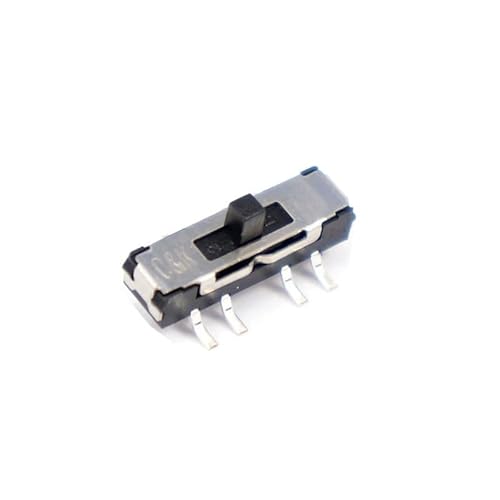

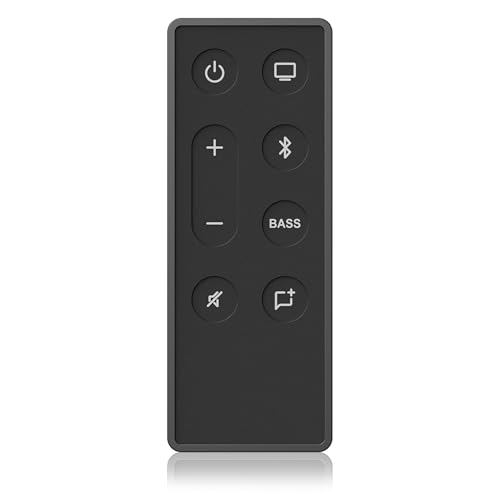

Understand the Reset Options
Before diving into the reset process, it’s essential to understand that different Bose audio system models have varying reset procedures. Whether you own a Bose Soundbar, a Lifestyle system, or a standalone speaker, the reset instructions may differ significantly. Therefore, identifying your specific model is critical to ensuring an efficient reset.
There are primarily two types of resets you can perform on a Bose home audio system: a factory reset and a soft reset.
– Factory Reset: This option restores the system to its original factory settings, erasing all customizations, including saved presets and user configurations. It is ideal for resolving more severe issues or when preparing to sell or dispose of the device.
– Soft Reset: This method is generally less invasive and can often be performed without losing any personalized settings. It is a quick fix for minor audio glitches and connectivity problems.
Make sure to refer to your user manual or the Bose website for specific reset instructions tailored to your model.
Preparing for the Reset
Preparing for the reset is crucial to avoid any data loss and ensure a smooth process. Here are some essential steps to follow:
1. Ensure All Devices Are Powered On: Confirm that your Bose system and any connected devices (such as TVs, Bluetooth devices, etc.) are powered on and connected properly. This step is vital to avoid interruptions during the reset process.
2. Backup Custom Settings or Presets: If your system allows it, take note of any custom settings or presets you have configured. In many cases, a factory reset will erase these configurations, and having them documented will help you restore them easily afterward.
3. Disconnect Unnecessary Devices: To streamline the reset process, disconnect any non-essential devices from the audio system. This can help prevent complications during the reset.
Step-by-Step Guide to Resetting
The following steps provide a general guideline for resetting a Bose home audio system. However, always refer to your specific model’s user manual for exact instructions.
1. Locate the Reset Button or Function:
– For systems with a physical reset button, this is usually found on the back or underside of the device. Press and hold the button for about 10 seconds.
– For models without a dedicated reset button, use the remote control. Go to the settings menu, find the reset option, and select it.
2. Follow the On-Screen Prompts: If your model features an on-screen menu, follow the prompts to complete the reset process. This may include confirming that you want to proceed with the reset.
3. Wait for the System to Restart: After initiating the reset, allow the system to power down and restart. This may take a few moments.
4. Reconfigure Your Settings: Once the system restarts, you will need to set it up again, including reconnecting to Wi-Fi or Bluetooth and reapplying any custom settings.
Popular Bose Home Audio System Models (2024)
| # | Model | Type | Release Year | Rating |
|---|---|---|---|---|
| 1 | Bose Soundbar 700 | Soundbar | 2018 | ★★★★☆ |
| 2 | Bose Home Speaker 500 | Smart Speaker | 2018 | ★★★★★ |
| 3 | Bose SoundLink Revolve+ | Portable Speaker | 2017 | ★★★★☆ |
| 4 | Bose QuietComfort 35 II | Headphones | 2017 | ★★★★★ |
| 5 | Bose SoundTouch 30 | Wireless Speaker | 2015 | ★★★★☆ |
| 6 | Bose Lifestyle 650 | Home Theater System | 2016 | ★★★★☆ |
| 7 | Bose SoundLink Mini II | Portable Speaker | 2015 | ★★★★☆ |
Troubleshooting Common Issues
Identifying signs that indicate a reset may be necessary can save you time and frustration. Common issues that may require a reset include:
– Sound Issues: If you experience distorted audio, intermittent sound, or no sound at all, a reset can often resolve these problems.
– Connectivity Problems: Difficulty connecting to Bluetooth devices, Wi-Fi networks, or streaming services can often be remedied with a reset.
– Unresponsive System: If your audio system freezes or fails to respond to commands, it may be time for a reset to restore functionality.
– Failed Software Updates: If an update fails to install correctly, the system may behave erratically, prompting a reset.
Performing a reset can be an effective and quick solution for these types of issues.
Post-Reset Setup
After successfully resetting your Bose home audio system, you will need to reconfigure your audio settings and preferences. Here’s how to get started:
1. Reconnect to Wi-Fi/Bluetooth: Follow the prompts on your device to reconnect to your Wi-Fi network or pair with Bluetooth devices. This step is essential for streaming and accessing online content.
2. Reapply Custom Settings: If you backed up your settings, now is the time to apply them. This may include sound profiles, equalizer settings, and any saved presets.
3. Test the System: Once everything is reconfigured, conduct a thorough test of all functionalities. Play various audio sources and check all features to ensure they are working correctly.
4. Make Adjustments as Needed: If you notice any discrepancies or issues, consider adjusting settings or consulting the user manual for further guidance.
Common Issues Resolved by Resetting Bose Audio Systems
Additional Support Resources
If you find yourself needing further assistance, Bose offers multiple support resources to guide you:
1. Official Support Website: This is the most reliable source for model-specific FAQs, troubleshooting tips, and downloadable user manuals. You can navigate to the support section by visiting the Bose website and entering your model number.
2. Community Forums: Engaging with community forums can provide insights from other Bose users who may have experienced similar issues. These forums often contain shared experiences and solutions that could be beneficial.
3. Customer Support: If all else fails, don’t hesitate to reach out to Bose customer support. Their representatives are well-trained and can assist you in addressing more complex problems that simple resets cannot resolve.
Properly resetting your Bose home audio system can significantly improve its performance and resolve ongoing issues. By following these steps, you can ensure your audio experience remains exceptional. If you encounter persistent problems, don’t hesitate to reach out to Bose customer support for further assistance.
Frequently Asked Questions
How do I perform a factory reset on my Bose home audio system?
To perform a factory reset on your Bose home audio system, locate the “Settings” or “Menu” button on your remote control. Navigate to “System” and select “Reset” or “Factory Reset.” Confirm your choice, and your system will return to its original settings, erasing any saved configurations.
Why would I need to reset my Bose home audio system?
You may need to reset your Bose home audio system if you are experiencing persistent issues such as connectivity problems, audio distortion, or if you plan to sell or give away the device. A reset can help resolve these problems by restoring the system to its default settings.
What should I do if my Bose home audio system won’t reset?
If your Bose home audio system won’t reset, first ensure that it is powered on and that you’re following the correct reset procedure for your specific model. If issues persist, try unplugging the system for a few minutes before attempting the reset again. If all else fails, consult the user manual or contact Bose customer support for assistance.
Which Bose home audio models support a reset function?
Most Bose home audio models, including the SoundTouch series, Bose Home Speaker 500, and the Bose Lifestyle systems, support a reset function. However, the exact steps may vary slightly depending on the model, so it’s best to refer to your specific model’s user manual for detailed instructions.
What are the consequences of resetting my Bose home audio system?
Resetting your Bose home audio system will erase all personalized settings, including saved Wi-Fi networks, Bluetooth pairings, and audio preferences. This means you will need to set up the system again from scratch, but it can also resolve persistent issues and improve performance, making it a useful troubleshooting step.
References
- Customer Support
https://www.bose.com/en_us/support/article/how_to_reset_your_bose_product.html - Customer Support
https://www.bose.com/en_us/support/article/bose_home_audio_systems.html - Google Scholar Google Scholar
https://scholar.google.com/scholar?q=reset+Bose+Home+Audio+System - Google Scholar Google Scholar
https://scholar.google.com/scholar?q=how+to+reset+audio+system - https://www.britannica.com/technology/audio-system
https://www.britannica.com/technology/audio-system - https://www.lifewire.com/how-to-reset-your-bose-soundbar-4682611
https://www.lifewire.com/how-to-reset-your-bose-soundbar-4682611 - Google Scholar Google Scholar
https://scholar.google.com/scholar?q=How+to+Reset+a+Bose+Home+Audio+System - How to Reset a Bose Home Audio System – Search results
https://en.wikipedia.org/wiki/Special:Search?search=How+to+Reset+a+Bose+Home+Audio+System - https://www.ncbi.nlm.nih.gov/search/research-articles/?term=How+to+Reset+a+Bose+Home+Audio+System
https://www.ncbi.nlm.nih.gov/search/research-articles/?term=How+to+Reset+a+Bose+Home+Audio+System



10 thoughts on “How to Reset a Bose Home Audio System: Simple Steps”