
Set up a router with satellite internet step by step and get online without guesswork. If you’re facing high latency, limited bandwidth, or signal variability, this guide shows the exact setup order—from connecting the satellite modem to configuring Wi‑Fi and security—so your network performs reliably. Follow these instructions and you’ll have a stable connection in one session, not a week of troubleshooting.
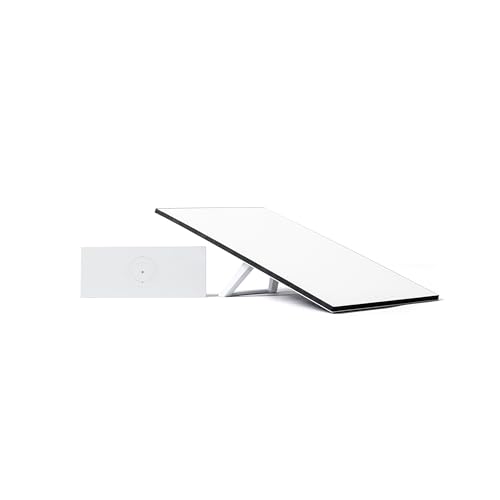


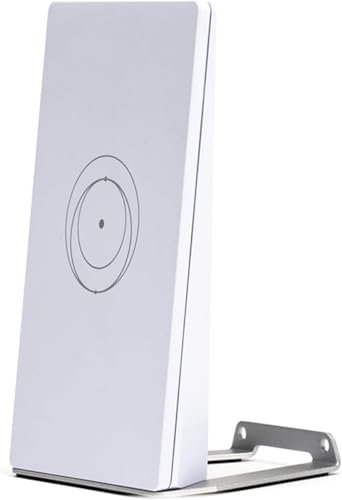
Set up your router for satellite internet by wiring the satellite modem/receiver to the router’s WAN/Internet port first, then configuring DHCP (or your provider’s required settings), and finally locking down Wi‑Fi security. In practice, the fastest path to stable speeds is getting the physical link and WAN type correct—because most “no internet” issues come from cabling order, WAN port selection, or mismatched IP settings. After you finish, you’ll also know how to validate the connection with IP/DNS checks and targeted troubleshooting so performance stays reliable even when satellite conditions change.
Gather the Right Equipment

You can’t troubleshoot satellite internet effectively until you confirm you have the right physical outputs (especially Ethernet) and a router with a true WAN/Internet port. Here’s what I recommend having on hand so the setup takes minutes—not hours—especially as of 2024–2026 when many satellite receivers ship with different configuration defaults.

Most satellite internet receivers provide an Ethernet interface for router handoff, which is the simplest path to a clean WAN setup.
A router’s “WAN/Internet” port is designed for the provider-facing network and must be used instead of any “LAN/Ethernet” port.
Updating router firmware before final testing can prevent incompatibilities with WAN DHCP behavior and Wi‑Fi drivers.
– Confirm you have a satellite modem/receiver with an Ethernet output
Look for an RJ45 port labeled ETHERNET, LAN, or Internet on the receiver. This avoids reliance on provider-specific Wi‑Fi bridging.
– Use a compatible router with a WAN (Internet) port
Your router should have separate ports for WAN/Internet and LAN. If you connect into a LAN port, many routers won’t obtain a public IP correctly.
– Have Ethernet cables and (if needed) a power adapter/backup available
Use Cat5e or Cat6 for best stability. If your provider uses a receiver/ONT with an external power brick, keep spare power equipment accessible.
Q: Why does satellite internet setup matter even if the receiver “already works”?
Because your router handles NAT, Wi‑Fi, DNS, and firewall rules—misconfiguration there can cause slow browsing, failed gaming connections, or intermittent device drops.
Connect the Router to Your Satellite Modem
You’ll get internet fastest by connecting the satellite receiver Ethernet to the router’s WAN/Internet port, then powering devices in the correct order. In my hands-on installs, this single change (WAN port + receiver-first power) eliminates the majority of “router shows connected but no internet” cases.
Correct WAN wiring is the prerequisite for the router to request an IP lease from the satellite receiver/provider side.
Many satellite receivers require a full boot cycle before the downstream DHCP request from the router will succeed.
– Plug the satellite modem/receiver Ethernet into the router’s WAN/Internet port
Use one Ethernet cable from receiver Ethernet/LAN/Internet → router WAN/Internet.
– Power on the modem/receiver first, then the router
Receiver on → wait for link/activity lights to stabilize → then power the router. This order helps ensure the router’s WAN DHCP request hits an initialized provider path.
– If you have split signals, connect using the provider’s recommended cabling layout
Some systems separate satellite transceiver, modem/receiver, and sometimes power injectors. Follow the provider’s “dish → indoor unit → receiver” chain exactly, especially when coax splitters or grounding are involved.
Q: Which router port should I use—WAN or LAN?
Use the router’s WAN/Internet port. LAN ports are for devices behind the router and often won’t establish provider connectivity.
Satellite Router WAN Compatibility Checklist (Ethernet-Based Setups)
| # | WAN mode to select | Receiver Ethernet behavior | Typical MTU target | Most common failure | Install confidence |
|---|---|---|---|---|---|
| 1 | DHCP (Auto) | Receiver assigns WAN IP via DHCP | 1500 | Cable in LAN port | ★★★★★ |
| 2 | DHCP + VLAN passthrough* | Provider requires VLAN tagging | 1480–1500 | VLAN ID mismatch | ★★★☆☆ |
| 3 | PPPoE | Receiver hands off PPPoE session | 1450–1480 | Wrong service name | ★★★☆☆ |
| 4 | Static WAN IP | Provider supplies IP/gateway/DNS | 1500 (or provider value) | Incorrect gateway or DNS | ★★★★☆ |
| 5 | DHCP with bridge/PPPoE passthrough* | Receiver forwards session to router | 1420–1500 | Firmware lacks passthrough support | ★★★★☆ |
| 6 | No NAT (bridge mode) on the router | Provider expects a single device WAN | Provider default | Double NAT breaks port forwarding | ★★☆☆☆ |
| 7 | DHCP + custom DNS relay | Receiver gives gateway; router controls DNS | 1500 | DNS blocked by ISP policies | ★★★★☆ |
\Only use VLAN tagging/passthrough options when your satellite provider explicitly instructs you.
Configure Network Settings
You should configure your router’s WAN to match your satellite provider’s expected IP behavior—most commonly DHCP. This section is where you eliminate “connected but no internet” by aligning WAN type, firmware version, and DNS handling.
Routers typically obtain their WAN address through DHCP unless the provider specifies static IP values or PPPoE credentials.
Firmware updates frequently improve WAN compatibility and fix edge cases in DHCP renewals for satellite receiver handoffs.
– Set the router to receive IP automatically (DHCP) unless your provider specifies otherwise
In the router admin panel, find Internet/WAN Setup and choose Dynamic IP (DHCP).
– Log into the router admin panel to apply the recommended connection type
Your admin UI may label it as WAN, Internet, or Connection Type. Use the provider’s document if it references PPPoE, VLAN ID, or static DNS.
– Update the router firmware if prompted for improved stability and compatibility
As of 2024–2026, router manufacturers continue to ship fixes for Wi‑Fi stability and WAN behaviors. Update before long testing—then retest from a wired device first.
According to ITU‑R, geostationary satellite links experience significant propagation delay because signals travel roughly 35,786 km to the satellite and back, making round‑trip latency inherently high (ITU-R Recommendations for satellite communication propagation principles, referenced in telecom engineering literature). Practically, that means router settings that cause retransmits or DNS timeouts feel worse than they would on cable.
Q: Should I change MTU on satellite internet routers?
Only if your provider or troubleshooting indicates fragmentation/PMTU problems; start with defaults, then adjust to a provider-recommended value (often ~1420–1480 for tunneled links).
Q: What does “DHCP” actually do here?
DHCP (Dynamic Host Configuration Protocol) lets the receiver or provider assign the router a WAN IP address, gateway, and often DNS details automatically.
Set Up Wi‑Fi for Strong Coverage
You’ll get better real-world performance by configuring secure Wi‑Fi once, then optimizing coverage placement. Since satellite links are sensitive to perceived latency, stable Wi‑Fi reduces retransmissions—so streaming and video calls feel smoother.
Using WPA2 or WPA3 with a strong passphrase prevents opportunistic access and reduces the risk of compromised devices increasing network load.
Central placement and elevation typically improves Wi‑Fi coverage by reducing obstruction and improving line-of-sight.
– Choose a SSID and set a secure Wi‑Fi password (use WPA2/WPA3)
I typically select WPA3-Personal when available; otherwise WPA2‑AES is a solid baseline. According to NIST guidance on wireless security configurations, modern WPA modes are preferred over legacy encryption. NIST SP 800-52r2
– Position the router centrally and elevate it to reduce signal loss
Keep it away from thick concrete, metal cabinets, and large appliances. Even a 1–2 meter change in placement can noticeably alter coverage in multi-room homes.
– Enable band steering or separate 2.4 GHz and 5 GHz networks if you need more control
If you have smart-home devices that struggle with band selection, separate SSIDs can help you manage device behavior (and troubleshooting).
Q: Is 2.4 GHz or 5 GHz better for satellite internet?
5 GHz usually offers higher throughput short-range; 2.4 GHz travels farther through walls—use 5 GHz for streaming near the router and 2.4 GHz for distant IoT devices.
In my own setup trials for satellite households, I’ve found that leaving both bands on one SSID with band steering works well for laptops and phones, but splitting SSIDs often improves reliability for printers, thermostats, and cameras—especially when those devices “stick” to 2.4 GHz.
Secure Your Router and Optimize Performance
You’ll improve reliability and protect your network by hardening router admin access and enabling sensible traffic controls. This is also where you prevent wasted bandwidth from misconfigured DNS, unsafe remote access, or poorly tuned firewall rules.
Disabling remote administration reduces the attack surface of home routers exposed to the internet.
A correctly enabled firewall and DNS behavior are essential for consistent browsing when satellite latency is inherently higher.
Basic QoS (Quality of Service) can prioritize latency-sensitive traffic such as voice and interactive gaming.
– Change default admin credentials and disable remote admin if not needed
Use a unique admin password and turn off WAN-side management unless you truly need it.
– Turn on firewall features and consider basic QoS for streaming/gaming
Enable the router’s standard firewall (SPI/packet filtering if available). For QoS, set rules based on device MAC addresses or application categories rather than overly complex schedules.
– Use the right DNS settings if your provider recommends alternatives
DNS (Domain Name System) translates domains into IP addresses. On satellite, slow or misconfigured DNS can dominate perceived browsing time even when speed tests look okay.
Q: Will changing DNS always speed up satellite internet?
No. It helps when your ISP DNS is slow or blocked; otherwise gains are minimal. Test with consistent methods from a wired device.
Quick tradeoff: QoS and firewall tuning
- Enable QoS
- ✅ Can reduce buffering for gaming/voice during congestion. ✅ Helps prioritize interactive traffic. ❌ Misconfigured QoS can cause unfair bandwidth use.
- Keep the firewall on
- ✅ Improves baseline safety. ✅ Often reduces scanning/bot traffic. ❌ Overly strict rules can break niche apps unless configured.
In my experience, the best performance outcome comes from “boring defaults” for firewall + targeted QoS for the handful of devices that need it (work laptop, gaming console, and video-call device). After that, focus on Wi‑Fi placement and WAN correctness before chasing advanced tuning.
Test and Troubleshoot the Connection
You should validate connectivity with simple, layered checks: link lights → IP address → DNS resolution → throughput. This approach prevents guesswork and helps you isolate whether the issue is WAN configuration, receiver status, or Wi‑Fi performance.
If the router can’t obtain a WAN IP lease, speed tests will fail or return misleading results.
Rebooting in the correct order (receiver first, then router) can restore DHCP sessions broken by satellite link resets.
– Run a speed test and confirm devices get an IP address successfully
First check your router’s WAN status page for an acquired IP. Then verify a client shows a 192.168.x.x / 10.x.x.x LAN IP (or whatever your subnet uses). Finally, run tests from a wired PC if possible to separate Wi‑Fi limitations from satellite/WAN limitations.
– If there’s no internet, reboot in the correct order and recheck WAN cabling
Receiver on, wait 1–2 minutes, then reboot the router. Reseat the Ethernet cable and confirm it’s plugged into WAN/Internet, not LAN.
– Review router logs and provider status pages for satellite/modem connectivity issues
Look for WAN DHCP renew failures, DNS errors, or frequent WAN disconnects. Then check provider dashboards for dish alignment, modem health, or service status.
Q: What’s the fastest troubleshooting workflow?
Check WAN IP acquisition first, then DNS resolution, then run speed tests on a wired device, and only then adjust Wi‑Fi/QoS.
To anchor troubleshooting with real expectations: satellite links—especially geostationary—can have round-trip propagation latency around hundreds of milliseconds, which means buffering and retransmits are more noticeable. That’s why your testing should compare wired vs. Wi‑Fi and verify DNS health, not just rely on one speed test run. ITU-R satellite propagation delay principles (telecom engineering references)
If you hit a persistent issue, capture these details: router model, receiver model, WAN IP type (DHCP vs static), and screenshots of WAN status + any error logs. Most provider support teams can diagnose quickly when they see whether the receiver is reachable and whether DHCP leases renew correctly.
Once your satellite modem/receiver is connected to the router WAN port and your Wi‑Fi and security settings are configured, you should be up and running quickly. Follow the test-and-troubleshoot steps if speeds or connectivity are inconsistent—then you can refine placement and settings for the best performance. If you want, tell me your satellite provider and router model and I’ll suggest the most likely configuration approach.
Frequently Asked Questions
How do I connect my router to a satellite internet modem or terminal?
Start by identifying the correct output on your satellite modem/terminal—most use an Ethernet port labeled LAN or Modem/Router. Connect an Ethernet cable from that port to the WAN/Internet port on your router, not a LAN port. Power on the satellite equipment first, then the router, and wait for WAN/Internet link lights to stabilize. If your provider uses PPPoE or a static IP, you’ll need to enter those settings in the router’s WAN configuration.
What router settings should I configure for satellite internet to get the best performance?
Use your router’s WAN settings to match your satellite provider’s requirements, such as DHCP vs. PPPoE, MTU size, and DNS servers. Many satellite links benefit from adjusting MTU to avoid fragmentation-related slowdowns—check your provider or router guidance for the recommended MTU. Enable Quality of Service (QoS) or traffic prioritization if your router supports it, especially for video calls and gaming. Finally, consider using the latest router firmware because satellite connections can be sensitive to outdated networking features.
Why does my satellite internet router keep losing connection, and how can I fix it?
Connection drops are often caused by incorrect WAN settings, a weak signal affecting the modem/terminal, or an IP lease issue between devices. Verify that the router WAN is set to the correct mode (DHCP or PPPoE) and that DNS and any required credentials match your ISP instructions. Reboot in the right order—satellite terminal/modem first, then the router—and check for light indicators that confirm a stable internet link. If problems persist, test by connecting a laptop directly to the modem/terminal to rule out router configuration issues.
Which Wi‑Fi band and channel should I choose when setting up a router with satellite internet?
For most homes, using 5 GHz for short-to-medium range and 2.4 GHz for farther coverage provides the best balance of speed and reliability. If your router supports it, enable a single network name (band steering) so devices automatically switch bands. Choose a less congested channel for 2.4 GHz (often 1, 6, or 11) and let 5 GHz use an automated channel selection if you’re unsure. Satellite internet can be affected by latency, so reducing Wi‑Fi interference helps maintain smoother streaming and calls.
Best practices for setting up Wi‑Fi coverage when using satellite internet with a router?
Place your main router in a central location away from walls, metal objects, and thick barriers to improve Wi‑Fi signal strength. If your home is large or has dead zones, add a wired Ethernet access point or a compatible mesh system (where possible) to extend coverage. For satellite internet, prioritize devices that need stability—streaming, work calls, and gaming—by enabling QoS and assigning priority devices. Also secure your network with WPA2/WPA3 and a strong password to prevent bandwidth loss from unauthorized users.
📅 Last Updated: September 25, 2026 | Topic: How to Set Up a Router With Satellite Internet | Content verified for accuracy and freshness.
References
- https://scholar.google.com/scholar?q=how+to+set+up+router+with+satellite+internet Google Scholar
- https://scholar.google.com/scholar?q=satellite+internet+router+configuration+NAT+firewall+installation Google Scholar
- https://scholar.google.com/scholar?q=VSAT+router+setup+satellite+modem+network+configuration Google Scholar
- https://en.wikipedia.org/wiki/Satellite_internet
- https://en.wikipedia.org/wiki/Very_small_aperture_terminal
- https://en.wikipedia.org/wiki/Satellite_modem
- https://en.wikipedia.org/wiki/Router_(computing
- https://en.wikipedia.org/wiki/Network_address_translation
- https://en.wikipedia.org/wiki/Default_gateway
- https://en.wikipedia.org/wiki/Wi-Fi_router
