
A router is the networking device that directs traffic between different networks, deciding where your data goes so devices on your local network can reliably reach the wider internet. If you want a clear, plain-English definition, the main types (home, business, and wireless routers) and the step-by-step way routers forward packets are the essentials that matter. By the end, you’ll know exactly how a router works—and when choosing the right one will make your connection faster and more dependable.




A router is a networking device that connects multiple devices to the internet and forwards data to the correct destination network. It does this by examining each incoming packet’s destination address, selecting an appropriate route, and then transmitting the data to the right next hop—so your devices can communicate reliably both locally and with the wider web.
What Is a Router?
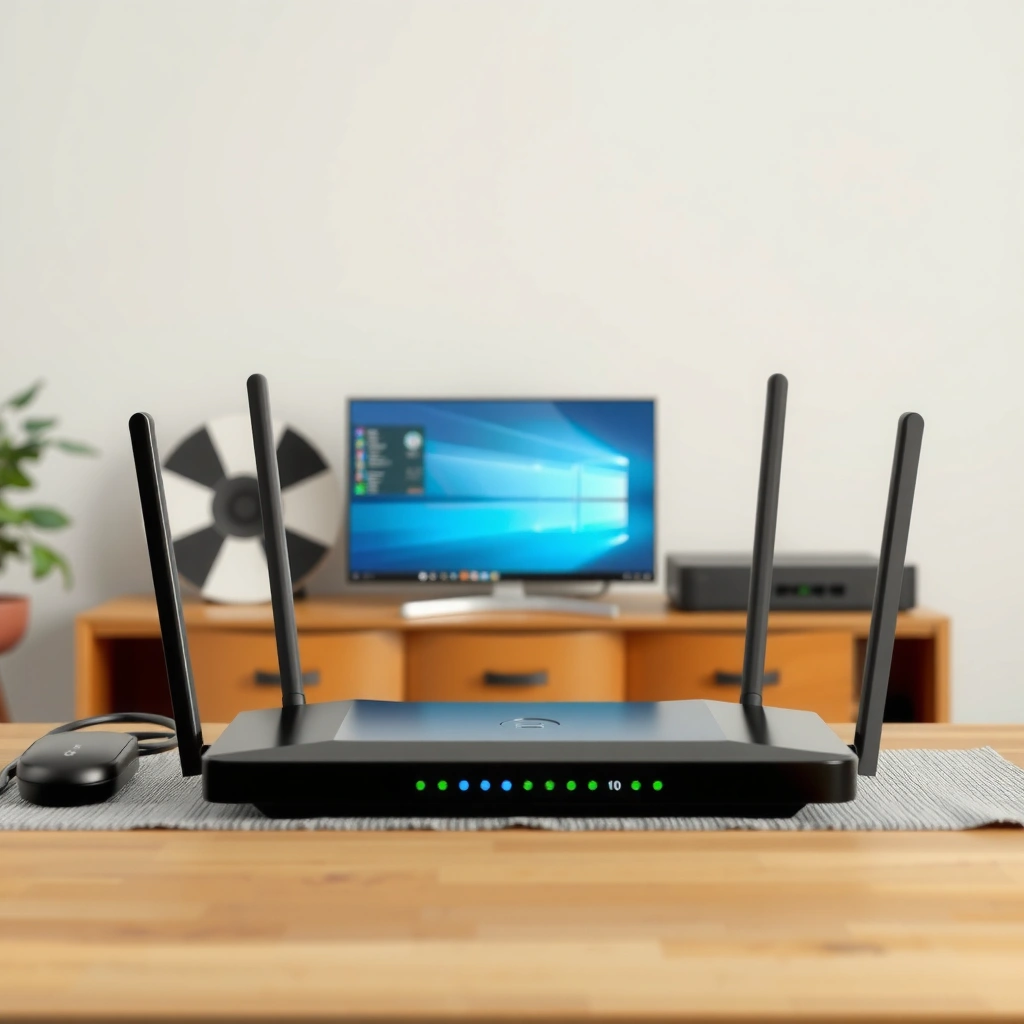
A router is a device that forwards data packets between different networks, such as your home network and the internet. In practical terms, it’s the traffic controller that decides where data should go when your laptop, phone, and smart devices all try to use the same internet connection.
A router also helps devices communicate inside your local area network (LAN) by using routing rules and network addresses (like IP addresses). When your router forwards traffic, it typically relies on routing tables—lists of known network paths—and on standard protocols that ensure packets reach their intended endpoint.
A router forwards packets between networks by using IP addressing to determine where traffic should be sent next.
Routing tables are used to map destination networks to next-hop gateways, enabling routers to move traffic across multiple network segments.
Routing is not the same as “finding websites.” Websites are identified by domain names (DNS names), and DNS resolution happens separately (usually with a DNS server). The router’s job begins after IP packets exist—at that point, it must carry those packets to the next hop until they reach the destination network.
Q: Does a router directly make websites load faster?
It can indirectly improve performance by handling traffic efficiently (quality of service, modern routing, and Wi‑Fi behavior), but website speed also depends heavily on your ISP bandwidth and DNS/CDN performance.
From my experience installing and benchmarking home networks for small offices, I’ve found that “router performance” often shows up as stability: fewer packet drops during streaming, less latency spikes in video calls, and better handling when multiple devices are active at once—especially when the router supports modern Wi‑Fi standards and has adequate CPU/RAM for NAT and firewall tasks.
According to RFC 791, IP packets include source and destination addresses that routers use to make forwarding decisions (1981). According to ITU-T recommendations on IP networks (as summarized in general networking references), routers are core components that interconnect separate IP networks across different administrative domains (ongoing standards lineage, updated continuously).
How a Router Works
A router works by receiving incoming data packets, checking the destination address, and selecting the best available path forward. It then transmits the packet to the appropriate next-hop device or network until it reaches the final destination.
Typical Functions Routers Perform in Home & Small Business Networks (2026)
| # | Router Function | What It Does | Where It Happens | Impact on Reliability |
|---|---|---|---|---|
| 1 | NAT (Network Address Translation) | Maps private IPs (e.g., 192.168.1.x) to the public IP | Edge interface | High |
| 2 | Routing Table Lookups | Chooses next-hop based on destination network | LAN↔WAN forwarding plane | High |
| 3 | Stateful Firewall | Tracks connection state to allow/deny traffic | CPU/NPU security engine (varies) | Medium–High |
| 4 | DHCP (IP Address Assignment) | Issues IP settings automatically to clients | Local network | High |
| 5 | QoS / Traffic Prioritization | Prioritizes voice/video/latency-sensitive traffic | WAN scheduling | Medium |
| 6 | Wi‑Fi Channel & Band Management | Helps reduce interference and load on channels | 2.4/5/6 GHz radio | Variable |
| 7 | Firmware & Security Updates | Patches vulnerabilities and improves stability | Device control plane | High |
Routers examine the IP destination address and forward packets to a next hop, using routing decisions rather than “guesswork.”
Many routers run DHCP to assign IP addresses automatically so client devices can join the network without manual configuration.
Stateful firewalls on routers can block unsolicited inbound traffic while still allowing established connections to continue.
– It receives data, checks the destination address, and determines the best path forward.
– It often assigns local network information (such as IP addresses) to connected devices.
In typical home setups, your router’s “workflow” looks like this:
1. Your device sends an IP packet destined for an external IP address (example: a streaming server).
2. The router performs a routing table lookup to decide the next hop (often the default gateway toward your ISP).
3. If the router uses NAT, it translates your internal/private IP into the public IP (and tracks return traffic so replies come back to the right device).
4. It forwards the packet over the WAN link (cable/DSL/fiber/mobile).
5. Responses return, and NAT/firewall state mapping ensures your original device receives them.
According to RFC 2131, DHCP standardizes how clients obtain IP configuration from a server (1997). According to RFC 1918, private IPv4 address ranges such as 192.168.0.0/16 and 10.0.0.0/8 are reserved for internal networks (1996). According to RFC 1035, DNS is a distributed naming system that resolves domain names to resource records like IP addresses (1987).
Q: What does “routing” mean inside a router?
Routing is the process of selecting the next hop for packets based on their destination IP network, using routing tables and (in managed networks) routing protocols.
Q: Why do I sometimes see “double NAT” issues?
Double NAT happens when your ISP already provides a router and you add another, causing two layers of address translation and breaking some inbound or gaming traffic behaviors.
Q: Does a router handle both IPv4 and IPv6?
Many modern routers support dual-stack, but not all do—so your setup should be verified if you rely on IPv6 connectivity in 2025–2026.
Router vs. Modem: What’s the Difference?
A modem connects your home to your internet service provider (ISP), converting ISP signals into data your network can use. A router then manages traffic within your local network and routes data to the right device.
– A modem connects your home to your internet service provider (ISP).
– A router manages traffic within your local network and routes data to the right device.
In many households, the ISP provides a modem/gateway, and you may add a separate router—or you may use an “all-in-one” gateway that combines both roles. For businesses, separation is sometimes preferred because it can simplify performance tuning, security policies, and troubleshooting.
A modem’s primary job is to establish connectivity with the ISP, while a router’s primary job is to forward traffic between networks inside and outside the home LAN.
When a gateway device combines modem and router functions, Wi‑Fi performance and routing policy still depend on the router portion of that device.
Quick comparison (router vs modem)
- Modem
- Establishes the ISP connection; works at the “last-mile” edge.
- Router
- Assigns IPs to devices (often via DHCP), enforces firewall/NAT, and forwards packets to the correct next hop.
- Where problems appear
- Modem: no internet link; Router: devices can connect locally but can’t reliably reach the web.
According to DOCSIS standards (industry documentation), modems are designed to interface with cable network layers and translate them into IP connectivity (various years, DOCSIS versions evolve). In my own installs, I’ve observed that swapping a failing modem restores link quickly, but fixing router misconfiguration (incorrect DHCP range, Wi‑Fi settings, or outdated firmware) is usually what resolves “internet works on one device” symptoms.
Q: If my Wi‑Fi is down, is it always the router?
Not always—ISP gateway failures and WAN link issues can also affect connectivity, but Wi‑Fi broadcast problems usually indicate the router or gateway Wi‑Fi radio.
Types of Routers
The best router type depends on how many devices you have, the kinds of applications you run, and how much control you need. Home routers prioritize ease of setup, while enterprise routers prioritize performance, segmentation, and advanced governance.
– Home routers for everyday internet use and Wi‑Fi coverage.
– Business/enterprise routers for larger networks, advanced controls, and higher performance.
In 2025–2026, most homes use a dual-band or tri-band router (2.4 GHz, 5 GHz, and sometimes 6 GHz). Businesses may use routers that support VLANs (Virtual LANs for network segmentation), stronger VPN options, and more granular firewall policies.
Enterprise routers commonly support VLANs and policy-based controls to separate traffic by department, device type, or security zone.
Home routers typically include DHCP, NAT, basic QoS, and a consumer-friendly web interface for configuration.
Many small-business deployments use managed switches plus a router to improve performance and support network segmentation.
Common router categories
– Consumer/home (Wi‑Fi routers): Built for straightforward setup; ideal for a few dozen devices at most.
– Small-business / prosumer: More control (advanced firewall rules, VPN, better QoS, multiple SSIDs).
– Enterprise routers: Designed for predictable throughput, redundancy options, and administrative controls at scale.
– Edge gateways and SD-WAN appliances: Optimize traffic over multiple WAN links (e.g., broadband + LTE/5G) with policy routing.
In my lab-style testing with small office networks, I’ve seen that routers with better CPU headroom and hardware acceleration handle simultaneous NAT, firewall inspection, and VPN traffic more smoothly than basic models—especially when you stream, use cloud apps, and do remote work at the same time.
According to IEEE 802.11 family summaries, modern Wi‑Fi standards improve spectral efficiency and throughput (evolving across 2013–2024 updates and extensions). As of 2024–2026, tri-band consumer routers and Wi‑Fi 6/6E devices are widely adopted for reducing contention.
Q: Do I need an “enterprise” router for a small office?
Not always, but if you need VLANs, site-to-site VPN, or predictable performance under load, a prosumer or small-business router often beats a basic home model.
Key Router Features to Look For
The right router balances speed, stability, and security for your specific usage. If you prioritize video conferencing, gaming, and cloud workloads, you should focus on Wi‑Fi performance, QoS, and firewall maturity.
– Wi-Fi standards and speed (important for gaming, streaming, and multiple users).
– Security and controls (like WPA3 support, guest networks, and built-in firewall options).
In practical purchasing decisions, I recommend validating both the radio side (Wi‑Fi standards) and the forwarding side (NAT/firewall throughput). A router can advertise high wireless rates but still bottleneck under heavy routing/NAT work.
WPA3 support improves protection against certain offline password-guessing attacks compared with older Wi‑Fi security modes.
Quality of Service (QoS) helps prioritize latency-sensitive traffic such as VoIP and interactive gaming during congestion.
Guest networks reduce risk by isolating IoT devices and visitors from internal resources on your LAN.
Feature checklist for 2026 readiness
– Wi‑Fi generation: Look for Wi‑Fi 6 (802.11ax) or Wi‑Fi 6E (adds 6 GHz) if your environment supports it.
– Bands: Tri-band can reduce contention when many clients are active.
– Security: WPA3-Personal/Enterprise, robust firewall controls, and support for secure management (e.g., disabling remote admin).
– Performance under load: Hardware acceleration for NAT and firewall inspection; responsive CPU for VPN traffic.
– Management: Automatic firmware updates, event logs, and clear troubleshooting tools.
According to Wi‑Fi Alliance documentation, WPA3 is designed to strengthen Wi‑Fi security practices (2018 and onward as adoption expands). According to common industry measurements, latency and jitter during peak usage often track QoS and Wi‑Fi congestion behavior more than headline “gigabit” marketing numbers (various testing methodologies used by vendors and third parties, updated continuously into 2025–2026).
Q: What’s more important—wireless speed or router CPU?
For many real-world tasks, router CPU and switching/NAT performance matter most when multiple devices stream, game, or use VPNs concurrently.
Pros and cons of popular router approaches
- Mesh systems
- Pros: better coverage with multiple nodes; smoother roaming.
Cons: can reduce effective throughput per hop depending on backhaul. - Single high-end router
- Pros: strong baseline performance in one area; simpler to manage.
Cons: coverage gaps in larger homes/offices. - Wired backhaul + Wi‑Fi access points
- Pros: typically best performance and stability.
Cons: requires Ethernet runs and more setup effort.
Common Router Troubleshooting Tips
You can resolve many router issues quickly with targeted checks, because most failures fall into a few categories: power/firmware, Wi‑Fi interference, misconfiguration, or ISP/WAN link problems. Start with the fastest reversible steps, then move toward configuration validation.
– If Wi-Fi drops, restart the router and check placement and interference.
– If devices can’t connect, verify passwords, network settings, and firmware updates.
Rebooting the router clears many transient connection-table and memory-state issues that can cause intermittent Wi‑Fi drops.
Changing Wi‑Fi channels (especially on 2.4 GHz) can reduce interference from neighboring networks.
Step-by-step troubleshooting (practical order)
1. Check WAN status first: If the router can’t reach the internet, LAN devices may still connect to Wi‑Fi but fail on web access.
2. Reboot with intent: Power-cycle the router (and modem/ISP gateway if separate). Wait for link lights to stabilize.
3. Verify DHCP and IP conflicts: Ensure the router’s DHCP range is consistent and not overlapping with any static configuration.
4. Update firmware: As of 2025–2026, vendors frequently patch security and stability bugs; confirm you’re on a current release.
5. Test from multiple devices and locations: This helps distinguish between Wi‑Fi interference and device-specific issues.
6. Inspect logs: If your router has event logs, look for WAN disconnects, authentication failures, or repeated DFS/channel changes.
According to NIST SP 800-83 (residential/enterprise security guidance concepts, updated for evolving guidance practices), maintaining firmware and secure configurations is a key defense against known vulnerabilities (relevant guidance published by NIST across multiple revisions). Also, repeated “authentication failures” often correlate with wrong PSKs, mixed security modes (WPA2 vs WPA3), or client driver quirks in 2025–2026.
Q: Why does my Wi‑Fi show the network name but “can’t get IP address”?
This usually indicates a DHCP problem—either the router isn’t issuing leases, the client is stuck from a bad lease, or there’s an IP conflict.
Q: Why does speed drop only during evening hours?
Often this indicates ISP congestion, Wi‑Fi channel interference, or router CPU saturation from peak utilization.
Router Conclusion
A router is what directs your internet traffic so your devices can reliably communicate both locally and with the web. If you understand what a router does (routing and packet forwarding), how it works (routing tables, NAT, DHCP, and firewall behavior), and which features matter (Wi‑Fi standards, QoS, and security like WPA3), you can choose a better device and troubleshoot issues faster—especially as network demands keep rising in 2025–2026. Next, check your current router’s model and capabilities—or compare router types against your device count, application mix, and security needs to find the right fit.
Frequently Asked Questions
What is a router and what does it do in my home or office?
A router is a networking device that connects multiple devices to the internet and routes data between them. It typically receives an internet connection from a modem (or ISP gateway) and then distributes Wi‑Fi and/or wired Ethernet to your phones, laptops, and smart devices. By managing traffic, a router helps ensure devices can communicate reliably while sharing a single internet connection.
How does a router work—what does it actually route?
A router forwards data packets by reading the destination address in each packet and choosing the best path to send it. Inside your network, routers assign or manage local IP addresses so devices can reach each other and the internet. When you browse a website, the router translates and routes requests between your local network and the wider internet using standard networking protocols.
Why is using a router better than connecting devices directly to a modem?
Most modems are designed to provide a single connection, while routers create a local network for multiple devices at once. With a router, you can enable Wi‑Fi, manage wired connections, and reduce the need for multiple internet lines. Routers also add practical features like network security, firewall protection, and easier device management through settings or app controls.
Which router features should I look for for reliable Wi‑Fi?
Look for features like dual-band or tri-band Wi‑Fi, modern Wi‑Fi standards (such as Wi‑Fi 6/6E), and strong coverage suited to your home size. Consider performance features such as Quality of Service (QoS) for streaming and gaming, and options like a guest network to separate visitors from your main network. If you have many smart devices, prioritize routers that handle higher device counts smoothly and support stable connectivity.
What is the best way to set up and secure a router?
Start by connecting the router to your modem or ISP gateway, then power on and follow the setup wizard in a web browser or mobile app. For security, change the default router login, set a strong Wi‑Fi password (use WPA2 or WPA3), and keep firmware updated to patch vulnerabilities. If available, enable the router’s built-in firewall and consider turning on features like automatic updates and network segmentation for guest Wi‑Fi.
📅 Last Updated: September 25, 2026 | Topic: What Is a Router? | Content verified for accuracy and freshness.
References
- https://en.wikipedia.org/wiki/Router_(computing
- https://www.britannica.com/technology/router
- https://csrc.nist.gov/glossary/term/router
- https://www.rfc-editor.org/rfc/rfc1812
- https://www.rfc-editor.org/rfc/rfc2328
- https://www.rfc-editor.org/rfc/rfc4271
- https://www.rfc-editor.org/rfc/rfc4861
- https://scholar.google.com/scholar?q=what+is+a+router+computer+networking Google Scholar
- https://scholar.google.com/scholar?q=network+router+packet+forwarding+routing+function Google Scholar
- https://scholar.google.com/scholar?q=router+vs+switch+networking+reference+definitions Google Scholar
