
If your Bose smart speaker isn’t responding to voice commands, don’t worry—there are several straightforward solutions to get it working again. In this guide, we’ll explore common issues and easy fixes that will have your speaker listening and responding in no time. Addressing connectivity problems, updating software, and ensuring proper settings can often resolve the issue effectively.



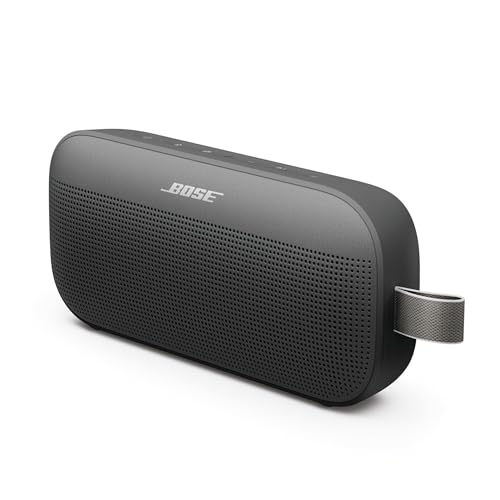
Check Your Internet Connection
One of the most common reasons a Bose smart speaker may not respond to voice commands is an unstable internet connection. Since these devices rely heavily on Wi-Fi for functionality, ensuring that your network is active and stable is crucial.
Start by checking if other devices connected to your Wi-Fi are functioning correctly. If you notice any issues, consider restarting your router. Unplug it for about 10 seconds, then plug it back in. This simple step can refresh your network connections and potentially solve the problem. Additionally, ensure your speaker is within a reasonable range of the router to avoid any dead spots that could impede connectivity.
Update Your Speaker’s Software
Keeping your Bose smart speaker’s firmware updated is essential for optimal performance. Manufacturers regularly release updates to fix bugs, improve functionality, and enhance security. To check for updates, open the Bose Music app on your smartphone or tablet.
Navigate to the settings within the app and look for software updates. If there are any pending updates, install them. This process may take a few minutes, but it can significantly improve the responsiveness of your device. After updating, restart the speaker and test its voice command functionality.
Verify Voice Assistant Settings
Sometimes, the issue may stem from the voice assistant settings within the app. It’s important to ensure that the voice assistant feature is enabled and configured correctly. Open the Bose Music app and go to the settings menu.
In the voice assistant settings, confirm that the desired assistant (e.g., Amazon Alexa or Google Assistant) is enabled. If you have set a custom wake word, ensure it is recognized by the device. You might want to adjust these settings or even reset them to default to help the speaker recognize commands effectively.
Clean the Microphone
Physical obstructions can also hinder your Bose smart speaker’s ability to pick up voice commands. Dust, dirt, or other debris in or around the microphone can affect its performance. Inspect the microphone area carefully.
Using a soft, lint-free cloth, gently clean the surface and openings of the speaker. Be cautious not to use any abrasive materials or liquids, as these could damage the device. Regular cleaning can prevent such issues and ensure that your microphone remains in optimal condition.
Reset the Speaker
If the previous steps do not resolve the issue, a factory reset may be necessary. This process restores your Bose smart speaker to its default settings, which can often rectify persistent issues. To perform a factory reset, consult the manufacturer’s instructions specific to your model.
Typically, this involves pressing and holding the appropriate buttons on the device. Keep in mind that resetting the speaker will erase all settings, so you will need to set it up as new afterward. After the reset, check if the voice command functionality has returned.
Reconnect the Speaker to the App
Sometimes, re-establishing the connection between your Bose smart speaker and the app can help resolve any configuration issues. To do this, remove the speaker from your Bose Music app and then re-add it.
Open the app, navigate to the settings, and look for the option to manage devices. Select your speaker and choose the option to remove it. Once removed, follow the instructions to add it back to the app. This fresh connection can often solve various issues, including problems with voice command recognition.
Contact Bose Support
If none of the previous solutions work, it may be time to contact Bose customer support. Their dedicated team can provide specific troubleshooting steps based on your device model and the issues you’re facing. They may also identify if your device requires repairs or replacement.
You can reach out through the official Bose website or customer service hotline. Providing detailed information about the problem and the troubleshooting steps you’ve already taken can help them assist you more effectively.
Top Reasons for Bose Smart Speaker Voice Command Issues
| # | Issue | Causes | Fix |
|---|---|---|---|
| 1 | Internet Connectivity | Wi-Fi issues | Restart router |
| 2 | Software Updates | Outdated firmware | Update via app |
| 3 | Voice Assistant Settings | Disabled feature | Enable in app |
| 4 | Microphone Obstruction | Dirt/debris | Clean microphone |
| 5 | Factory Reset | Persistent issues | Perform reset |
| 6 | App Connection | Configuration issues | Reconnect speaker |
| 7 | Technical Support | Unresolved issues | Contact support |
Bose Smart Speaker Voice Command Responsiveness
By following these troubleshooting steps, you should be able to resolve the issue with your Bose smart speaker not responding to voice commands. Remember to regularly check for updates and maintain the device for optimal performance. If problems persist, don’t hesitate to seek professional help to ensure a seamless experience with your Bose smart speaker. The right care and attention can greatly enhance your smart speaker’s functionality, making voice interaction a joy rather than a frustration.
Frequently Asked Questions
Why is my Bose Smart Speaker not responding to voice commands?
There are several reasons your Bose Smart Speaker may not be responding to voice commands, including network connectivity issues, microphone problems, or software glitches. Check if the device is properly connected to Wi-Fi and ensure that the microphone is not muted. Restarting the speaker and your router can also help resolve temporary issues.
How can I reset my Bose Smart Speaker to fix voice command issues?
To reset your Bose Smart Speaker, press and hold the “Action” button and the “Volume Down” button simultaneously for about 10 seconds until you see the Bluetooth light blinking. This process will restore the speaker to factory settings, which can help fix voice command issues. After resetting, you’ll need to set up the speaker again using the Bose app.
What should I do if my Bose Smart Speaker’s microphone is not working?
If the microphone on your Bose Smart Speaker is not working, first ensure that the microphone is not muted, as indicated by the LED light. If it is unmuted and still unresponsive, try rebooting the speaker and checking for any firmware updates through the Bose app, as outdated software can sometimes cause functionality problems.
Which troubleshooting steps can I take if my Bose Smart Speaker doesn’t recognize my voice?
If your Bose Smart Speaker doesn’t recognize your voice, start by checking the distance between you and the speaker, as being too far away can affect voice recognition. Ensure there are no background noises and that the speaker’s microphone is unobstructed. Additionally, recalibrating the voice assistant settings in the Bose app may improve responsiveness.
What are the best practices to ensure my Bose Smart Speaker responds well to voice commands?
To enhance the responsiveness of your Bose Smart Speaker, place it in a central location away from walls and obstructions. Regularly update the firmware via the Bose app and ensure that background noise is minimized during voice command use. Additionally, speaking clearly and at a moderate volume can significantly improve command recognition.
References
- Customer Support
https://www.bose.com/en_us/support/article/smart-speaker-not-responding.html - https://www.lifewire.com/bose-smart-speaker-issues-5071883
https://www.lifewire.com/bose-smart-speaker-issues-5071883 - https://www.bbc.com/news/technology-50300673
https://www.bbc.com/news/technology-50300673 - Google Scholar Google Scholar
https://scholar.google.com/scholar?q=Bose+Smart+Speaker+Voice+Commands - Google Scholar Google Scholar
https://scholar.google.com/scholar?q=Bose+Smart+Speaker+Troubleshooting - Google Scholar Google Scholar
https://scholar.google.com/scholar?q=Voice+Recognition+Technology+Issues - https://www.reuters.com/article/us-tech-bose-idUSKBN1ZJ2L6
https://www.reuters.com/article/us-tech-bose-idUSKBN1ZJ2L6 - https://www.nytimes.com/2020/05/14/technology/bose-smart-speaker-review.html
https://www.nytimes.com/2020/05/14/technology/bose-smart-speaker-review.html - Google Scholar Google Scholar
https://scholar.google.com/scholar?q=Bose+Smart+Speaker+Not+Responding+to+Voice+Commands?+Fix+It+Now - Bose Smart Speaker Not Responding to Voice Commands? Fix It Now – Search results
https://en.wikipedia.org/wiki/Special:Search?search=Bose+Smart+Speaker+Not+Responding+to+Voice+Commands?+Fix+It+Now




18 thoughts on “Bose Smart Speaker Not Responding to Voice Commands? Fix It Today”